
Overview
Apple Pay enables customers to complete purchases quickly and securely using payment methods stored in their Apple Wallet. In Znode, Apple Pay is supported through integration with Spreedly as the payment orchestration layer and a configured payment gateway such as Authorize.Net or CyberSource.
This feature allows administrators to offer a streamlined checkout experience that reduces manual data entry, improves conversion rates, and enhances payment security.
Prerequisites
- Access to the Admin Console with appropriate administrative permissions
- A payment gateway account (Authorize.Net or CyberSource)
- Apple Pay certificates and keys configured in the Apple Developer portal
- Domain certificate files (.pem) available for upload
- Basic configuration of Spreedly completed
Key Use Cases
- Enable Apple Pay as a payment method on the Storefront
- Configure gateway integration using Spreedly
- Associate payment configurations with a Store
- Upload domain certificates for secure Apple Pay transactions
How Apple Pay Works in Znode
- The customer selects Apple Pay during checkout.
- The customer authenticates using Face ID, Touch ID, or device passcode.
- Apple Pay generates a secure payment token.
- The token is processed through Spreedly.
- The configured payment gateway authorizes the transaction.
- Znode creates the order and updates the payment status.
Use Case 1: Create a Payment Configuration for Apple Pay
- Navigate to Admin Console > System Settings > Plugins > Installed Plugins.
- Open the Spreedly plugin.
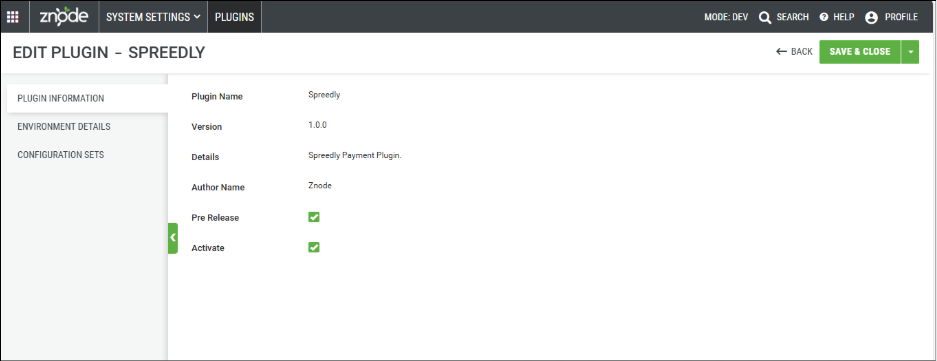
- Select the Configuration Sets tab.
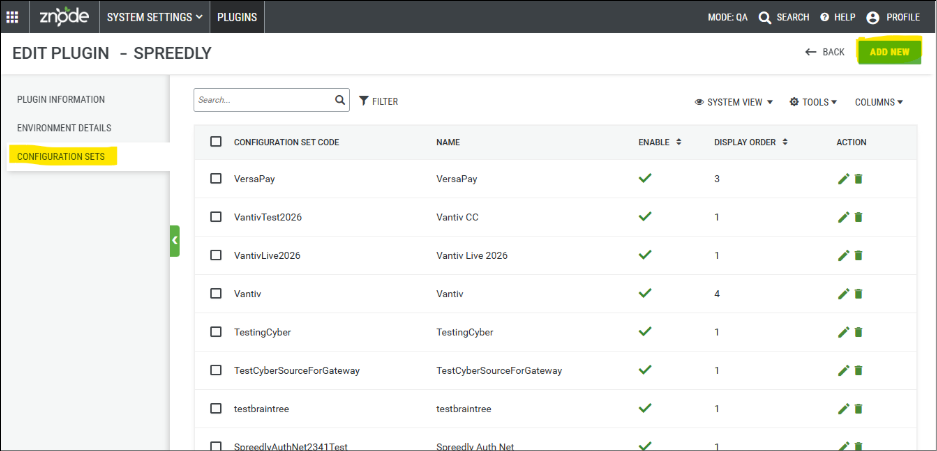
- Click Add New.
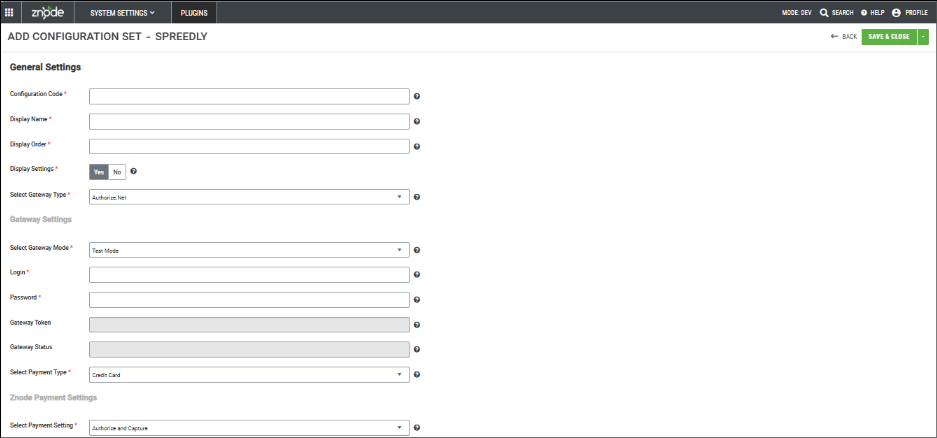
- Enter the required fields in General Settings:
- Configuration Code
- Display Name
- Display Order
- Display Settings
- Select the gateway type: Authorize.Net or CyberSource.
Configure Authorize.Net Gateway
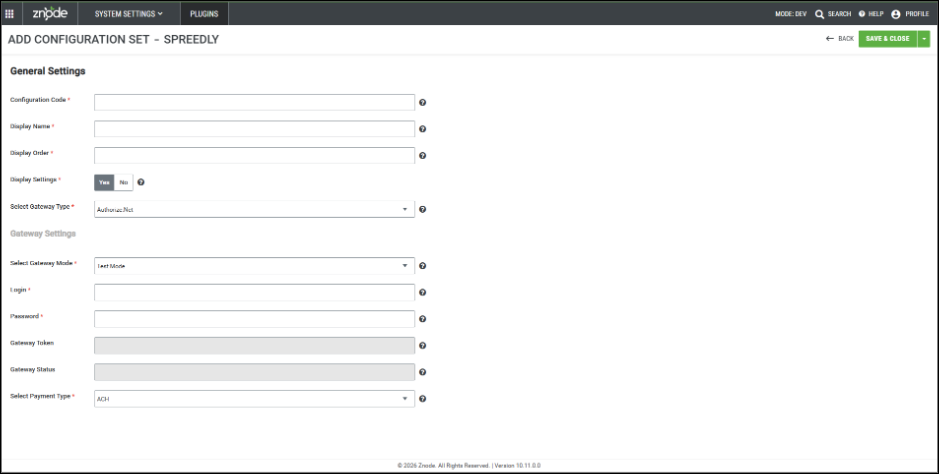
- Select Gateway Mode: Test or Live.
- Enter the Login ID.
- Enter the Transaction Key.
- Select Apple Pay in Payment Type.
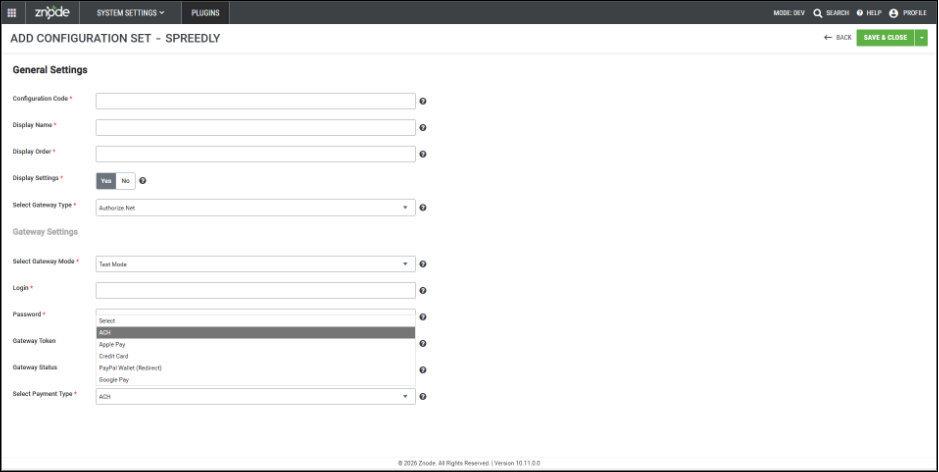
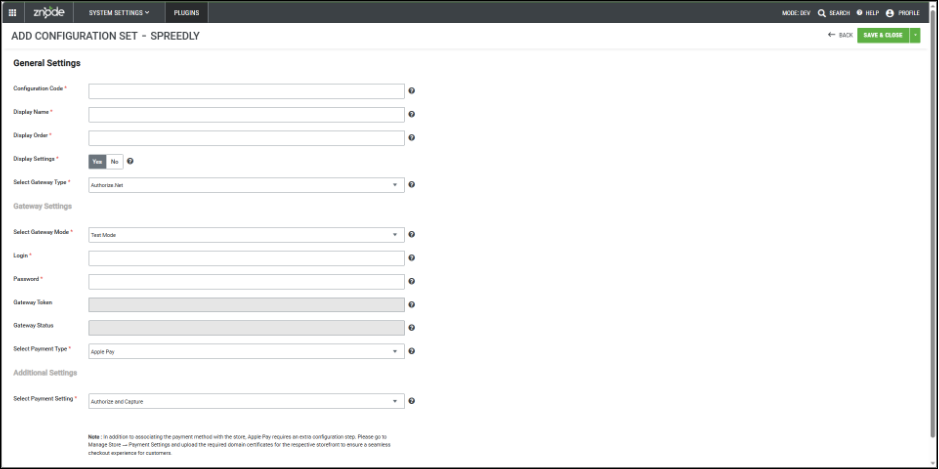
- Select payment behavior:
- Authorize Only
- Authorize and Capture
- (Optional) Enable Display Capture in OMS.
- Click Save or Save & Close.
Configure CyberSource Gateway
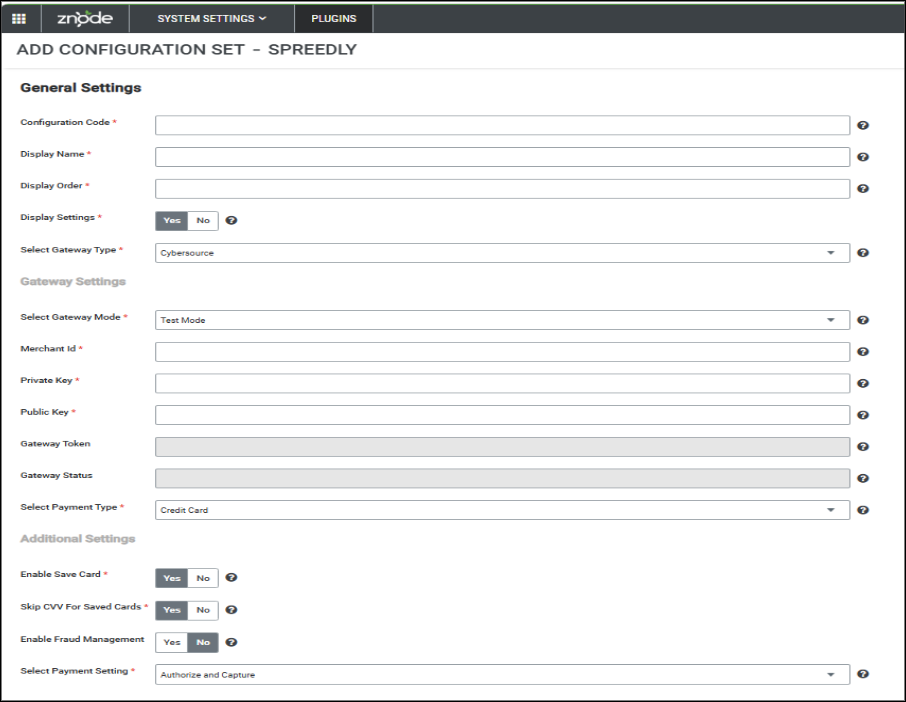
- Enter Merchant ID.
- Enter Private Key and Public Key.
- Select Apple Pay in Payment Type.
- (Optional) Enable Fraud Management.
- Select:
- Authorize Only
- Authorize and Capture
- (Optional) Enable Display Capture in OMS.
- Click Save or Save & Close.
Important
Apple Pay requires additional configuration. You must upload domain certificates in the Store Payment Settings for the payment method to work correctly.
Use Case 2: Associate Apple Pay Configuration with a Store
- Navigate to Admin Console > Stores.
- Select the Store.
- Click Webstore Payment Method.
- Click Associate Payment Method.
- Select the Apple Pay configuration.
- Click Save.
Validation
- The configuration appears in the associated payment methods list.
- A confirmation message indicates success.
Use Case 3: Configure Domain Certificates for Apple Pay
- Navigate to Admin Console > Stores.
- Open the Store.
- Click the Payment Settings tab.
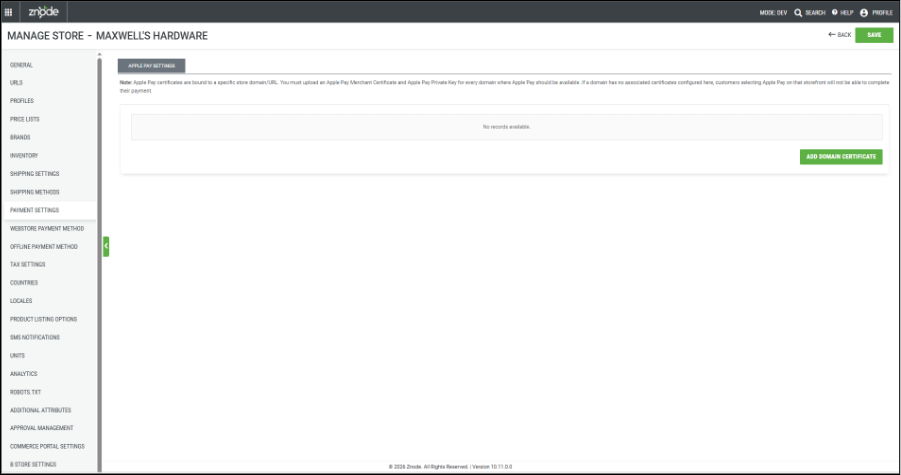
- Click Add Domain Certificate.
- Enter the required details:
- Store URL
- Merchant Certificate (.pem)
- Private Key (.pem)

- Click Save.
Validation
- A success message is displayed.
- The certificate record appears in the list.
Use Case 4: Verify Apple Pay on the Storefront
- Go to the Storefront.
- Add a product to the cart.
- Proceed to checkout.
- Verify Apple Pay is listed under Payment Type.
- Select Apple Pay and place the order.
Validation
- Apple Pay is visible and selectable.
- The order is successfully placed.
Managing Existing Configurations
Edit Configuration
- Navigate to Spreedly > Configuration Sets.
- Select a configuration.
- Click Edit.
- Update fields.
- Click Save.
Delete Configuration
- Navigate to Configuration Sets.
- Select a configuration.
- Click Delete.
- Confirm the action.
Remove Configuration from a Store
- Navigate to Admin Console > Stores.
- Open the Store.
- Click Webstore Payment Method.
- Select the configuration.
- Click Remove.
- Confirm the action.
Expected Outcomes
- Apple Pay is available during checkout.
- Payments are processed securely.
- Orders are created successfully after authorization.
Best Practices
- Test in Test Mode before enabling Live Mode.
- Ensure certificates are valid and mapped to correct domains.
- Verify on supported Apple devices and browsers.
- Use Authorize and Capture unless delayed capture is required.
Common Issues
- Apple Pay does not appear if domain certificates are missing.
- Invalid certificates can cause payment failures.
- Storefront domain must match the configured certificate.
- Incorrect gateway credentials will result in transaction errors.