
TABLE OF CONTENTS
- Overview
- Prerequisites
- Common Use Cases
- Understanding Attribute Types
- Add a Product Attribute
- Configure Attribute Settings
- Manage Locale-Specific Values
- Manage Attribute Values
- Delete a Product Attribute
- Limitations and Important Notes
- Best Practices
Overview
Product Attributes define the information associated with products in Znode. They serve as the foundation of the product data model and help Administrators manage product details that are displayed to customers, used in search, product comparisons, configurable products, and Storefront filtering. New products inherit attributes from the assigned Attribute Family.
Administrators can use default attributes provided by Znode or create custom attributes to meet specific business requirements.
Prerequisites
- Access to the Znode Admin Console.
- Permissions to manage Product Information Management (PIM) data.
- Required Attribute Groups have been created to add custom attributes.
Common Use Cases
Product Attributes can be used to:
- Store product specifications and descriptions.
- Create selectable product options such as colors, sizes, and brands.
- Support configurable products.
- Enable product comparison functionality.
- Improve product searchability.
- Configure Storefront facets and filters.
- Manage locale-specific attribute values for different regions.
Understanding Attribute Types
When creating an attribute, Attribute Type must be selected. The selected type determines what data users can enter and how Znode processes the information.
| Attribute Type | Purpose |
|---|---|
| Date | Creates a date field with optional minimum and maximum dates. |
| Label | Creates a text-based value used for filtering and supports multiple values. |
| Text | Accepts text input and supports validation rules, regular expressions, unique values, and personalization options. |
| Multi Select | Allows users to select multiple values from a list. |
| Yes/No | Displays a Yes/No toggle option. |
| Simple Select | Allows selection of a single value from a predefined list and can be used for configurable products and facets. |
| Number | Accepts numeric values with configurable limits and formatting rules. |
| File | Supports document and media file uploads with configurable size and extension restrictions. |
| Image | Supports image uploads with configurable size, extension, and multi-upload options. |
| Text Area | Provides a larger text field with character limits and optional WYSIWYG editing. |
| Link | Associates related products with a product. |
Add a Product Attribute
Use this procedure to create a new custom Product Attribute.
Steps
- Navigate to PIM > Product Attributes > Attributes.
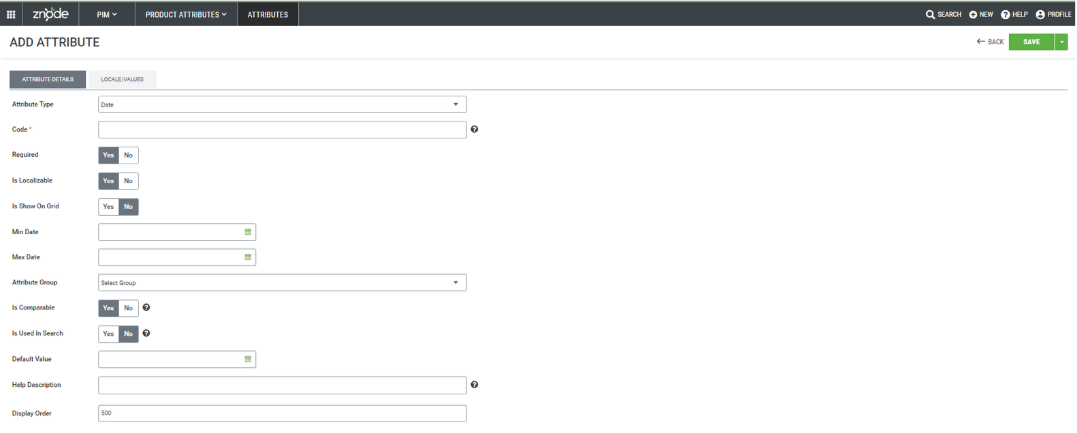
- Select Add/Edit Attributes.
- Select an Attribute Type.
- Enter a unique Code for the attribute.
- Specify whether the attribute is:
- Required
- Localizable
- Personalizable
- Displayed on the Product Grid page
- Configure any applicable attribute-specific settings:
- Validation Rule
- Regular Expression
- Minimum Date
- Maximum Date
- Maximum Characters
- Unique Value requirements
- Select the appropriate Attribute Group.
- Configure optional settings:
- Is Comparable
- Is Used In Search
- Default Value
- Help Description
- Display Order
- Save the attribute.
Expected Result
The new Product Attribute becomes available within the selected Attribute Group and can be assigned to products through the product management process.
Configure Attribute Settings
| Setting | Description |
|---|---|
| Attribute Type | Defines the data format accepted by the attribute. |
| Code | Unique alphanumeric identifier for the attribute. |
| Required | Determines whether a value must be provided. |
| Is Personalizable | Supports personalized values where applicable and are the ones that can be associated to the products by managing them under the personalization tab. Such attributes cannot be associated to any group. |
| Allowed Extensions | Allowed Extension (or Allowed File Extension) refers to the specific file types that a system, application, website, or upload control permits users to upload, import, or process. The supported file extensions are: .Bin, .Csv, .Doc, .Docx, .Dwg, .File, .Gz, .Pdf, .Ppt, .Rfa, .Tar, .Ttf, .Txt, .Xls, .Xlsx, .Zip |
| Allow Multiple Files | Allow Multiple Files is a setting that determines whether a user can upload or select more than one file in a single operation. When Allow Multiple Files = Yes/True, users can select and upload multiple files at once. When Allow Multiple Files = No/False, users can select and upload only one file at a time. |
| Is Localizable | Allows localized values for different languages and regions. |
| Is Shown on Grid | Displays the attribute as a column within applicable listing pages. |
| Validation Rule | Restricts accepted values using predefined validation options. |
| Regular Expression | Supports custom validation patterns. |
| Min Date | Earliest allowable date value for Date attributes. |
| Max Date | Latest allowable date value for Date attributes. |
| Max Characters | Limits the number of characters accepted. |
| Unique Value | Requires values to remain unique across records. |
| Attribute Group | Assigns the attribute to an attribute group. |
| Is Comparable | Enables use in product comparison functionality. |
| Is Used in Search | Includes the attribute in platform search operations. |
| Default Value | Sets a predefined value when the attribute is used. |
| Help Description | Displays instructional text for Administrators during data entry. |
| Display Order | Determines attribute position within its attribute group. |
Manage Locale-Specific Values
Localization allows different attribute values to be shown to customers based on their region or locale.
Steps
- Open the desired Product Attribute.
- Navigate to the Locale/Values section.
- Select the locale to update.
- Enter the translated or region-specific value.
- Save changes.
Expected Result
Customers see the value associated with their selected locale rather than the default value.
Manage Attribute Values
Certain attribute types support maintaining a predefined list of selectable values.
Supported attribute types include:
- Label
- Text
- Multi Select
- Simple Select
Add Attribute Values
- Navigate to PIM > Product Attributes > Attributes.
- Open the Product Attribute to manage values.
- Select the Locale/Values tab.
- Click Add New Value.
- Enter a unique value Code. The Code must be unique within the attribute and is used to identify the value.
- Enter the display value in the appropriate field.
- If required, select the value type:
- Swatch Image
- Swatch Text
- Text
- If applicable, configure the corresponding swatch image, swatch text, or text value.
- To make the value the default selection for the attribute, enable the Default Value option for the row.
- Click the Save action available on the value row. This saves the individual value record.
- Repeat the process for any additional values that need to be added.
- After all required values have been added or updated and each value row has been saved, click Save or Save & Close on the Edit Attribute page to commit the changes to the attribute.
Edit Attribute Values
- Open the required Product Attribute.
- Select the Locale/Values tab.
- Locate the value to modify.
- Update the required fields.
- Click the Save action available on the value row.
Important: When adding or editing an attribute value, the value row must be explicitly saved using the row-level Save action. If a value is added/modified and then click Save or Save & Close on the Edit Attribute page without first saving the value row, the new or updated value will not be persisted.
Expected Result
After the value row is successfully saved, the value becomes available for use by products associated with the attribute. If a value is marked as the default value, it is automatically selected when the attribute is applied according to the attribute's configuration.
Delete Attribute Values
- Open the required Product Attribute.
- Select the Locale/Values tab.
- Locate the value to remove.
- Delete the value from the grid.
- Save the change as required.
Supported Value Display Types
- Swatch Image
- Swatch Text
- Text
Value Precedence
Znode processes and displays values according to the following hierarchy:
- Swatch Image
- Swatch Text
- Text
This means:
- Swatch Image is displayed whenever an image value exists.
- Swatch Text is used when no image value exists.
- Text is displayed only when neither Swatch Image nor Swatch Text is available.
Delete a Product Attribute
Administrators can remove unused attributes from the system.
Steps
- Navigate to PIM > Product Attributes > Attributes.
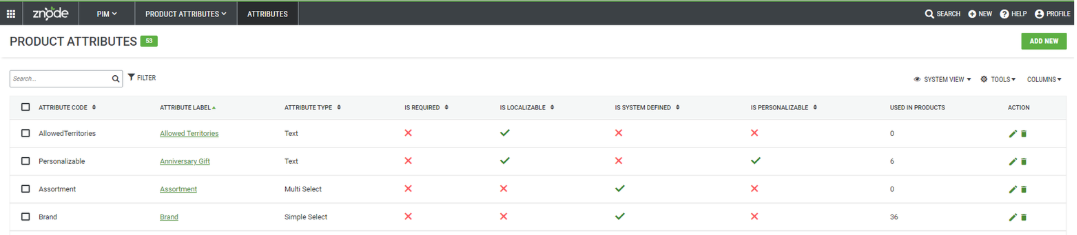
- Locate the attribute to remove.
- Select Delete.
- Confirm the deletion.
Expected Result
The selected attribute is removed from the system if it is eligible for deletion.
Limitations and Important Notes
- System-defined attributes cannot be deleted.
- Attributes currently assigned to products cannot be deleted.
- Number attributes require configuration of negative values, decimal support, and minimum and maximum values as needed.
- File and Image attributes require configuration of permitted file types and upload size limits.
- Text Area attributes support configurable character limits and optional WYSIWYG editing.
- Multi Select attributes support multiple values and lazy loading of localized values.
- For details on how attribute values are stored and how default behavior works when an attribute with a default value is associated with a product, please refer to this article --> https://support.znode.com/support/solutions/articles/43000756872-managing-products#Attribute-Value-Storage-and-Default-Behavior
- The "Required" setting is locked and non-editable for the following Product Attributes:
- Is Active
- SKU
- Product Name
- Shipping Cost
Best Practices
- Use meaningful attribute codes that clearly identify the attribute's purpose.
- Group related attributes together using Attribute Groups.
- Enable search and comparison settings only when they provide value to customers.
- Use localization for customer-facing attributes displayed in multiple regions.
- Configure display order thoughtfully to improve product maintenance and Storefront usability.