
Overview
Znode includes a native Form Builder within the CMS that allows Administrators to create custom forms and add them to content pages. When Customers submit a custom form on the Storefront, the submitted information is stored in the Admin Console.
Administrators can review form submissions across all stores, view submission details, and download files uploaded through form upload fields.
Use Cases
Administrators can use custom form submissions to:
- Review customer inquiries submitted through forms.
- Access information collected through surveys, registrations, or request forms.
- Download files submitted by customers as part of an application or request process.
- Monitor form activity across multiple stores from a centralized location.
View Custom Form Submissions
- Sign in to the Admin Console.
- Navigate to Custom Form Submissions.
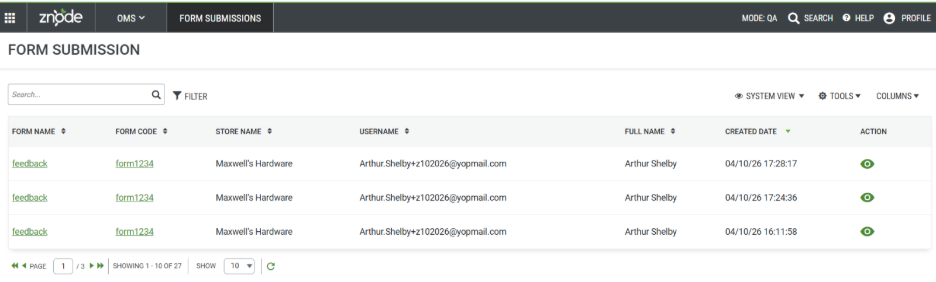
- View the list of submitted forms.
- The following details are displayed:
| Submission Detail | Description |
|---|---|
| Form Code | Code of the form. |
| Form Name | Name of the form. |
| Store Name | Name of the store where the form is available. |
| User Name | Name of the user who submitted the form. |
| Full Name | Full name provided in the submission. |
| Created Date | Date on which the form submission was received. |
| Action | Click the View icon to see detailed submission information. |
Expected Outcome
The submission list displays all custom form submissions across available stores. Administrators can view form details, submission information, and submission dates, helping them efficiently manage and review customer-provided data from a centralized location.
View Submission Details
- Open the Custom Form Submissions list.
- Locate the required submission.
- Click the View icon associated with the submission.
- Review the submitted form information on the details page.
Expected Outcome
The submission details page displays all information entered by the customer at the time of form submission. If the form contains file upload fields and attachments were submitted, Administrators can access and download the uploaded files.
Download Form Submissions
- Navigate to Custom Form Submissions.
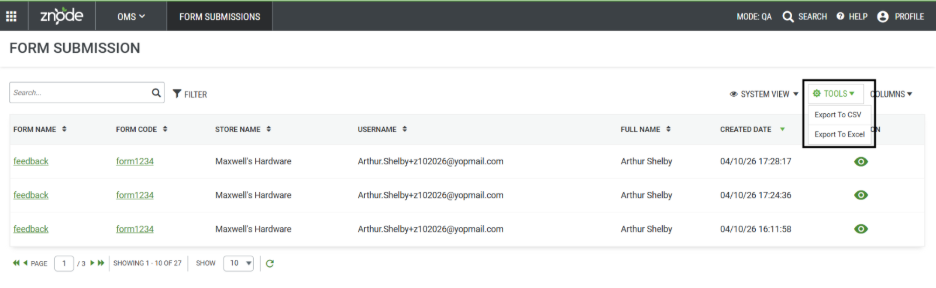
- Click Tools.
- Select Export to CSV or Export to Excel.
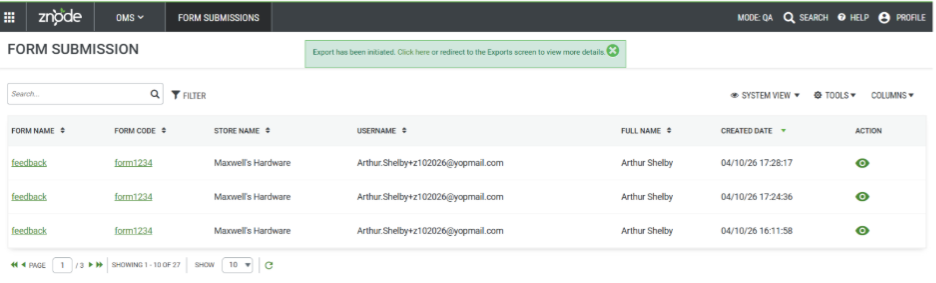
- A toast notification is displayed with a link to the export page.
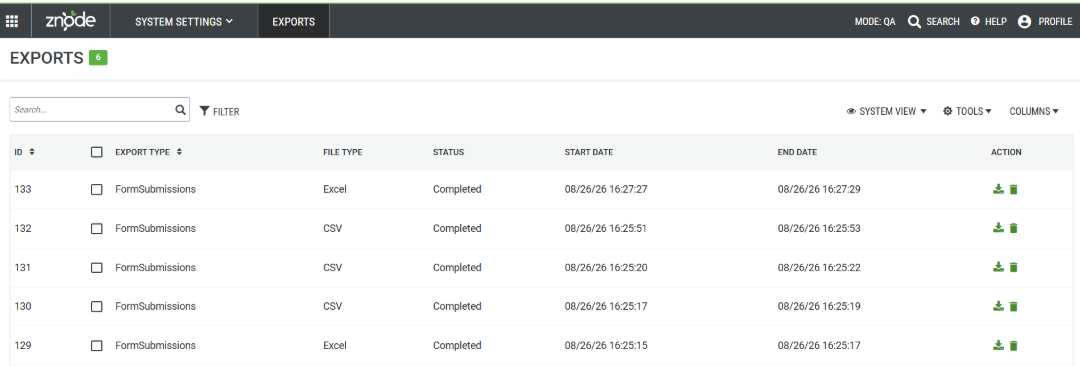
- Click the link provided in the notification.
- Download the exported file in the selected format.
Notes
- Form submissions are stored after a customer successfully submits a custom form on the Storefront.
- Administrators can view submissions from all available stores.
- File download functionality is available only when the custom form includes a file upload field and an attachment was submitted.
- Submission details reflect the information entered by the customer at the time of form submission.