
TABLE OF CONTENTS
Configure storage, image resizing, external media integration, and DAM behavior in Znode.
Overview
The Media Settings page in Znode’s Digital Asset Management (DAM) module is the central area for managing how images and files are stored, resized, synchronized, and rendered across the platform.
Administrators can:
- Configure Azure storage integration
- Synchronize existing media files
- Manage default fallback images
- Control image resizing behavior
- Enable external media sources
- Define URL patterns for external images
Accessing Media Settings
- Log in to Znode Admin Console
- Navigate to DAM → Media Settings
- Open Media Manager – Configuration Settings
Configuring Azure Storage
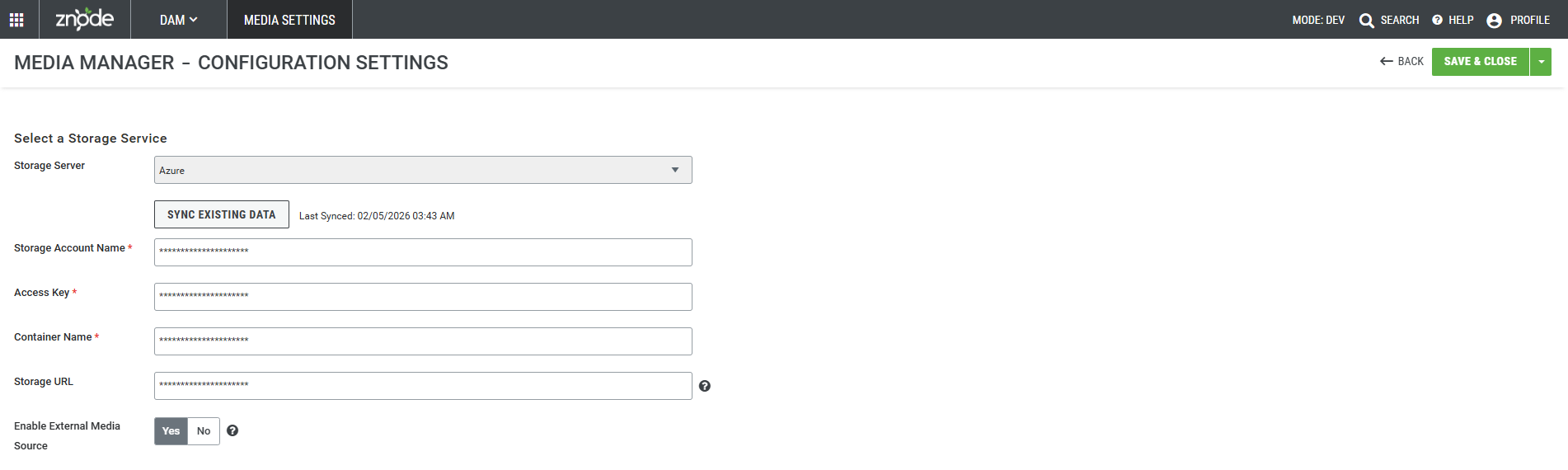
Azure is the default storage option used to store and retrieve media assets.
Storage Server (Default): Azure
Required Fields
- Storage Account Name – Azure storage account identifier
- Access Key – Authentication key for Azure
- Container Name – Blob container for media storage
- Storage URL – Endpoint to access media files
Sync Existing Data
Synchronizes existing media files with the configured storage system and displays the last sync timestamp.
Steps
- Enter Azure configuration details
- Click Save & Close
- Click Sync Existing Data
- Publish the store to apply changes
Default Image
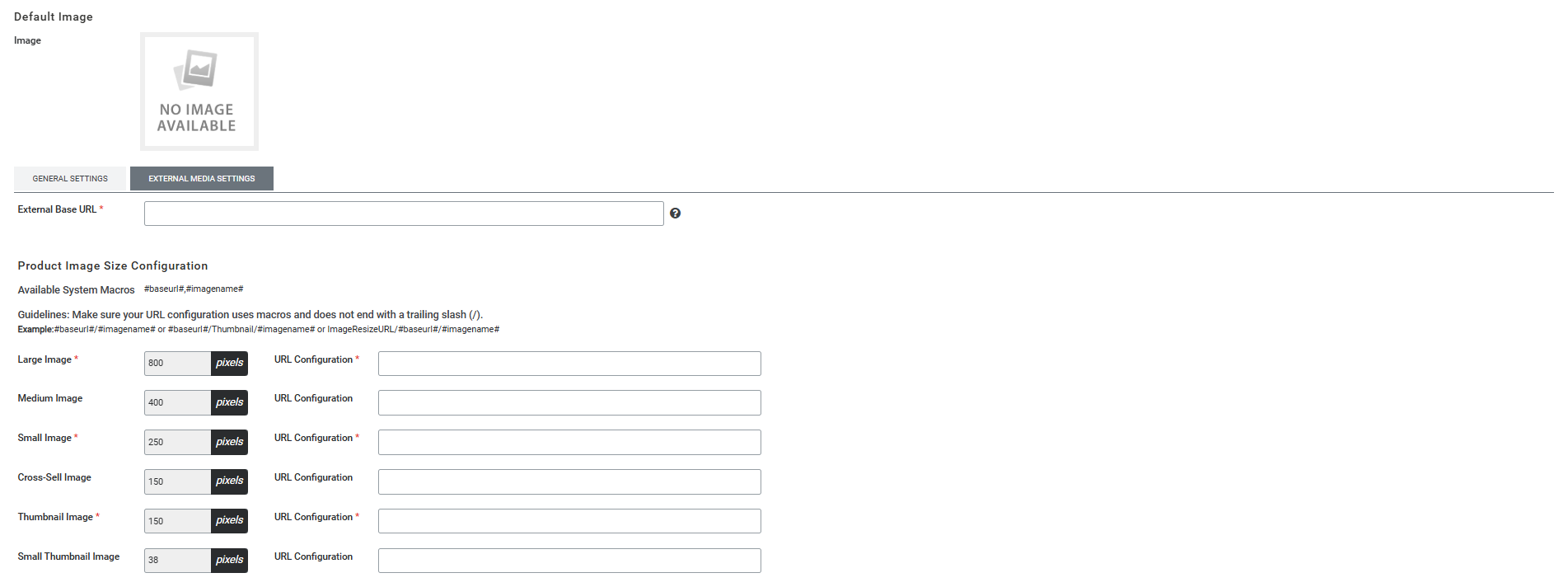
Defines the fallback image displayed when no product or entity image is available.
- Used for missing product images
- Used when image fails to load
- Fallback: “No Image Available”
Image Resize Settings
Controls how images are resized across storefront pages.
- Large (800px) – Product detail page
- Medium (400px) – Standard views
- Small (250px) – Listing pages
- Cross-sell (150px) – Recommendations
- Thumbnail (150px) – Preview images
- Small Thumbnail (80px) – Compact UI
Generate Images
Used to regenerate images when size configuration changes or during initial setup.
Supported Media File Types
- Images: JPG, JPEG, PNG, GIF, SVG, ICO
- Documents: PDF, DOC, DOCX, PPT, XLS, XLSX, TXT, CSV
- Audio: MP3, WAV, AAC, FLAC, MID, AIF, 3GA
- Video: MP4, WEBM, OGV
- Other: ZIP, TTF
Configuring the External Media Setting
Znode’s DAM system now supports integration with external media sources. This feature allows administrators to configure an external base URL and define URL patterns for rendering images across the platform.
Steps to Access
- Go to DAM → Media Settings in the Admin Console.
- Configure the server by adding the required details in the given fields (explained above).
- Below these fields, use the toggle button for Enable External Media Source.
When Enable External Media Source is set to YES, a new tab called External Media Settings is displayed. This section allows administrators to define how Znode should retrieve and render external images.
External Media Settings
External Base URL
This is a mandatory field where administrators must provide the fully qualified base URL of the external media system.
Example: http://mysite.com
Product Image Size Configuration
A dedicated section called Product Image Size Configuration allows administrators to configure how external images will be rendered across the platform.
Available System Macros
Macros are placeholders used to dynamically generate URLs for image rendering. Supported macros include:
- #baseurl# → Refers to the External Base URL entered above.
- #imagename# → Refers to the actual filename of the image.
These macros can be combined to align with the external system’s URL patterns. Example: #baseurl#/imagenames?size=800x800&type=jpg
Image Types and Recommended Sizes
Znode supports multiple image types, each with recommended resolutions. These fields are non-editable and indicate which sizes must be provided in the external media system:
- Large Image
- Medium Image
- Small Image
- Cross-Sell Image
- Thumbnail Image
- Small Thumbnail Image
Administrators must ensure that the external media system contains all required image sizes to maintain a consistent experience across product pages, grids, and promotions.
URL Configuration
This setting defines the URL structure Znode uses to retrieve images. Administrators can use macros to dynamically generate paths that match their external media system structure.
Configuring Product Images (External Media)
When External Media is enabled, product images can be sourced from internal DAM or external URLs.
Steps
- Go to PIM → Manage Products → Edit Product → Images
- Click Change Image
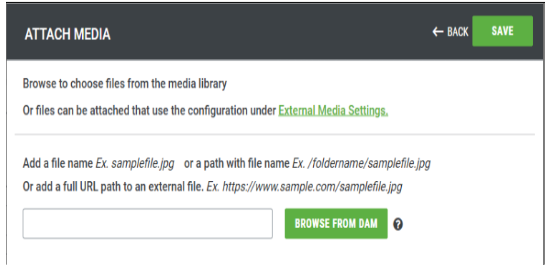
- Attach Media modal opens
Media Source Options
1. Browse from DAM (Internal Media)
Select images from internal DAM storage.
2. Add Filename (External Base URL)
Example:
- samplefile.jpg
- /foldername/samplefile.jpg
3. Add Full URL
Example: https://www.sample.com/samplefile.jpg

Saving Product Images
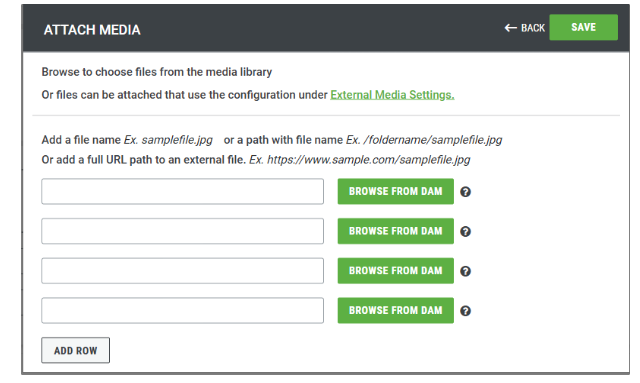
- Click Save & Close to associate image
- Multiple images can be added
Publishing Changes
Click Publish on the product to reflect updates on storefront.
Importing Media
Path: System Settings → Import
Media sources are mapped using: AttributeName_Source
Accepted Values
- InternalMedia – DAM storage
- ExternalMedia – External base URL
- FullURL – Complete external path
Associating Images from Multiple Media Sources Through Import
Znode allows administrators to bulk associate product images, category images, brand logos, product highlight images, and swatch images through the import process using multiple source types. Additional CSV columns with the suffix _Source indicate the location of each asset.
Import Process Steps
- Navigate to System Settings > Import
- Click on Add New
- Select the desired Locale ID
- Set the Import Type
- Select an existing import template or create a new one
CSV Changes for Media Source
For every image or file attribute, an additional column is added with the suffix _Source. This column specifies where the image should be loaded from.
- Product Import
- Category Import
- Brand Import
- Highlights Import (uses existing column HighlightImagePath)
- Attribute Default Value Import (uses existing column SwatchImagePath)
Accepted Values in “_Source” Columns
- InternalMedia – Images are loaded from Znode’s internal DAM (default if blank)
- ExternalMedia – Images are loaded from the external base URL configured in settings (only filename required, e.g., sample.jpg)
- FullURL – Images are loaded from a complete external path (e.g., https://mysite.com/sample.jpg)
Rules and Best Practices
- For InternalMedia, the filename should match what is configured in the media manager.
- For ExternalMedia, only filenames are required since the base URL is already configured.
- For FullURL, the complete image path must be included.
- Leaving the “_Source” column blank defaults to InternalMedia.
Security Guidelines
Do not store sensitive or confidential data in DAM.
Restricted Data Includes:
- Personal or customer data
- API keys or credentials
- Financial or legal documents
- Confidential business information
For more details on DAM Recommendations and Guidelines, Click here.