
TABLE OF CONTENTS
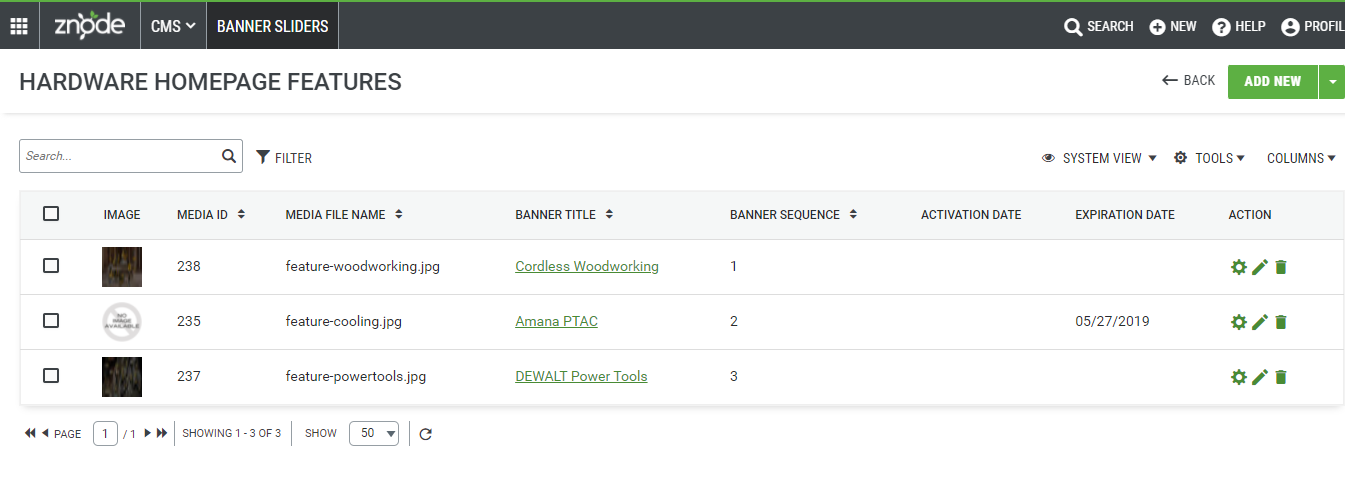
Navigate to: CMS > Banner Sliders > "Manage" action
Adding a Banner
Navigate to: CMS > Banner Sliders > Manage Banner Slider > “Add New” Button
Use the "Add Banner" button. Then, complete the "Add Banner" details.
Save Progress using the "Save" button.
Repeat #3 & 4 until all slider images have been uploaded.
Note: The "Banner Sequence" detail will display the slides in the slider group in sequential order.
Detail | Description |
Banner Title | Unique name for internal reference |
Image | Add or change the banner image using Media Explorer. |
Image Alt Text | Add the alternate text for the image. |
Banner Sequence | This number determines the sequence of the slides displayed when there are multiple slides. |
Banner URL/Link | URL to link the banner when clicked |
Banner Text | Rich Text Box is used to add text to slides |
Text Alignments | The selected value formats text is displayed as Left/Right/Center aligned. |
Activation Date | The banner is displayed starting on the date of activation. |
Expiration Date | The banner is disabled as of the date of expiration. |
| Show Banner For | The administrator can select an appropriate option from this dropdown.
Note: Existing banners must continue to function without modification, defaulting to “All Users.” |
Edit Banner
Navigate to: CMS > Banner Sliders > Manage Banner Slider > “Manage” Action
Make changes to the Banner details.
Save progress using the "Save" button. The page reloads with a confirmation message.
Delete Banner
Navigate to: CMS > Banner Sliders > Manage Banner Slider > “Delete” Action
Click the “Delete” action icon.
The page reloads with a confirmation message.