
TABLE OF CONTENTS
Introduction
Navigate to: CMS > Blog
Administrators can create and edit Blogs articles/posts from this section.
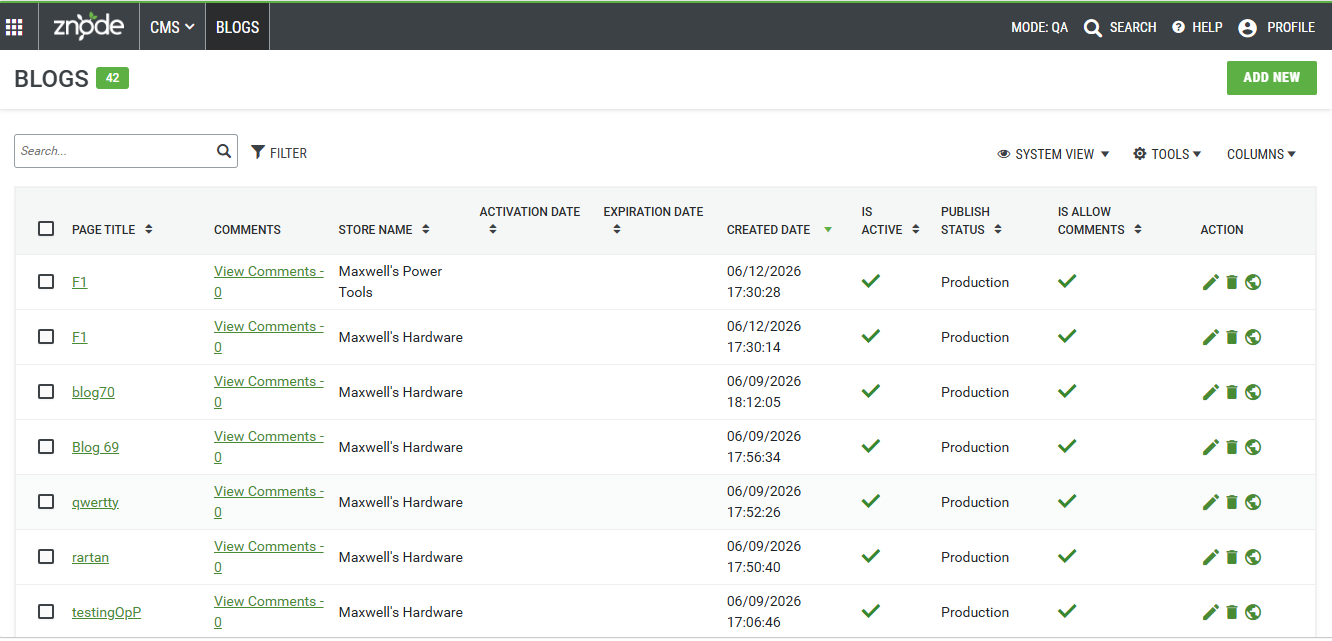
Blog Details
Detail | Description |
Page Title | Indicates Page Title of the Blog. |
Comments | Comments added by the user can be seen by clicking on the link from the list page. |
Store Name | Indicates the store for which the Blog article is created. |
Activation Date | Indicates the activation date of the Blog article. |
Expiration Date | Indicates the expiration date of the Blog article. |
Creation Date | Indicates the date on which the Blog article was created. |
Is Active | Indicates the status of the Blog article on the Storefront |
Publish Status | Indicates the publish status of the Blog article |
Is Allow Comments | Indicates if the comments on Blog are allowed on the Storefront |
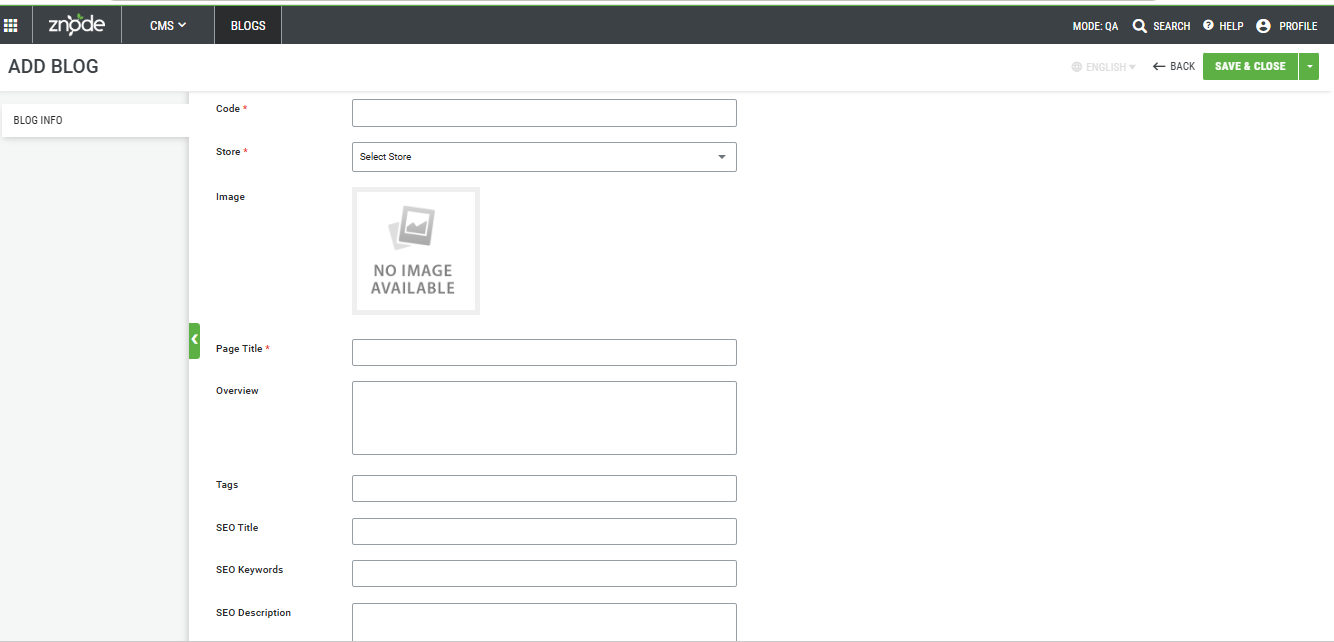
Additional Details of Blogs for Add/Edit screens
Detail | Description |
| Code | Add unique value which identifies Blogs |
| Store | Select the store for which the Blog needs to be created. |
| Image | Add an image for the Blog |
| Page Title | Add Page title for the Blog |
| Overview | Add overview of the Blog |
| Tags | Add Tags for the Blog |
| SEO Title | Add SEO Title for the Blog |
| SEO Keywords | Add SEO Keywords for the Blog |
| SEO Description | Add SEO Description for the Blog |
| SEO Friendly URL | Add SEO Friendly URL for the Blog |
| Is Active | Select this field to activate Blog/News on storefront |
| Comments Are Allowed | Select this field to enable comments for the created Blog article. |
| Activation Date | Select the date from which the Blog will be active. |
| Expiration Date | Select the date till which the Blog will be active. |
Adding a Blog Page
- Click on the “Add New” button.
- Add all the required details.
- After adding the details click on “Save or Save & Close”.
- The Blog article is added.
Editing a Blog Page
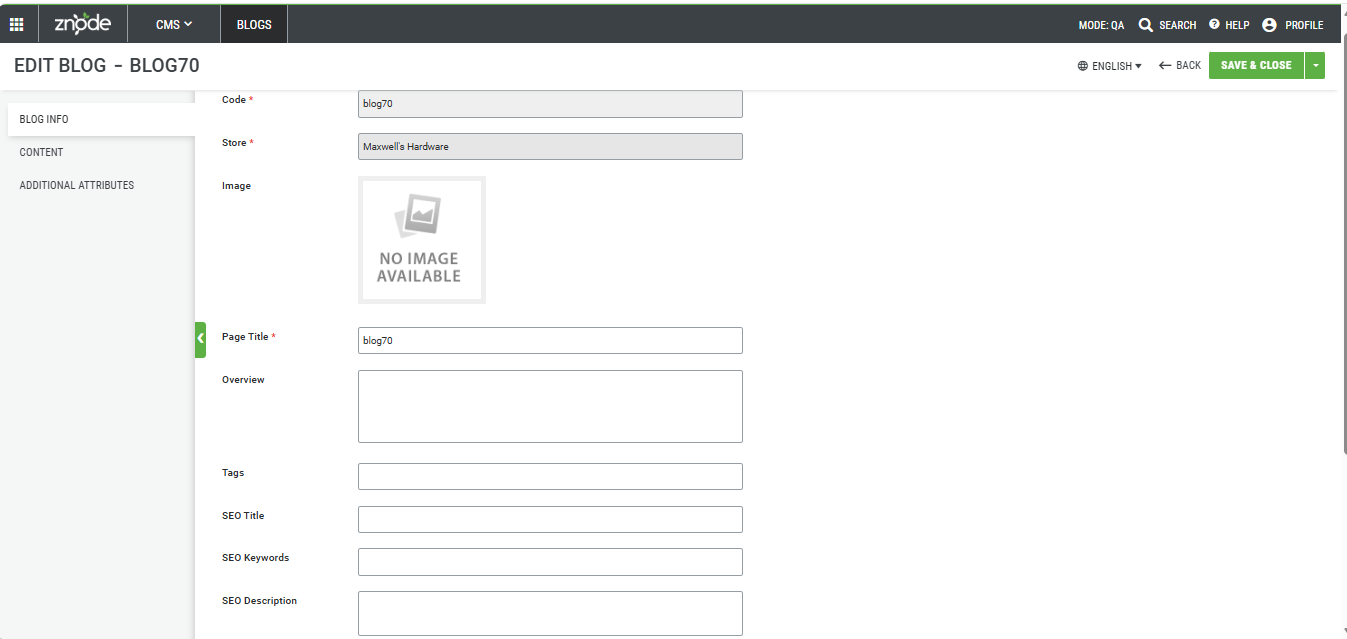
- Click on “Edit”
- Edit the details and click on “Save” or “Save & Close”
- After saving Publish the Blog (optional)
Deleting a Blog Page
- Click on “Delete”
- Confirm the action by clicking “OK”
- The Blog is now deleted.
Publish Blog
Navigate to: CMS > Blog
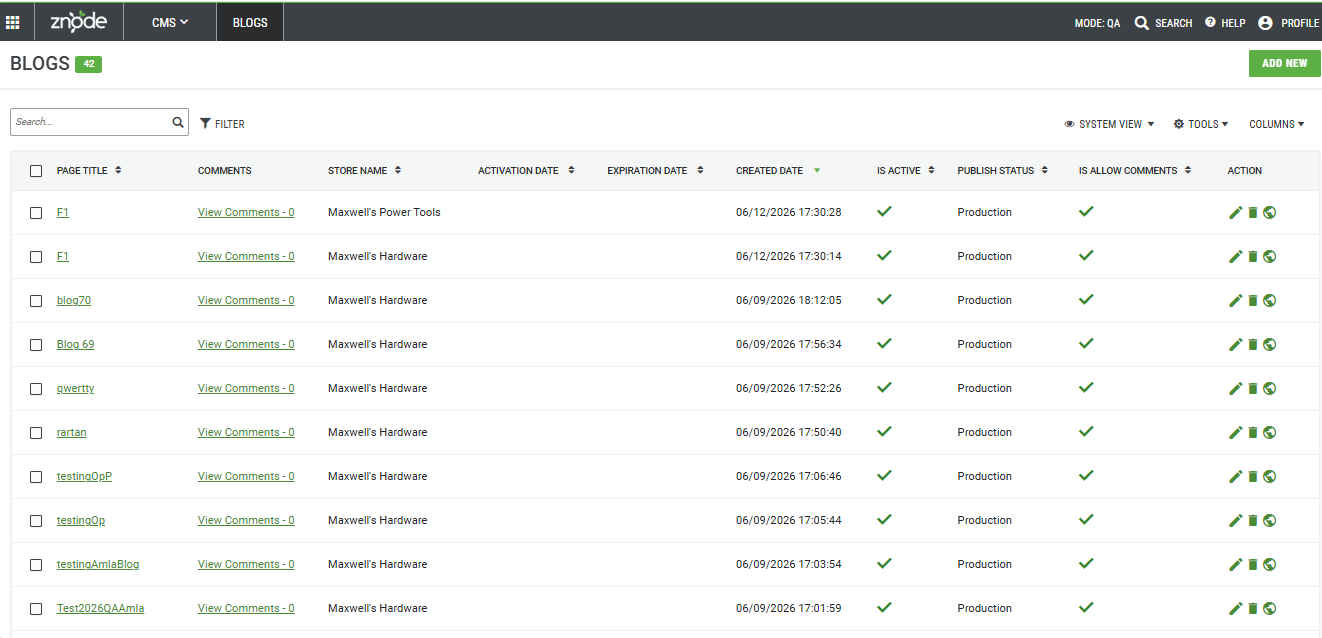
Before blogs can be seen in the storefront, it needs to be published. It can be published from the Action section or from the edit page.
Viewing Blogs
- To access the Blog Listing page, append/blog/list to your website URL (for example, https://www.example.com/blog/list).
- To access an individual Blog Details page, append/blog/{Page-title} to your website URL (for example, https://www.example.com/blog/my-first-blog).