
TABLE OF CONTENTS
- Purpose
- Overview
- Prerequisites
- Docker Desktop
- .NET (8.0)
- Znode CLI Access Tokens / NuGet Credentials
- Znode CLI: NuGet Source Configuration
- Znode CLI: Znode NuGet Source Configuration
- Znode CLI: Installation
- Znode CLI: Connect Command
- Znode CLI Access Token Permissions Explained
- Znode CLI: Setup Command
- Znode CLI Setup Command – Release Version Support
- Verifying Docker Storage Driver Configuration
- Znode CLI: Deploy Command
- Znode CLI: Update Copy Command
- Znode CLI: Info/Error Logs
- Queries and Remedies
Purpose
This article is a complete step-by-step guide for setting up the Znode custom development environment on a local machine. It also provides instructions for deploying custom changes into the Black Box environment. This document is intended for Znode custom implementation developers (internal or external).
Overview
The Znode CLI is a command-line utility that provides commands to download various Znode Software Development Kit (SDK) projects for custom development and deploy them on a configured Azure Kubernetes Service (AKS) cluster (Znode-managed Azure environment). It eliminates the need for additional installations or setup during development in the downloaded SDK project.
Prerequisites
The following software is required to configure the Znode CLI. These third-party software components might request elevated system access if they are being installed for the first time:
- Docker Desktop (optional for downloading SDK)
- .NET 8.0
- Node.js 20.0.0 or later (for Webstore SDK)
Docker Desktop
Docker is a platform for developing and running applications within containers. Containers are portable and isolated environments that bundle an application and its dependencies, ensuring consistency across various environments.
To check the installed Docker version, use the following command:
docker --version
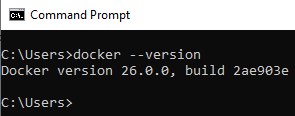
Docker Desktop is crucial for working with the Znode CLI. Without Docker, commands such as "deploy" will not function correctly, as they rely on Docker images stored in the AMLA repository.
Docker installation is optional when downloading the SDK using the "znode setup" command.
.NET (8.0)
The .NET Framework is required to execute Znode CLI commands. Commands will not run without this framework.
To check the installed version:
dotnet --version
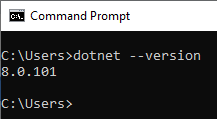
Note: If the .NET Framework is not installed, the CLI will prompt the user to install it. If the user selects "Yes," the installation will proceed. Otherwise, it will be skipped.
Znode CLI Access Tokens / NuGet Credentials
Each customer (tenant) has designated users. The following credentials are required to set up the CLI:
- Znode CLI Token (Per Developer Seat): Contact the Znode Support team to obtain a CLI token if not already available. The token is unique to each client's user.
- Example: Znode is a tenant and Joy.Jocab is a user for that tenant. A token can be generated for Joy under Znode.
- Token Example:
BiuL7AFvSJRU - Znode NuGet Access (Per Project): Contact the Znode Support team to acquire access to the Znode NuGet package repository.
Znode CLI: NuGet Source Configuration
To add the Znode CLI package source:
dotnet nuget add source "https://nuget.znode.com/nuget" -n "NugetZnode10xCLI" -u "<username>" -p "<password>" --store-password-in-clear-text
- Username: A tenant user with NuGet access.
- Password: The password of the above user.
Example:
dotnet nuget add source "https://nuget.znode.com/nuget" -n "NugetZnode10xCLI" -u "User1@Znode.com" -p "Password@123" --store-password-in-clear-text
Note:
To list available NuGet sources, use:
dotnet nuget list source
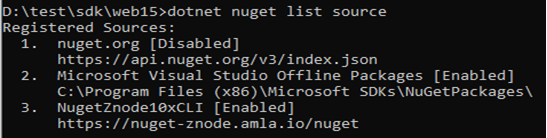
If the source already exists, remove it using:
dotnet nuget remove source <SourceName>
<SourceName> can be seen from the previous source list command.

Znode CLI: Znode NuGet Source Configuration
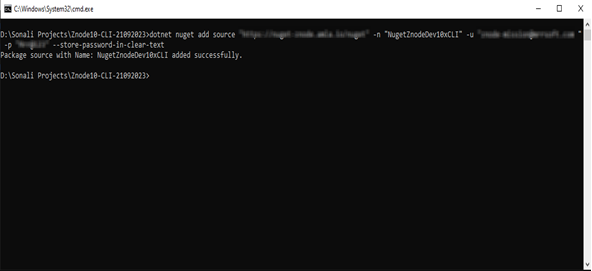
To add this source to the system:
- Open the command prompt and enter the dotnet nuget add source command using the provided command.
- Substitute the placeholders <username> and <password> with the authentic NuGet package source credentials, obtainable from the Znode administrator along with the Znode CLI access token.
- Press Enter to execute the command.
Znode CLI: Installation
To install the Znode CLI tool:
dotnet tool install Znode.CLI -g
To upgrade to the latest version:
dotnet tool update Znode.CLI -g
To uninstall:
dotnet tool uninstall Znode.CLI -g
Znode CLI: Connect Command
Command syntax:
znode connect <token>
The connect command authenticates a developer using the CLI access token. Each token defines access to specific SDKs or environments.
Tokens may grant permissions to:
- Set up only Webstore SDK
- Set up only Custom API SDK
- Set up both SDKs
- Tokens may restrict deployment to specific environments (for example, DEV, QA, PROD).
Each session remains valid for six hours. Once expired, re-authentication is required.
To retrieve token details:

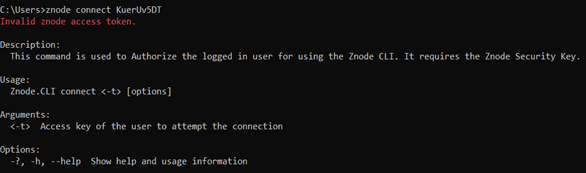
znode connect info
Note:
- Tokens are valid for one year from creation.
- The session timeout is six hours.
Znode CLI Access Token Permissions Explained
The CLI access token used with the connect command has permissions based on the Developer Role.
SDK-Level Permission
Znode 10 provides three SDK permissions:
- Webstore: For front-end developers working on Webstore customizations.
- Custom API: For developers implementing business logic through APIs.
- All: For developers working on both front-end and APIs.
Hosted Environment-Level Permission
Znode 10 hosts environments per tenant (for example, Production, Stage, QA). Token permissions control deployment access. Some developers may have deployment access only to non-production environments.
Znode CLI: Setup Command
This command downloads the SDK project source and requires the security key already used during the CLI login.
Note: Ensure that the setup command is executed inside a folder located at the root of a drive, and not directly from the root of the drive. This ensures that the downloaded SDKs are installed in the specified folder.
Example:
✅ Valid
- D:\Znode10CLI
- D:\dev\znode-10
❌ Invalid
- C:\
- D:\
- D:\dev folder\new folder
- D:\cli download
Important: Do not execute znode setup directly from the root of a drive (C:\, D:\, etc.). The setup command must be executed from a dedicated folder. Also, avoid spaces in the complete path.
This configuration is specific to the setup and update commands of Znode-CLI.
Once the setup folder requirements above are met, the available setup options can be viewed by running:
znode setup -h
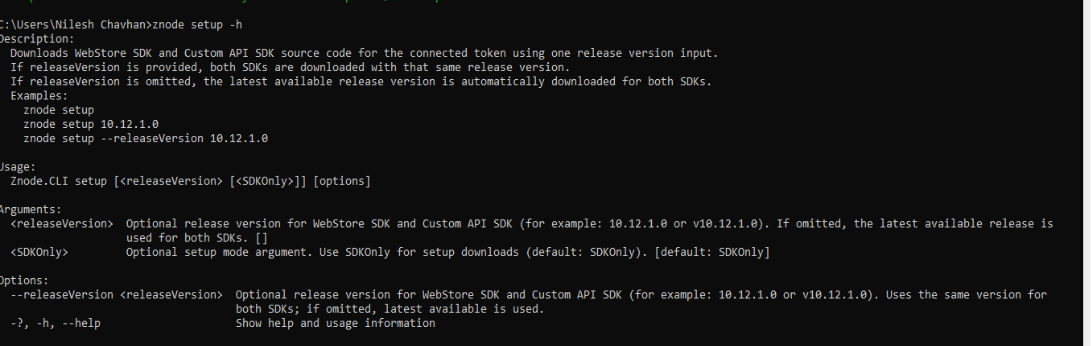
To execute setup:
Before executing the command, ensure that the setup folder requirements mentioned above are met. Run the following command to start the setup process and download the SDK project source:
znode setup
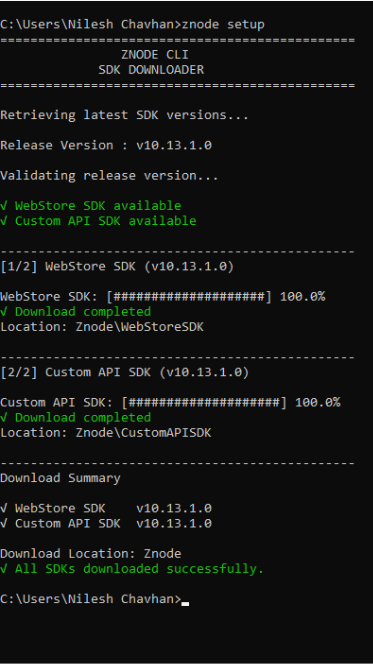
Important: The znode setup command does not overwrite or re-download source files that already exist in the setup location. Existing files may therefore be retained when setup is executed again.
Notes:
- After completing the setup, perform the following steps to configure and run the Webstore.
- Open the SDK Project
Open the downloaded SDK project in the preferred IDE (for example, Visual Studio Code) and navigate to the root directory of the SDK project. Open the terminal in the root folder of the project as all the Webstore-related commands should be executed from the project root. Once the SDK project is open and the terminal is positioned at the project root, proceed with the Webstore configuration steps below. - All subsequent
npmandnxcommands must be executed from this SDK project root. Do not run thenpmandnxcommands from the parent setup folder or from the drive root. Ensure that the terminal is opened at the SDK project root. This ensures that the commands are executed against the correct project and that the required dependencies and configuration files are located correctly. - Configure the .env file
Update the URLs and environment-specific configuration in the.envfile to point the Webstore to the required hosted/target environment. By default, the.envfile is configured with the Znode10-Sandbox environment details. If no changes are made, running the Webstore will connect to the Sandbox environment.
Path for .env files:
- Webstore:
apps\webstore\.env - Pagebuilder:
apps\page-builder\.env
Example:
API_URL="https://apigateways-z10-sandbox.znodestore.com/"
API_DOMAIN="api-z10-sandbox.znodestore.com"
API_V2_DOMAIN="api-v2-z10-sandbox.znodestore.com"
API_KEY="<API_KEY>"
Replace the API_KEY and other environment-specific values with the credentials and configuration provided for the target environment.
- Add Webstore scripts to package.json
For easier execution of the Webstore and Page Builder applications, add the following scripts to thescriptssection of thepackage.jsonfile:
{
  "scripts": {
    "webstore:dev": "nx dev webstore",
    "webstore:build": "nx build webstore",
    "page-builder:dev": "nx dev page-builder",
    "page-builder:build": "nx build page-builder"
  }
}
These scripts are optional and are not mandatory to be used/applied; however, they provide convenient commands for running the applications in development mode and building them for deployment.
- Install dependencies and run the applications
Ensure that the terminal is placed at the project root.
Install the required project dependencies before starting the applications using:
npm i
After the dependencies are installed, use the appropriate command mentioned below to start the required application.
The Webstore uses the configuration specified in the .env file.
- If the
.envfile contains the default Sandbox configuration, the Webstore runs against the Znode10-Sandbox environment. - If the
.envfile has been updated with another environment's configuration, the Webstore uses that environment.
To run the Webstore:
npx nx dev webstore
To run the Page Builder:
npx nx dev page-builder
The application will use the configuration specified in the .env file. If the .env file is left unchanged, the application will run against the default Znode10-Sandbox environment. If the .env file is updated, the application will use the configuration of the specified target environment.
Znode CLI Setup Command – Release Version Support
The setup command now supports downloading SDK source code using either a specific release version or the latest available release.
Supported Commands
Download a specific release version:
znode setup --releaseVersion v10.12.1.0
or
znode setup v10.12.1.0
Download the latest available release:
znode setup
Supported Version Formats
- 10.12.1.0
- V10.12.1.0
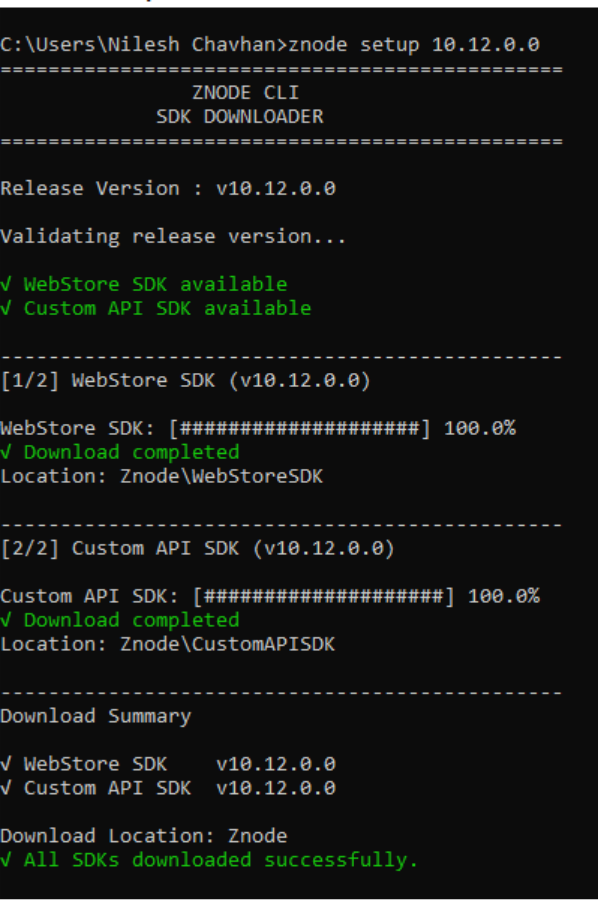
Behavior
When a release version is provided:
The CLI validates the version and downloads the matching Webstore SDK and Custom API SDK.
When no release version is provided:
The CLI automatically identifies the latest available release version and downloads the corresponding SDKs.
Validation Messages
The CLI displays clear messages when:
- The release version format is invalid.
- The requested release version does not exist.
- Authentication or authorization issues prevent access.
Verifying Docker Storage Driver Configuration
Once the Docker version has been confirmed, the next step is to verify which storage driver Docker is using.
Run the following command:
docker info --format '{{.DriverStatus}}'
If the output is similar to the following, Docker is using a newer storage mode instead of the classic overlay2 driver:
[["driver-type","io.containerd.snapshotter.v1"]]
Applying the Fix
If the above output is observed, set the following environment variable before running znode deploy:
BUILDX_NO_DEFAULT_ATTESTATIONS=1
This setting does not switch Docker back to the classic storage driver. It only prevents Docker from adding extra build information (attestations) to the image, which is known to cause the znode deploy command to fail.
Expected Configuration
If the output is similar to the following, Docker is correctly configured with the classic overlay2 storage driver:
[[Backing Filesystem extfs] [Supports d_type true] [Using metacopy false] [Native Overlay Diff false] [userxattr false]]
If this configuration is observed, no action is required and there is no need to set:
BUILDX_NO_DEFAULT_ATTESTATIONS=1
Znode CLI: Deploy Command
This command deploys Webstore or Custom APIs SDK source code to the connected AKS environment.
Command:
znode deploy <SDKCode> <DeploymentEnvironment>
Examples:
znode deploy WebStoreSDK DEV
znode deploy CustomAPISDK DEV
- Optional parameters: SourcePath and ReleaseFolderPath
- For Webstore SDK, ReleaseFolderPath is not required
- The command confirms deployment details before proceeding
- The command validates token permissions for the selected SDK and environment
Notes:
- The solution is built locally.
- An image is tagged using the current timestamp format:
<ACRPath>/<ImageName>:<YYYYddMM>-<HHmmss> - The image is pushed to the ACR and deployed to AKS.
- If a Docker image error occurs, run:
docker pull <ACRServer>/<RepositoryName>:<image-tag>
Ensure CustomApiSDK and WebstoreSDK images are correctly defined in the docker-compose.yml file.
Znode CLI: Update Copy Command
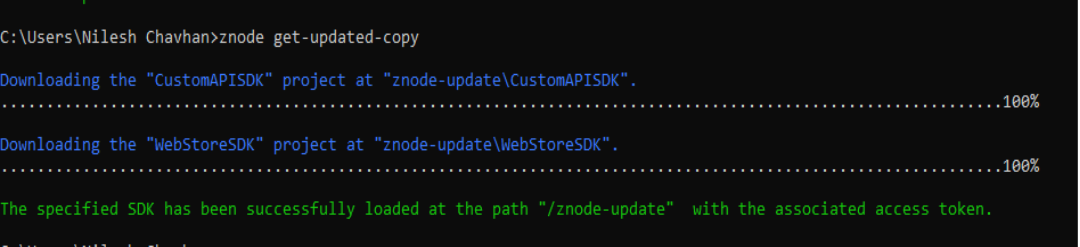
This command fetches the latest updates for Webstore and Custom API SDKs.
Command:
znode get-updated-copy
Notes:
- Must be run within a project directory (not the root of a drive).
- ✅ Valid: D:\dev\znode-10
- ❌ Invalid: C:\ or directories with spaces such as D:\dev\new folder
Znode CLI: Info/Error Logs
Logs are stored at:
%UserProfile%\AppData\Local\ZnodeCLILogs\
Note: Log paths may vary on macOS or other operating systems.
Queries and Remedies
Expired Token
If the token has expired and znode connect info shows no setup details, rerun the following command:
znode setup
Znode CLI Installation Issues
Remove and re-add the NuGet source using valid credentials from the Znode administrator, as described in the NuGet configuration section.
WSL Resource Usage
If Windows Subsystem for Linux (WSL) is straining system resources:
wsl --shutdown
Then:
- Close Docker Desktop notification.
- From the system tray, right-click Docker Desktop.
- Click "Restart" and confirm in the popup.