
Introduction
The Znode Webstore front-end is a modern, scalable Ecommerce interface built for performance, usability, and responsiveness. It features a modular architecture with reusable components for core areas such as product listings, cart, and checkout. The application communicates with Znode’s back-end via RESTful APIs for real-time data, enabling dynamic content, user sessions, and secure transactions. Key optimizations include server-side rendering (SSR), code splitting, and Content Delivery Network (CDN) usage for fast loading and search engine optimization (SEO). The result is a secure, interactive, and user-friendly shopping experience aligned with modern web standards.
Prerequisites
The development setup includes command-line interface (CLI) installation, the Webstore Software Development Kit (SDK), environment variables, and other configurations. It is also essential to ensure the Webstore application is running correctly.
For detailed instructions on setting up the local development environment, refer to the Development Setup Guide.
Ensure the environment variables listed below are properly configured after completing the development setup.
Environment Variables
Set the following variables in the .env file located at the root of the project. These environment variables are essential for configuring authentication, APIs, caching, security, and third-party integrations.
Authentication Section
| Variable | Description | Example |
| NEXTAUTH_URL | Base URL for NextAuth authentication callbacks. | http://localhost:3000 |
| NEXTAUTH_SECRET | Secret key for encrypting JWTs and securing cookies. This can be any value the customer prefers. | ABCDEF Its can be any value customer is preferred) |
API Configuration Section
| Variable | Description | Example |
| API_URL | Base URL for the back-end API. | https://backend-api.com/api |
| API_DOMAIN | Domain name from the API_URL. | api-domain-name |
| API_V2_DOMAIN | Domain for accessing version two of the API. | api-v2-domain-name |
| API_KEY | API key for authenticating requests. | ****** |
Payment Services Section
| Variable | Description | Example |
| NEXT_PUBLIC_PAYMENT_MANAGER_URL | URL for the Payment Manager service (client-exposed) | https://payment-service.com |
Location Services Section
| Variable | Description | Example |
| NEXT_PUBLIC_GEO_CODE_URL | URL for geocoding services (client-exposed). | https://geo-service.com |
| NEXT_PUBLIC_GOOGLE_MAP_API_KEY | API key for Google Maps services (client-exposed). | ****** |
Logging and Caching Section
| Variable | Description | Example |
| LOGGING_METHOD | Method for logging application events (FILE or CONSOLE). | File |
| CACHE_MEMORY | Cache storage type (MEMORY or FILE). | File |
| ENABLE_CACHE | Flag to enable or disable caching. | true |
Application Settings Section
| Variable | Description | Example |
| WEBSTORE_DOMAIN_NAME | Domain name for the Webstore. | http://localhost:3000 |
| DEFAULT_THEME | Sets the default theme for the Webstore. | base |
| STORAGE | Storage type used by the application (file, redis, cdn). | file |
| REDIS_CONNECTION_STRING | Connection string for Redis. | redis://localhost:6379 |
| APP_NAME | Name of the application. | WEBSTORE |
| IS_DEBUGGING | Enables or disables debugging mode. | false |
| ENABLE_PAGE_BUILDER_TRACK_QUICK_ORDER_ FORGOT_PASSWORD | This will enable the track order, quick order, and forgot password pages to render via page builder when it is set to true, otherwise they will render via the webstore codebase as they do now | false |
| ENABLE_PAGE_BUILDER_SIGNUP_LOGIN | This will enable the signup and login pages to render via page builder when it is set to true, otherwise they will render via the webstore codebase as they do now. | false |
| ENABLE_ANON_PAGE_CACHE | Enables or disables anonymous full-page caching for guest users (opt-in switch). | false |
| ANON_PAGE_CACHE_MAX_TOTAL_BYTES | Sets the maximum total memory budget (in bytes) allowed for the anonymous full-page cache. | 268435456 |
| ANON_PAGE_CACHE_L2_ENABLED | Enables or disables the shared Redis-based L2 cache layer for anonymous page cache entries. | false |
Security Policies
| Variable | Description | Example |
| NODE_TLS_REJECT_UNAUTHORIZED | Disables SSL validation (use only for development). | 0 |
Znode Debug Section
Variable | Description | Example |
ZNODE_DEBUG_TOKEN | This token is used to secure debug API routes from unauthorized access. It can be any value but must remain strictly confidential. It is strongly recommended to use separate tokens for production and development environments to prevent accidental exposure of sensitive production credentials. | dev_6f3d8c2b1eaa47bfa8c9*********
|
Note : The partner is responsible for generating this token and adding it to the deployment configuration file during setup or deployment.
Token Generation Options:
Recommended (Local – PowerShell):
Write-Output ("dev_{0}" -f (([guid]::NewGuid().ToString("N")).Substring(0,32)))
Alternative (Online – Use only if local option is unavailable):
- https://www.guidgenerator.com/
- https://www.uuidtools.com/
- https://www.random.org/strings/
Note: Always prefer local generation to avoid exposing tokens through online tools.
Znode Webstore Application
As part of the development setup, both the Webstore and Page Builder solutions are included. Once opened in the code editor, the application structure will appear as follows.
Solution Structure
The project uses a modular and scalable monorepo architecture powered by Nx. This structure simplifies managing and scaling multiple applications and shared libraries. Below is a description of each key directory and its purpose:
- .github/
Contains GitHub-related pipeline configuration used for automation and CI/CD.- workflows/: Defines GitHub Actions for tasks such as:
- Testing
- Linting
- Deploying on code push or merge
- workflows/: Defines GitHub Actions for tasks such as:
- .husky/
Manages Git hooks for enforcing quality checks.- pre-commit: Runs linters and formatters to maintain code quality
- pre-push: Runs tests to ensure application stability
- .nx/
Configuration for the Nx workspace to support:- Modular project structure
- Independent builds
- Targeted test execution
- .vscode/
Holds Visual Studio Code project-specific settings including:- Linting and formatting rules
- Debugger setup
- Recommended extensions
- apps/
Contains deployable applications:- webstore/: The complete Ecommerce application
- page-builder/: A content management interface with drag-and-drop and widget management features
- node_modules/
Auto-generated by the package manager.
Stores installed dependencies.
Should be excluded from version control. - packages/
Contains shared libraries and utilities, including:- agents/: API service wrappers using fetch or Axios
- base-components/: Shared UI elements
- clients/: Interfaces for third-party services such as payments and maps
- constants/: Static application-wide values
- custom-theme1-components/, custom-theme2-components/, theme1-components/: Theme-specific styling and layout components
- logger/: Structured logging utility
- page-builder/: Shared tools and components for the Page Builder
- types/: Shared TypeScript types and interfaces
- utils/: Utility functions (e.g., formatters, validators)
Key Configuration Files
- .eslintrc.json / .eslintignore
ESLint configuration for enforcing code style standards - .prettierrc / .prettierignore
Prettier configuration for consistent code formatting - tsconfig.base.json
Base TypeScript configuration shared across applications - package.json
Project metadata, scripts, and dependencies list
Important Highlights
What Is a Component?
A component is a reusable UI element used in the Webstore. Examples include buttons, headers, and grids.
To create a component, use the following files:
- Directory: packages/page-builder/src/configs/base-config/widgets/{widget-type}/
- ComponentConfig.tsx: Defines the configuration settings visible in the Page Builder
- ComponentRender.tsx: Handles the UI rendering based on settings
What Is a Widget?
A widget is a modular block used in the Page Builder that can be dragged and dropped to construct web pages.
Types of widgets:
- Znode Widgets: Integrated with the Znode CMS and Admin Console for dynamic content
- UI Widgets: Design-focused components aligned with the visual design system
- Page Widgets: Layout-defining components like sections or containers
Ways of Customization for Storefront Applications
Znode allows customization using both the Webstore and Page Builder with the following tools.
By Themes
- Existing Themes
- Webstore: Add new components within the existing base configuration
- Page Builder: Create new widgets in the existing configuration
- New Themes
- Webstore: Develop new components and define a new theme configuration
- Page Builder: Create widgets aligned with a new theme
In Pages Using Page Builder
- Existing Pages
- Update content using drag-and-drop
- Modify widget settings (text, images, colors, etc.)
- New Pages
- Create a layout using a blank canvas or predefined templates
- Define page settings and design using widgets
- Preview and publish
Tailwind Theme
Tailwind CSS is used for consistent, flexible, and scalable styling across themes.
How to Customize
Znode store front Webstore customizations are achieved through two types of applications:
- Webstore: Used for React-based UI components
- Page Builder: Used for CMS-driven drag-and-drop widgets
Customization is based on registering configuration types within the system for each type of applications: ie base configuration of type is used to build /modify components in web store and widgets in page builder applications. Same applicable for theme configurations types for new theme component vs theme widget. These type is used initially to create new base versions and later will be modified. Detailed used cases for each combination are explained in the upcoming sections.
| Configuration Type (Configuration files) | Webstore | Page Builder |
| Base Configuration | New Component | New Widget |
| Theme Configuration (New) | New Theme Component | New Theme Widget |
Theme Customization Steps
As mentioned above, the use cases below described how to customize in store front applications with various combinations of theme and components and widgets
Use Case 1: Creating a New Component in the Existing Theme
Follow the steps below to add a new component to the existing theme.
Step 1: Identify Widget Category
Choose the appropriate widget category based on requirements: widget categories are defined as Znode-Widgets, UI-Widgets or a Page-Widget widget.
- Znode Widgets: Integrated with the Znode CMS and Admin Console
- Examples: BannerSlider, ContentBlock, FeaturedProductList
- Features: Personalization, content targeting, dynamic rendering
- UI Widgets: Design-focused components
- Examples: Heading, Button, Image
- Features: Theme-agnostic, accessible, visually styled
- Page Widgets: Structural layout components
- Examples: PageWrapper, SectionLayout, SidebarLayout
- Features: Layout grouping, adaptive design support
Step 2: Create the Component
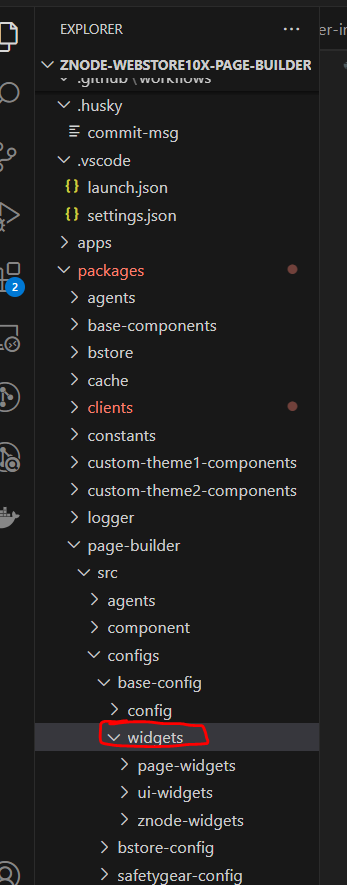
Navigate to:
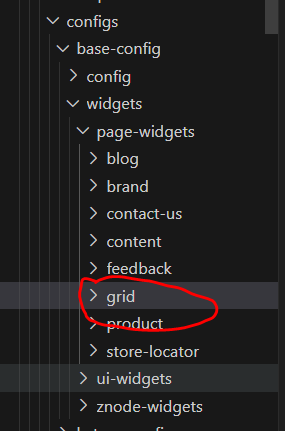
packages/page-builder/src/configs/base-config/widgets/{widget-type}/Create a folder with the component name (e.g., grid).
Step 3: Add Component Files
Create the following files:
- GridConfig.tsx: Defines configuration settings
- GridRender.tsx: Handles UI rendering
Step 4: Define GridConfig.tsx
import type { ComponentConfig } from "@puckeditor/core";
import { GridRender } from "./GridRender";
import { IRenderProps } from "../../../../../types/page-builder";

export type IGridConfig = {
  spacing?: number;
  columns?: number;
  backgroundColor?: string;
};

export type IGridRenderProps = IGridConfig & IRenderProps;

export const GridConfig: ComponentConfig<IGridConfig> = {
  fields: {
    spacing: { label: "Grid Spacing", type: "number" },
    columns: { label: "Number of Columns", type: "number" },
    backgroundColor: { label: "Background Color", type: "text" },
  },
  defaultProps: {
    columns: 3,
    spacing: 16,
  },
  label: "Grid",
  render: (props: IGridRenderProps) => <GridRender {...props} />,
};
Step 5: Define GridRender.tsx
import { IGridRenderProps } from "./GridConfig";

export function GridRender(props: IGridRenderProps) {
  const { spacing, columns, backgroundColor } = props;
  return (
    <div style={{ display: 'grid', gap: spacing, backgroundColor }}>
      {/* Render {columns} columns here */}
    </div>
  );
}
Step 6: Register the Component
Once the .tsx component files are developed, they must be registered in the base configuration index to make them available within the Page Builder application.
In base-components-config.tsx, add:
Path :
packages/page-builder/src/configs/base-config/config/base-components-config.ts
import { GridConfig } from '../widgets/ui-widgets/grid/GridConfig';

export const baseComponentsConfig: IBaseComponentsConfig = {
  components: {
    // ... existing components
    Grid: GridConfig,  // ← just the Config, render is inside it
  },
  categories: { ... },
};
No additional mapping needed — the component is now available globally unless overridden in a theme.
Use Case 2: Creating a New Component with the New Theme
This use case explains how to create a brand-specific theme and build or override widgets within the Page Builder framework. It covers theme scaffolding, folder setup, component customization, and configuration mapping.
Prerequisite:
Before creating a new component for a new theme, ensure the theme is already configured through the Admin panel. To configure a new theme from Admin, follow the Configuring a Custom Theme from Admin guide. For detailed instructions, refer to the official documentation: Configuring a Site Theme.
What is a Theme?
A theme is the visual skin for the webstore. The same page layout can load different brand-specific buttons, cards, banners, and widgets based on the selected theme.
Example:
- Your webstore has a product listing page.
- Theme A displays products in a grid layout with rounded cards.
- Theme B displays products in a list layout with sharp-edged cards.
- Both themes use the same data — only the visual presentation changes.
The Page Builder decides which theme components to render based on one setting:
DEFAULT_THEME=maxwell
When this is set, the Page Builder loads all components registered under the maxwell theme.
How to Configure a New Theme from Admin
To configure a new theme from the Admin, follow the steps provided in the “Configuring a Custom Theme from Admin” guide. For detailed, step-by-step instructions, refer to the official documentation: Configuring a Site Theme
This guide explains how to create a brand-specific theme and build or override widgets within the Page Builder framework. It covers theme scaffolding, folder setup, component customization, and configuration mapping.
Step 1: Review the Folder Structure
Before: only the existing default theme exists.
packages/
├── {existing-theme}/ ← existing default theme
│   └── src/components/
page-builder/src/configs/
├── {existing-theme}-config/ ← existing theme config
├── get-config.ts ← theme loader
After: your new maxwell theme is added.
packages/
├── {existing-theme}/ ← existing; do not modify
├── maxwell/ ← your new theme package
│   ├── src/
│   │   ├── components/
│   │   └── index.ts
│   ├── tailwind-config/
│   ├── .eslintrc.json
│   ├── tsconfig.json
│   └── tsconfig.lib.json
page-builder/src/configs/
├── {existing-theme}-config/ ← existing; do not modify
├── maxwell-config/
│   ├── config/
│   │   ├── root-config.ts
│   │   ├── override-component-list.ts
│   │   └── page-config-map.tsx
│   └── widgets/
└── get-config.ts ← register your theme here
Step 2: Scaffold Theme Package
Scaffolding creates the base folder and file structure for your new theme automatically using the Nx library generator. Instead of manually creating every file and folder, one command sets up everything you need to get started.
What you will get after running this command:
- A new folder under packages/maxwell/ with the correct project structure
- Pre-configured tsconfig.json, .eslintrc.json, and project.json files
- A ready-to-use src/ folder where your theme components will live
npx nx g @nx/next:lib packages/{themeName}Outcome:
>This command creates a new library inside the packages directory:
packages/
└── {themeName}/
This package will contain all theme-specific implementations and customizations.
Nx Command Selections — Explained
When you run the command, the Nx generator will ask you 4 questions. Below is each question, what it means, what value to select, and why.
Command 1 — Stylesheet Format
√ Which stylesheet format would you like to use? · scss
| Details |
What is this? | The styling language used for writing CSS in your theme components |
What options are available? | css, scss, less, none |
Default value to select | scss |
Why? | The base theme and all existing webstore themes use scss. Selecting scss ensures your theme can share common style variables (colors, font sizes, spacing, breakpoints) already defined across the project |
What happens if you pick wrong? | Selecting css means you lose access to shared scss variables and mixins. Your theme will still work but you'll need to hardcode values instead of using shared design tokens |
Command 2 — Bundler
√ Which bundler would you like to use? · none
| Details |
What is this? | The tool that compiles and packages your theme code for the browser |
What options are available? | webpack, rollup, vite, none |
Default value to select | none |
Why? | Theme packages are not standalone applications — they are libraries consumed by the Page Builder app. The Page Builder application handles all bundling centrally. Each theme is just a collection of components that gets imported, not a separate deployable unit |
What happens if you pick wrong? | Selecting a bundler (e.g., webpack) will cause Nx to attempt building your theme as a standalone package. This conflicts with the Page Builder architecture and your theme will not load correctly at runtime |
Command 3 — Linter
√ Which linter would you like to use? · eslint
| Details |
What is this? | The code quality tool that checks your code for errors, unused variables, and enforces consistent coding standards |
What options are available? | eslint, none |
Default value to select | eslint |
Why? | All packages in this monorepo use eslint. Selecting it ensures your theme follows the same coding rules and enables the CI/CD pipeline to automatically lint your code on every commit |
What happens if you pick wrong? | Selecting none means your theme has no automated code checks. Inconsistent code may pass locally but fail during CI integration with the main repository |
Command 4 — Unit Test Runner
√ What unit test runner should be used? · none
| Details |
What is this? | The testing framework for running automated unit tests on your theme |
What options are available? | jest, vitest, none |
Default value to select | none |
Why? | Theme components are visual UI elements — they are tested at the Page Builder application level through integration and E2E tests, not at the individual theme package level. Adding a test runner here creates empty configuration files that are never used |
What happens if you pick wrong? | Selecting jest generates unused test config files (jest.config.ts, tsconfig.spec.json), adding unnecessary noise to the project |
Summary of Default Values
Prompt | Select | Why |
Stylesheet format | scss | Matches existing webstore themes and supports shared SCSS variables, mixins, and design tokens. |
Bundler | none | Theme packages are libraries consumed by Page Builder; the Page Builder app handles bundling centrally. |
Linter | eslint | Ensures the theme follows monorepo coding standards and CI/CD lint checks. |
Unit test runner | none | Theme components are validated through Page Builder integration and E2E testing rather than standalone package tests. |
Complete Terminal Output
$ npx nx g @nx/next:lib packages/maxwell
√ Which stylesheet format would you like to use? · scss
√ Which bundler would you like to use to build the library? · none
√ Which linter would you like to use? · eslint
√ What unit test runner should be used? · none
CREATE packages/maxwell/project.json
CREATE packages/maxwell/.eslintrc.json
CREATE packages/maxwell/src/index.ts
CREATE packages/maxwell/tsconfig.json
CREATE packages/maxwell/tsconfig.lib.json
CREATE packages/maxwell/tailwind-config/tailwind.config.js
UPDATE tsconfig.base.json
UPDATE nx.json
What Gets Created
packages/maxwell/
├── src/
│   └── index.ts ← export your components from here
├── tailwind-config/
│   └── tailwind.config.js ← Tailwind CSS config for this theme
├── .eslintrc.json ← ESLint rules inherited from root
├── project.json ← Nx project config for this package
├── tsconfig.json ← TypeScript config
└── tsconfig.lib.json ← TypeScript config for library build
Update tsconfig.base.json Path Mappings:
Add the following path aliases to enable clean module resolution across packages and applications (replace {theme-name} with your actual theme directory name, e.g. maxwell):
"@znode/maxwell": ["packages/maxwell/src/index.ts"],
"@znode/maxwell/server": ["packages/maxwell/src/server.ts"],
"@znode/maxwell/ui-widgets/*": ["packages/maxwell/src/components/widgets/ui-widgets/*"],
"@znode/maxwell/page-widgets/*": ["packages/maxwell/src/components/widgets/page-widgets/*"],
"@znode/maxwell/components/*": ["packages/maxwell/src/components/*"],
"@znode/maxwell/tailwind-config/*": ["packages/maxwell/tailwind-config/*"]
Next: Once scaffolding is complete, proceed to Step 3 to add your custom webstore components.
Step 3: Add Custom Components
Create theme-specific webstore components under packages/maxwell/src/components/.
Example — Custom Product Card widget for the maxwell theme:
File: packages/maxwell/src/components/product-card/MaxwellProductCard.tsx
export function MaxwellProductCard({ productName, price, imageUrl }: {
  productName: string;
  price: number;
  imageUrl: string;
}) {
  return (
    <div className="maxwell-product-card">
      <img src={imageUrl} alt={productName} className="maxwell-product-image" />
      <h3 className="maxwell-product-title">{productName}</h3>
      <span className="maxwell-product-price">${price.toFixed(2)}</span>
      <button className="maxwell-add-to-cart">Add to Cart</button>
    </div>
  );
}
Example — Custom Banner widget:
File: packages/maxwell/src/components/banner/MaxwellPromoBanner.tsx
export function MaxwellPromoBanner({ heading, subtext, ctaLabel }: {
heading: string;
subtext: string;
ctaLabel: string;
}) {
return (
<section className="maxwell-promo-banner">
<h2>{heading}</h2>
<p>{subtext}</p>
<button>{ctaLabel}</button>
</section>
);
}
Tip: Each component represents a widget that will be available in the Page Builder drag-and-drop editor. Name your components clearly so they are easy to identify, such as MaxwellProductCard, MaxwellPromoBanner, or MaxwellNavbar.
Step 4: Create the Theme Config Folder
Create packages/page-builder/src/configs/maxwell-config/ and set up the following structure:
maxwell-config/
├── config/
│   ├── override-component-list.ts ← register your theme widgets here
│   ├── root-config.ts ← entry point for this theme's config
│   └── page-config-map.tsx ← optional page-level overrides
└── widgets/
    └── ui-widgets/
        ├── product-card/
        │   └── ProductCardConfig.tsx
        └── banner/
            └── PromoBannerConfig.tsx
Step 5: Register Components in override-component-list.ts
File: packages/page-builder/src/configs/maxwell-config/config/override-component-list.ts
import { IComponents } from "../../base-config/config/extend-config";
import { ProductCardConfig } from "../widgets/ui-widgets/product-card/ProductCardConfig";
import { PromoBannerConfig } from "../widgets/ui-widgets/banner/PromoBannerConfig";

export const addOrOverrideComponents: IComponents = {
  MaxwellProductCard: ProductCardConfig,
  MaxwellPromoBanner: PromoBannerConfig,
  // add more maxwell widgets here as you build them
};
How it works: Each entry maps a component name used by the Page Builder editor to its configuration object, which defines editable properties, default values, and rendering behavior.
Step 6: Create root-config.ts
File: packages/page-builder/src/configs/maxwell-config/config/root-config.ts


import type { IConfigParam } from "../../../types/page-builder";
import { extendConfig } from "../../base-config/config/extend-config";
import { retrieveData } from "../../base-config/config/page-config-map";
import { addOrOverrideComponents } from "./override-component-list";

export function getRootConfig(params: IConfigParam) {
  let selectedConfig: any = {};
  if (params.configType == "common") {
    selectedConfig = {
      components: {},
      removeComponentKeys: [],
      disabled: false,
      addComponentToCategories: [],
    };
  } else {
    selectedConfig = retrieveData(params.configType) || {
      components: {},
      removeComponentKeys: [],
      disabled: false,
      addComponentToCategories: [],
    };
  }

  return extendConfig({
    addOrOverrideComponents: {
      ...addOrOverrideComponents,
      ...selectedConfig.components,
    },
    removeComponentKeys: selectedConfig.removeComponentKeys,
    disabled: selectedConfig.disabled,
    addComponentToCategories: [
      {
        categoryKey: "uiWidgets", // Category in Page Builder panel (e.g., "uiWidgets", "layoutWidgets", "znodeWidgets")
        componentKeys: ["MaxwellProductCard", "MaxwellPromoBanner"], // Must match the component key registered in override-component-list.ts
      },
      ...(selectedConfig.addComponentToCategories ?? []),
    ],
  });
}
What this does: This is the entry point for your theme's configuration. When the Page Builder loads the maxwell theme, it calls this function to get the full list of available components, merged with any page-specific overrides.
Note:
The addComponentToCategories property is mandatory for newly created widgets. In the Page Builder (Puck Editor), widgets will only appear under the collapsible sidebar panel if their keys are explicitly mapped to a category (uiWidgets, layoutWidgets, or znodeWidgets). If omitted or left as an empty array, the widget will not be visible in the editor interface.
Step 7: Register the Theme in get-config.ts
File: packages/page-builder/src/configs/get-config.tsThis file is the theme router. It decides which theme's root-config.ts to call based on the active theme name. Add your theme to the themeConfigMap.
import { IConfigParam } from "../types/page-builder";
import { getRootConfig as getCommonRootConfig } from "./base-config/config/root-config";
import { getRootConfig as getMaxwellRootConfig } from "./maxwell-config/config/root-config"; // ADD THIS

const configCache = new Map<string, any>();

const themeConfigMap = new Map<string, (params: IConfigParam) => any>([
  // existing themes will already be listed here
  ["maxwell", getMaxwellRootConfig], // ADD THIS ENTRY
]);

export function getConfig(params: IConfigParam) {
  const cacheKey = `${params.theme}-${params.configType}`;

  if (configCache.has(cacheKey)) {
    return configCache.get(cacheKey);
  }

  const theme = params.theme.toLowerCase();
  const rootConfigGetter = themeConfigMap.get(theme) || getCommonRootConfig;
  const resolvedConfig = rootConfigGetter(params);

  configCache.set(cacheKey, resolvedConfig);
  return resolvedConfig;
}
How it works: When the webstore loads, getConfig is called with the active theme name. It looks up the matching getRootConfig function from the map. If your theme is not registered here, it falls back to getCommonRootConfig, so only base components load and your theme-specific widgets will not appear.
Step 8: Register Components in override-component-list.ts (Theme Level)
File: packages/page-builder/src/configs/maxwell-config/config/override-component-list.tsThis file is the component resolver. It tells the Page Builder which set of components to load at runtime for a given theme.
import { IComponents } from "../../base-config/config/extend-config";
import { ProductCardConfig } from "../widgets/ui-widgets/product-card/ProductCardConfig";
import { PromoBannerConfig } from "../widgets/ui-widgets/banner/PromoBannerConfig";

export const addOrOverrideComponents: IComponents = {
  MaxwellProductCard: ProductCardConfig,
  MaxwellPromoBanner: PromoBannerConfig,
  // Add more maxwell widgets here as you build them
};
How it works: The Page Builder dynamically loads these components via root-config.ts when the maxwell theme is active. Each entry defines the editable sidebar fields, default properties, and rendering behavior for that widget.
Final Quick Checklist
# | What to do | File / Location |
1 | Review folder structure | Verify directories exist |
2 | Run scaffold command | Terminal |
3 | Add custom components | packages/maxwell/src/components/ |
4 | Create config folder | packages/page-builder/src/configs/maxwell-config/ |
5 | Register components | maxwell-config/config/override-component-list.ts |
6 | Create root config | maxwell-config/config/root-config.ts |
7 | Add theme to theme map | get-config.ts |
Key Rule: Every new theme must be registered in the theme configuration loader.
- get-config.ts — theme configuration loading, which determines which root-config.ts file to use.
If either registration is missing, the theme will not load correctly in the webstore Page Builder.
Use Case 3: Updating an Existing Base Component
To update any existing component in the base configuration:
- Modify settings in GridConfig.tsx
- Update the UI in GridRender.tsx
- No additional registration is required if the component is already defined in base-components-config.tsx.
Use Case 4: Updating a Theme Widget
To update an existing component in a specific theme:
- Modify settings in GridConfig.tsx
- Update the UI in GridRender.tsx
- No need to modify the base configuration. The theme component will automatically reflect the changes.
Use Case 5: How to Design Predefined CMS Pages and Sections
Page Builder allows customization of predefined commerce pages using the Admin Console.
Step 1: Access CMS Pages
- Log in to the Admin Panel.
- From the left-hand navigation, go to CMS > Store Experience.
- In the Store Experience section, you'll see a list of all available stores.
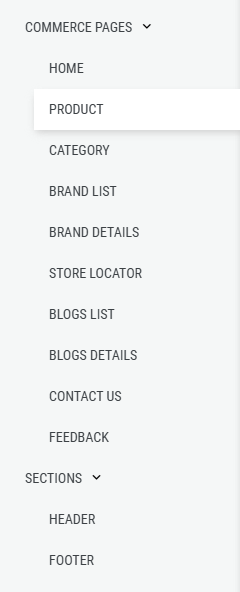
- Locate your desired store and click on the Page Builder icon corresponding to it. You’ll see a list of all predefined commerce pages displayed on the left-hand side.
Step 2: Select a Commerce Page
Choose a predefined page such as:
- Product Detail Page
- Category Page
- Brand List Page
Step 3: Customize Components
Using the Page Builder interface:
- Rearrange widgets
- Add or remove widgets
- Adjust content (text, images, spacing)
Step 4: Preview and Save
- Click “Preview” to view changes
- Click “Save” to store updates
Step 5: Publish the Page
- Navigate to “Publishing Settings”
- Define visibility or schedule settings
- Confirm the publish action
Use Case 6: How to Create and Manage Content Pages Using Page Builder
Content pages can be created and managed using Page Builder’s predefined components.
Step 1: Log in to Admin Console
Use administrator credentials.
Step 2: Navigate to Content Pages
- Go to “CMS” > “Pages”
- Click “Add New” to create a new page
Step 3: Fill in Content Page Details
Complete required fields:
- Store
- Page Code
- Profile (if applicable)
- Page Name
- Is Active
- Locale(s)
SEO Configuration
- Page Title
- SEO Title
- SEO Keywords
- SEO Description
- Additional Meta Information
- SEO-Friendly URL
- Redirect setting
- Canonical URL
- Robot Tag
Activation Details
- Activation Date
- Expiration Date (optional)
Step 4: Save the Content Page
Click “Save” to store the page.
Step 5: Design the Page Using Page Builder
Click the “Page Builder” icon from the Actions column.
Customize with widgets using drag-and-drop.
Step 6: Preview and Publish
- Click “Preview”
- Click “Save”
Only published pages are rendered in the Webstore. Pages can be scheduled or updated at any time.
Key Notes
- Each saved page is versioned and stored in the database.
- Only published pages are available for rendering in the Webstore.
- Pages can be scheduled for publication or updated at any time.
- All widgets used in the page must be registered and available in the component registry.
Use Case 7: How to Update and Manage Existing Content Pages Using Page Builder
Existing content pages can be updated without writing code.
Step 1: Log in to Admin Console
Step 2: Navigate to Existing Content Pages
- Go to “CMS” > “Pages”
- Locate the desired page
Step 3: Open Page in Page Builder
Click the “Page Builder” icon from the Actions column.
Step 4: Customize Page Design
Use the drag-and-drop interface to:
- Rearrange or remove widgets
- Add components
- Modify styling or content
Step 5: Preview and Save Changes
- Click “Preview”
- Click “Save”
Changes will appear immediately on the Webstore.
Use Case 8: How to Customize Styling with Tailwind
Tailwind CSS enables scalable and consistent theming.
Step 1: Create tailwind.config.ts File
Place it inside each theme directory.
Example Structure:
maxwell/
└── tailwind-config/
    └── tailwind.config.ts
Step 2: Define the Theme Object
module.exports = {
  name: "maxwell",
  selectors: ["[data-theme='maxwell']"],
  extend: {
    colors: {
      primary: "#1D4ED8",
      secondary: "#9333EA",
    },
    borderRadius: {
      lg: '1rem',
    }
  }
};
Step 3: Configure Tailwind in Webstore or Page Builder
In the Tailwind configuration files:
const maxwellTailwindConfig = require('../maxwell/tailwind-config/tailwind.config');
const safetyGearTailwindConfig = require('../safety-gear/tailwind-config/tailwind.config');
module.exports = {
  content: [
    "./src/**/*.{js,ts,jsx,tsx}",
    "../maxwell/**/*.{js,ts,jsx,tsx}",
  ],
  plugins: [
    require("tailwindcss-themes")({
      themes: [
        maxwellTailwindConfig,
        safetyGearTailwindConfig,
      ]
    })
  ]
}
Key Notes
- Use data-theme attributes to scope styles
- Extend, rather than override, Tailwind defaults
- Ensure shared components adhere to theme selectors
How to Build, Start, and Lint the Application
Use the following commands to perform application tasks:
| Task | Command |
| Run Webstore | npx nx run webstore |
| Build Webstore | npx nx run webstore:build |
| Lint Webstore | npx nx run webstore:lint |
| Run Page Builder | npx nx run page-builder |
| Build Page Builder | npx nx run page-builder:build |
| Lint Page Builder | npx nx run page-builder:lint |
| Clear Nx Cache | npx nx reset |
Why Two Applications in the Project?
Webstore
The Webstore is the public-facing front-end application.
Key Features:
- Dynamic content rendering
- Responsive design for all devices
- Real-time updates from Page Builder
- Support for UI, Page, and Znode widgets
- Internationalization (i18n) support
Page Builder
The Page Builder is an internal content management tool for developers and content editors.
Key Features:
- Visual drag-and-drop interface
- Widget library with structured components
- Page publishing and scheduling
- Real-time preview functionality
Together, these applications deliver a decoupled headless content management experience.
Page Builder Configuration and Widget Guide
The Page Builder includes categorized widget types for streamlined design and layout.
Component Categories
UI Widgets
Reusable components used across different layouts:
- VerticalSpacing
- Column
- Flex
- Text
- Card
- Hero
- Logo
Znode Widgets
Widgets integrated with Znode Ecommerce and CMS systems:
- BannerSlider - Slideshow banner component.
- CategoriesCarousel - Rotating display of categories.
- OfferBanner - Promotional offer component.
- ProductsCarousel - Product listing in a slider.
- AdSpace - Custom ad slot area.
- HomePagePromo - Special homepage promo blocks.
- Image - Image rendering component.
- Video - Embedded video player.
Category Grouping in Configuration
Widgets are grouped by type in configuration files:
Layout Widgets
- Title: Layout Widgets
- Components: Flex, Column, VerticalSpacing
UI Widgets
- Title: UI Widgets
- Components: Text, Card, Logo, etc.
Znode Widgets
- Title: Znode Widgets
- Components: BannerSlider, ProductsCarousel, Image, etc.
These groupings enable organized display within collapsible categories in the Page Builder interface.
TypeScript Project Configuration (tsconfig.json)
The tsconfig.json file defines TypeScript compiler behaviors and module resolution settings.
Key Compiler Options
- target: Defines the JavaScript output version (e.g., es6)
- module: Specifies the module system (e.g., commonjs, esnext)
- strict: Enables strict type-checking for higher reliability
- esModuleInterop: Supports importing CommonJS modules
- skipLibCheck: Skips type checking for library files to improve build speed
- outDir: Defines the output directory for compiled JavaScript
- baseUrl: Sets the base path for imports
- paths: Enables aliasing for cleaner import paths
These options standardize project structure, enforce type safety, and enhance code maintainability.
Q&A
1. Why Use Node.js as the Runtime Environment?
Pros:
- Non-blocking, event-driven architecture for scalability
- Unified JavaScript usage across front-end and back-end
Cons:
- Single-threaded, which may limit performance for CPU-heavy tasks
Alternative: Java (Spring Boot), .NET
Pros: Mature ecosystems, multi-threading
Cons: Higher memory usage, slower startup
2. Why Use Next.js as the Web Application Framework?
Pros:
- Server-side rendering (SSR) and static site generation (SSG)
- Organized and scalable project structure
Cons:
- Learning curve, especially for new developers
Alternative: React with Create React App
Pros: Simpler setup
Cons: Lacks built-in SSR and SSG
3. Why Use HTML for Structuring Content?
Pros:
- Standardized, browser-compatible
- Semantic layout enhances accessibility
Cons:
- Limited interactivity
Alternative: Markdown (MDX)
Pros: Easy to write
Cons: Not ideal for complex layouts
4. Why Use CSS and Tailwind CSS for Styling?
Pros:
- Responsive design
- Utility-first approach for consistent styling
Cons:
- Steeper learning curve; verbosity
Alternative: SASS/Bootstrap
Pros: Prebuilt components
Cons: Less flexibility and heavier output
5. Why Use Redis for Caching?
Pros:
- High-performance, in-memory caching
- Quick data retrieval
Cons:
- Memory limitations for large datasets
- Persistence requires configuration
Alternative: Memcached
Pros: Simplicity
Cons: Limited data structure support
6. Why Use JavaScript and React for Interactivity?
Pros:
- Real-time UI interaction
- Component-based architecture
Cons:
- Heavier initial load
- Learning curve
Alternative: Vue.js
Pros: Simplicity, ease of integration
Cons: Smaller ecosystem