
TABLE OF CONTENTS
- Text Component
- Heading Component
- Button Group
- Text Image Widget
- Dynamic Widget
- Rich Text Widget
- Recommended Usage
- Guidelines & Best Practices
Text Component
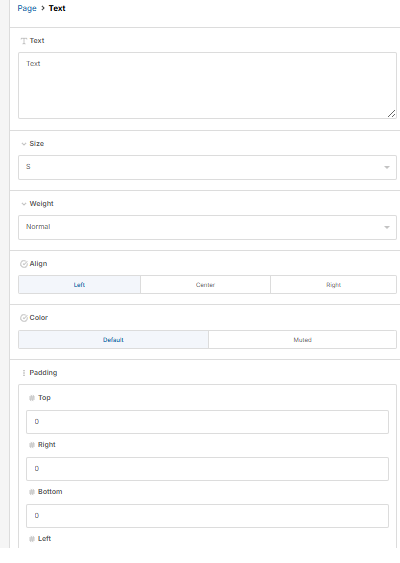
- Drag and drop the “Text” component onto the page.
- Configure the following:
- Text content.
- Size: Small or Medium.
- Defines the visual scale of the content.
- Text weight : Normal , Bold , Semibold, Extrabold
- Controls how bold or prominent the text appears.
- Alignment: Left, Center, or Right.
- Determines how text is positioned within the component.
- Color: Default or Muted.
- Controls visibility and emphasis.
- Padding: Top, Right, Bottom, left
- Adjust padding values to create space inside the component.
- Defines spacing inside the component.
Heading Component
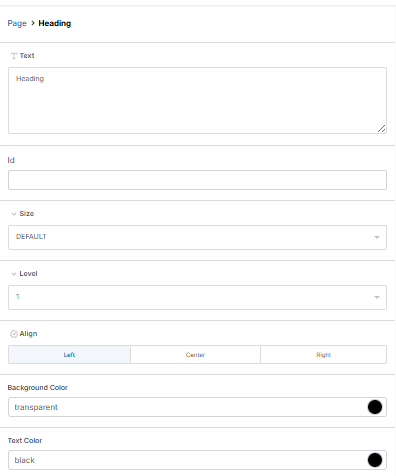
- Drag and drop the “Heading” component onto the page.
- Configure the following:
- Heading text
- Defines the main title displayed in the component.
- Optional ID for linking within the page.
- Used to create anchor links within a page.
- Size: Triple Extra Large to Extra Small.
- Determines visual scale of the heading.
- HTML Heading Level: H1–H6.
- Controls semantic structure and SEO importance.
- Alignment: Left, Center, or Right.
- Controls horizontal placement.
- Background color and text color.
- Defines visual contrast.
- Background Color: Behind the heading
- Text Color: Heading font color
- Defines visual contrast.
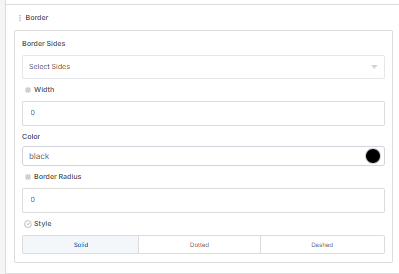
- Border settings
- Border Sides : Top, Right, Bottom, left, All sides
- Choose where borders appear
- Multiselection option
- Width
- Defines thickness (e.g., 1px, 2px)
- Color
- Sets border color
- Border Radius
- Controls corner rounding (e.g., 4px, 8px)
- Style : Solid , Dotted or Dashed
- Border Sides : Top, Right, Bottom, left, All sides
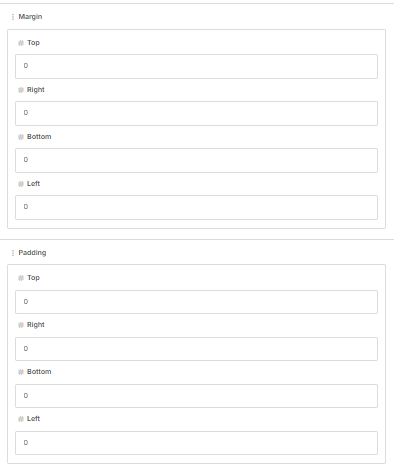
- Margin: Top, Right, Bottom,
- Defines space outside the component.
- Padding: Top, Right, Bottom, left
- Adjust padding values to create space inside the component.
- Defines spacing inside the component.
- Heading text
Button Group
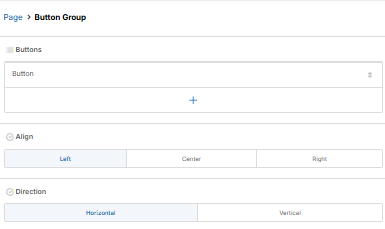
- Drag and drop the “Button Group” component onto the page.
- Configure the following:
- Alignment of the button group: Left, Center, or Right.
- Controls the horizontal alignment of all buttons within the group.
- Direction: Horizontal or Vertical
- Defines how multiple buttons are arranged.
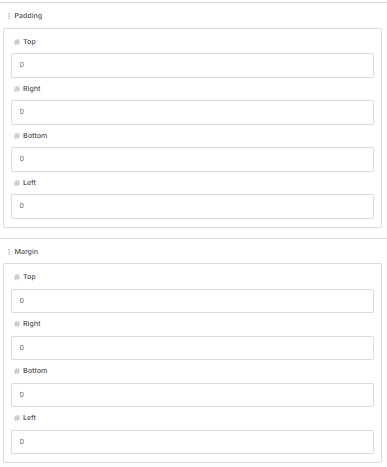
- Padding: Top, Right, Bottom, left
- Adjust padding values to create space inside the component
- Defines spacing inside the component.
- Margin: Top, Right, Bottom,
- Defines space outside the component.
- Button
- Label
- Defines the text displayed on the button.
- Href (full URL or anchor reference using “#”).
- Specifies where the button redirects.
- Target behavior: same tab or new tab.
- Controls how the link opens.
- Style variant: Primary or Secondary.
- Defines button appearance and emphasis.
- Add additional buttons as needed within the same group.
- Allows adding several buttons within the same button group.
- Label
- Alignment of the button group: Left, Center, or Right.
Text Image Widget
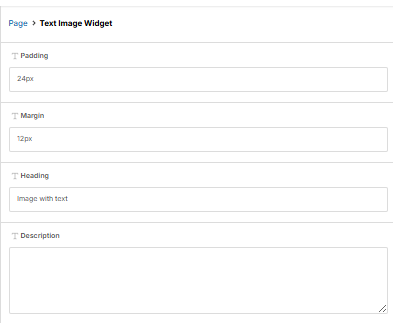
- Drag and drop the “Text Image” widget onto the page.
- Configure the following:
- Padding (px)
- Defines the internal spacing within a component
- Margin (px)
- Defines the external spacing around a component
- Heading
- Represents the primary title
- Description text
- Provides detailed or supporting information below the heading.
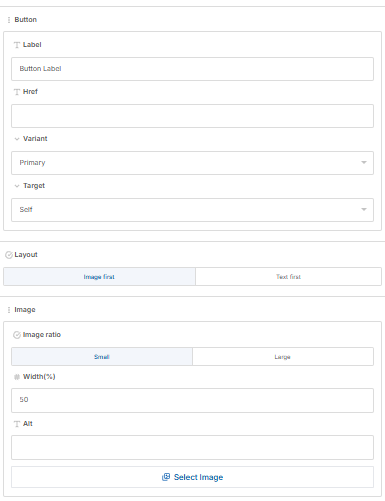
- Button
- Label
- Defines the text displayed on the button.
- Href (full URL or anchor reference using “#”).
- Specifies where the button redirects.
- Target behavior: same tab or new tab.
- Controls how the link opens.
- Style variant: Primary or Secondary.
- Defines button appearance and emphasis.
- Label
- Layout order: text first or image first.
- Controls the placement of text and image within the component.
- Image ratio : Small or Large
- Defines the relative size of the image.
- Image selection from DAM.
- Padding (px)
Dynamic Widget
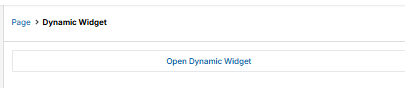
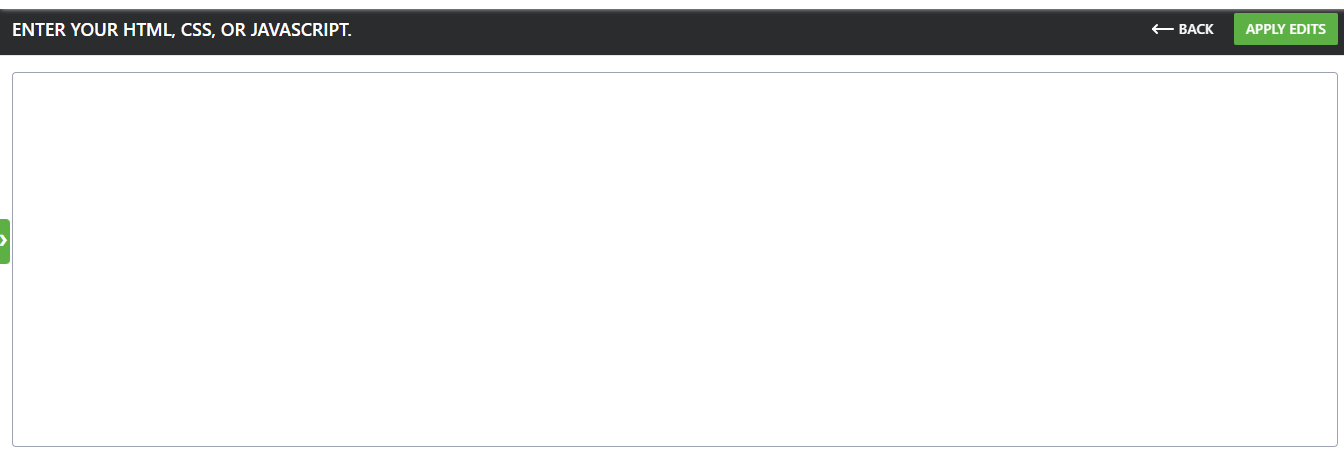
- Drag and drop the “Dynamic” widget onto the page.
- Insert HTML, CSS JavaScript code provided by third-party services to embed additional functionality.
Rich Text Widget
- Drag and drop the “Rich Text” widget onto the page.
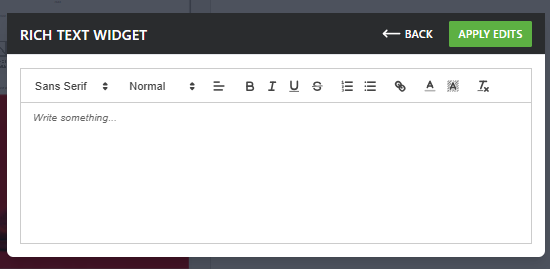
- Select the “Open Rich Text Widget” button to launch the WYSIWYG editor.
- Users can create lists and add hyperlinks without HTML, while still having the flexibility to write or paste HTML, CSS, and JavaScript when needed.

Recommended Usage
- Recommended Limit: 25–30 widgets per page
- Soft Limit: Up to 35 widgets per page
These limits are designed to ensure optimal frontend performance, smooth rendering, and a consistent user experience.
Guidelines & Best Practices
1. Optimize JavaScript Usage
- Minimize custom JavaScript per widget.
- Avoid:
- Large inline scripts
- Repetitive or redundant logic
- Prefer reusable scripts and modular JS design.
2. Avoid Heavy Dependencies
- Do not use heavy third-party libraries unless necessary.
- If required:
- Prefer lightweight alternatives
- Load libraries conditionally (only when needed)
3. Control DOM Size
- Keep the total number of DOM nodes within reasonable limits.
- Avoid:
- Deep nesting of HTML elements
- Excessive wrapper/div layers within widgets
- Design widgets with simplified markup.
4. Limit Animations & Effects
- Avoid excessive CSS/JS animations across multiple widgets.
- Prefer:
- Subtle transitions
- Hardware-accelerated animations (e.g., transform, opacity)
- Disable unnecessary animations on lower devices where possible.
5. Ensure Efficient Rendering
- Optimize CSS to reduce layout shifts and repaint costs.
- Avoid:
- Frequent DOM manipulations
- Forced synchronous layouts (e.g., layout thrashing)
6. Maintain Page Load Performance
- Ensure widgets do not degrade initial page load performance.
- Recommended practices:
- Defer non-critical scripts
- Use lazy loading for non-visible sections (where applicable)
7. Reusability & Consistency
- Reuse widget structures instead of duplicating logic.
- Maintain consistent styling and structure across widgets to reduce CSS complexity.