
Overview
Znode provides Catalog Index Settings that allow administrators to control how product pricing and Search Engine Optimization (SEO) data are displayed on the storefront.
When enabled, these settings use indexed pricing and SEO data instead of resolving values dynamically at runtime.
This functionality improves storefront performance, ensures consistent SEO output, and enables accurate price-based sorting across category listing pages and search result pages.
Catalog Index Settings are most effective when there is a one-to-one relationship between a catalog and a store, where a single store acts as the authoritative source for pricing and SEO.
Intended Audience
This article is intended for:
- Business users managing pricing strategies
- Administrators responsible for catalog and store configuration
- Marketing teams focused on SEO consistency and storefront behavior
Prerequisites
Before configuring Catalog Index Settings, the following requirements must be met:
- Access to the Admin Console
- Permissions to edit catalogs
- The catalog must be assigned to at least one store
- Ability to perform a Full Catalog Publish
Accessing Catalog Settings
- In the Admin Console, navigate to
PIM → Catalogs. - Locate the required catalog.
- Click Edit for the catalog.
General Information
The General Information section contains:
| Field | Requirement | Editable |
|---|---|---|
| Catalog Name | Mandatory | Yes |
| Catalog Code | Mandatory | No |
Updating the Catalog Name
- Update the Catalog Name.
- Click Save.
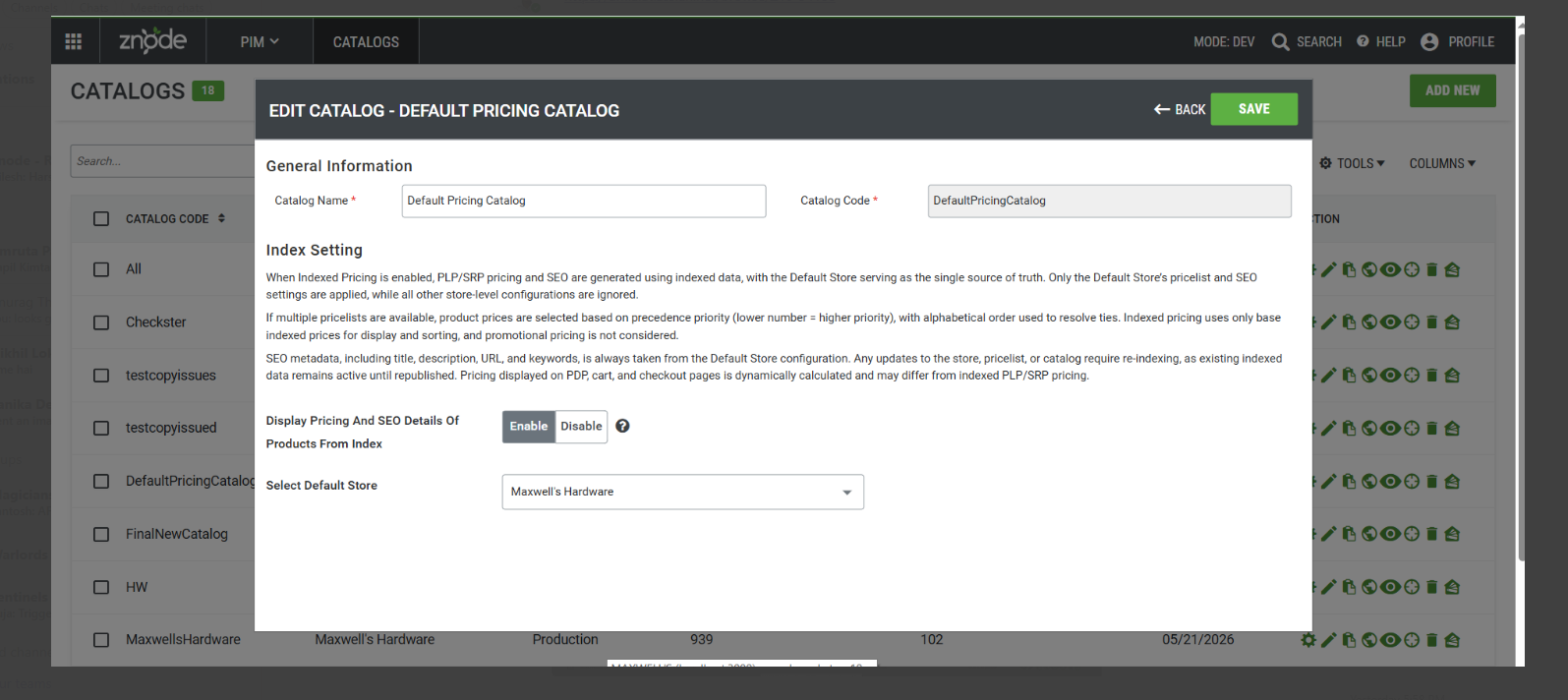
Index Settings
Purpose of Index Settings
By default, Znode resolves product pricing and SEO information dynamically using multiple shopper-specific entities. This dynamic resolution allows pricing and content to adapt based on shopper context and the active store.
However, because these values are calculated at runtime, category listing and search result pages may experience inconsistent sorting behavior and variable SEO resolution.
Catalog Index Settings provide a more controlled and predictable approach by indexing pricing and SEO data from a single selected store and applying that indexed data consistently across category and search result pages.
This eliminates runtime variability for listing experiences while preserving dynamic pricing behavior on transactional pages.
Benefits
- Consistent and accurate price-based sorting
- Reliable sorting across the complete result set, including paginated pages
- Improved performance and predictability for category and search listings
- Pre-resolved SEO values for consistent storefront presentation across stores
Display Pricing and SEO Details of Products from Index
This setting determines whether indexed pricing and SEO data are used on the storefront.
When Disabled (Default Behavior)
- Pricing is resolved dynamically using the following hierarchy:
- User Pricelist
- Account Pricelist
- User Profile Pricelist
- Store Pricelist
- SEO data is resolved dynamically based on the active store.
- Price-based sorting options will be hidden on the storefront (even if the price based sorting options are associated in store configuration).
Enabling Index Settings
Steps
- In the Index Settings section, enable Display Pricing and SEO Details of Products from Index.
- Select a Default Store.
- Store selection becomes mandatory.
- Only stores authorized for the logged-in administrator appear.
- Click Save.
Save Behavior
- Index Settings are saved as a draft configuration.
- Storefront behavior remains unchanged until the catalog is published.
Publishing the Catalog
Mandatory Publish Requirement
A Full Catalog Publish is required whenever the Display Pricing and SEO Details of Products from Index setting is enabled or disabled.
Performing only a PIM index creation is not sufficient because catalog-level indexed data must be regenerated.
Storefront Behavior After Publish (Index Settings Enabled)
Pricing Behavior
- Product Listing Pages (PLP) and Search Result Pages (SRP) including Hyderated and Typeahead Search:
- Pricing is fetched only from the indexed pricelist associated with the selected Default Store.
- User-based, account-based, and profile-based pricing are ignored.
- Product Detail Page (PDP), Cart, and Checkout (Other Pages):
- Pricing continues to resolve dynamically using the standard pricing hierarchy.
SEO Behavior
- SEO data is always sourced from the Default Store.
- Indexed SEO fields include:
- SEO Title
- SEO Description
- SEO Keywords
- SEO Friendly URL
- The same SEO values are displayed across all storefronts using the catalog.
Sorting Behavior
When Index Settings are enabled and the catalog is published:
- Price: Low to High and Price: High to Lowsorting works correctly across:
- Entire category listings
- Entire search result listings
- All paginated pages
- Products without prices always appear at the end of listings.
- Products marked Call for Pricing always appear at the last irrespective of the sorting option selected.
- Products with active promotions, such as “Amount/Percent Off Displayed Product Price,” will continue to display and sort based on the indexed price rather than the dynamically calculated discounted price.
Pricing Indexing Rules
Pricelist Selection Logic
When multiple pricelists are associated with the Default Store:
- Pricelists with lower numeric precedence take priority.
- If precedence values are the same, alphabetical order is used as a tie-breaker.
- Pricing is indexed per product based on availability and priority.
Common Pricing Scenarios
| Scenario | Behavior |
|---|---|
| Single Pricelist with Full Coverage | All product prices are indexed with no fallback required. |
| Multiple Pricelists with Partial Coverage | Each product uses the highest-priority available pricelist. |
| Equal Precedence Pricelists | Alphabetical order determines pricing for overlapping products. |
| Missing Prices | Products without indexed prices display “Price is not set.” |
| Currency Mismatch | If the indexed pricelist currency does not match the storefront culture, the price is not displayed. |
Notes and Limitations
- Indexed pricing and SEO data remain active until the catalog is republished.
- Changes to stores, pricelists, or SEO require a new Full Catalog Publish.
- Products added after publishing do not receive indexed pricing until the next publish.
- Price removals after indexing are not reflected until the catalog is republished.
- Other stores’ pricing and SEO data are ignored for indexed pages.
- Indexed pricing applies only to PLP and SRP pages.
Best Practices
- Enable Index Settings only when a single store is the authoritative source for pricing and SEO.
- Ensure the Default Store contains complete and accurate pricing and SEO data.
- Always perform a Full Catalog Publish after enabling or disabling Index Settings.
- Communicate expected PLP versus PDP pricing differences to business stakeholders.