
TABLE OF CONTENTS
- Overview
- Use Cases
- Add Inventory from OMS
- Configure Inventory from Product Management
- Import Inventory
- Important Notes
Overview
Inventory configuration allows Administrators to establish inventory records for products and warehouses within Znode. Inventory records define product availability, stock quantities, reorder thresholds, and backorder information used throughout the Ecommerce platform.
Inventory can be configured through:
- OMS > Inventory
- PIM > Products
- Inventory Import
Once inventory is configured, the information is synchronized across all inventory management areas within Znode.
Use Cases
Inventory configuration is commonly used to:
- Set up inventory for newly created products.
- Assign inventory to specific warehouses.
- Define available stock quantities.
- Configure reorder thresholds.
- Establish backorder information.
- Bulk load inventory records through import.
Add Inventory from OMS
Navigate To
Admin Console > OMS > Inventory
Create a New Inventory Record
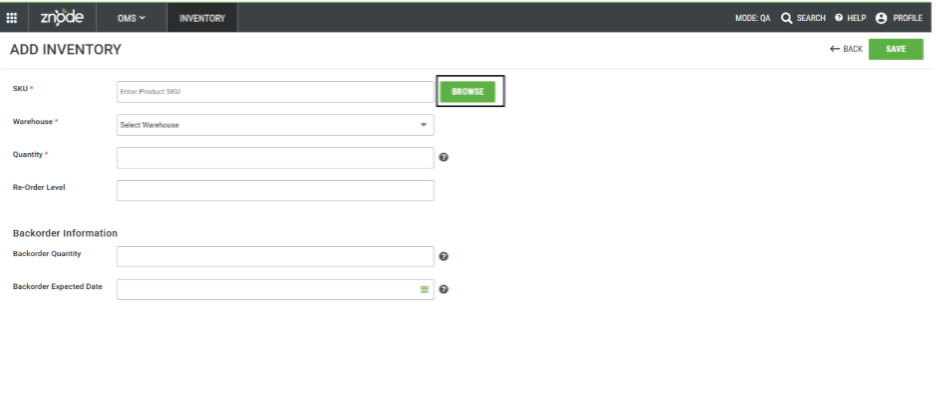
- Select Add New.
- Enter a SKU in the SKU field.
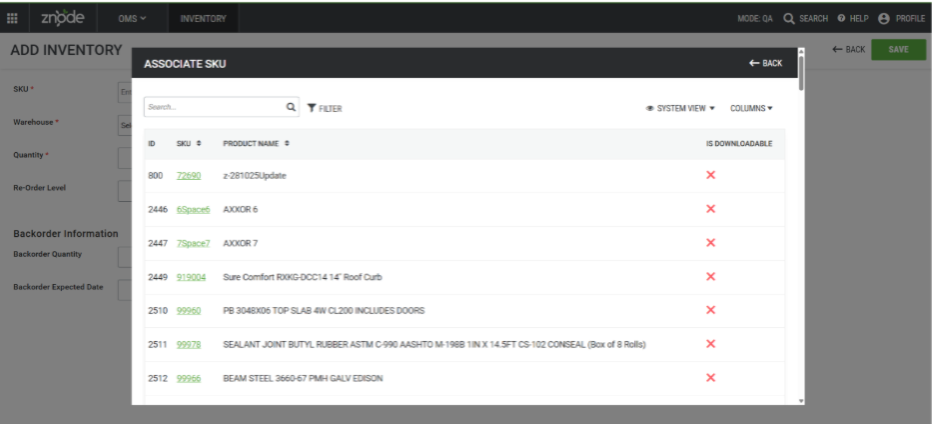
- Select the desired SKU from the search results.
- Alternatively, select Browse to locate a SKU.
- Select a Warehouse.
- Enter the Quantity On Hand.
- Enter the Reorder Level.
- Enter the Backorder Quantity, if applicable.
- Enter the Backorder Expected Date, if applicable.
- Select Save.
Result
The inventory record is created and becomes available for inventory management and order processing.
As orders are placed through the Storefront, inventory levels are automatically updated.
Inventory Field Descriptions
| Field | Description |
|---|---|
| SKU | Product SKU associated with the inventory record. |
| Warehouse | Warehouse where inventory is stored and available for fulfillment. |
| Quantity On Hand | Available stock quantity. |
| Reorder Level | Minimum stock threshold used for inventory monitoring. |
| Backorder Quantity | Quantity available for backorder. |
| Backorder Expected Date | Expected date inventory becomes available for backordered items. |
Configure Inventory from Product Management
Administrators can configure inventory directly from a product record.
Navigate To
Admin Console > PIM > Products
Add Inventory from a Product
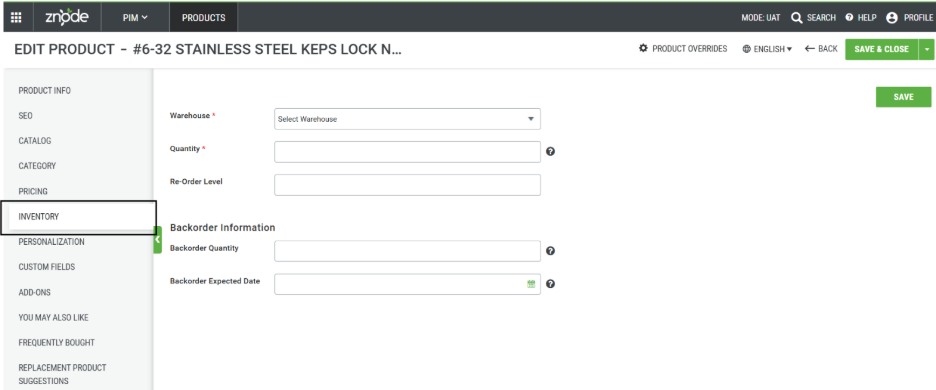
- Open the desired product.
- Navigate to the Inventory section.
- Select a warehouse.
- Enter inventory quantities.
- Select Save.
Result
The inventory record is created and synchronized with OMS Inventory.
Note
Inventory added through Product Management appears in OMS > Inventory, and inventory added through OMS > Inventory appears within the product's Inventory section.
`
Import Inventory
Inventory can be created in bulk using the inventory import process.
Navigate To
Admin Console > System Setup > Import
Import Inventory Records
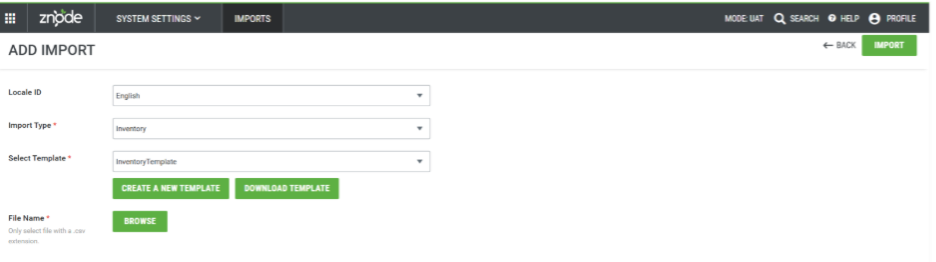
- Select Add New.
- Select Inventory as the import type.
- Select a template.
- Download the template.
- Populate the file with inventory data.
- Verify all data meets the required format.
- Select Browse.
- Choose the completed file.
- Upload the file.
Result
Inventory records are created for the specified SKUs and warehouses.
Important Notes
- Inventory records can be created from OMS, Product Management, or through the Inventory Import process.
- Inventory data remains synchronized across all inventory management locations.
- Backorder Quantity and Backorder Expected Date fields are available for custom business processes and are not natively tied to inventory backorder functionality.
Expected Outcome
Inventory records are successfully configured and made available for order processing, warehouse management, and inventory tracking throughout the platform.