
TABLE OF CONTENTS
- Overview
- Configure Approval Routing
- Manage Pending Orders in the Admin Console
- Approve a Pending Order from the Admin Console
- Approve Orders Through the Storefront
- Reject an Order
- Important Points
Overview
The Pending Orders section allows Administrators, Approvers, and Buyers to manage orders submitted through Approval Routing. When Approval Routing is configured and an order requiring approval is submitted from the Storefront, the order is created as a Pending Order and must be reviewed before it can be converted into a standard order.
Pending Orders can be generated when Approval Routing is configured/enabled on the store for:
- Store
- Payment
- User
Once submitted, Pending Orders are available for review in both the Storefront and the Admin Console.
Use Case
Organizations that require approval before order placement can use Approval Routing to ensure purchases are reviewed and approved by designated approvers or Administrators before processing.
Configure Approval Routing
Set Up Approval Management
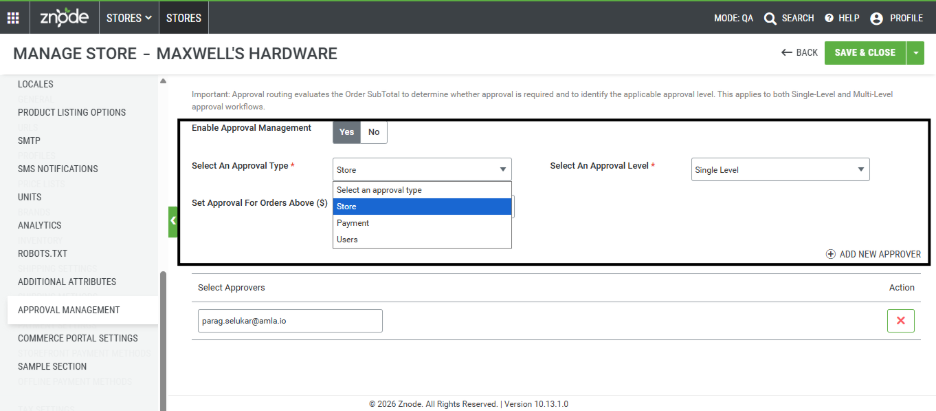
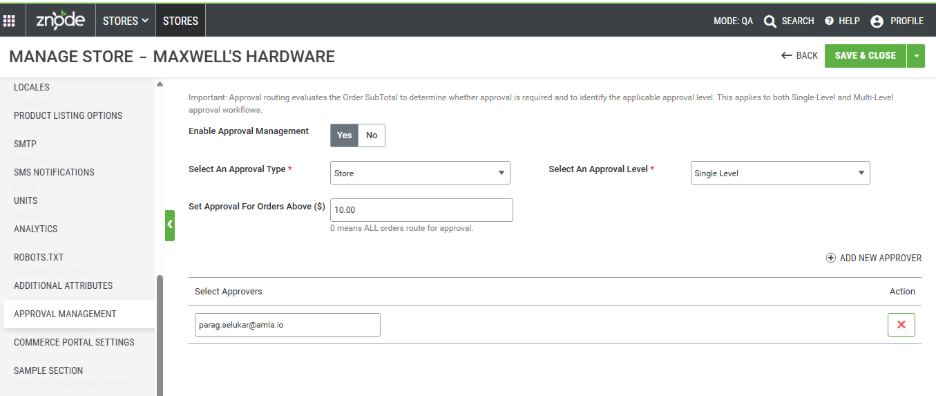
- Navigate to Admin Console > Store > Approval Management.
- Select the appropriate Approval Type.
- Configure the required approval settings.
- Save the configuration and Publish the Store Settings.
After Approval Routing is configured, qualifying orders require approval before becoming standard orders.
Submit an Order for Approval
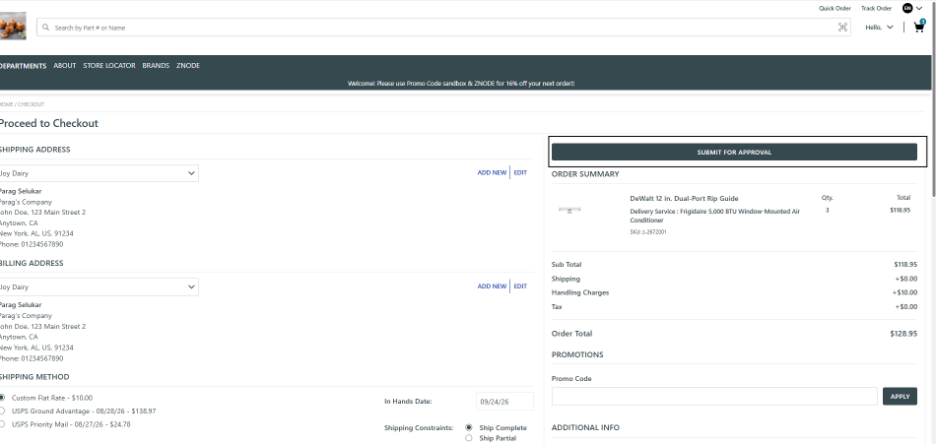
When Approval Routing conditions are met, the Storefront checkout experience changes.
Steps to Submit a Order for Approval
- Login
- Add products to the cart.
- Proceed to checkout.
- Review order details.
- Select Submit for Approval.
Note: The Submit for Approval button displays instead of Place Order when Approval Routing is applicable.
Result
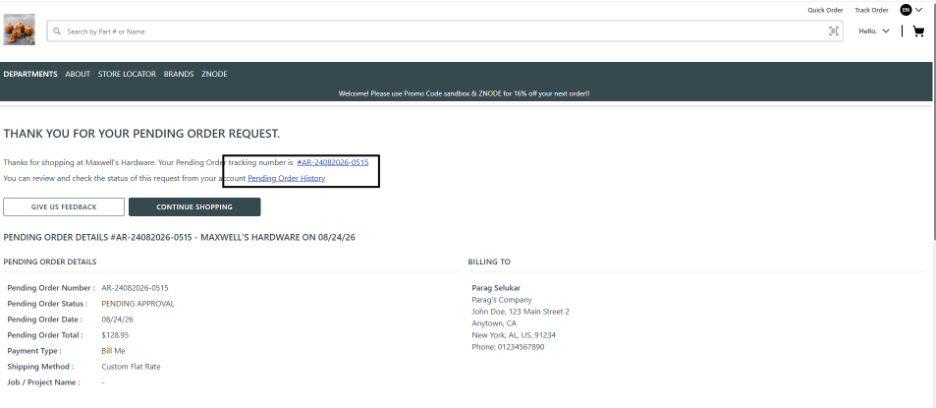
- A Pending Order is created.
- The Confirmation receipt is generated with Approval Order Number.
- The confirmation receipt will display the Approval Order Number as a clickable link. The buyer can click the Approval Order Number to navigate directly to the corresponding Approval Order details.
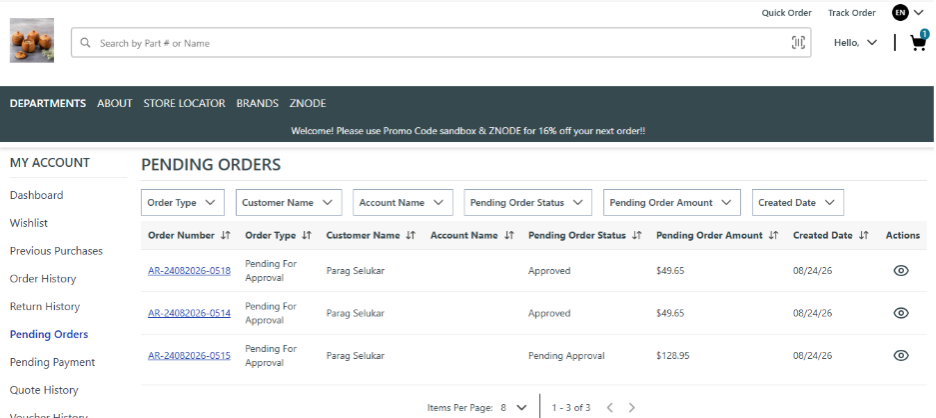
- Similarly, the Pending Orders section will display the Pending Order Number as a clickable link, allowing the buyer to navigate directly to the respective Pending Order details.
- The order appears in the Buyer's My Profile > Pending Orders section.
- The order is assigned a default status of Pending Approval.
View Pending Orders in the Storefront
Access Submitted Pending Orders
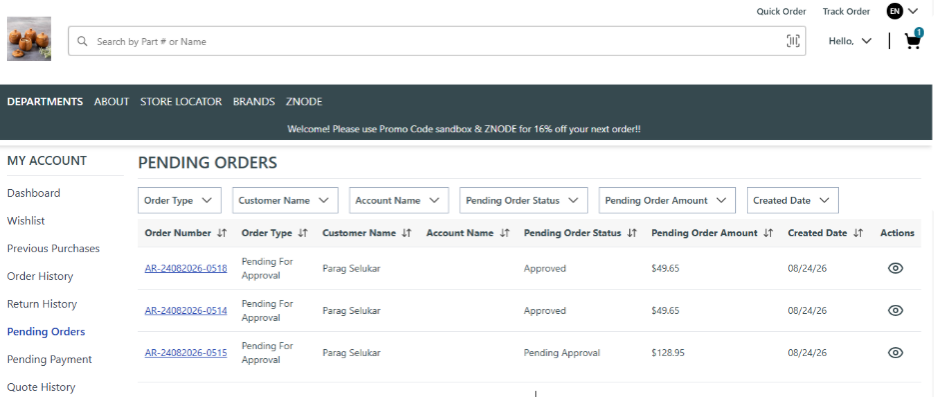
- Navigate to My Profile > Pending Orders.
- Review the list of submitted orders.
- Select View for a specific order.
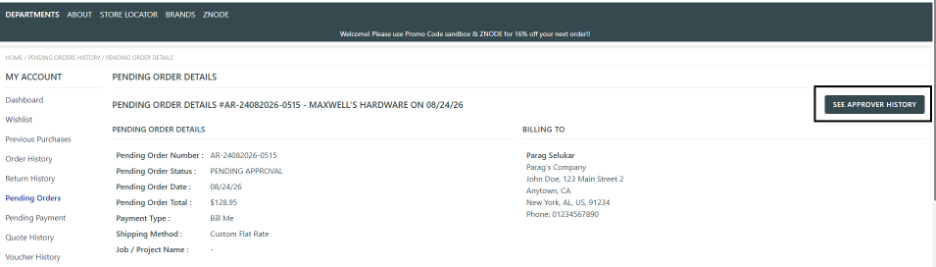
Result
The order details page displays:
- Order information
- Current approval status
- Approval history
- Any comments entered during the approval process
Buyers can monitor approval activity and view actions taken on the order.
Manage Pending Orders in the Admin Console
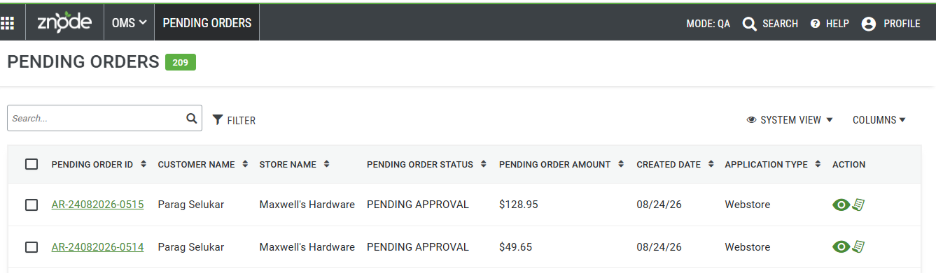
Access Pending Orders
- Navigate to Admin Console > OMS > Pending Orders.
- All submitted approval orders are displayed in the Pending Orders grid.
Pending Orders Grid Information
The grid can display the following information:
| Field | Description |
|---|---|
| Pending Order ID | Unique identifier assigned to the pending order |
| Customer Name | Full name of the customer |
| Account Name | Account associated with the order |
| Store Name | Store where the order was placed |
| Pending Order Status | Current approval status |
| Pending Order Amount | Total order value |
| Created Date | Date the pending order was submitted |
| Action | Available actions for the pending order |
Available actions include:
- View Order
- Convert to Order
Customize Grid Columns
- Select Columns beside System Settings.
- Enable or disable columns as needed.
The grid layout can be customized based on business requirements.
Pending Order Statuses
Pending Orders support the following statuses:
- Pending Approval
- Approved
- Rejected
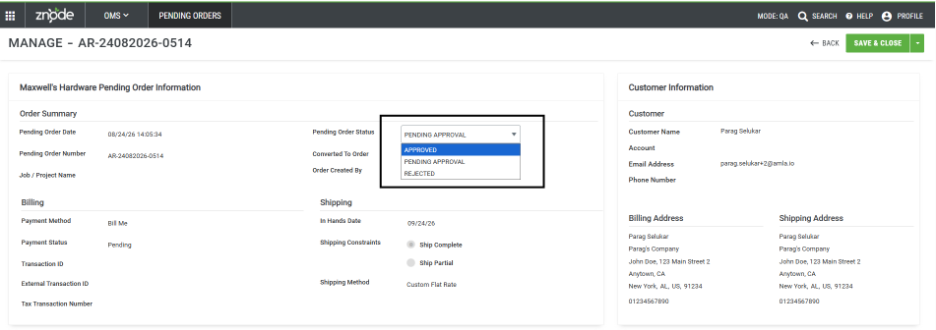
Order Approval
The order can be approved through either of the following options:
- Admin: An administrator can directly approve the order from the Admin interface.
- Storefront: The designated Approver can review and approve the order directly from the Storefront.
Once the order is approved, it can proceed to the next stage of the order processing workflow.
Approve a Pending Order from the Admin Console
Approving and Converting Pending Order
Approve an Order
- Navigate to Admin > OMS > Pending Orders.
- Open the pending order.
- Change the status to Approved.
- Save the order.
Result
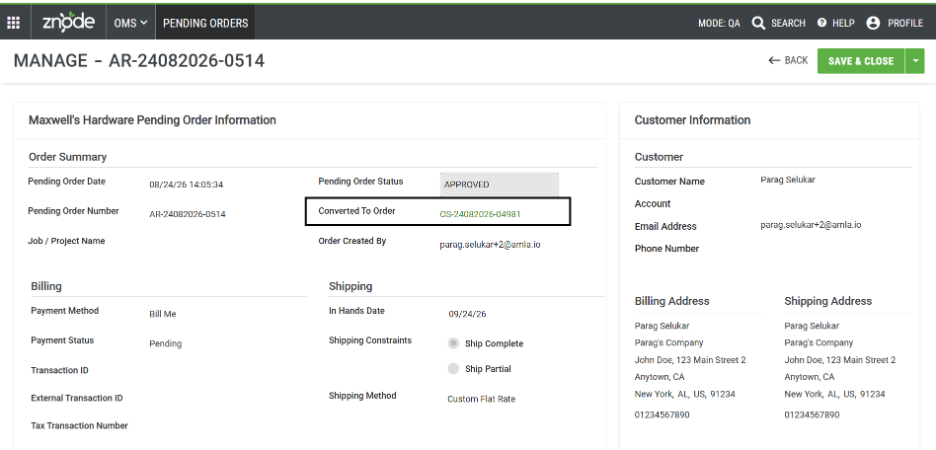
- The Pending Order status changes to Approved.
- The order remains in the Pending Orders grid until conversion.
- A Convert to Order action becomes available.
Convert an Approved Order
- Select Convert to Order from the order actions.
- Confirm the conversion.
Result
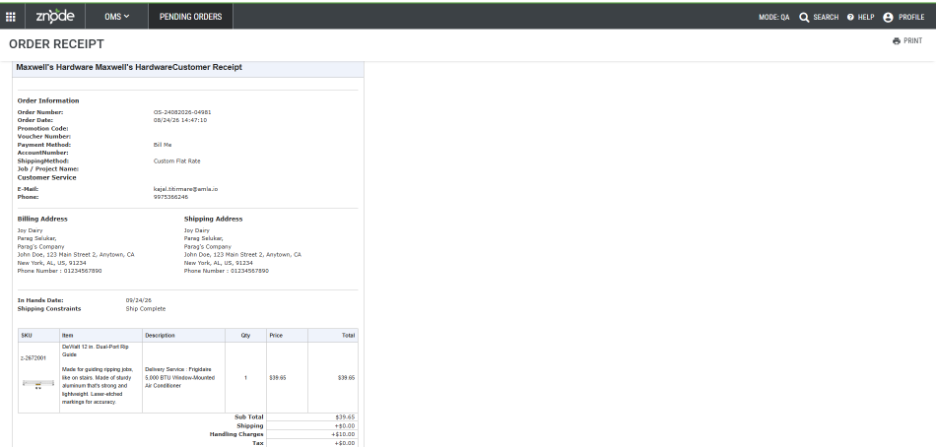
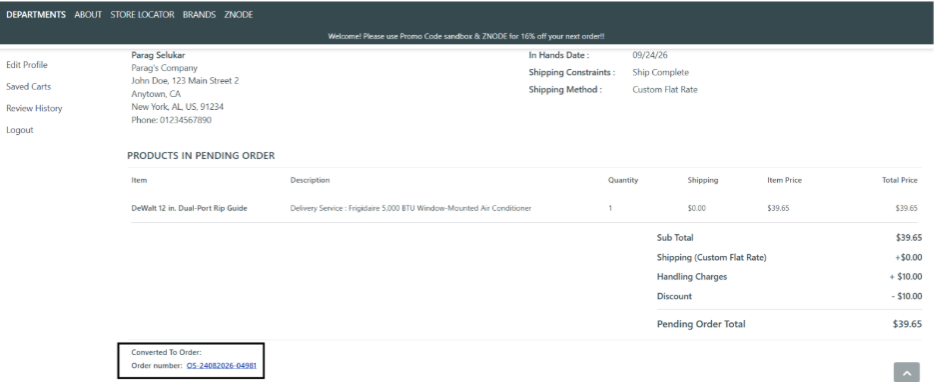
- The order is converted into a standard order.
- A new order number is generated.
- The order appears in Admin Console > OMS > Orders.
- The original Pending Order remains visible in Pending Orders.
- The converted order appears in the Customer's Order History (StoreFront).
- The original Pending Order remains visible in the Customer’s Pending Orders Section (Storefront).
- The Convert to Order action is no longer available.
- The new order number is displayed for reference.
- An approval notification email is sent to the customer.

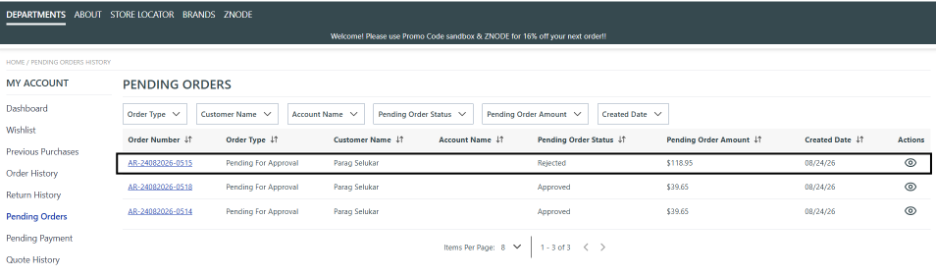
Reject a Pending Order
Reject an Order
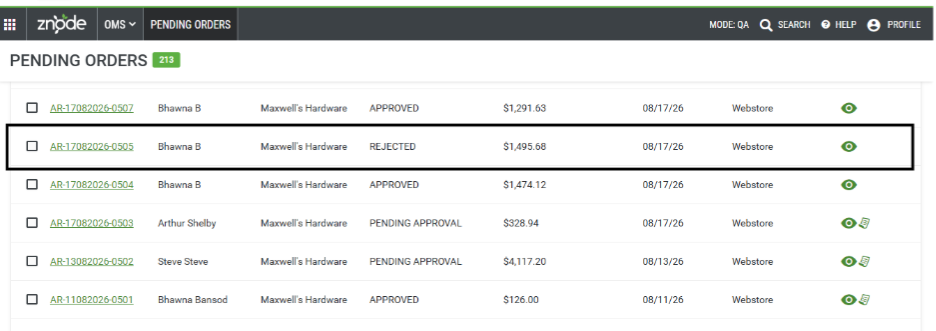
- Open the pending order.
- Change the status to Rejected.
- Save the order.
Result
- The order remains in the Pending Orders section (For Both Admin and StoreFront (buyer Pending Order Section)).
- The status displays as Rejected (both on Admin and Storefront).
- The order is not converted into a standard order.
Keep an Order in Pending Approval Status
Leave an Order Pending
- Open the pending order.
- Keep the status as Pending Approval.
- Save the order if needed.
Result
- The order remains pending until additional action is taken.
Convert an Order Without Changing Status
Administrators can convert a Pending Order directly from the Pending Orders grid.
Convert Directly from the Grid
- Navigate to Admin Console > OMS > Pending Orders.
- Locate the order.
- Select Convert to Order.
Result
- The order is converted into a standard order.
- A new order number is generated.
- The order appears in Admin Console > OMS > Orders.
- The original Pending Order remains visible in Pending Orders.
- The converted order appears in the Customer's Order
- The original Pending Order remains visible in the Customer’s Pending Orders Section (Storefront).
- The Convert to Order action is no longer available.
- The new order number is displayed for reference.
- An approval notification email is sent to the customer.
This process is similar to the Approve an Order process. The only difference is that the Pending Order is directly converted into an Order. The remaining process and functionality remain the same.

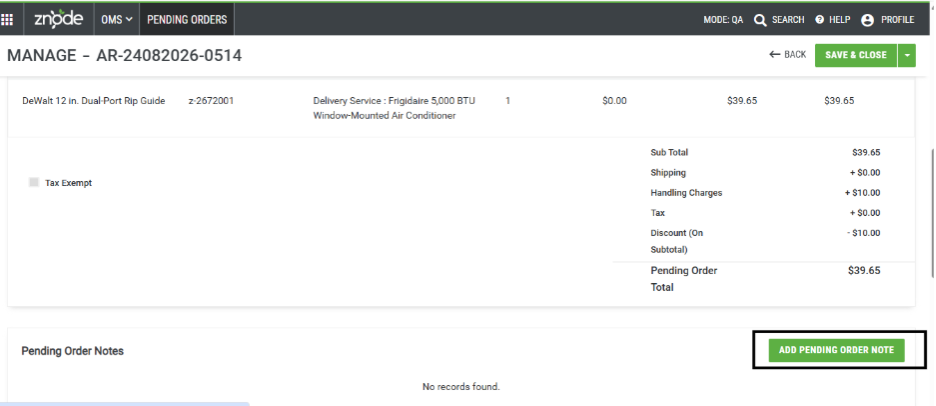
Add Notes to a Pending Order
Administrators can document approval decisions and internal comments.
Add a Pending Order Note
- Open the pending order.
- Select Add a Pending Order Note.
- Enter the note.
- Save the changes.
Result
- The note is stored with the Pending Order and becomes part of its management history.

Approve Orders Through the Storefront
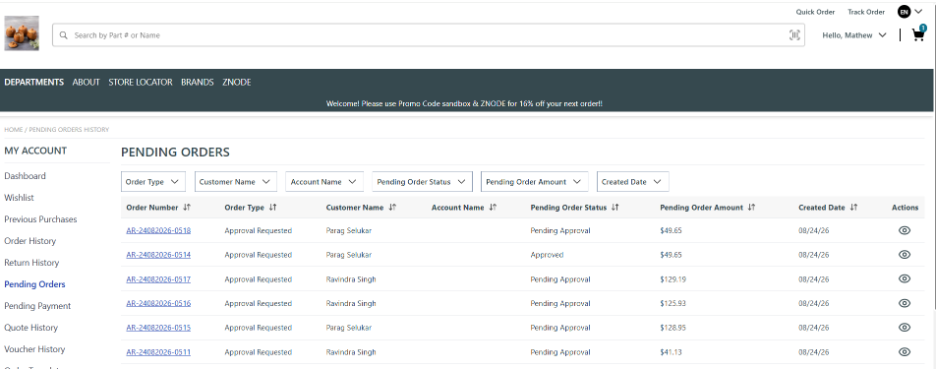
Designated approvers (Approver set for approving the order) can review and approve orders directly from the Storefront.
Access Pending Orders
- Sign in as an assigned approver.
- Navigate to My Profile > Pending Orders.
- All orders awaiting approval are displayed.
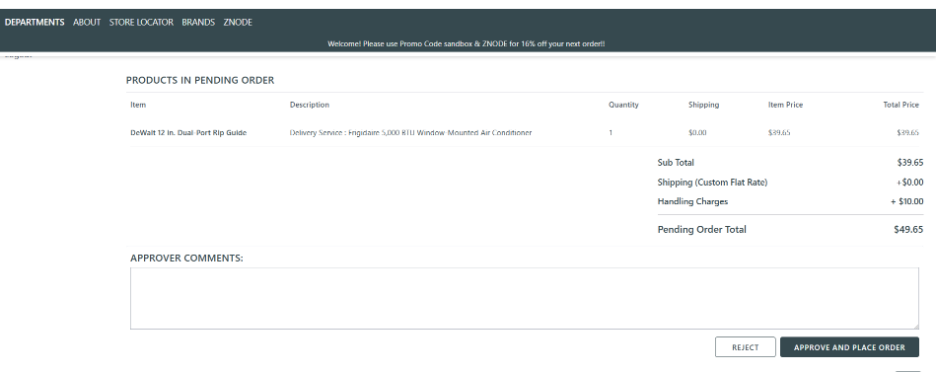
Review and Approve an Order
- Open the pending order.
- Review the order details.
- Enter comments in the approver comments section.
- Select Approve and Place Order.
Result
- The order is approved.
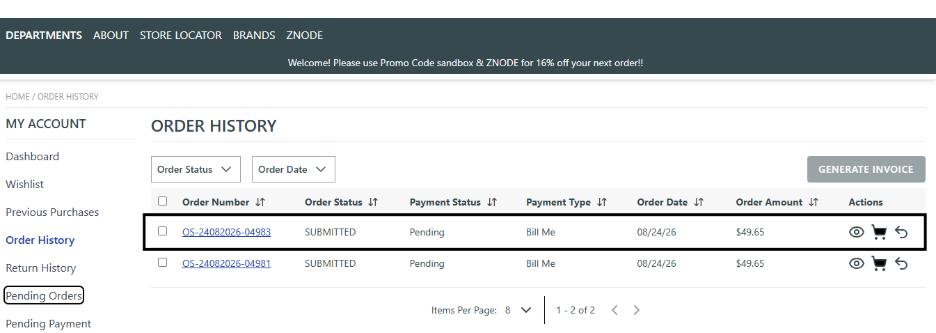
- The order is converted into a standard order.
- The order appears in:
- Pending Orders (with approval history)
- Order History (as the converted order)
Reject an Order
- Open the pending order.
- Add comments if required.
- Select Reject.
Result
- The status changes to Rejected.
- The order remains in the Pending Orders section.
- The order does not appear in Order History.
- An email is sent to the buyer that the order is rejected.
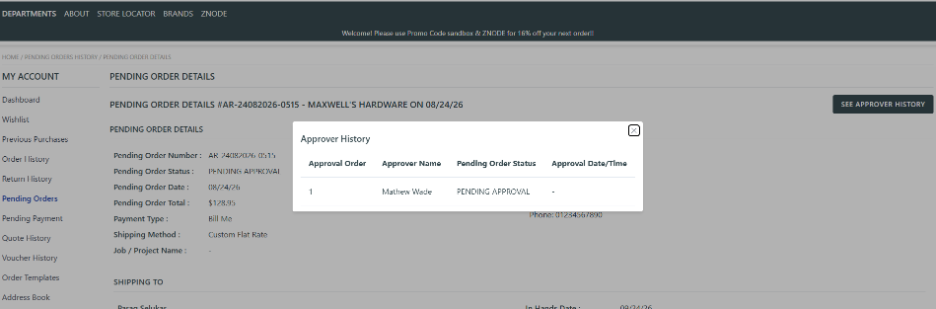
Approval History
Approval activity is tracked for each Pending Order.
View Approval History
- Open a pending order.
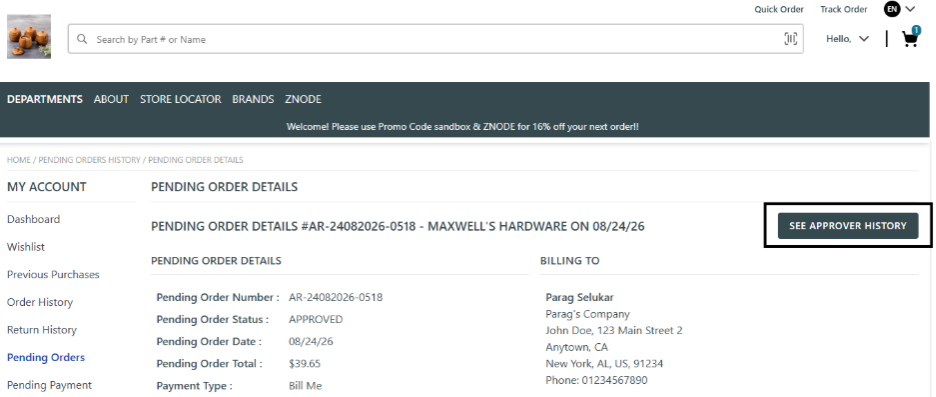
- Access the approval history information by Selecting SEE APPROVER HISTORY.
Result
The approval history displays:
- Approval actions taken
- Approver information
- Comments entered during approval
- Approval status changes
Both Buyers and Approvers can review approval history for transparency and audit purposes.
Expected Outcome
When Approval Routing is enabled:
- Orders requiring approval are submitted as Pending Orders.
- Pending Orders can be reviewed by Administrators or designated Approvers.
- Orders can be approved, rejected, or converted into standard orders.
- Approval history and comments are retained.
- Approved and converted orders appear in Order History and the OMS Orders section.
- Rejected orders remain available in Pending Orders with the appropriate status.
Important Points
Order Approval and Conversion
Once the buyers submitted an Order for Approval, an email is sent to the buyer, that the order has sent for approval and would be notified when processed.
Email Template: PendingOrderStatusNotification
Once an order is approved and converted to an order, a new order is generated. The buyer will receive both an Order Approval Email and an Order Confirmation Email.
Email Template: PendingOrderApproved
Email Template: OrderReceipt
The Submitted for Approval order will always be displayed in the Pending Orders section in both:
- Admin OMS → Pending Orders
- Storefront → Buyer Profile → Pending Orders
Once the Submitted for Approval order is approved and converted, a new order is generated. The new order number will be displayed in:
- Admin OMS → Orders
- Storefront → Buyer Profile → Order History
The approval order when rejected the buyer gets an Rejected Order Email.
Email Template: PendingOrderRejected