
TABLE OF CONTENTS
Overview
The Pending Payments section allows Administrators to review orders placed by customers when a Billing Account Number is not associated with the order. Administrators can approve or decline these pending payments before the order proceeds through the fulfillment process.
When a pending payment is approved and a valid Billing Account Number is assigned, the order is converted into a Pending Order and becomes available in the Pending Orders section of the Admin Console.
Navigation: OMS > Pending Payments
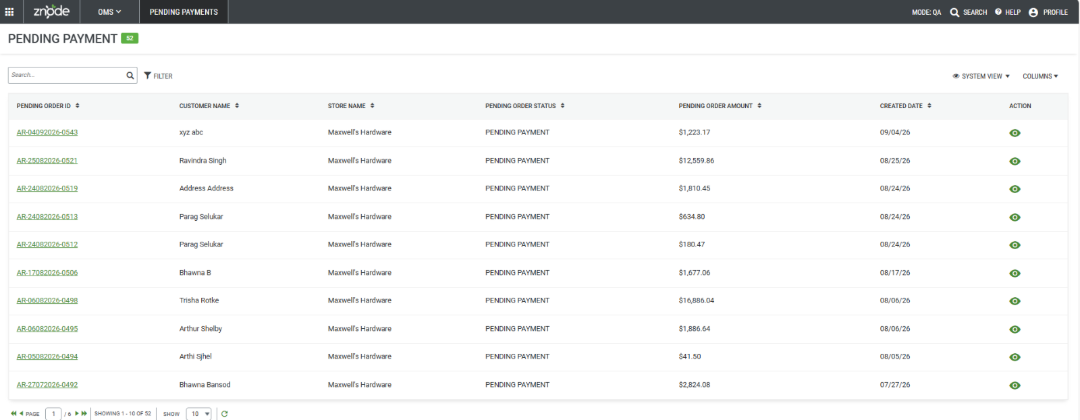
Pending Payments Grid Fields
| Field | Description |
|---|---|
| Pending Order ID | System-generated identifier created when the pending order is placed. |
| Customer Name | Full name of the customer who placed the order. |
| Store Name | Name of the Storefront in which the customer is registered. |
| Pending Order Status | Indicates whether the pending order has been approved or not. |
| Pending Order Amount | Total value of the order. |
| Created Date | Date on which the order was placed. |
| Created By | Name of the user who created the pending order. |
| Modified By | Name of the user who last modified the pending order. |
| Action | Provides access to order-related information through the View option and redirects to the Pending Payment management screen. |
Notes
- Open Account Billing (OAB) can be enabled only for the following payment methods:
- Purchase Orders
- Invoice Me
- Charge on Delivery
- If a customer without Open Account Billing privileges places an order using one of these payment methods, the order requires administrator approval before processing.
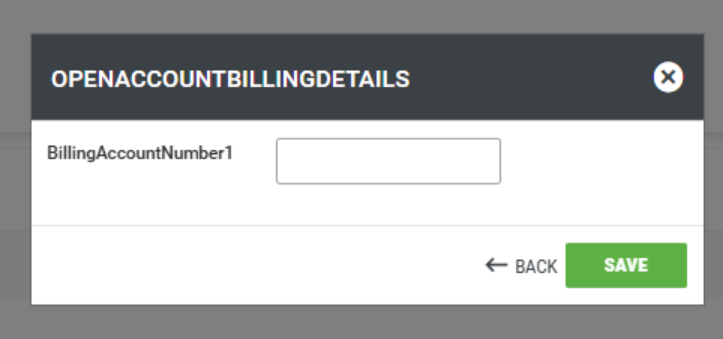
- A Billing Account Number must be entered when approving a pending payment.
Expected Outcome
After approval and assignment of a valid Billing Account Number, the pending payment is successfully converted into a Pending Order and is available for continued order processing within the Admin Console.
Business Use Case
Organizations using Open Account Billing (OAB) may require a Billing Account Number to process specific payment methods. If a customer places an order without an associated Billing Account Number, the order is routed to Pending Payments for administrator review and approval.
This process helps ensure that orders are linked to valid billing accounts before being processed.
Review a Pending Payment
- Navigate to OMS > Pending Payments in the Admin Console.
- Locate the pending payment record that requires review.
- Review the order details displayed in the Pending Payments grid.
- Select View from the Action column.
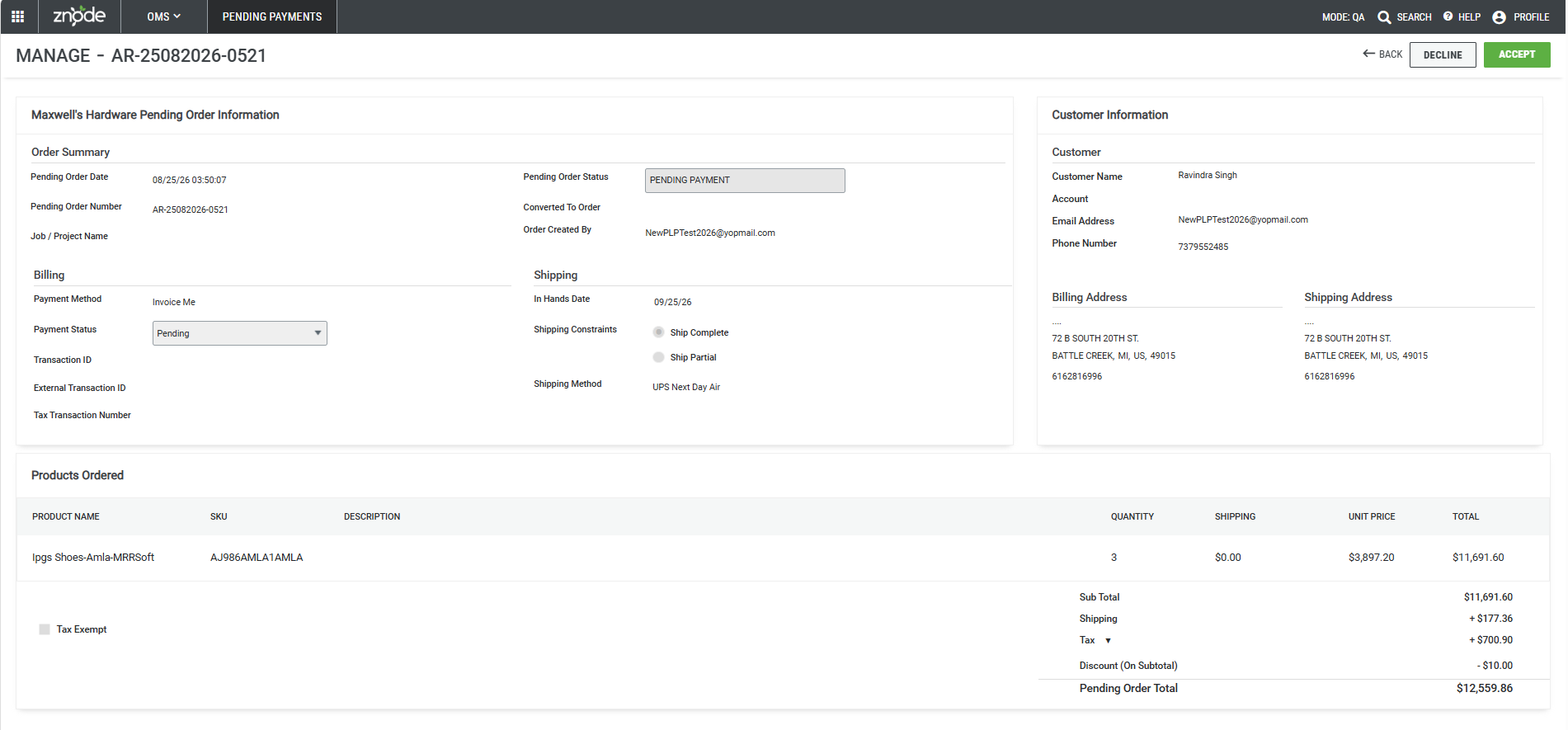
- Review the order information on the Pending Payment details page.
- Choose one of the following actions:
- Accept to approve the order and assign a Billing Account Number.
- Decline to reject the pending payment request.
Approve a Pending Payment
- Open the pending payment record.
- Select Accept.
- Enter the required Billing Account Number.
- Save the changes.
Result
- The pending payment is approved.
- The order is converted to a Pending Order.
- The order becomes available in the Pending Orders section for further processing.
Decline a Pending Payment
- Open the pending payment record.
- Select Decline.
Result
- The pending payment request is rejected.
- The order is not converted into a Pending Order.