
TABLE OF CONTENTS
- Overview
- Use Cases
- Manage Voucher in Admin Console
- Manage a Voucher
- Voucher Use: Storefront
- Voucher Email Functionality
Overview
The Voucher Management feature enables Administrators to create, view, update, deactivate, and delete vouchers. Vouchers can be managed from the Voucher area or from an individual customer profile. Administrators can also associate vouchers with customers, control voucher usage restrictions, review voucher history, and manage custom voucher attributes.
Use Cases
Common voucher management scenarios include:
- Reviewing active and expired vouchers
- Updating voucher expiration dates and amounts
- Assigning vouchers to specific customers
- Restricting voucher usage to a single customer
- Sending voucher notifications to customers
- Reviewing voucher redemption history
- Managing voucher custom attributes
Manage Voucher in Admin Console
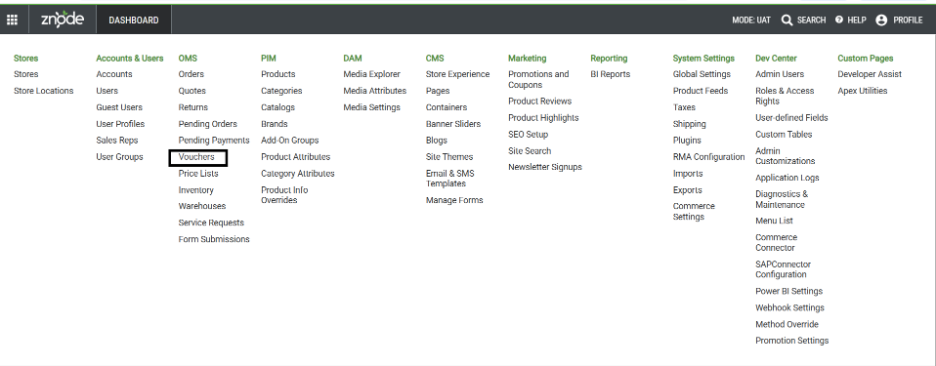
Administrators can access vouchers using either of the following methods:
Option 1: OMS
Navigate To
OMS > Voucher
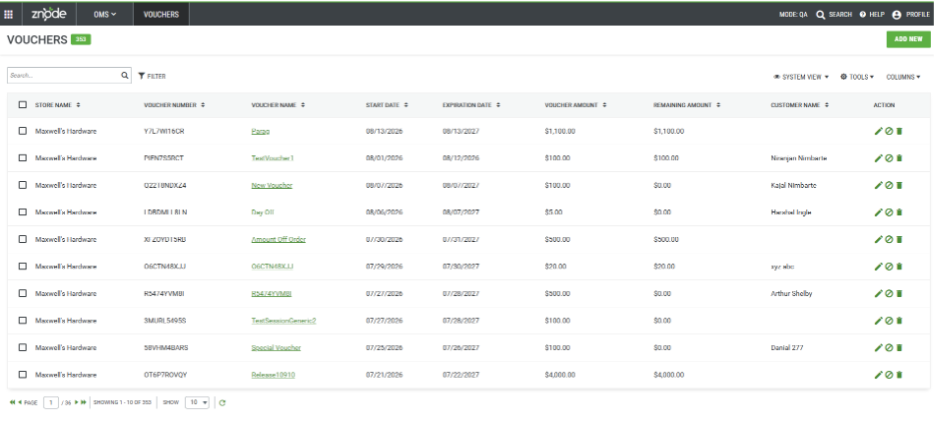
The Voucher list page opens and displays all available vouchers.
Option 2: Access from a Customer Record
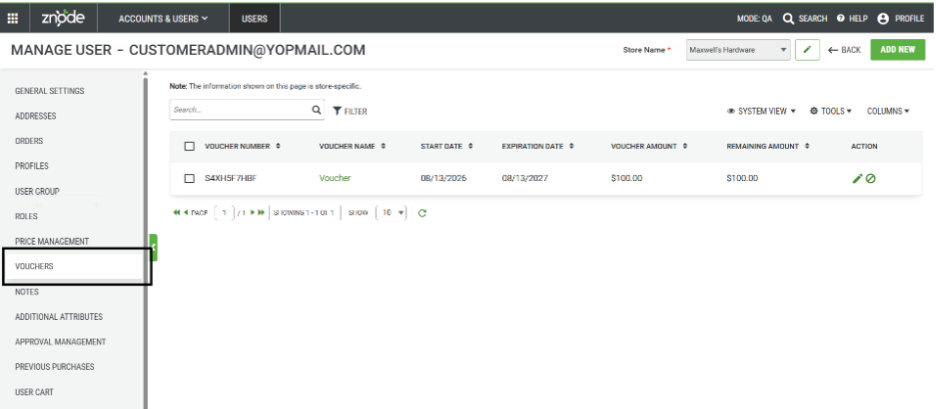
Navigate To
Accounts & Users > Users
Access Voucher Management
- Open the desired user record.
- Select the Voucher tab.
- Review vouchers assigned to the selected user.
- Select a voucher to open the voucher management screen.
Administrators can also create a new voucher directly from this section.
View the Voucher List
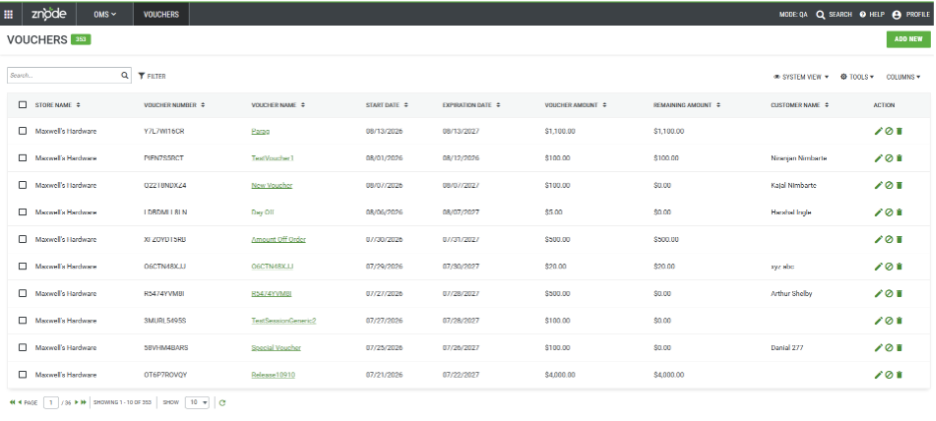
The Voucher list page displays all vouchers in a grid.
Search
Use the Search field to locate vouchers by voucher name.
Filter
Use Filter options to narrow voucher results based on selected criteria.
System View
Administrators can create and manage personalized grid views based on selected filters and columns.
Tools
The Tools menu allows bulk actions to be performed on multiple selected vouchers.
Columns
The Columns option controls which fields are displayed in the grid.
Voucher Grid Fields
| Field | Description |
|---|---|
| Store Name | Store associated with the voucher. |
| Voucher Number | System-generated unique voucher identifier. |
| Voucher Name | Name assigned to the voucher. |
| Voucher Amount | Original monetary value of the voucher. |
| Start Date | Date the voucher becomes active. |
| Expiration Date | Date the voucher expires. |
| Remaining Amount | Current unused voucher balance. |
| Customer Name | Customer associated with the voucher. |
| Action | Available voucher actions. |
Voucher Actions
Edit Voucher
Select the voucher name or the Edit option from the Action column to open the voucher details.
Deactivate Voucher
Deactivate a voucher to prevent future use.
Delete Voucher
Delete a voucher that is no longer required.
Note: If the voucher is associated with an order or has already been used by a buyer, the system displays an error and the voucher cannot be deleted.
Manage a Voucher
Administrators can open a voucher by:
- Selecting the voucher name hyperlink.
- Selecting the Edit action from the voucher grid.
The voucher management page contains the following sections.

Voucher Details
The Voucher Details section displays voucher information.
Read-Only Fields
The following fields cannot be modified:
- Store Name
- Voucher Number
- Voucher Name
- Start Date
Editable Fields
The following fields can be updated:
- Expiration Date
- Voucher Remaining Amount
Customer Information
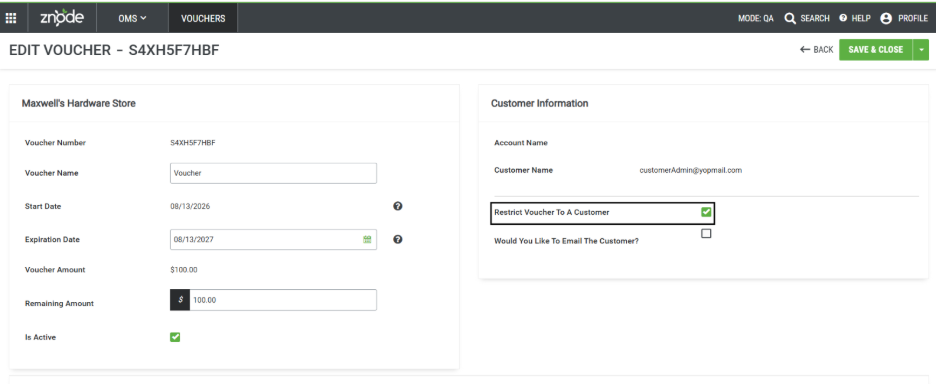
The Customer Information section controls voucher ownership and redemption restrictions.
| Field | Description |
|---|---|
| Account Name | Account associated with the customer. |
| Customer Name | Displays Username | First Name Last Name when available. If the customer's first and last name are not available, only the Username is displayed. |
| Restrict Voucher to a Customer | Controls whether the voucher can be redeemed only by the assigned customer. |
| Would You Like To Email The Customer? | When enabled, voucher information is sent to the assigned customer using the New Voucher Issued For Customer email template. When disabled, no email is sent. |
Restrict Voucher to a Customer Flag
When Enabled
- Only the associated customer can redeem the voucher.
- If another buyer attempts to use the voucher, the following error message is displayed:
"Please enter a valid voucher."
When Disabled
- Any buyer can redeem the voucher.
- The voucher is not limited to a specific customer.
- Multiple buyers can use the voucher as long as a remaining balance is available.
- The first buyer who redeems the voucher is displayed in the Customer Information section.
- The voucher remains available to other buyers until the remaining balance reaches zero or the voucher expires.
Customer Association Behavior
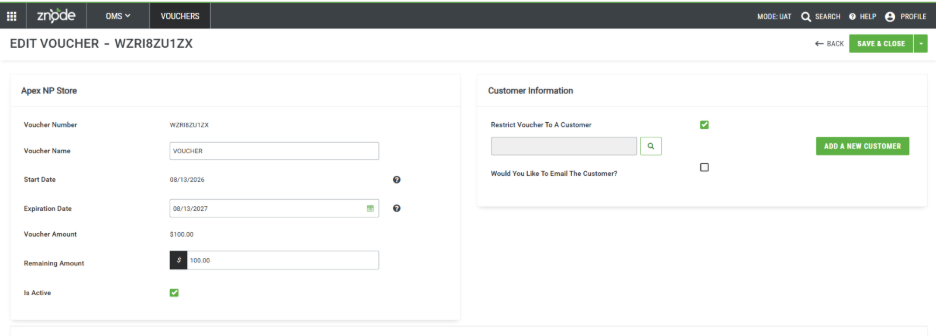
Voucher Creation Without Customer Assignment
A voucher can be created without selecting a customer.
After the voucher is saved:
- Open the voucher management screen.
- The Customer Information section becomes available.
- The administrator can associate the voucher with a customer.
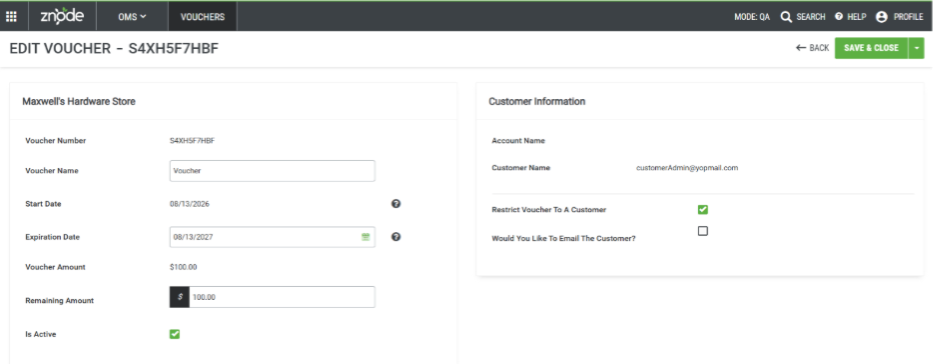
When a voucher does not have an assigned customer:
- The first customer who successfully redeems the voucher automatically becomes associated with the voucher.
- Customer information is displayed in the Customer Information section.
- The associated customer cannot be changed later.
- Customer search and selection options are no longer available.
- The administrator can enable the Restrict Voucher to a Customer option if voucher usage should be limited to the associated customer.
Voucher History Notes
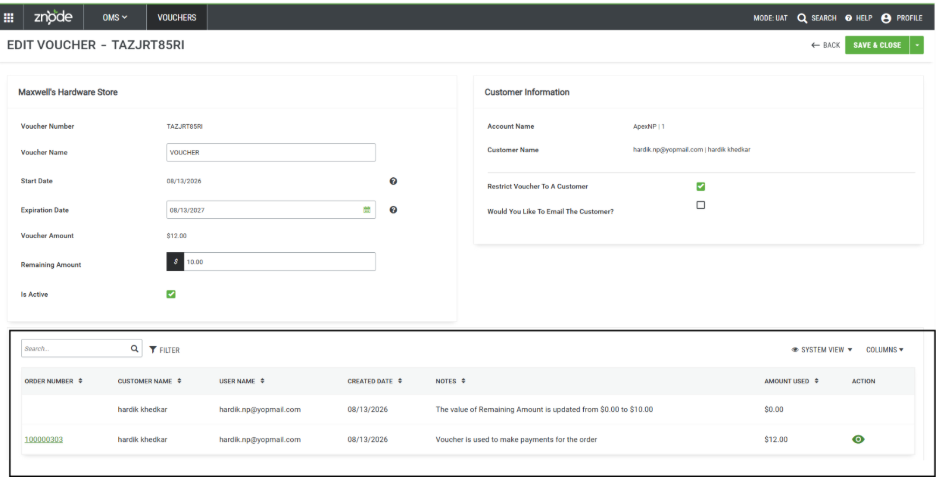
The Voucher History Notes section provides an audit trail for voucher activity.
This section records:
- Voucher usage against orders.
- Voucher balance adjustments.
- Administrative updates affecting voucher value.
Voucher History Grid Fields
| Field | Description |
|---|---|
| Order Number | Order where the voucher was redeemed. |
| Customer Name | Customer first and last name. |
| Username | Customer username. |
| Created Date | Date when the voucher activity occurred. |
| Notes | Description of the voucher activity. |
| Amount Used | Voucher amount applied to an order. |
| Action | View details for voucher usage records. |
View Action Behavior
Voucher Redeemed
The View option is available and can be used to review order-related voucher details.
Voucher Balance Updated
When only the voucher's remaining amount is modified:
- A history note is created.
- The View option is not displayed.
Voucher History Grid Features
The Voucher History Notes grid supports:
- Search
- Filters
- Saved Views
- Column Selection
Available options may be limited compared to the primary voucher grid.
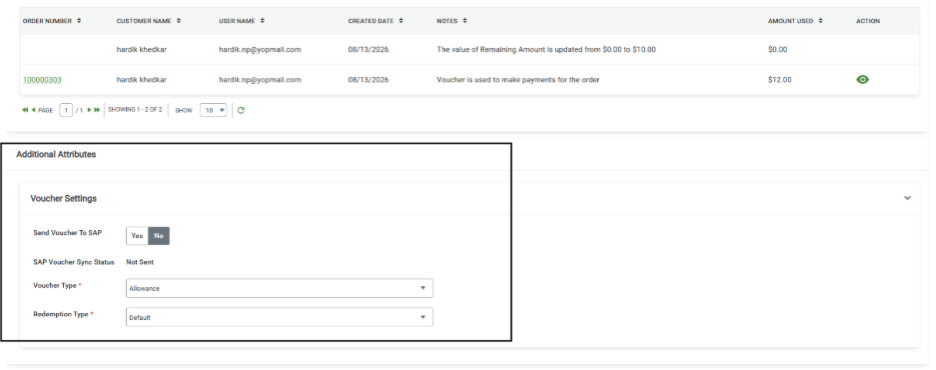
Additional Attributes
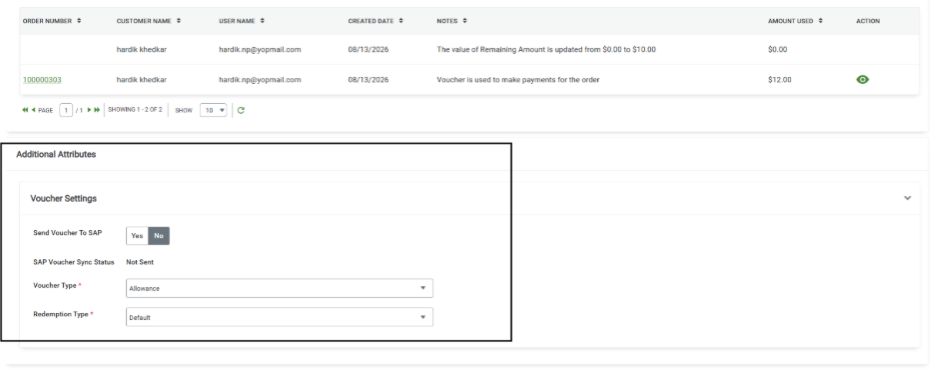
Custom fields created through Dev Center User Defined Fields are displayed in the Additional Attributes section of the voucher management page.
Administrators can review and maintain voucher-specific custom information from this section.
Expected Results
After managing a voucher successfully:
- Voucher details reflect updated values.
- Customer associations are stored correctly.
- Voucher restrictions are enforced during redemption.
- Email notifications are sent when enabled.
- Voucher activity is recorded in the Voucher History Notes section.
- Custom fields appear in the Additional Attributes section when configured.
Voucher Use: Storefront
Apply a Voucher at Checkout
Buyers can apply a voucher directly from the Storefront Checkout page.
Applying a Voucher
- Navigate to the Checkout page.
- In the Voucher section, enter the voucher number in the voucher entry field.
- Click Apply.
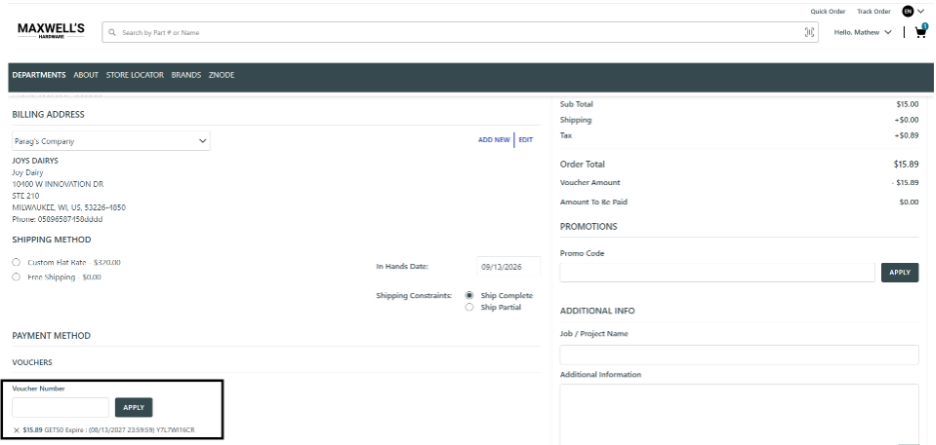
- If the voucher is valid, it is successfully applied to the order and displayed below the voucher entry field.
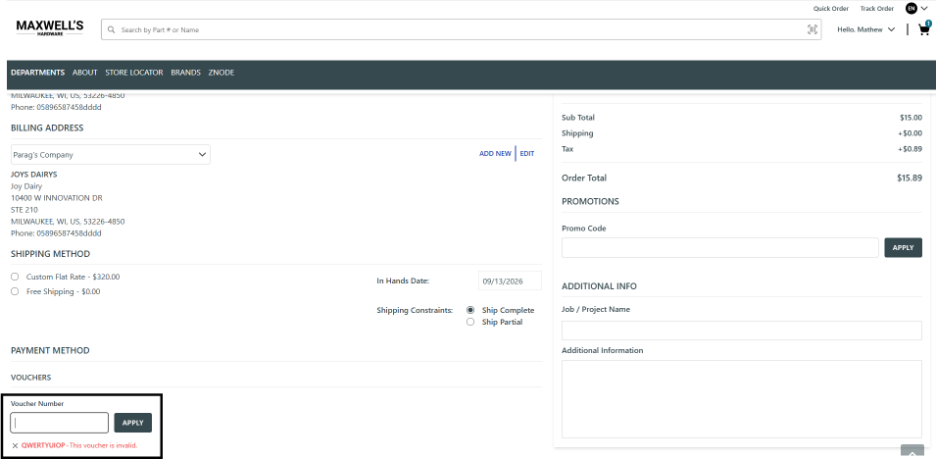
If the voucher is invalid, expired, inactive, restricted to another customer, or has insufficient balance, an appropriate error message is displayed.
Applied Voucher Details
Once applied, the voucher displays the following information:
- Amount Used – The amount of the voucher applied to the order.
- Voucher Name – The name associated with the voucher.
- Expiration Date and Time – The date and time when the voucher expires.
- Voucher Number – The unique voucher number.
Example
$15.89 Parag Expire: (08/13/2027 23:59:59) Y7L7WI16CR
Where:
- $15.89 – Amount used from the voucher.
- Parag – Voucher name.
- 08/13/2027 23:59:59 – Voucher expiration date and time.
- Y7L7WI16CR – Voucher number.
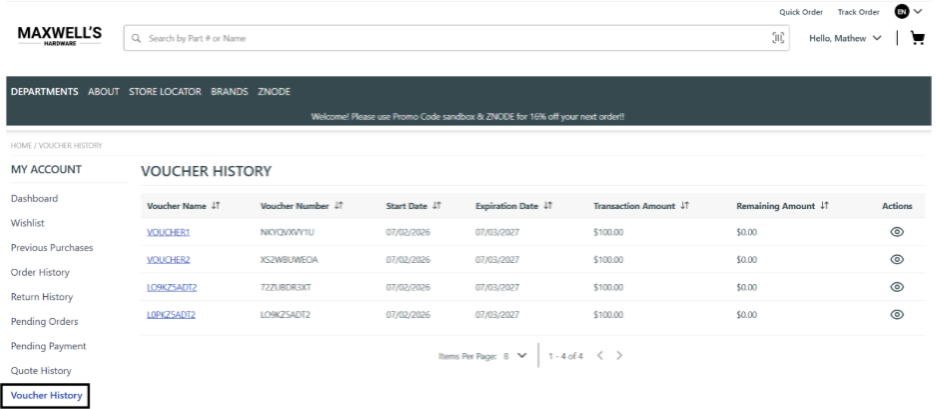
Voucher History
Assigned vouchers are displayed within the Customer account profile on the Storefront.
Navigate To
My Profile > Voucher History
The Voucher History page displays:
- Voucher Number
- Voucher Name
- Transaction Amount
- Remaining Amount
- Start Date
- Expiration Date
- Action
All vouchers associated with the customer account are available for review in this section.
Voucher Email Functionality
Znode provides email templates that support voucher issuance, voucher balance notifications, and voucher expiration reminders.
New Voucher Issued For Customer
Purpose
This email template is triggered when a new voucher is issued to a customer.
Trigger Condition
The email is triggered based on the Would You Like To Email The Customer setting.
Behavior
- When Would You Like To Email The Customer is enabled, voucher information is sent to the assigned customer using the New Voucher Issued For Customer email template.
- When Would You Like To Email The Customer is disabled, no email is sent to the customer.
Remaining Voucher Balance
Purpose
This email template is triggered when an order is placed using a voucher.
Behavior
- The email is sent to the customer after voucher redemption.
- The email provides information about the remaining voucher balance available after the order is processed.
Reminder To Use The Voucher Balance Before It Expires
Purpose
This email template reminds customers to use their remaining voucher balance before the voucher expires.
Behavior
- The email is sent prior to the voucher expiration date.
- The email encourages customers to redeem any remaining voucher balance before it becomes unavailable.
- The email helps increase voucher utilization and improves customer engagement.