
TABLE OF CONTENTS
Overview
Service Requests enable Administrators to manage customer inquiries and feedback submitted through the Storefront. Service Requests can be created manually from the Admin Console or automatically generated from customer interactions, such as Contact Us forms and checkout feedback submissions.
Common Service Request types include:
- Contact Forms - Created when a customer submits a Contact Us form.
- User Feedback - Created when a customer submits feedback from the checkout Thank You page.
Administrators can review, update, communicate on, and track Service Requests from a centralized location in the Admin Console.
Use Cases
Common scenarios for using Service Requests include:
- Managing customer inquiries submitted through Contact Us forms.
- Tracking and resolving customer issues.
- Responding to customer questions via email.
- Recording internal notes and updates.
- Reviewing communication history associated with a request.
View Service Requests
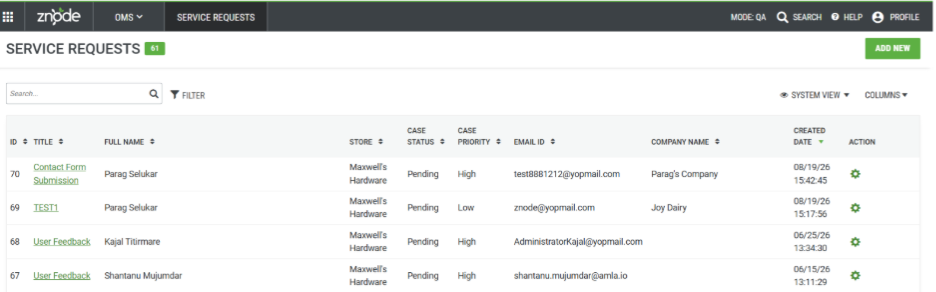
All Service Requests are available from the Service Requests list page.
Navigate to:
OMS > Service Requests
Expected Outcome
The Service Requests page displays:
- Contact Form requests.
- User Feedback submissions.
- Manually created Service Requests.
- Request status and related information.
Create a Service Request
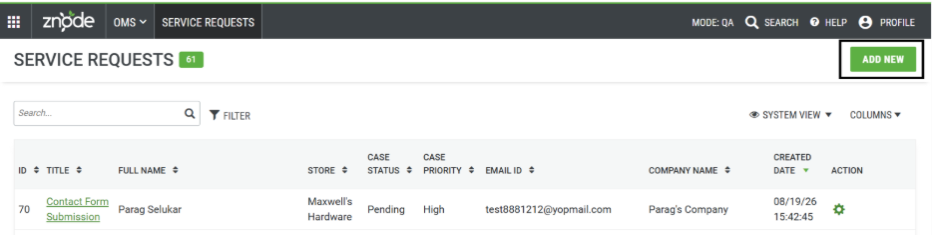
Administrators can manually create a Service Request from the Service Requests page.
Navigate to:
OMS > Service Requests
Steps
- Select Add New.
- Enter the required Service Request information.
- Select Save.
Expected Outcome
The new Service Request is created and appears in the Service Requests list.
Manage a Service Request
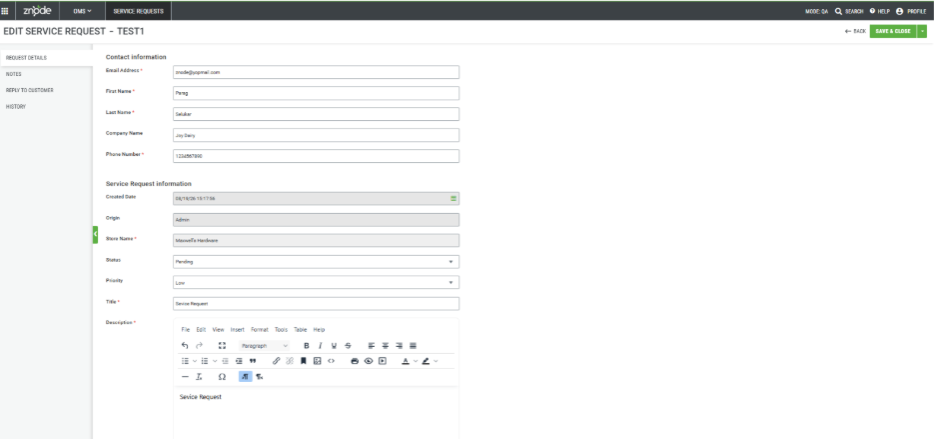
Administrators can review and update Service Requests from the Manage page.
Navigate to:
OMS > Service Requests > Manage
Steps
- Open the Service Requests list page.
- Locate the Service Request to be reviewed.
- Select Manage.
- Review the request information.
- Update request details as needed.
- Select Save.
Expected Outcome
The Service Request is updated and the revised information is displayed.
Update Request Details
The Request Details section displays information submitted by the customer.
Administrators can review and update request information, including:
- Status.
- Priority.
- Customer information.
- Other request-related details.
Expected Outcome
Updated request information is saved and reflected on the Service Request record.
Add Notes to a Service Request
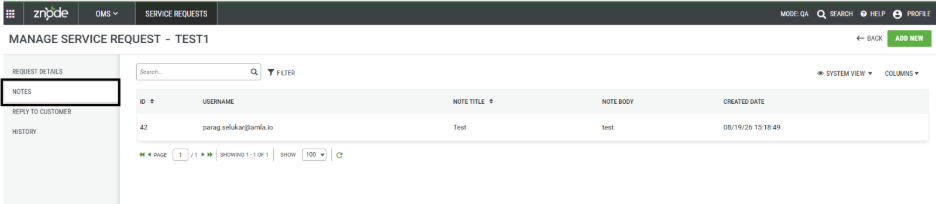
Notes allow Administrators to document internal information related to a Service Request.
Navigate to:
OMS > Service Requests > Manage > Notes
Steps
- Select Add New.
- Enter a Note Title.
- Enter the Note Body.
- Select Save.
Expected Outcome
The note is saved and displayed in the Notes tab.
Reply to a Customer
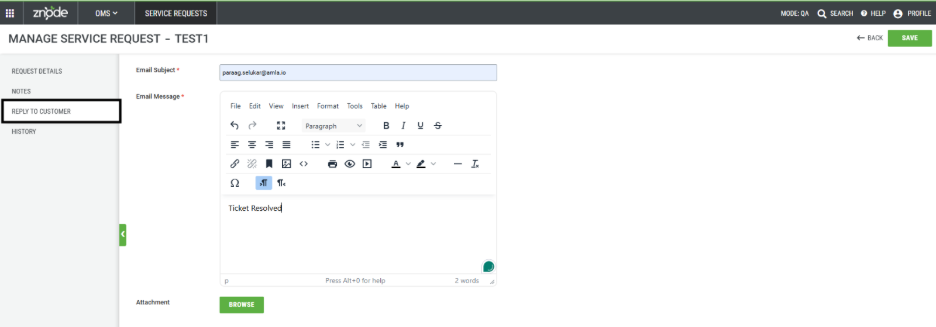
Administrators can communicate with customers directly from the Service Request by email.
Navigate to:
OMS > Service Requests > Manage > Reply to Customer
Steps
- Enter the email response details.
- Enter an Email Subject.
- Enter the Email Message.
- Optionally upload an attachment.
- Select Save.
Expected Outcome
- An email is sent to the customer.
- A confirmation message is displayed.
- The page redirects to the History tab.
- The email details are recorded in the Service Request history.
View Service Request History
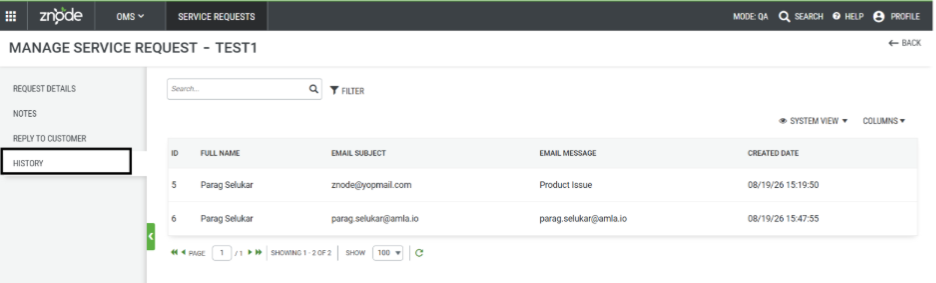
The History tab provides a record of customer communications associated with the Service Request.
Navigate to:
OMS > Service Requests > Manage > History
Steps
- Open the Service Request.
- Select the History tab.
Expected Outcome
Administrators can review:
- Previously sent emails.
- Communication history.
- Email details related to the Service Request.
Expected Outcome
After managing a Service Request, Administrators can:
- Track customer inquiries and feedback.
- Update request status and priority.
- Add internal notes.
- Send email responses to customers.
- Review communication history from a single location.
Notes
- Service Requests may be generated automatically from Contact Us submissions and checkout feedback.
- Notes are intended for internal tracking and documentation purposes only.
- Email responses sent from the Service Request are stored in the History tab for future reference.
- The History tab provides visibility into previous customer communications associated with the request.