
TABLE OF CONTENTS
- Overview
- Site Theme List
- Adding a Site Theme
- Use Cases
- Configuring a Site Theme From Store Experience
- Theme Customization
- When Full Theme Customization Is Required
- When Theme Styling Changes Can Be Used (e.g., Updating Colors and Visual Appearance)
- When New Styling and New Pages Are Required While Keeping Existing Functionality Unchanged
- When New Styling, New Pages, and Modifications to Existing Functionality Are Required
Navigate to: CMS > Site Themes
Overview
The Themes page in the Znode Admin Console allows administrators to view, add storefront themes. Themes control the visual presentation and layout of the Storefront, including styling, structure, and user interface elements.
Administrators can use this page to:
- View all available themes
- Identify parent and child theme relationships
- Determine whether a theme is system-defined or not
- Add new themes
Site Theme List
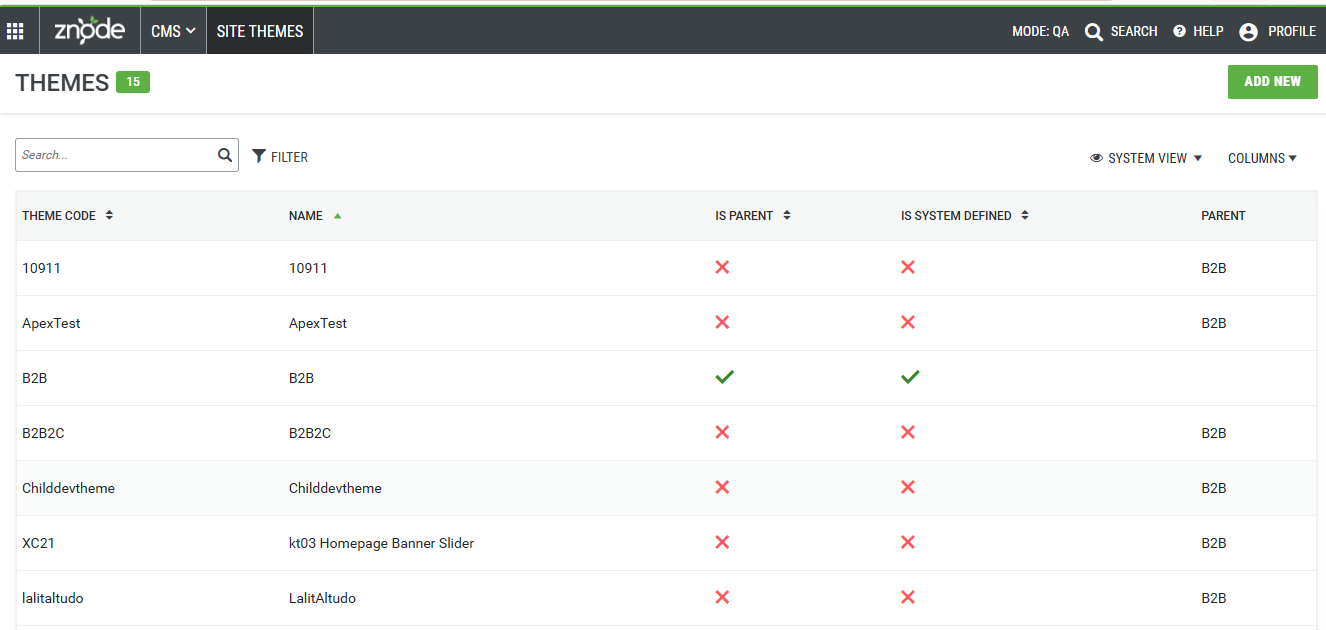
The Themes page displays a list of all configured themes with the following columns:
- ID - A unique identifier assigned to each theme.
- Name - The display name of the theme.
- Is Parent - Indicates whether the theme is a parent theme.
- A parent theme serves as a base for child themes.
- Is System Defined - Indicates whether the theme is a system-defined theme.
- Parent - Displays the parent theme associated with a child theme.
Adding a Site Theme
Navigate to: CMS> Site Themes
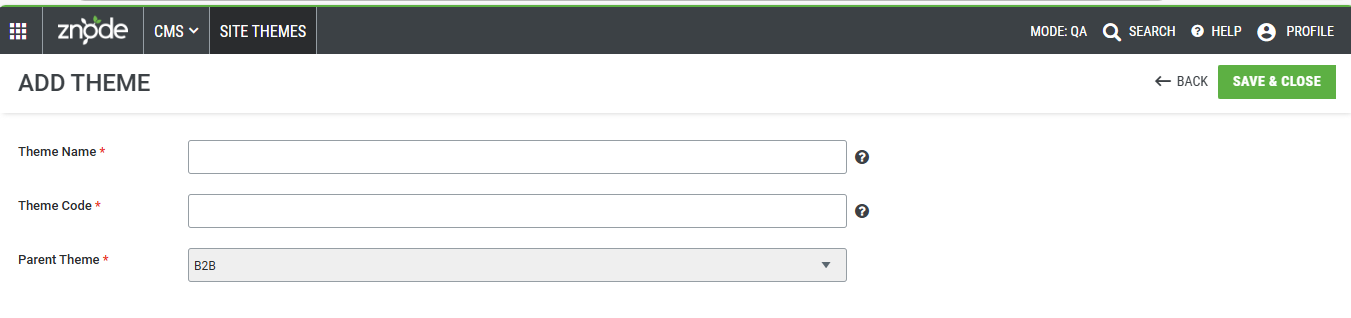
- Click the “Add New” button.
- Enter the Theme Name and Theme code, which are mandatory input field.
- The Parent Theme is automatically selected by default.
- Click Save & Close to save the theme details.
- The page reloads and displays a confirmation message.
- The new site theme is now successfully added and available in the system.
Important Note : Znode 10 utilizes a theme inheritance approach where the provided B2B theme serves as the base parent theme. Customer-specific customizations can be efficiently implemented by creating child themes that inherit functionality from the parent theme while allowing custom branding, styling, and page-level changes.
This approach promotes reusability, easier maintenance, and a streamlined upgrade path while ensuring consistency across storefront implementations.
Use Cases
Use Case 1: View Existing Themes
Steps
- Log in to the Znode Admin Console.
- Navigate to CMS from the top menu.
- Click on Site Themes.
- Review the list of themes displayed on the page.
Expected Outcome
- The system displays all available themes.
- Each theme shows its parent relationship and system status.
- Parent themes are clearly identified.
Use Case 2: Search and Filter Themes
Steps
- On the Themes page, locate the Search field.
- Enter a keyword such as:
- Theme Name
- Theme Id
- Click the search icon or press Enter.
- (Optional) Use the Filter option to refine results.
Expected Outcome
- The theme list updates to display only matching results.
- Filtering helps locate specific themes quickly.
Use Case 3: Add a New Theme
Steps
- Navigate to CMS > Site Themes.
- Click the Add New button located in the top-right corner.
- Enter the required theme details.
- Save the configuration.
Expected Outcome
- The new theme is added to the list.
- The theme appears with its defined properties.
Configuring a Site Theme From Store Experience
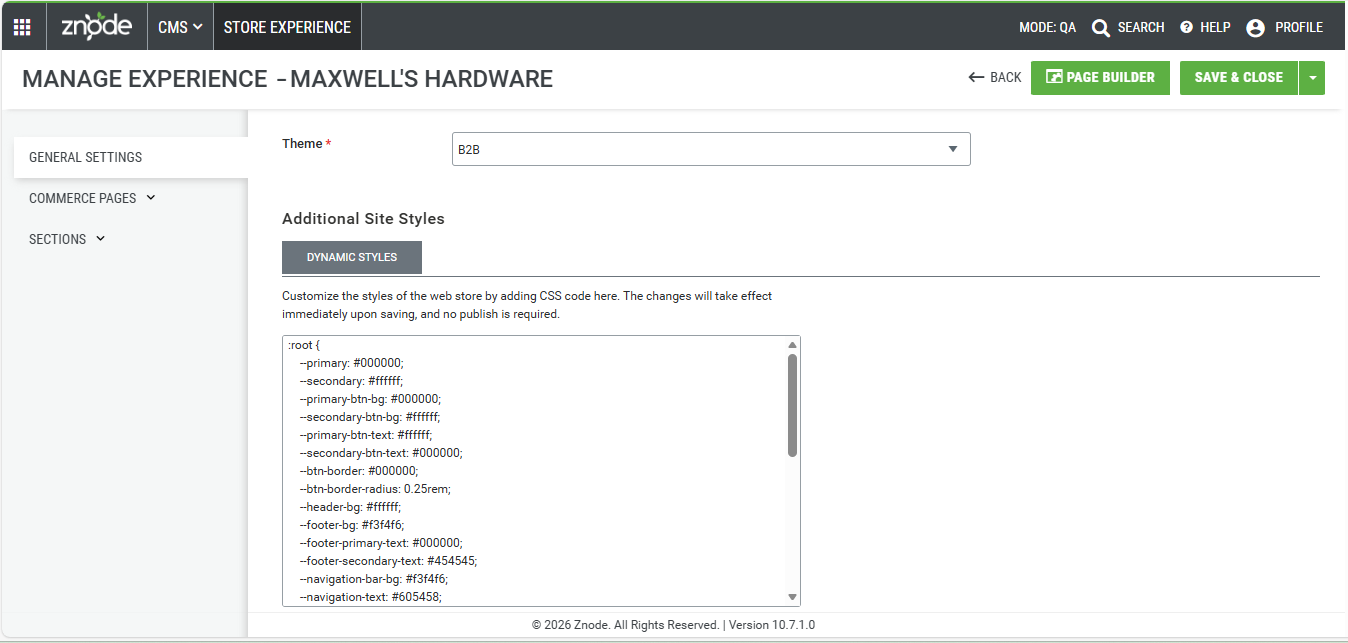
Quick changes can be made to the CSS for the site without having to have a developer update the base CSS and deploy it.
Navigate to: CMS > Store Experience
- On the General Settings tab, scroll down to Dynamic Styles
- Enter updated CSS information in this area
- Save & Close
Theme Customization
When Full Theme Customization Is Required
Use this approach when the customer requires a completely unique storefront experience that differs significantly from the default implementation.
Typical Requirements
- Completely different branding and visual identity
- Custom page layouts across the entire storefront
- New UI components and widgets
- Custom navigation structure
- Different homepage, category page, and product page designs
- Industry-specific user experience requirements
- Multiple storefronts with different branding
Technical Approach
- Create a new Theme Configuration.
- Scaffold a new theme package.
- Create theme-specific widgets and components.
- Override existing base components where required.
- Configure theme-specific Tailwind styling.
- Register the new theme in the Page Builder configuration.
Examples
- A B2B industrial marketplace requiring a different UX than a retail store.
- A luxury fashion brand needing a premium storefront experience.
- A multi-brand implementation where each brand requires its own theme.
2. When Theme Styling Changes Can Be Used (e.g., Updating Colors and Visual Appearance)
Use this approach when only the visual appearance of the storefront needs to change while maintaining existing layouts, pages, and functionality.
Typical Requirements
- Update brand colors
- Change typography
- Modify button styles
- Update spacing and border radius
- Apply customer branding guidelines
- Improve visual consistency
Technical Approach
- Update Tailwind theme configuration.
- Modify theme variables.
- Adjust CSS utility classes.
- No component or widget development required.
- No business logic changes required.
Examples
- Changing the primary color from blue to green.
- Updating fonts to match corporate branding.
- Applying a dark theme.
- Updating button styles and card designs.
Benefits
- Lowest development effort.
- Minimal testing required.
- No impact on functionality.
- Faster implementation and deployment.
3. When New Styling and New Pages Are Required While Keeping Existing Functionality Unchanged
Use this approach when customers require new pages and layouts but want to continue using the existing business functionality provided by the platform.
Typical Requirements
- New landing pages
- New marketing pages
- Custom home page layouts
- New content pages
- Campaign-specific pages
- New page sections and widgets
- Improved user experience without altering business processes
Technical Approach
- Use Page Builder to create new pages.
- Apply custom styling through themes.
- Create new UI widgets if required.
- Reuse existing business components and APIs.
- Keep existing checkout, cart, account management, and commerce functionality unchanged.
Examples
- Creating a custom homepage for a holiday campaign.
- Adding an "About Us" page with a unique design.
- Creating a custom brand landing page.
- Building promotional pages for seasonal events.
Benefits
- Faster implementation than full customization.
- Lower maintenance cost.
- Existing functionality remains stable.
- Reduced testing scope.
4. When New Styling, New Pages, and Modifications to Existing Functionality Are Required
Use this approach when both the user interface and business functionality need to be customized to meet specific customer requirements.
Typical Requirements
- Custom business workflows
- Custom product detail page behavior
- Custom checkout process
- Additional validation rules
- New commerce features
- Third-party integrations
- Industry-specific functionality
- Custom customer journeys
Technical Approach
- Create a custom theme.
- Develop new components and widgets.
- Override existing components.
- Modify component rendering logic.
- Extend APIs and business functionality where required.
- Build custom pages and workflows.
- Apply custom Tailwind styling.
Examples
- B2B customer-specific pricing workflows.
- Custom RFQ (Request for Quote) process.
- Travel booking or itinerary-based storefront experience.
- Subscription-based commerce model.
- Multi-step product configuration process.
- Industry-specific checkout requirements.
Benefits
- Maximum flexibility.
- Supports unique business requirements.
- Fully customized customer experience.
- Allows complete control over UI and functionality
For new styling, new page creation, or any theme customization, please refer to the article below for guidance and implementation details.
Reference Article - Webstore Customization Guide | Znode