
TABLE OF CONTENTS
Introduction
Navigate to: Stores > Manage Store > Approval Management
Set the Enable Approval Management flag to Yes. Then select “Users” from the Approval Type dropdown. The remaining configurations are done in the Manage Users screen.
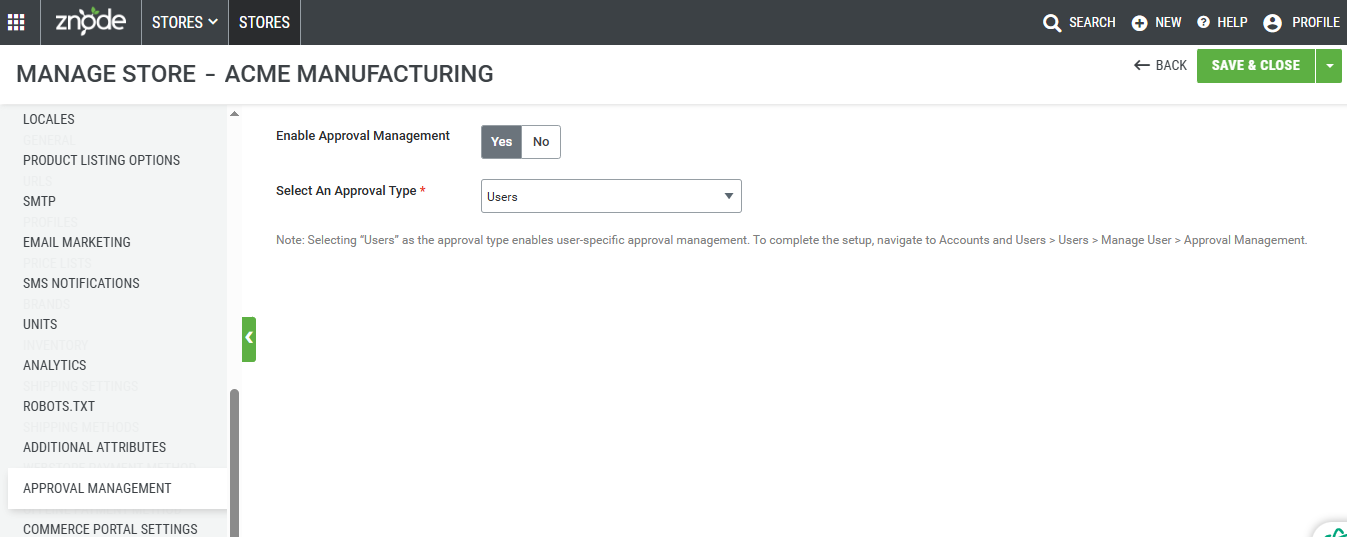
Configuring User-Level Approval:
Navigate to: Accounts and Users > Users > Manage User > Approval Management
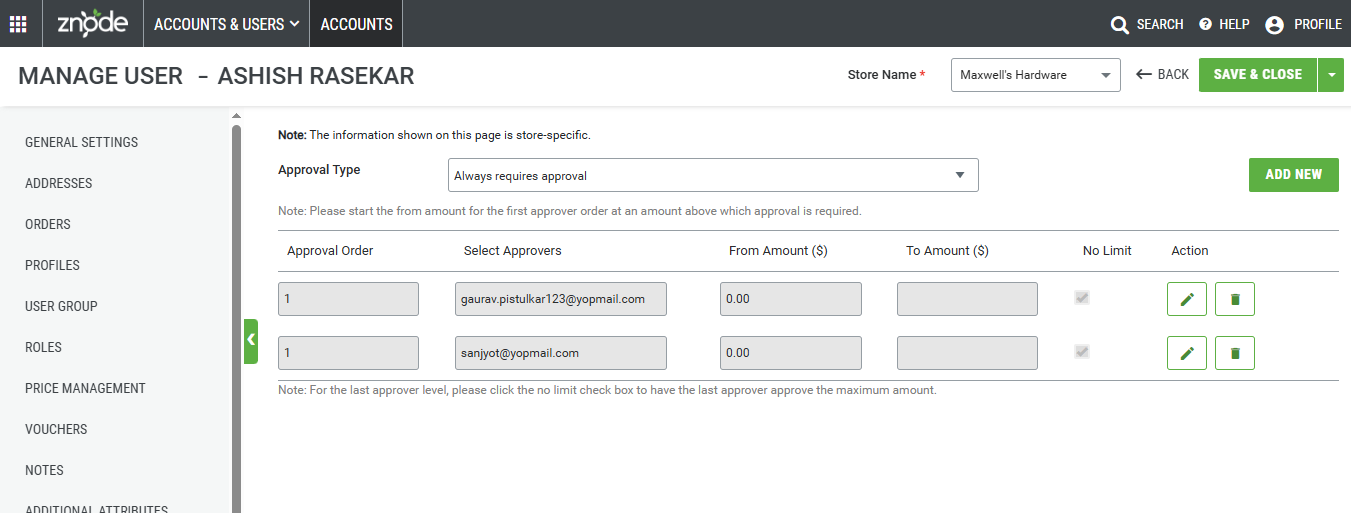
Steps to configure User-Level Approval
- Set the “Approval Type” to “Always Require Approval”.
- Click the “Add New” button to configure the Approvers, Approver Order, and Amount Brackets for the selected user.
- Click on the “Add New” button again to add multiple approvers.
- Click “Save” or “Save and Close” to apply the changes
Important notes
- In the case of user-specific approval routing, the approval flow applies to all payment methods associated with the store. (Currently, only non-digital payment methods are associated with AR)
- When the admin sets the Approval Type to "Users", any previously done configurations under the "Store" or "Payment" approval types are removed and cannot be restored. If the administrator later switches the approval type back to "Store" or "Payment", the respective configurations will be reconfigured from scratch.
- On the Approval Management screen (Accounts and Users > Users > Manage User), the last approver's amount bracket has no upper limit. The bracket begins from the value entered in the “From” field and extends indefinitely/no limit (i.e., up to infinity).