
- TABLE OF CONTENTS
Navigation Path
Admin → CMS → Store Experience → Manage Store → Commerce Pages
Overview
- Commerce Pages include predefined system-driven components.
- Ensure consistent structure and functionality across:
- Product Pages
- Category Pages
- Authentication Pages
- Order-related Pages
Page Builder Layout
- Left Panel:
- Components
- Outline
- Middle Panel:
- Live Preview
- Right Panel:
- Attributes
Component Management
- Supports drag and drop functionality
- Attributes can be edited dynamically
- Outline navigation is available
Predefined Components
- Each page has a predefined structure.
- Components are automatically added and always visible.
- Components cannot be deleted or duplicated.
- Only limited fields are editable:
- Heading
- Description
- Buttons
- Additional components can only be placed:
- Above the predefined component
- Below the predefined component
Actions
- Save for Preview - Clicking Save for Preview pushes changes to the preview environment. Changes are also saved as a draft in Page Builder.
- Publish - Clicking Publish pushes changes to both preview and production environments.
- Back (Discard changes) -Clicking Back Changes are not saved. User is redirected to the previous page. When reopening the page, editing must start from the beginning.
Pages with Predefined Components
| Page Name | Component Name |
|---|---|
| Product | Product Details Page |
| Category | Product Listing Page |
| Brand List | Brand List Page |
| Brand Details | Brand Details Page |
| Store Locator | Store Locator Page |
| Blog List | Blog Page |
| Blog Details | Blog Details Page |
| Contact Us | Contact Us Page |
| Feedback | Feedback Page |
| Maintenance | Maintenance |
| Cart | Cart |
| Checkout | Checkout |
| Forgot Your Password | Forgot Password |
| Track Order Page | Order Status |
| Quick Order Page | Quick Order |
| Sign In | Login |
| Create An Account | Signup |
Component Details
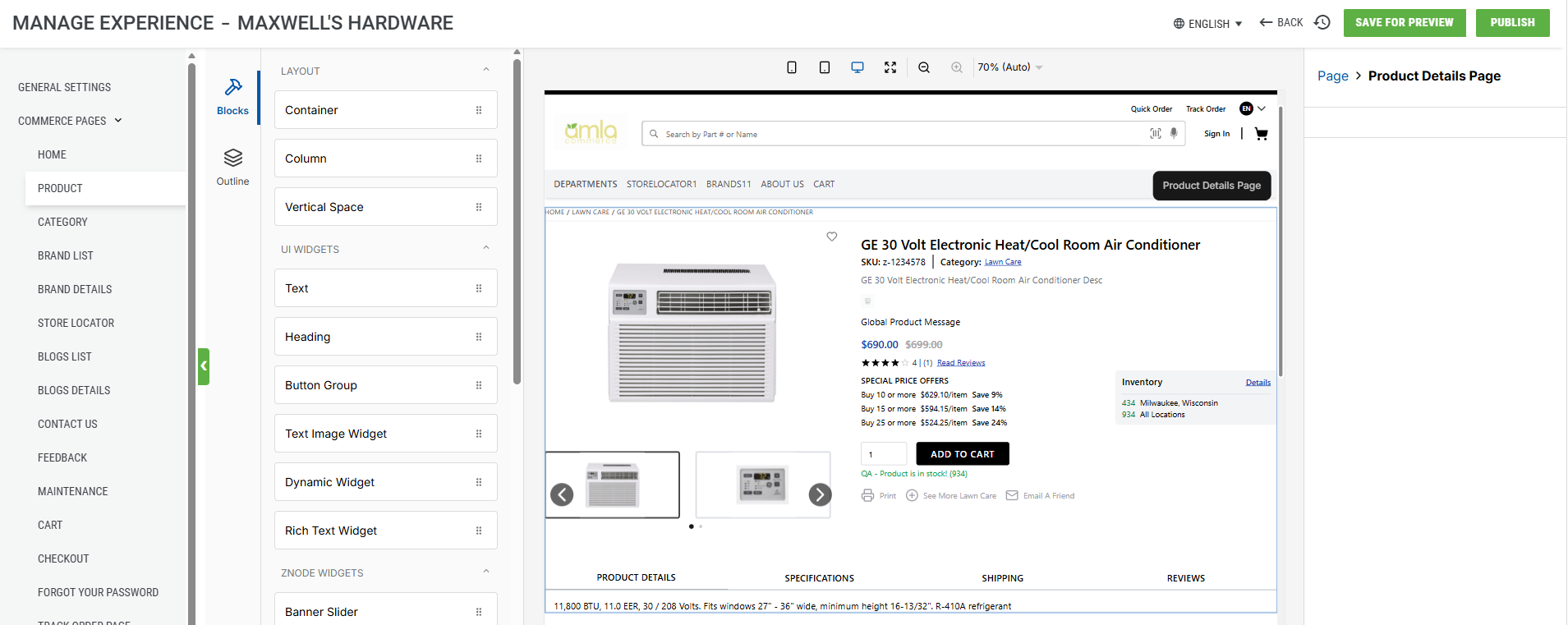
Product – Product Details Page
- No configurable attributes.
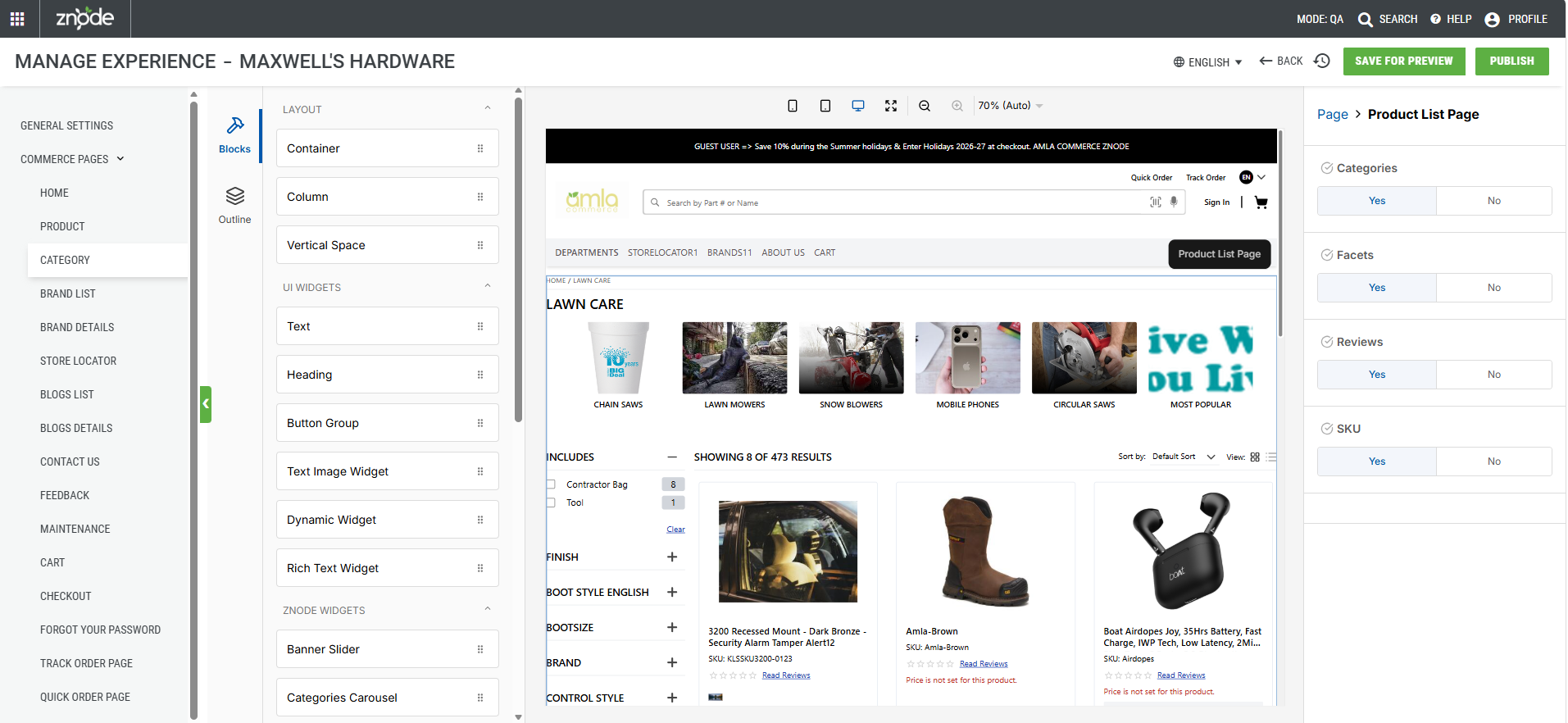
Category – Product Listing Page
- Categories:
- Enable/disable category list at the top.
- Facets:
- Enable/disable filters.
- Reviews:
- Enable/disable ratings and reviews.
- SKU:
- Enable/disable SKU display.
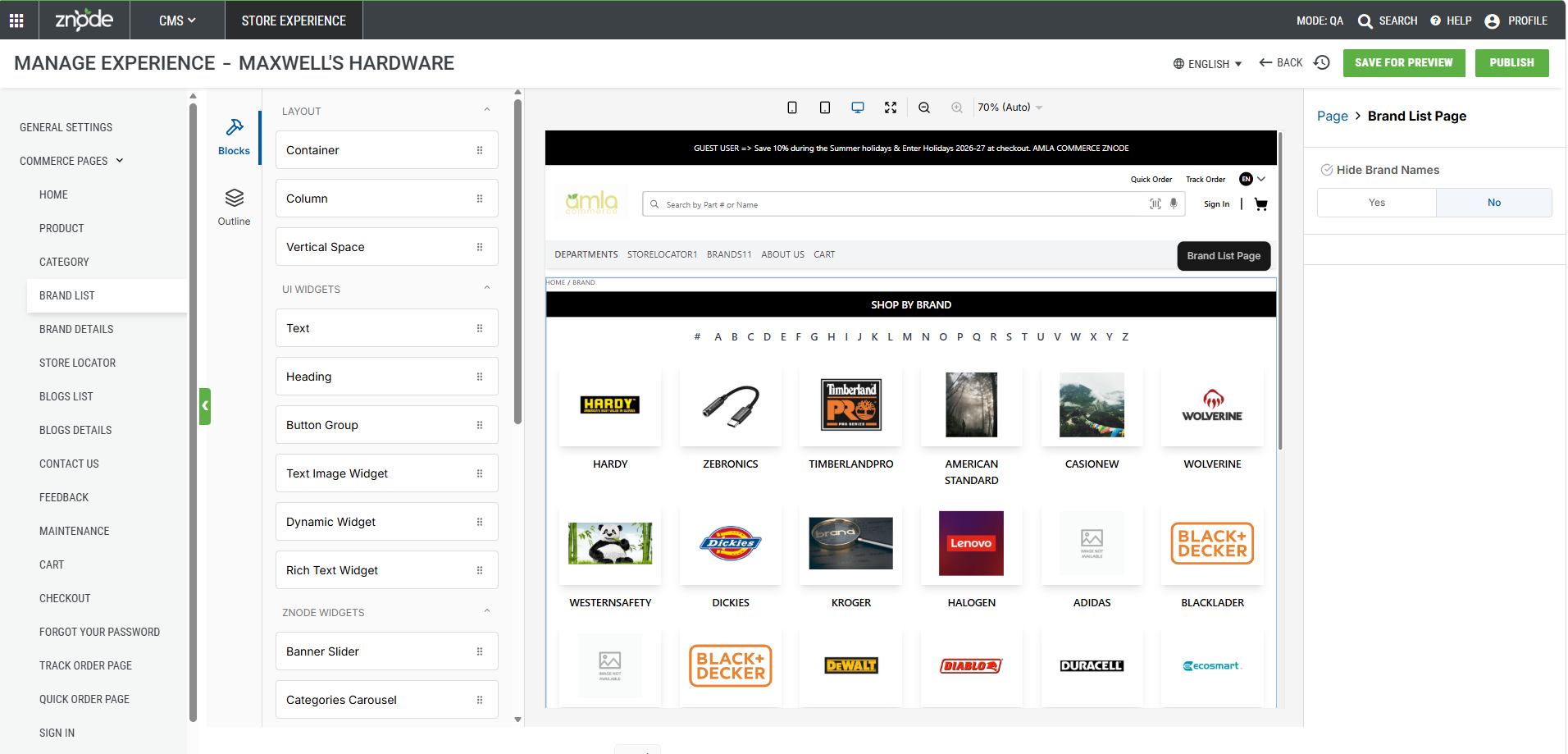
Brand List
- Hide Brand Names - Type (Yes/No)
Brand Details
- No configurable attributes available
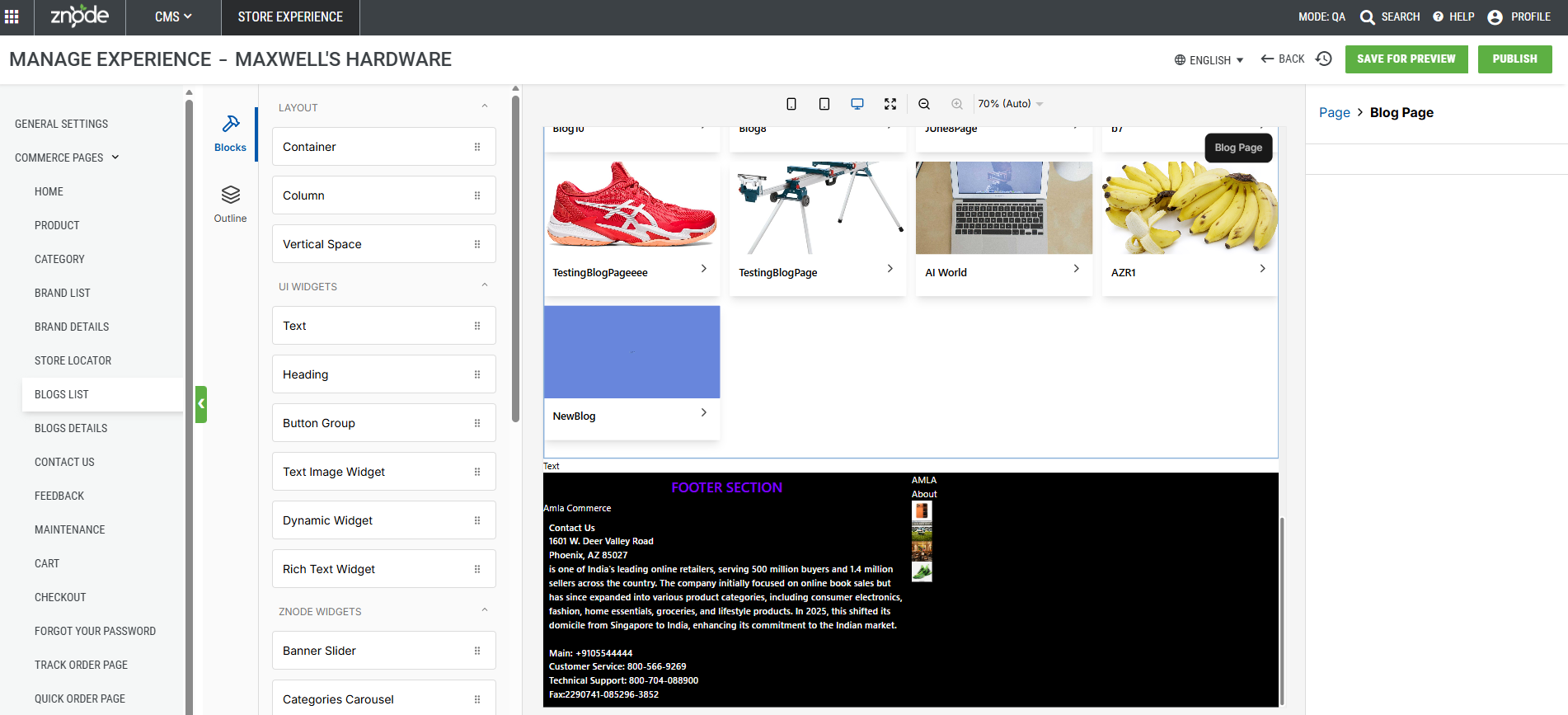
Blogs List
- No configurable attributes available.
Blogs Details
- No configurable attributes available.
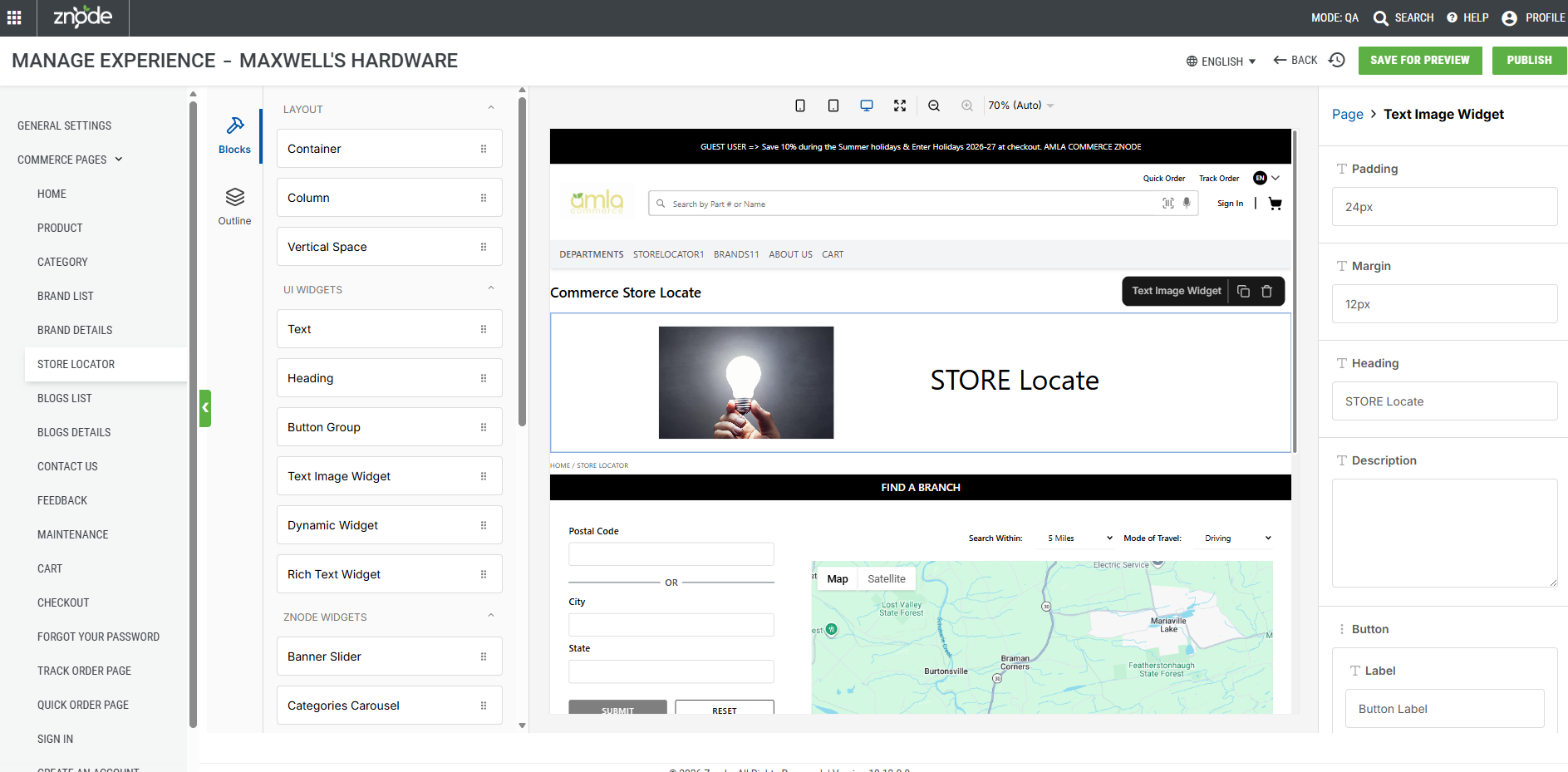
Store Locator Pages
- No configurable attributes available.
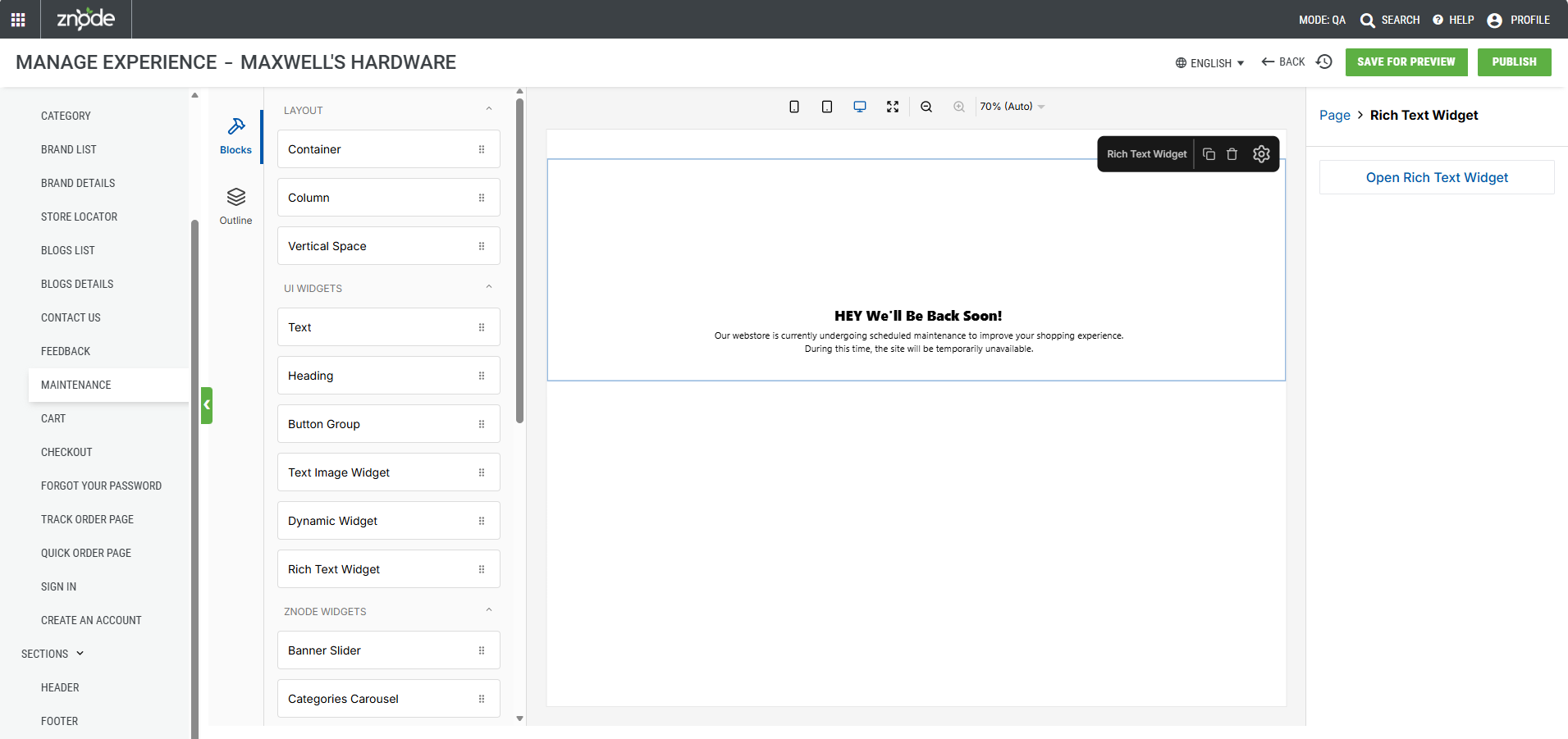
Maintenance
- Open Rich Text Widget
- The content should be update by Open Rich Text Widget
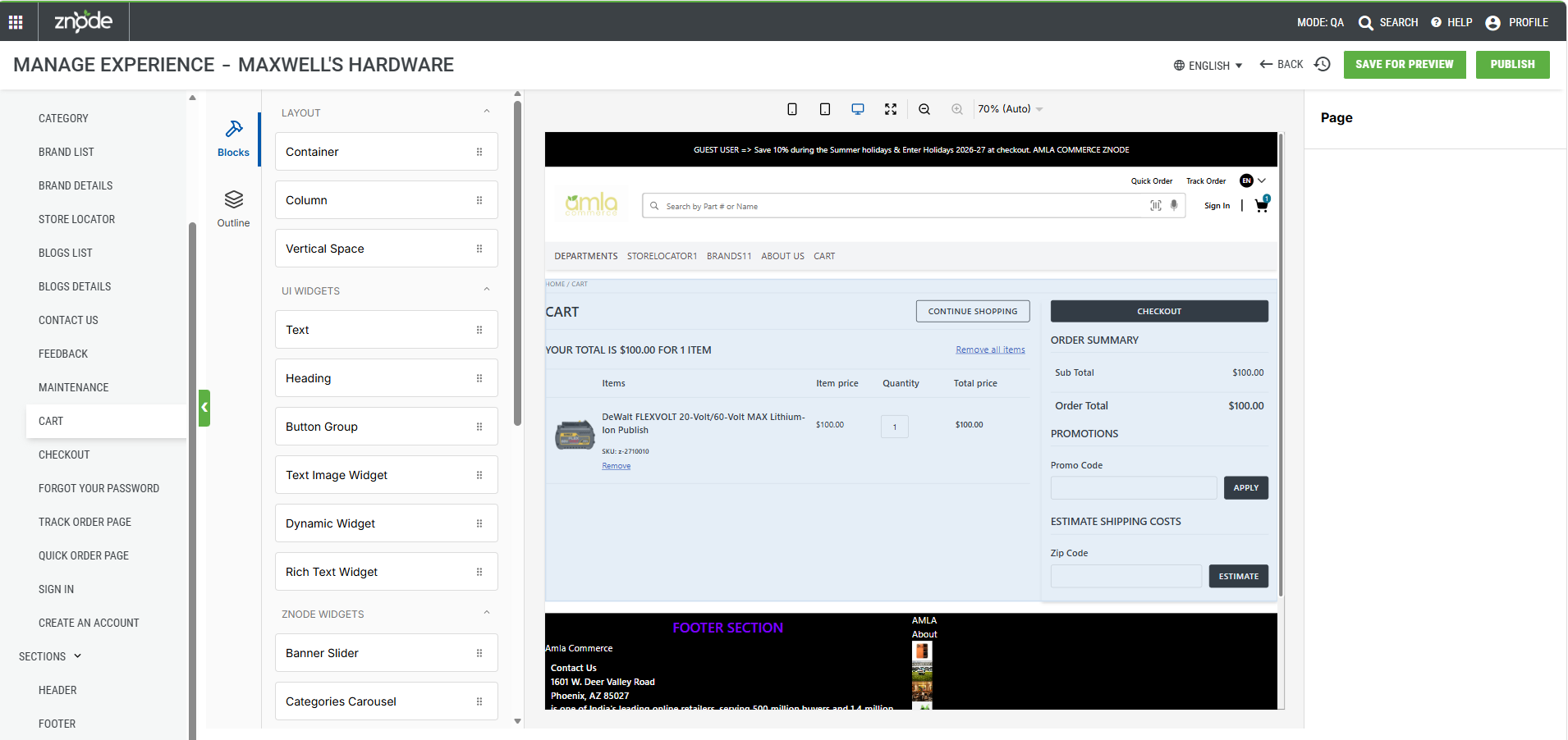
Cart
- No configurable attributes available.
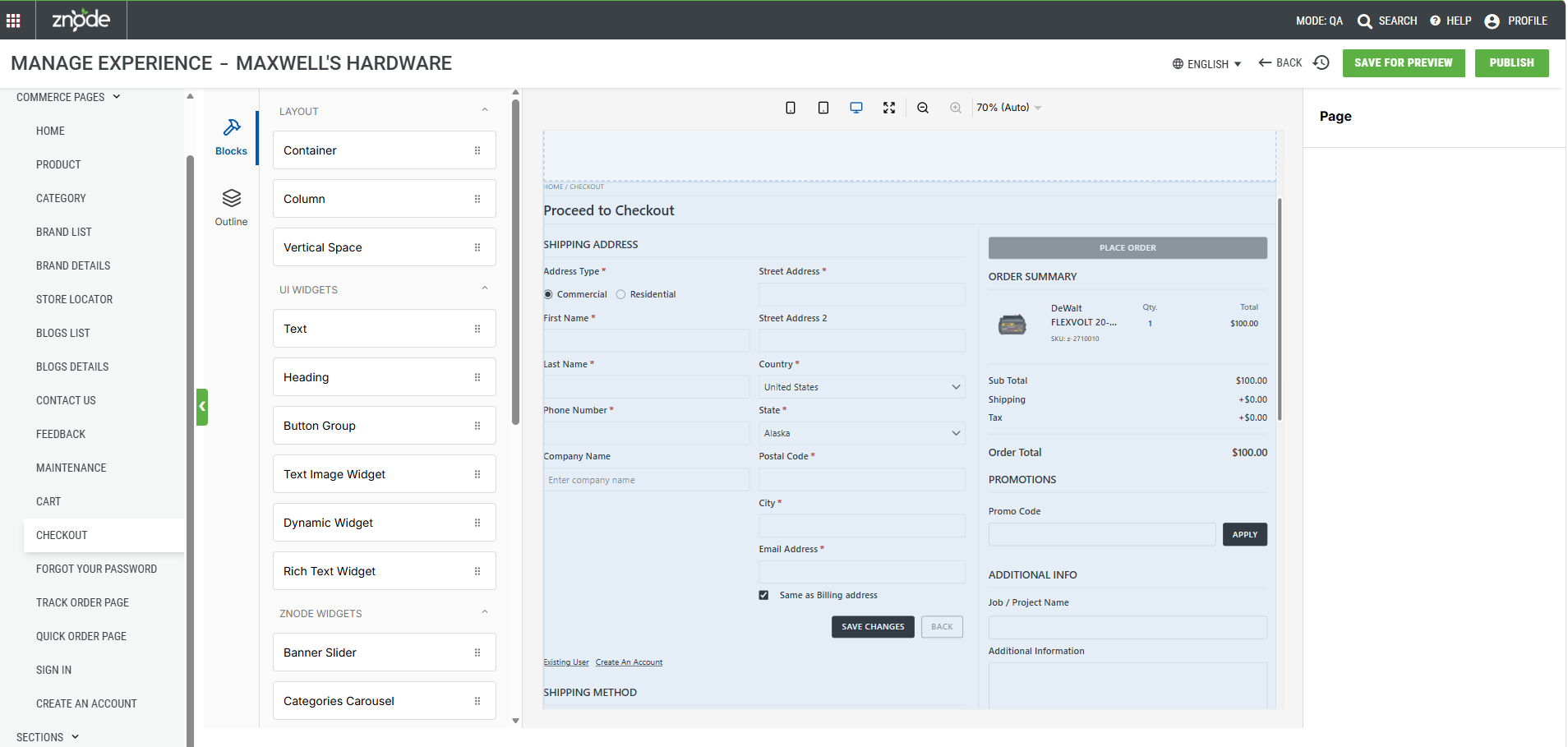
Checkout
- No configurable attributes available.
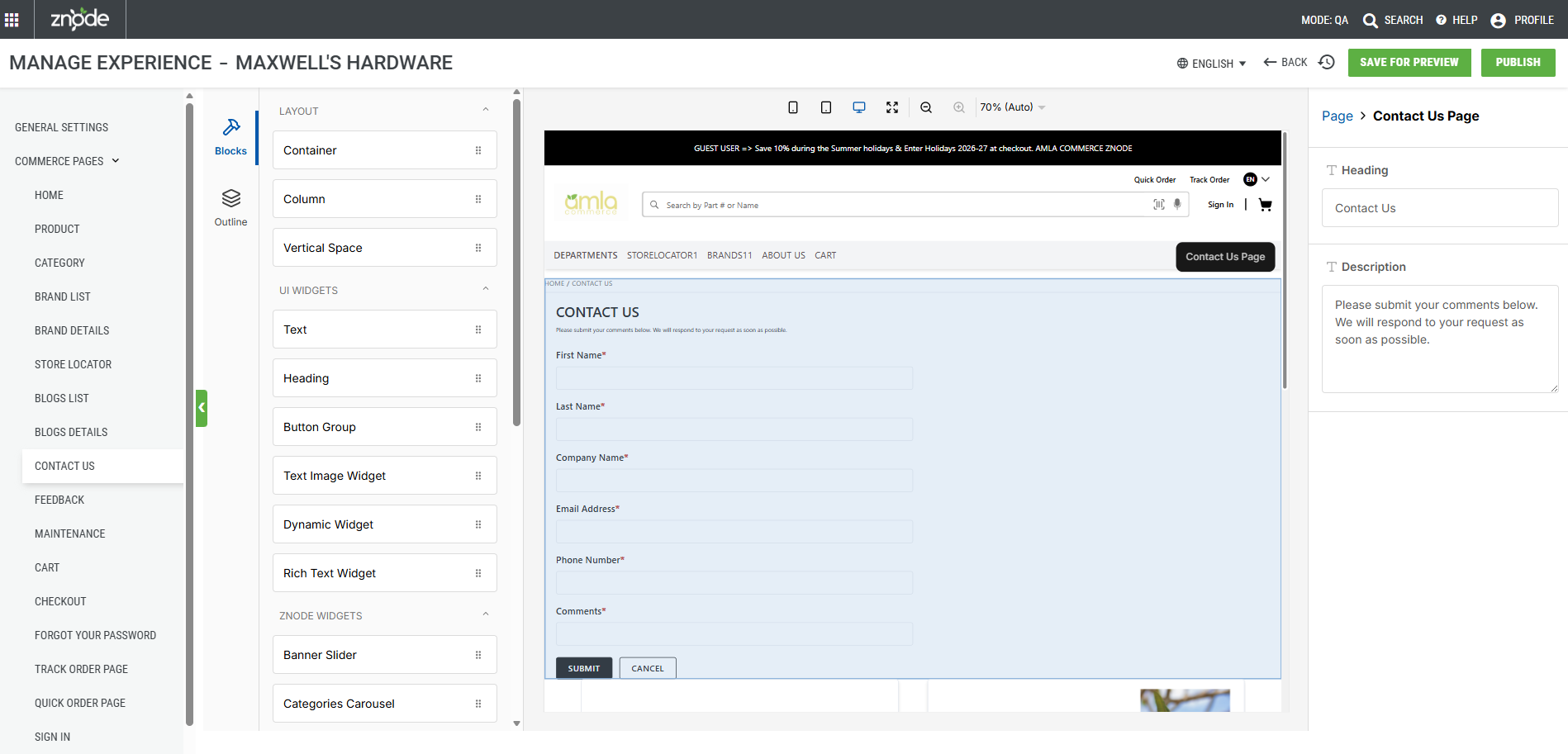
Contact Us
- Heading
- Editable
- Prefilled
- Placeholder - Contact Us
- Description
- Editable
- Prefilled
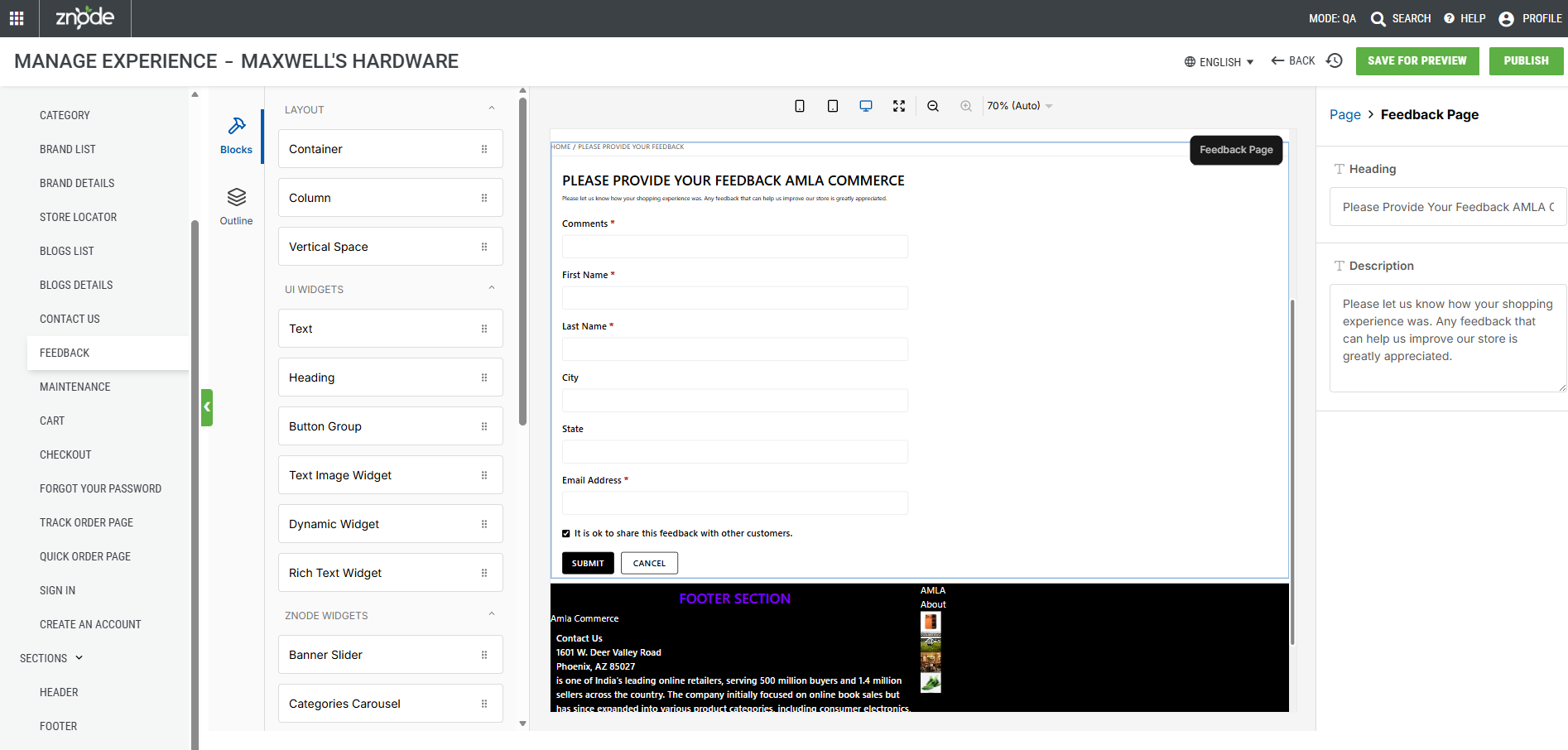
Feedback
- Heading
- Editable
- Prefilled
- Placeholder - Feedback
- Description:
- Editable
- Prefilled
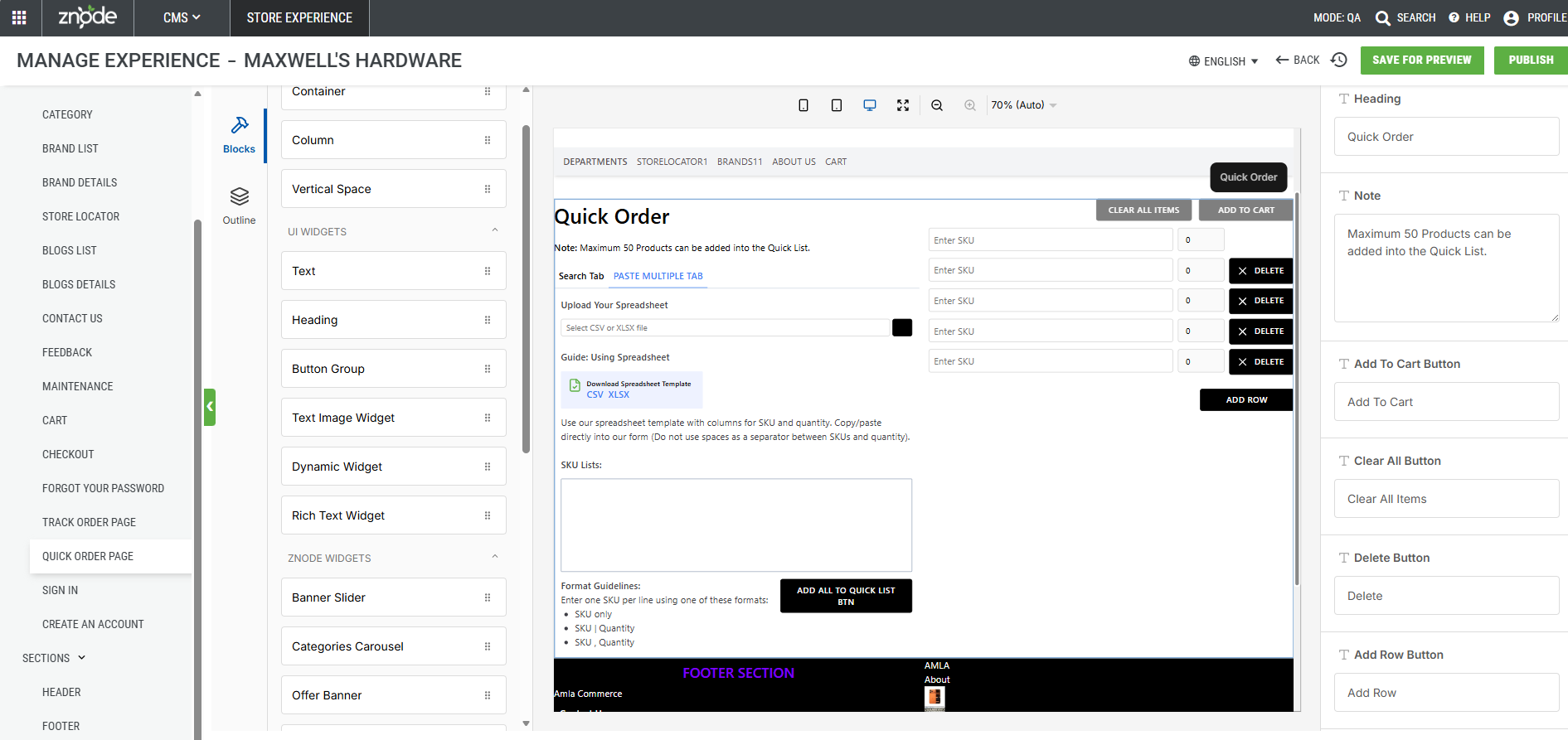
Quick Order (Order Status Component)
- Track Order is considered as Heading
- Prefilled
- Editable
- Placeholder - Quick Order
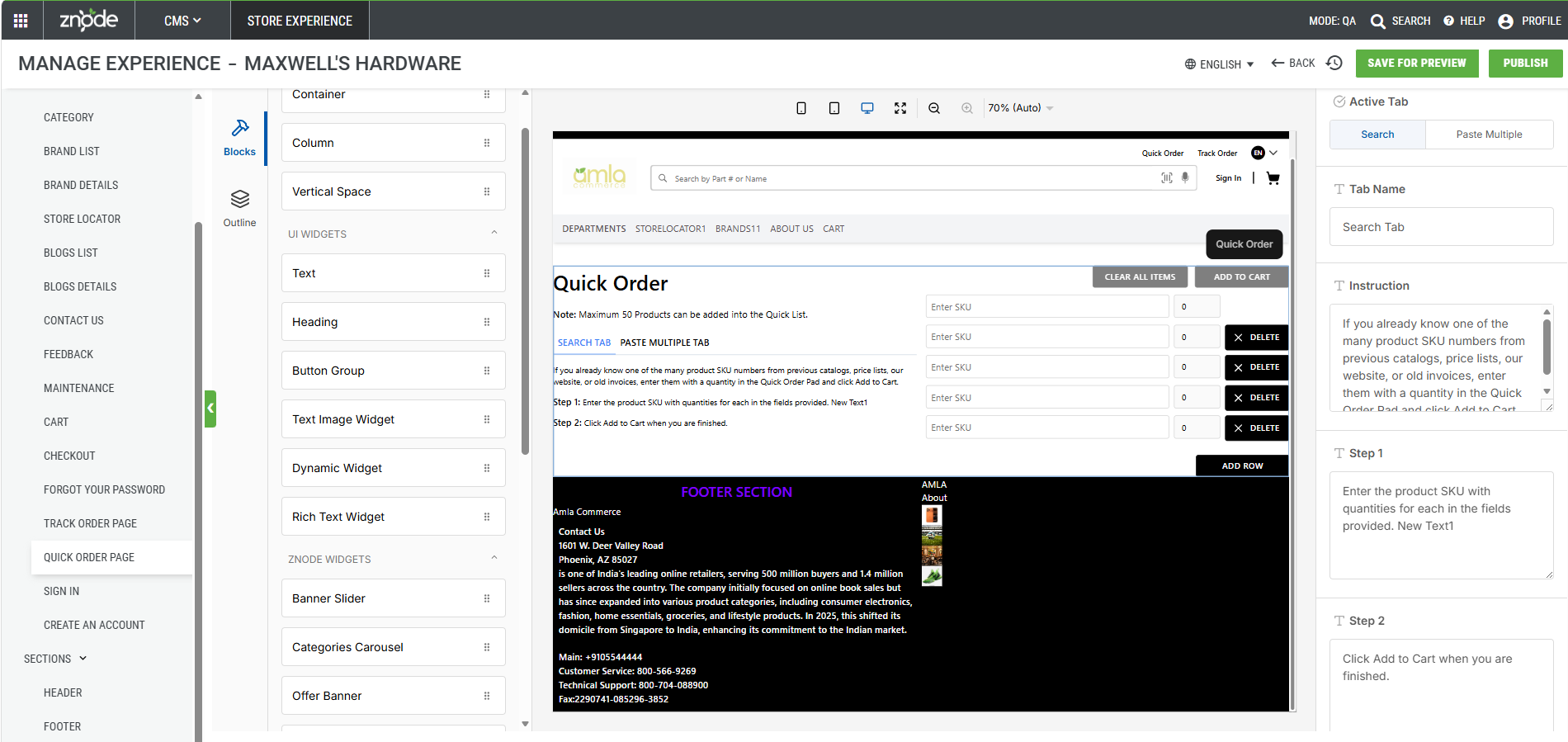
- Includes two tabs:
- Search (Default)
- Paste Multiple
- Search Tab – Editable Attributes
- Active Tab
- Search
- Tab Name
- Prefilled
- Editable
- Placeholder - Search
- Instruction
- Prefilled
- Editable
- Placeholder - If you already know one of the many product SKU numbers from previous catalogs, price lists, our website, or old invoices, enter them with a quantity in the Quick Order and click Add to Cart.
- Step 1
- Prefilled
- Editable
- Placeholder - Enter the product SKU with quantities for each in the fields provided.
- Step 2
- Prefilled
- Editable
- Placeholder - Click Add to Cart when you are finished
- Active Tab
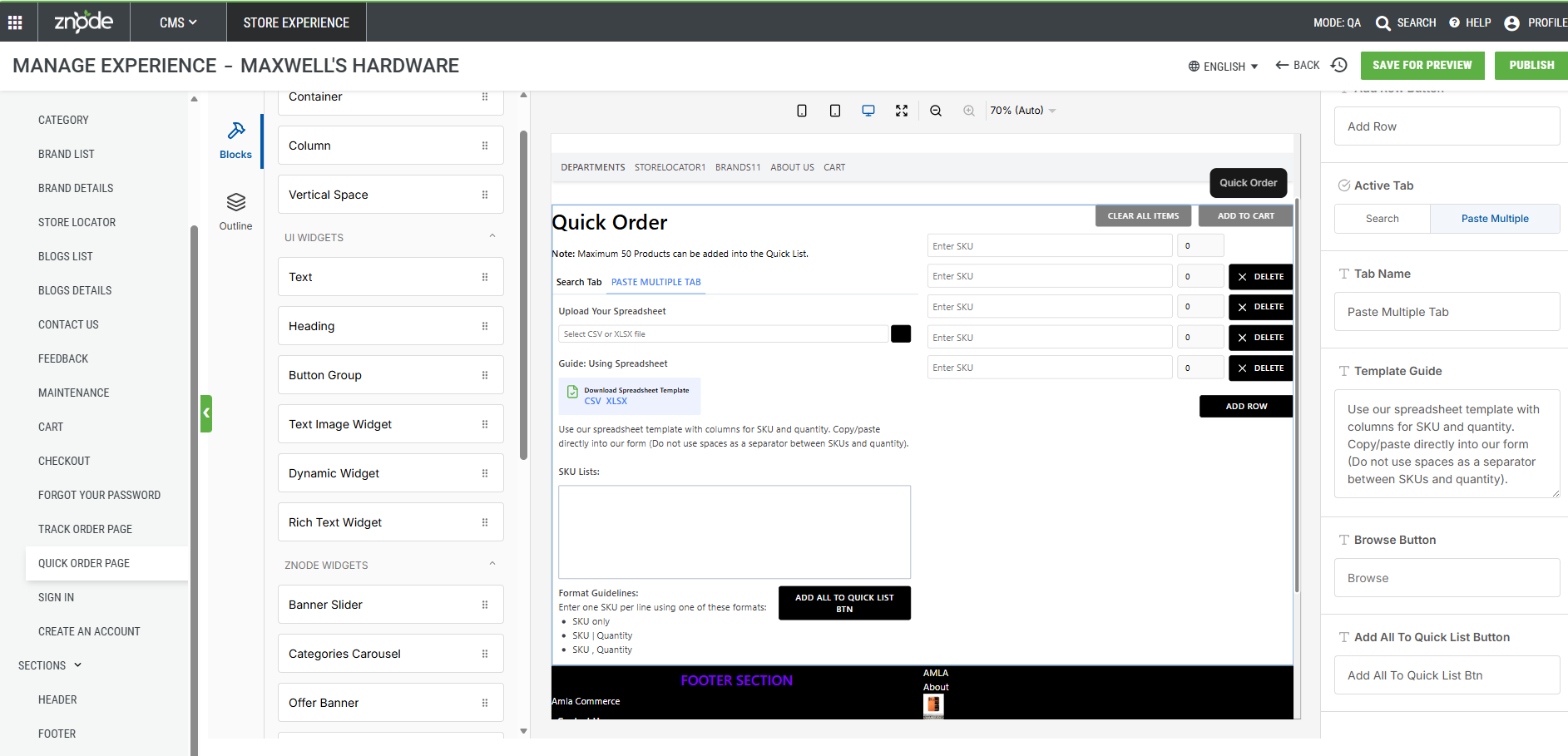
- Paste Multiple Tab – Editable Attributes
- Active Tab
- Paste Multiple
- Tab Name
- Prefilled
- Editable
- Placeholder - Paste Multiple Tab
- Template Guide (Prefilled, Editable)
- “Use our spreadsheet template with columns for SKU and quantity.” Copy/paste directly into our form (Do not use spaces as a separator between SKUs and quantity).
- Add All to Quick List Button (Editable)
- Label Editable
- Prefilled
- Placeholder - Add All to Quick List Button
- Browse Button
- Label Editable
- Prefilled
- Placeholder - Browse
- Active Tab
- Common Attributes
- Clear All Items Button
- Editable
- Prefilled
- Placeholder - Clear All Items
- Add Row Button
- Editable
- Prefilled
- Placeholder - Add Row Button
- Delete Button
- Editable
- Prefilled
- Placeholder - Delete
- Add To Cart Button
- Editable
- Prefilled
- Placeholder - Add To Cart
- Clear All Items Button
Note: Changes made in one tab are automatically reflected in the other tab.
Track Order
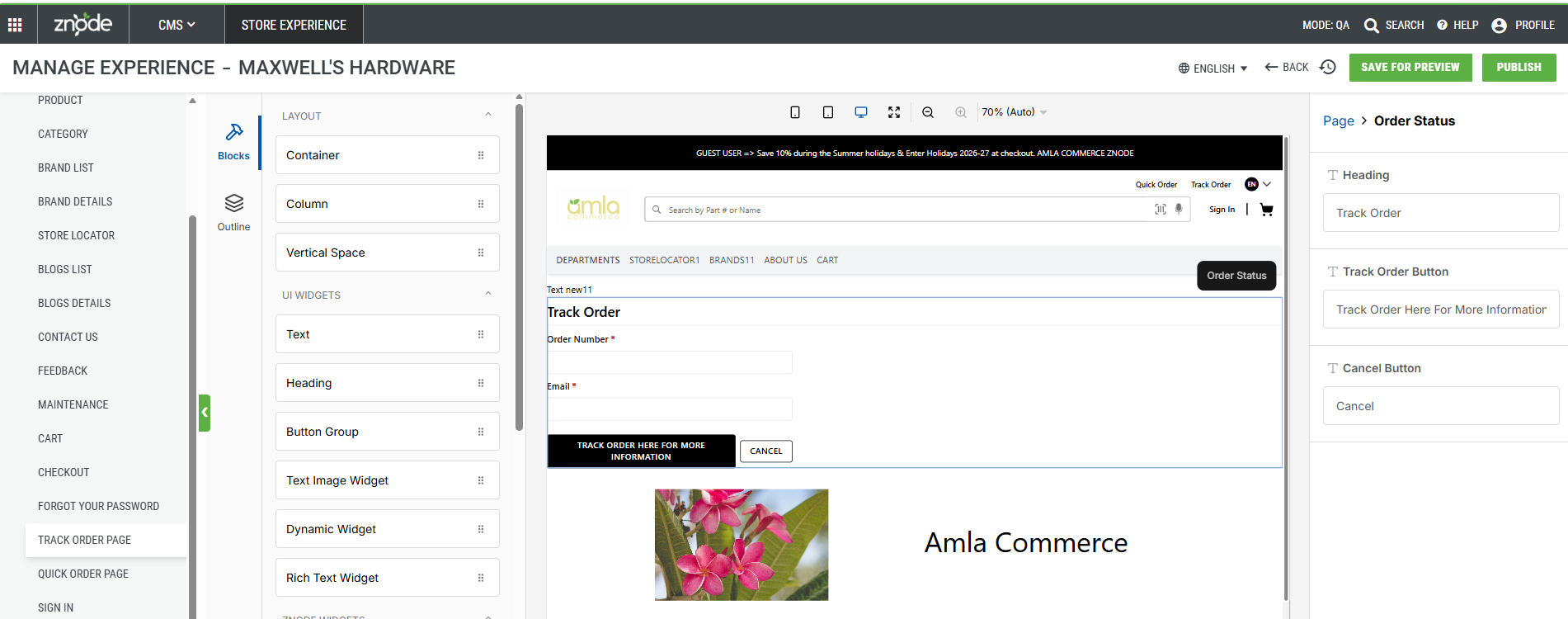
- Editable Fields
- "Track Order" Title is considered as Heading
- Prefilled
- Editable
- Placeholder - Track Order
- Add to Cart Button
- Prefilled
- Editable
- Placeholder - Add to Cart
- Clear All Items Button
- Prefilled
- Editable
- Placeholder - Clear All Items
- "Track Order" Title is considered as Heading
Forgot Password Page
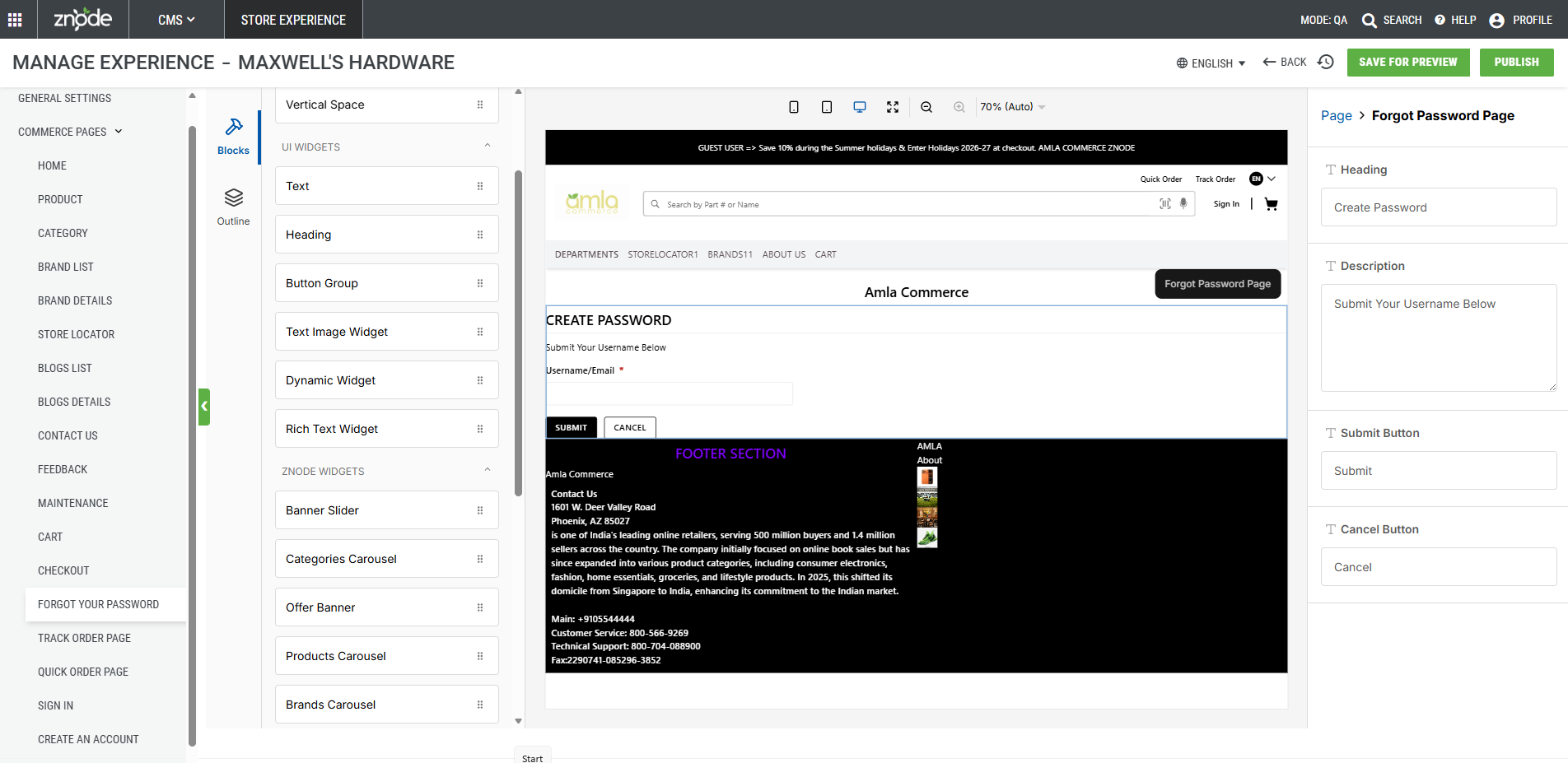
- Editable Fields:
- “Create your password” Title is considered as Heading
- Editable
- Prefilled
- Placeholder - Create Your Password
- Description
- Prefilled
- Editable
- Placeholder - Submit your Username below and we'll send you a special link to your Email Address to create your password.
- Submit Button
- Prefilled
- Editable
- Placeholder - Submit
- Cancel Button
- Prefilled
- Editable
- Placeholder - Cancel
- “Create your password” Title is considered as Heading
Sign In
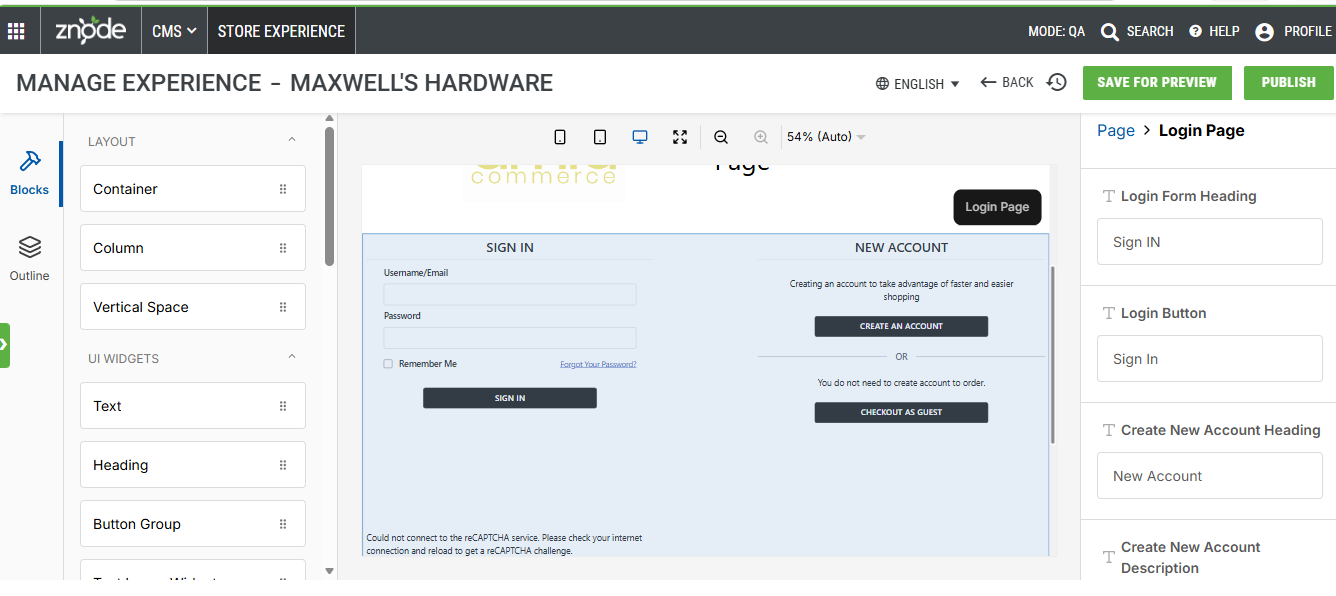
- Login Component acts as Single component.
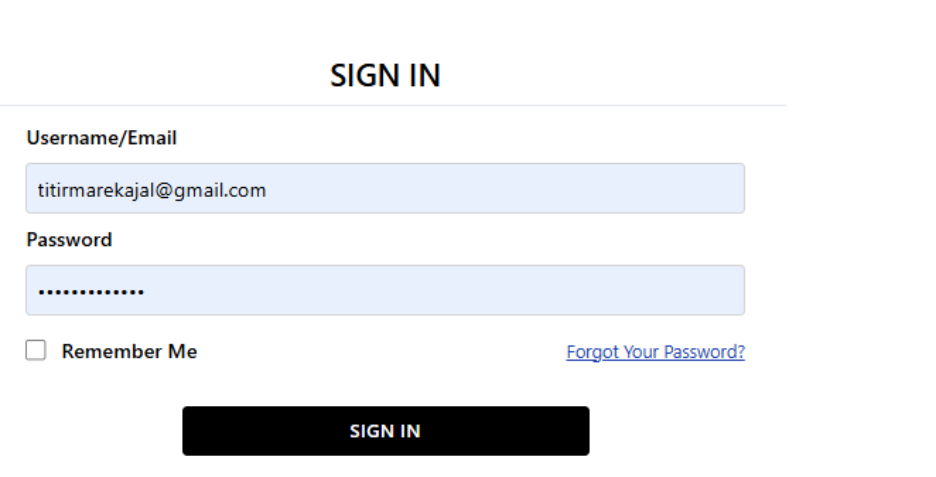
- It has three parts: The login Form exists in Left side while the Create New Account Section and Checkout as Guest exists in the Right side.
- User can configure the page by adding the widgets on top or bottom of the Login Component.
- User can edit heading, button or description in each of these components.
- Editable Fields
- Sign IN Title considered as Login Form Heading
- Prefilled
- Editable
- Placeholder – Sign In
- Sign In button considered as Login Button
- Prefilled
- Editable
- Placeholder – Sign In
- New Account” Title considered as Create New Account Heading
- Prefilled
- Editable
- Placeholder – New Account
- Description considered as Create New Account Description
- Prefilled
- Editable
- Placeholder - Creating an account to take advantage of faster and easier shopping.
- Create an Account” button considered as Create an Account Button
- Prefilled
- Editable
- Placeholder – Create an Account
- Checkout as Guest ” Description considered as Checkout as Guest Description
- Prefilled
- Editable
- Placeholder – You do not need to create account to order
- Checkout as Guest” button considered as Checkout as Guest Button
- Prefilled
- Editable
- Placeholder – Checkout as Guest
- Sign IN Title considered as Login Form Heading
- Note:
Checkout as a Guest” is visible regardless of Login Required Settings. Visibility of Checkout as Guest option will be controlled by the following settings in the “Login” component:
- Login to see Price & Inventory – Yes / No
- Login Required – Yes / No
- In the storefront checkout as a Guest option will be visible as per OOB with no changes
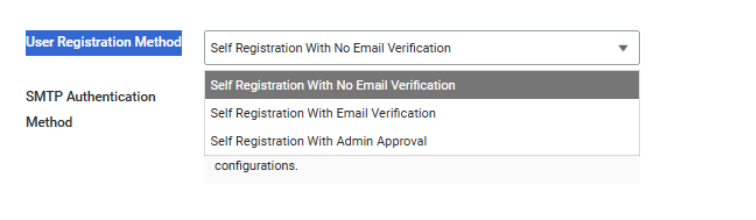
- In the Page builder, Below Component is visible regardless of Stores ---> Manage ---> Stores ---> User Registration Method But in the Storefront the Email will be show/Hide based on the User Registration Method flag.
Sign up
- Editable Fields
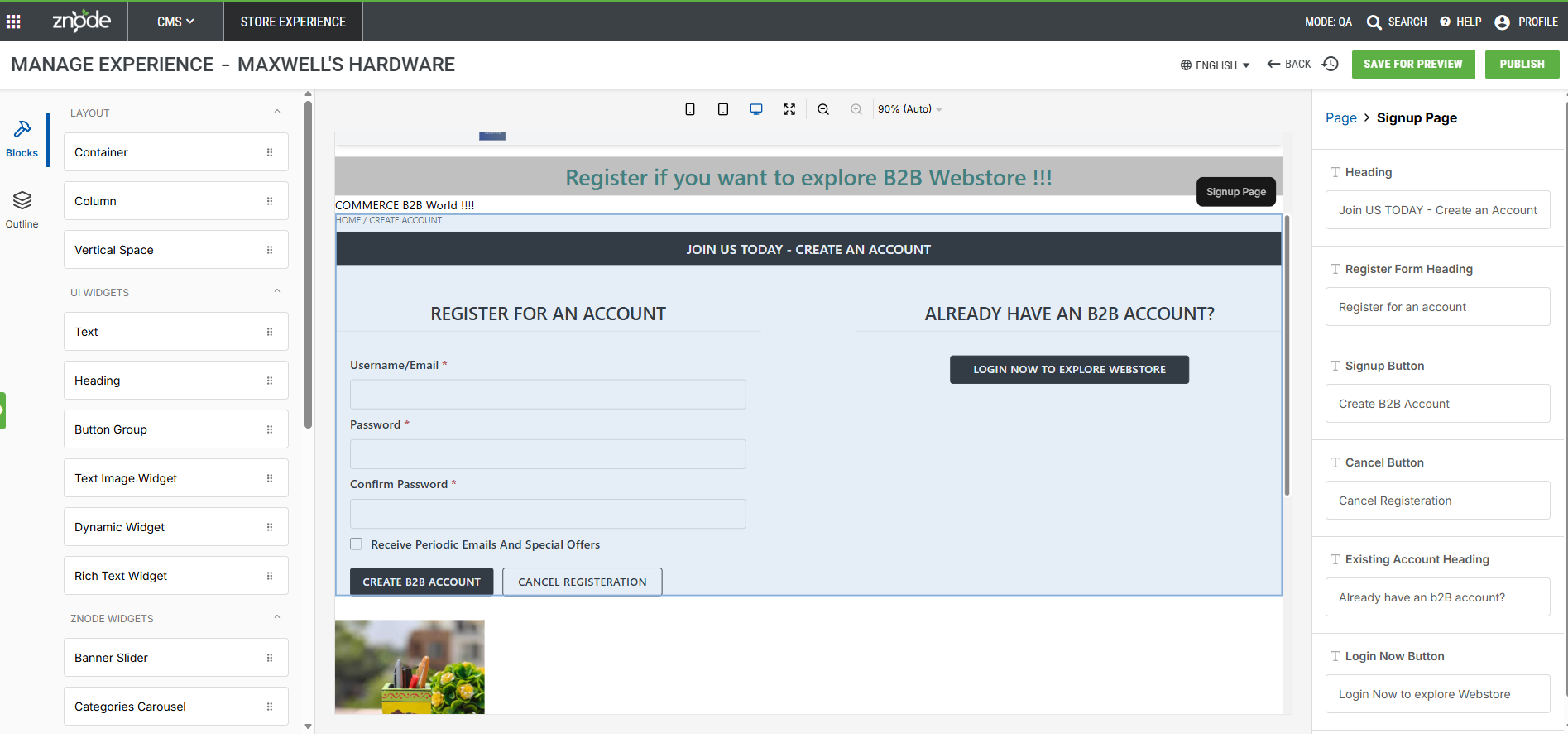
- Register for an Account
- Register for an Account title considered as Register Form Heading
- Prefilled
- Editable
- Placeholder – Register for an Account
- Create Account
- Create Account button considered as Signup Button
- Prefilled
- Editable
- Placeholder – Create Account
- Cancel
- Cancel” button considered as Cancel Button
- Prefilled
- Editable
- Placeholder – Cancel
- Already have an Account
- Already have an Account” title considered as Existing Account Heading
- Prefilled
- Editable
- Placeholder - Already have an Account
- Login Now
- Login Now” button considered as “Login Now Button
- Prefilled
- Editable
- Placeholder – Login Now
- Register for an Account
Backward Compatibility
This enhancement must not override or break any existing functionality. Any customer customizations made on existing pages should continue to work as expected and should not be impacted after implementing these changes.