
TABLE OF CONTENTS
- Overview
- Use Case
- Configure a Warehouse
- Associate Warehouses with a Store
- Configure Default and Alternate Warehouses
- Configure Warehouse Settings
- Notes
Overview
Warehouses are used in Znode to manage inventory across one or more fulfillment locations. Administrators can configure warehouses, associate warehouses with stores, define default and alternate warehouses, and configure inventory display and stock notification settings.
This article explains how to:
- Create a warehouse.
- Associate warehouses with a store.
- Configure default and alternate warehouses.
- Manage warehouse display and inventory notification settings.
Use Case
A business maintains inventory in multiple fulfillment locations and needs to:
- Track inventory by warehouse.
- Assign a default warehouse for inventory deduction.
- Configure alternate warehouses when stock is unavailable in the default location.
- Display inventory availability on the Storefront.
- Allow customers to receive back-in-stock notifications.
Configure a Warehouse
Create a New Warehouse
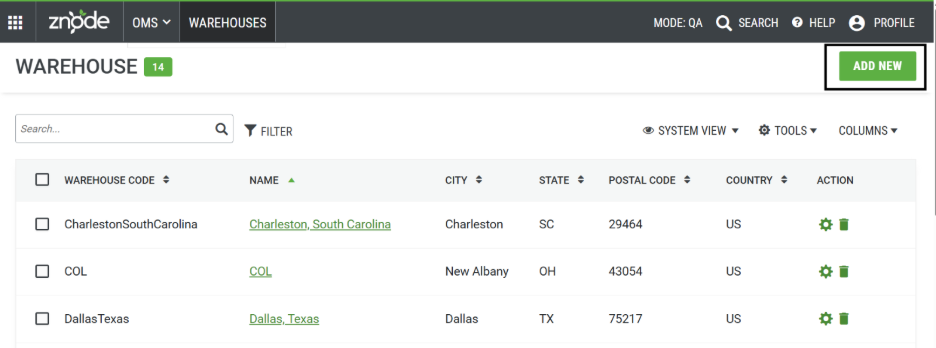
Navigate to:
Admin Console > OMS > Warehouse
Steps
- Click Add New.
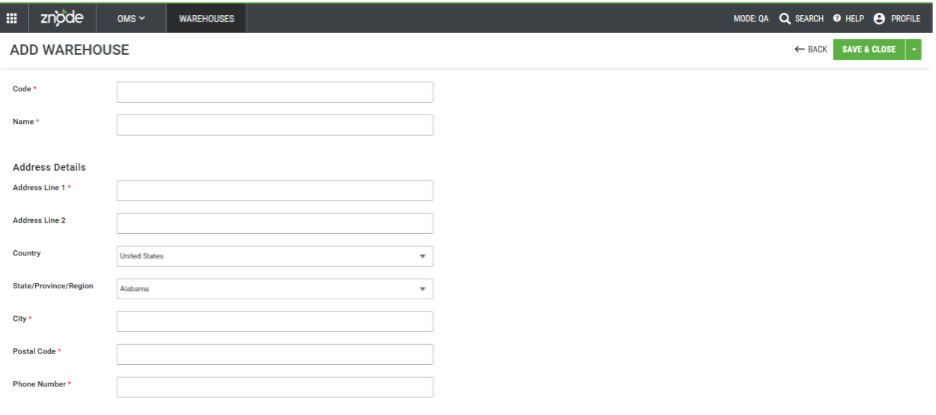
- Enter the required warehouse information.
- Provide the warehouse details.
- Enter the warehouse address information.
- Click Save and Close.
The following information is required when creating a warehouse.
Warehouse Information Fields
| Field | Description |
|---|---|
| Warehouse Code | Unique identifier for the warehouse. This value must be unique across all warehouses. |
| Warehouse Name | Name of the warehouse or fulfillment location. |
Address Information Fields
| Field | Description |
|---|---|
| Address Line 1 | Primary street address of the warehouse. |
| Address Line 2 | Additional address information, if applicable. |
| Country | Country where the warehouse is located. |
| State/Province/Region | State, province, or region associated with the warehouse address. |
| City | City where the warehouse is located. |
| Postal Code | Postal or ZIP code associated with the warehouse address. |
| Phone Number | Contact phone number for the warehouse location. |
Validation
- The warehouse is successfully created and appears in the Warehouse list.
- The Warehouse Code must be unique.
- Duplicate warehouse codes cannot be created.
Expected Outcome
A new warehouse is created and available for inventory management, store association, fulfillment processing, and inventory tracking within Znode.
Associate Warehouses with a Store
After creating warehouses, they must be associated with a store before they can be used for inventory management and order fulfillment.
Associate a Warehouse
Navigate to:
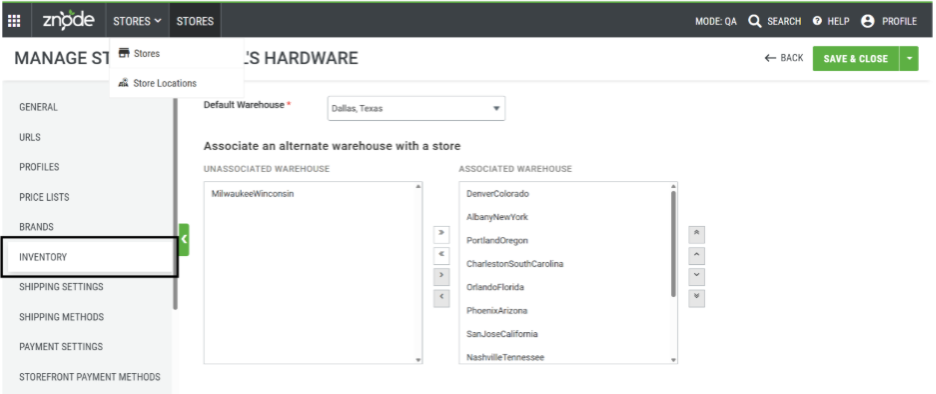
Admin Console > Store > Inventory
Steps
- Locate the appropriate store.
- Associate the required warehouse(s) with the store.
- Select Save.
Expected Outcome
- The configured warehouses are available for the selected store.
- Inventory can be managed using the associated warehouses.
Configure Default and Alternate Warehouses
Each store requires a default warehouse for inventory fulfillment.
Default Warehouse
The default warehouse is the primary warehouse used when inventory is deducted for orders.
Alternate Warehouse
Administrators can configure one or more alternate warehouses for a store.
When inventory in the default warehouse is exhausted:
- Znode uses the configured alternate warehouse inventory.
- This helps maintain product availability across multiple fulfillment locations.
Expected Outcome
- Order fulfillment begins with inventory from the default warehouse.
- Alternate warehouse inventory is available when stock is unavailable in the default warehouse.
Configure Warehouse Settings
Warehouse settings control inventory visibility and stock notification functionality on the Storefront.
Access Warehouse Settings
Navigate to:
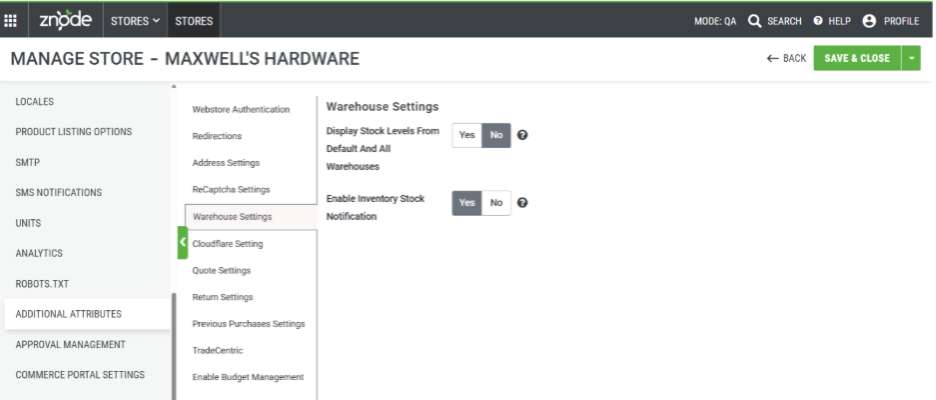
Admin Console > Store > Additional Attribute > Warehouse Settings
Display Stock Levels From Default and All Warehouses
| Setting | Description |
|---|---|
| Display Stock Levels From Default And All Warehouses | Controls how inventory availability is displayed on the Storefront. |
Available Options:
- Yes
- No
Behavior
When set to Yes:
- The Storefront displays stock available in the default warehouse.
- The Storefront displays total stock available across all configured warehouses.
When set to No:
- The Storefront displays the total stock available across all warehouses only.
Expected Outcome
Customers can view inventory availability based on the configured display option.
Enable Inventory Stock Notification
| Setting | Description |
|---|---|
| Enable Inventory Stock Notification | Allows customers to subscribe to notifications for out-of-stock products. |
Available Options:
- Yes
- No
Behavior
When set to Yes:
- Customers can register for inventory notifications when a product is out of stock.
- The system can notify registered customers when inventory becomes available again.
When set to No:
- Customers cannot subscribe to back-in-stock notifications.
Expected Outcome
Customers are informed when previously unavailable products become available for purchase.
Notes
- Every warehouse must have a unique Warehouse Code.
- Warehouses must be associated with a store before they can be used for store inventory management.
- Each store should have a designated default warehouse.
- Alternate warehouses provide inventory coverage when the default warehouse inventory is depleted.
- Inventory display behavior on the Storefront depends on the configured warehouse settings.
- Stock notification functionality must be enabled before customers can subscribe to back-in-stock alerts.