
TABLE OF CONTENTS
- Managing Warehouses
- View Warehouse Details
- Edit a Warehouse
- Delete a Warehouse
- Validation
- Important Notes
Managing Warehouses
Warehouse management enables Administrators to view, maintain, and organize warehouse records used for inventory fulfillment. Administrators can review warehouse details, manage associated inventory, create personalized grid views, and perform bulk warehouse management actions.
Use Case
An organization manages inventory across multiple warehouse locations and requires the ability to:
- View warehouse information.
- Review products associated with a warehouse.
- Maintain warehouse records.
- Delete unused warehouses.
- Customize warehouse grid views.
- Perform bulk warehouse management actions.
Access Warehouse Management
Navigate to:
Admin Console > OMS > Warehouses
Expected Outcome
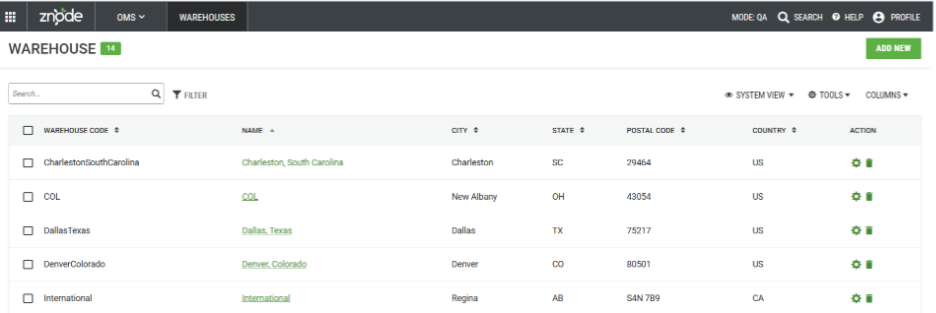
The Warehouse grid displays all configured warehouses.
Review Warehouse Information
The Warehouse grid displays the following information for each warehouse:
- Warehouse Code
- Warehouse Name
- State
- City
- Postal Code
- Phone Number
Expected Outcome
Administrators can quickly review warehouse information directly from the grid without opening individual warehouse records.
View Warehouse Details
Navigate to:
Admin Console > OMS > Warehouse
Steps
- Select the required warehouse from the warehouse list.
- Open the warehouse details.
Expected Outcome
The warehouse details page displays:
- Warehouse information.
- Products associated with the warehouse.
- Inventory quantities maintained for products within that warehouse.
Edit a Warehouse
Navigate to:
Admin Console > OMS > Warehouse
Steps
- Open the required warehouse record.
- Update the editable warehouse information.
- Select Save.
Notes
- The Warehouse Code cannot be modified after the warehouse is created.
- Other warehouse details can be updated as required.
Expected Outcome
Updated warehouse information is saved and available throughout the platform.
Delete a Warehouse
Navigate to:
Admin Console > OMS > Warehouse
Steps
- Locate the warehouse to remove.
- Select the Delete option.
- Confirm the deletion.
Expected Outcome
The selected warehouse is removed from the warehouse list.
Notes
Before deleting a warehouse, verify whether it is associated with store inventory or fulfillment processes to avoid inventory management issues.
Delete Multiple Warehouses
Administrators can remove multiple warehouse records in a single action.
Navigate to:
Admin Console > OMS > Warehouse
Steps
- Select the required warehouse records.
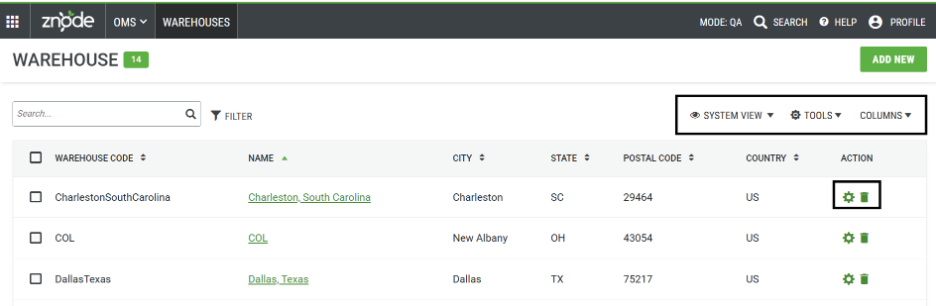
- Open the Tools menu.
- Select the option to delete the selected warehouses.
- Confirm the action.
Expected Outcome
All selected warehouse records are deleted.
Create a Custom Grid View
Custom views allow Administrators to save preferred grid configurations for warehouse management.
Navigate to:
Admin Console > OMS > Warehouse
Steps
- Configure the grid based on business requirements.
- Save the configuration as a custom view.
Expected Outcome
The saved view is available for future use and helps streamline warehouse management activities.
Manage System Views
Administrators can use available system views to display warehouse information based on predefined configurations.
Expected Outcome
Warehouse data is displayed according to the selected system view.
Customize Grid Columns
Administrators can control which columns are displayed within the Warehouse grid.
Navigate to:
Admin Console > OMS > Warehouse
Steps
- Open the Columns configuration.
- Select or deselect the required columns.
- Save the changes.
Expected Outcome
The Warehouse grid displays only the selected columns.
Validation
After warehouse management activities are completed:
- Warehouse records are displayed in the Warehouse grid.
- Associated product inventory can be reviewed from warehouse details.
- Warehouse information updates are reflected throughout the platform.
- Custom views are available for reuse.
- Selected grid columns are displayed according to the saved configuration.
- Bulk actions can be performed through the Tools menu.
Important Notes
- Warehouse Codes are permanent and cannot be edited after warehouse creation.
- Warehouse details include inventory information for products assigned to that warehouse.
- Multiple warehouse records can be managed simultaneously using bulk actions available from the Tools menu.
- Grid views and column configurations help Administrators tailor warehouse management screens to business requirements.