
TABLE OF CONTENTS
- Overview
- Low-Conflict and Higher-Conflict Zones
- Files That Need Manual Review
- Merge a Baseline Example
- Rollback Plan
- Hand-off Checklist
- Golden Rules
- Troubleshooting
Overview
Pulling in a new Znode release means reconciling your customizations with Znode's own changes. Most of the repository merges with no input from you, because customizations live in their own packages or in the theme override map. A small, predictable set of files needs manual review. This guide shows which files fall into each group and how to work through the files that need review.
This guide is for implementation partners and developers working on the Znode 10 storefront (an Nx monorepo built on Next.js 15, managed with git). It covers merging a baseline update, not day-to-day feature merges. Values in <angle brackets> are placeholders for your own branch, release and project names.
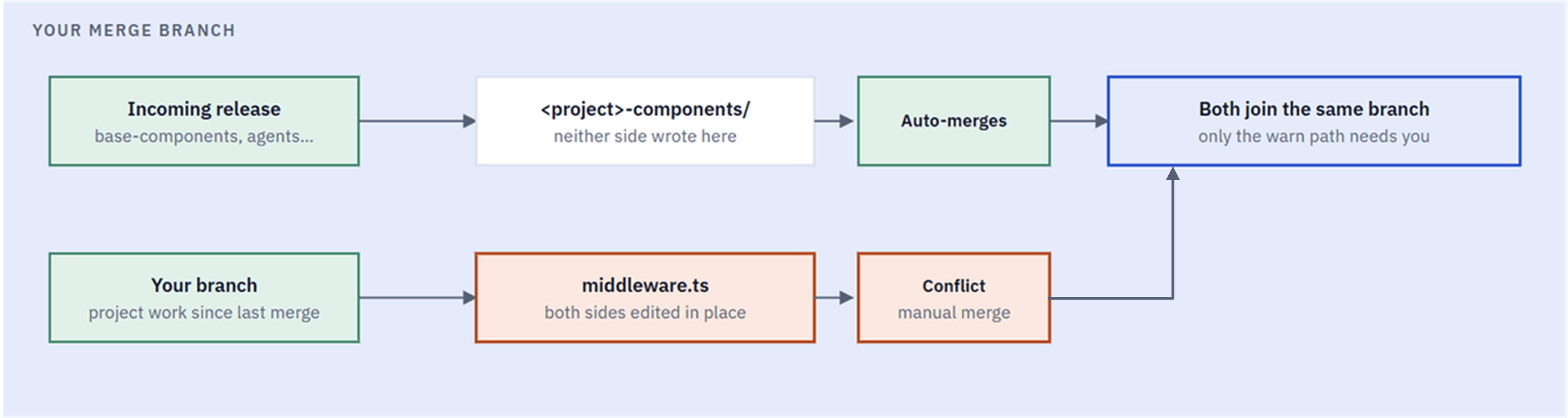
The six steps below take you from a clean branch to a verified merge.
Step | Name | What you do |
1 | Branch | Create a merge branch from your main integration branch. |
2 | Merge | Merge the incoming Znode release into the merge branch. |
3 | Categorize | Group the conflicts by category before you resolve any of them. |
4 | Resolve | Resolve each category: // CUSTOM: markers for in-place edits, both sides for shared lists, regeneration for the lockfile. |
5 | Re-verify | Work through the re-verify checklist by hand. |
6 | Test | Run the full regression pass and record any unresolved failures. |

Low-Conflict and Higher-Conflict Zones
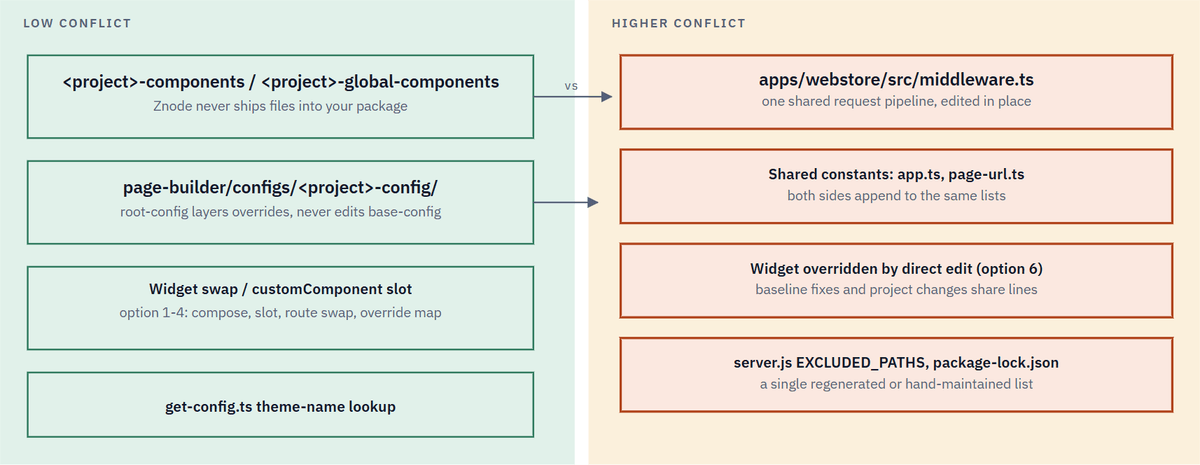
Two patterns keep almost all customization work out of the baseline's way: your own packages, and the theme override map. Everything outside those two patterns is a candidate for a conflict.
Area | Conflict risk | Why |
<project>-components and <project>-global-components packages | Low | Znode never ships files into your packages. |
Theme override map in page-builder/configs/<project>-config/ | Low | Your root config layers overrides on top of the base config and never edits it. |
Compose, slot, route swap or widget override (options 1-4 in Keeping the next update small) | Low | No baseline file changes, or only your own route or config file changes. |
Theme-name lookup in get-config.ts | Low | It reads your project config without being edited. |
Copy and modify (option 5) | Low | No merge conflict, but the copy can drift from the new baseline, so compare it against the baseline on every update. |
Files edited in place (option 6) | Higher | Baseline fixes and your changes land on the same lines. These are listed in the next section. |
Files That Need Manual Review
Check these files by hand on every update.
File or area | Why it can't be avoided | What usually collides |
apps/webstore/src/middleware.ts | One request pipeline for store lookup, locale, session, maintenance and route rules | New restriction branches on both sides |
Shared constants (app.ts and your project's page-url.ts) | Flat lists that every route addition appends to | New entries in the same array or object |
A widget changed with Edit in place | The team chose to edit the baseline file rather than register an override | Baseline fixes and project changes on the same lines |
server.js cache-exclusion list | A single regular expression covering every personalized route | New personalized paths |
package-lock.json | Regenerated from every workspace package | Dependency updates from both sides |
Do mark every in-place edit with // CUSTOM: <reason>. The marker is what makes the next conflict reviewable in minutes instead of hours.
Don't expect zero manual review. A short, known list of files is the realistic goal.
Merge a Baseline Example
Prerequisites:
☐ A clean working tree on your main integration branch, with no uncommitted changes
☐ The incoming Znode release identified: a tag, a release branch or an upstream remote
☐ The release notes for the update, so you know which areas it changed
☐ A reference .env file to compare environment variables against after the merge
Step 3 is the step most teams skip. Sorting conflicts by category before you resolve any of them keeps you from hand-editing files, like the lockfile, that should simply be regenerated.
STEP 1 - Branch. Create a merge branch from your main integration branch.
git checkout -b merge/<release-or-ticket-id> origin/<your-main-branch>
STEP 2 - Merge. Merge the incoming release into the merge branch.
git merge <znode-release-tag>
# or if your team rebases release branches:
git rebase <znode-release-tag>
Most files resolve with no input: anything in a customization package or a project *-config folder, and any baseline file your project never changes.
If your team rebases instead of merging, run git rebase <znode-release-tag>. During a rebase, git swaps the meaning of "ours" and "theirs", so the lockfile command in Step 4 uses --ours instead of --theirs.
STEP 3 - Sort. Group every conflict into one of these categories before you resolve any of them.
Category | Resolution in Step 4 |
Pure addition (adjacent new files) | Usually merges automatically. If git still flags it, keep both additions. |
Baseline file edited in place | Reconcile by hand, using the // CUSTOM: markers. |
Regenerated / Lockfile | Take the incoming version, then reinstall. |
Your own copy of a baseline file | No conflict, but compare it against the new baseline anyway. |
STEP 4 - Resolve. Work through the categories from Step 3.
Edited-in-place files. Find every // CUSTOM: <reason> block on your side and keep it. Take the incoming baseline version for everything else. If the surrounding baseline code was restructured, re-apply the customization against the new structure rather than pasting the old lines back.
Found an edit with no marker? It predates the marker convention. Resolve the conflict, then add the marker so the next update doesn't repeat the investigation.
Lockfile. Take the incoming lockfile, then reinstall.
git checkout --theirs package-lock.json
npm install
Do commit the regenerated lockfile on its own, separate from logic changes.
Don't hand-edit a lockfile conflict. Regenerate it instead of merging it line by line.
STEP 5 - Re-verify. A clean build does not prove the Page Builder config map still resolves the way it did. Work through the re-verify checklist below before you call the merge done.
STEP 6 - Regression test. Once the re-verify checklist is complete, run the full regression pass. A clean merge alone does not confirm the result, so record any unresolved failures before you merge to your main branch.
Keeping the Next Update Small
When you need to change or extend a baseline component, the option you pick today decides how much work the next merge is. Options higher in the table change no baseline file at all.
Option | What you do | Baseline files changed |
1. Compose | Build around the baseline component. | None |
2. Use a slot | Pass UI through a customComponent or render prop the baseline already offers. | None |
3. Swap at the route | Import your component instead of the baseline one. | None. Only your route file changes. |
4. Override a widget | Register your widget under the same key in the theme override map. | None. Only your Page Builder config changes. |
5. Copy and modify | Copy the component into your package. | None, but compare the copy against the baseline on every update. |
6. Edit in place | Change the baseline file directly and mark it with // CUSTOM: <reason>. | The baseline file. This is the option that produces merge conflicts. |
Rollback Plan
All merge work happens on the merge branch, so your main integration branch is unchanged until you merge the result into it.
Situation | What to do |
The merge or rebase is still in progress | Run git merge --abort or git rebase --abort to return the merge branch to its state before Step 2. |
You committed the merge but it fails re-verification or regression testing | Leave your main branch as it is. Delete the merge branch, or fix it and repeat Steps 5 and 6. |
Hand-off Checklist
Verify each item before you call the merge done:
☐ Each theme override map still points at real baseline widget keys.
☐ The theme-name lookup still resolves to the right root config for every store.
☐ Any new baseline widget or route that needs a customization has it reapplied.
☐ Shared constants lists (admin-restricted paths, excluded paths, route URLs) contain both sides' entries.
☐ The anonymous-cache exclusion list covers every personalized route
☐ Environment variables compared against the reference .env file: nothing added, renamed or removed without a matching change.
☐ Translation keys your project relies on are still present in every locale file.
☐ Every baseline edit has a // CUSTOM: marker.
☐ npm install completes cleanly and the Nx graph resolves.
Golden Rules
Rule | What it means |
Mark every in-place edit | If a baseline file must change, add // CUSTOM: <reason> next to the change, every time. |
Unmarked lines belong to the baseline | During a conflict, take the incoming baseline version of anything without a marker. |
Merge shared lists, don't choose a side | Admin-restricted paths, excluded paths and route URLs are append-only. Keep both sides' entries. |
Regenerate lockfiles, never hand-merge them | Take the incoming version, then run npm install. |
A clean merge is not a verified merge | Check the theme override map and environment variables by hand before testing. |
Some manual review is unavoidable | The goal is a short, known list of files to check, not zero review. |
Troubleshooting
You see | What it usually means |
A project widget stopped rendering | The baseline renamed or removed the widget key that the theme override map targets. |
A previously blocked route is reachable again | Conflict resolution dropped one side's entries from a shared constants list. |
One visitor sees another visitor's cached page | A new personalized route was never added to the cache-exclusion list. |
The build fails on a missing environment variable | The release added, renamed or removed a required variable. |
A customization from before the merge is missing | Its // CUSTOM: block was dropped when the incoming file was accepted as a whole. |
npm install reports unresolved peer dependencies | The lockfile was hand-edited instead of regenerated. |