
TABLE OF CONTENTS
- Overview
- Use Cases
- Price List Information
- Manage Associated Products
- Associated Stores
- Associated Profiles
- Associated Users
- Associated Accounts
Overview
Pricing Lists enable Administrators to define and manage custom product pricing for specific stores, profiles, users, accounts, or product groups. Pricing Lists support promotional pricing, customer-specific pricing, seasonal pricing, and other targeted pricing strategies.
Administrators can configure pricing details, associate products, and manage related stores, profiles, users, and accounts from a centralized location in the Admin Console.
Use Cases
Common use cases for Pricing Lists include:
- Creating seasonal or promotional pricing campaigns
- Offering customer-specific contract pricing
- Managing account-level pricing agreements
- Assigning different pricing to multiple stores
- Controlling pricing activation and expiration dates
Pricing List Details
The Pricing List Details section displays the configuration information for a pricing list.
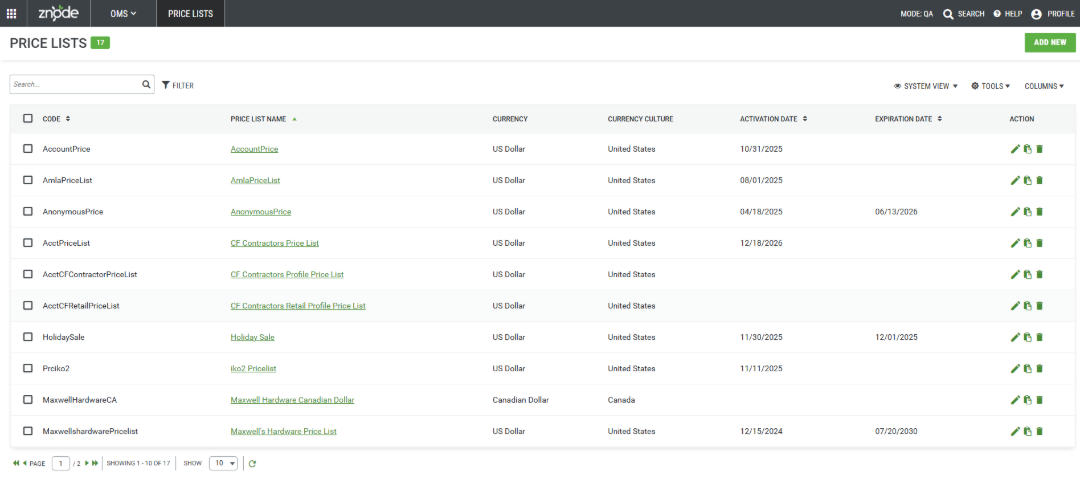
Pricing List Fields
| Field | Description |
|---|---|
| Code | Unique internal identifier for the pricing list. |
| Price List Name | Name of the pricing list. Example: Christmas Special Pricing. |
| Currency | Currency assigned to the pricing list. Prices are displayed using the selected currency. |
| Currency Culture | Currency culture associated with a country or region. Pricing appears according to the store-level currency configuration. |
| Activation Date | Date when pricing becomes active and available. |
| Expiration Date | Date when pricing expires and is no longer applicable. |
| Action | Edit - Allows Administrators to modify the details of an existing Pricing List, including pricing information, dates, templates, and associated records. Copy - Allows Administrators to create a new Pricing List by duplicating an existing Pricing List configuration. Delete - Allows Administrators to permanently remove a Pricing List from the system and its associated pricing configuration. |
Result
The Pricing List displays pricing configuration details, including currency, activation dates, and expiration dates.
Price List Information
Pricing Lists are used to manage product pricing for specific products, stores, profiles, users, or accounts. Administrators can edit an existing Pricing List to update pricing information, currency settings, activation periods, and imported pricing data.
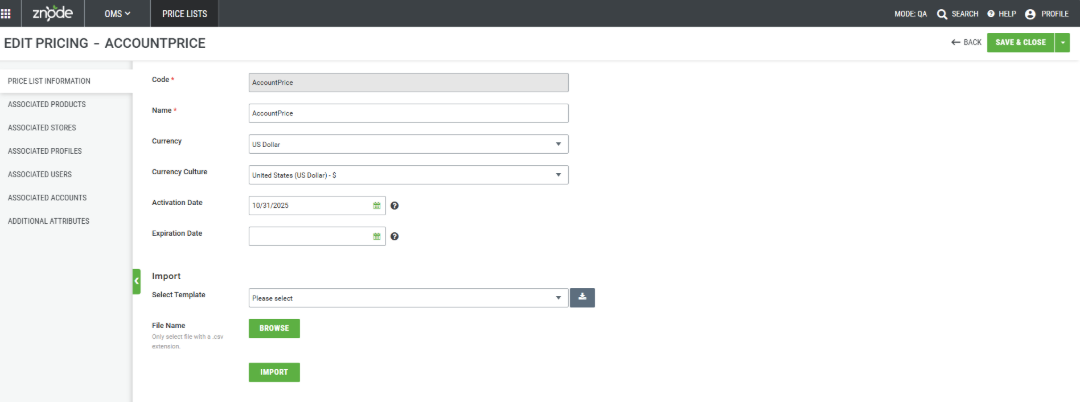
Steps
- Navigate to OMS > Pricing Lists.
- Locate the required Pricing List and select Edit.
- Update the appropriate fields in the Price List Information section.
Pricing List Information Fields
| Field | Description |
|---|---|
| Code | Unique internal identifier for the Pricing List. |
| Name | Name of the Pricing List. Example: AccountPrice. |
| Currency | Currency used for prices within the Pricing List. |
| Currency Culture | Regional currency formatting used to display prices. |
| Activation Date | Date when the Pricing List becomes active. |
| Expiration Date | Date when the Pricing List expires. |
Import Pricing Data
Administrators can import pricing information using a predefined pricing template.
- In the Import section, select a template from the Select Template drop-down list.
- Download the selected template if required.
- Click Browse and select the pricing file from local storage.
- Upload a valid CSV file containing pricing data.
- Click Import.
Save Changes
- Click Save & Close to save the updates.
- Return to the Pricing Lists grid.
Result
The Pricing List is updated successfully, and the revised pricing configuration becomes available based on the configured activation and expiration dates.
Manage Associated Products
The Associated Products section is used to associate product SKUs with a Pricing List and define the pricing that applies to specific products during the configured activation period.
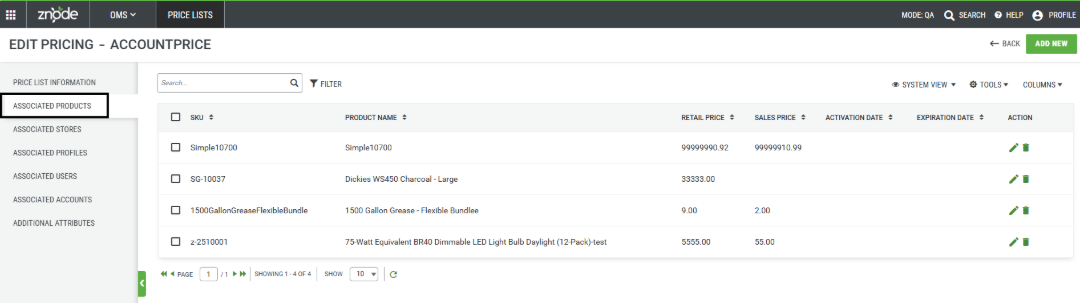
The Associated Products tab contains all product SKUs linked to the Pricing List.
Associated Product Fields
| Field | Description |
|---|---|
| SKU | SKU of the associated product. |
| Product Name | Name of the associated product. |
| Retail Price | Standard retail price assigned to the product. |
| Sales Price | Sales price assigned to the product. |
| Activation Date | Date when pricing becomes active for the product. |
| Expiration Date | Date when pricing expires for the product. |
| Action | Available actions to edit or delete the product association. |
Add an Associated Product
The Add Associated Product functionality allows Administrators to associate product SKUs with a Pricing List and define product-specific pricing. This enables pricing rules to be applied to selected products based on the configured activation and expiration dates.
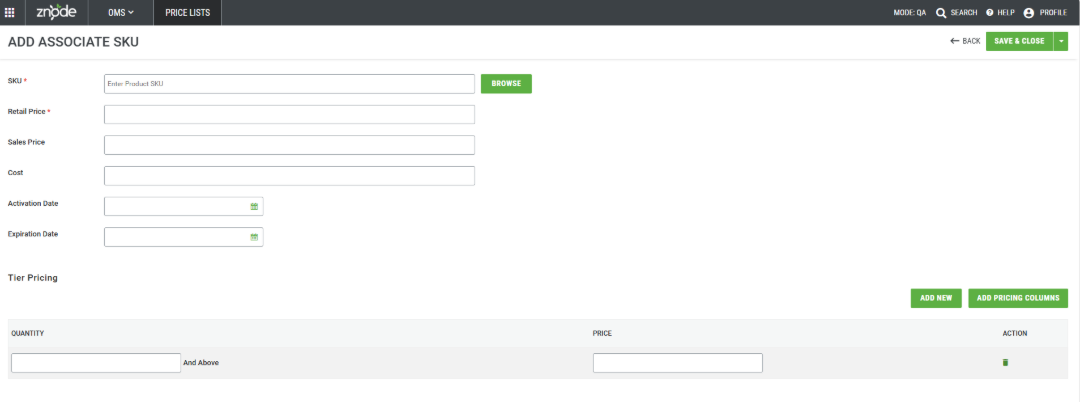
Steps
- Navigate to OMS > Pricing Lists.
- Open the required Pricing List by selecting Edit.
- Select the Associated Products tab.
- Click Add Associated Product.
- Search for and select the required product SKU.
- Enter the Retail Price and Sales Price as needed.
- Specify the Activation Date and Expiration Date.
- Click Save to associate the product with the Pricing List.
Result
The selected product SKU is successfully associated with the Pricing List, and the configured pricing becomes available according to the specified activation and expiration dates.
Add an Associated Product
The Add Associated Product functionality allows Administrators to associate product SKUs with a Pricing List and define product-specific pricing. This enables pricing rules to be applied to selected products based on the configured activation and expiration dates.
Steps
- Navigate to OMS > Pricing Lists.
- Open the required Pricing List.
- Select the Associated Products tab.
- Click Add New.
- Enter the required SKU and pricing details.
- Configure activation and expiration dates, if applicable.
- Click Save.
Result
The selected product SKU is associated with the Pricing List and appears in the Associated Products grid.
Edit an Associated Product
The Edit Associated Product functionality allows Administrators to modify pricing information for products already associated with a Pricing List. Changes can include updates to retail price, sales price, activation dates, or expiration dates.
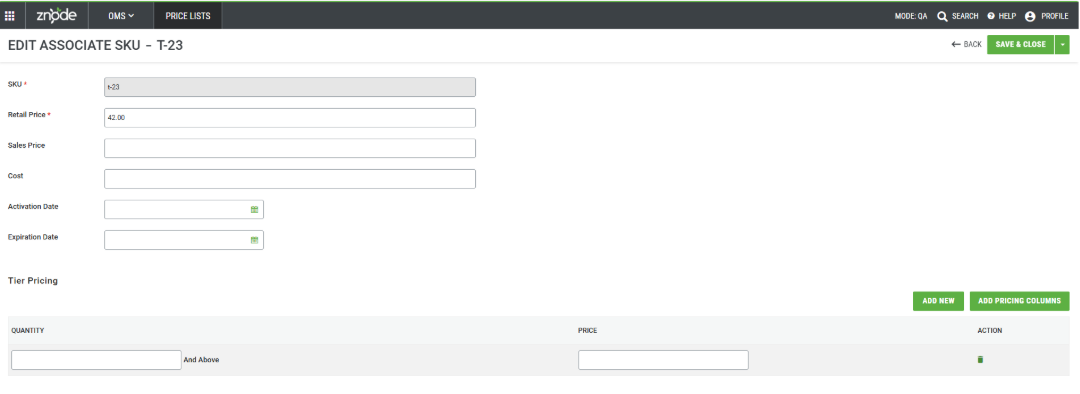
Steps
- Navigate to the Associated Products tab.
- Locate the product record to update.
- Click Edit.
- Modify the required SKU pricing information.
- Click Save.
Result
The associated product details are updated successfully.
Delete an Associated Product
The Delete Associated Product functionality allows Administrators to remove a product SKU from a Pricing List. Once removed, pricing defined in the Pricing List no longer applies to the associated product.
Steps
- Navigate to the Associated Products tab.
- Locate the product record to remove.
- Click Delete.
- Confirm the deletion if prompted.
Result
The page refreshes and displays a confirmation message. The product association is removed from the Pricing List.
Associated Stores
The Associated Stores section enables Administrators to view and manage the stores linked to a Pricing List. Associating stores with a Pricing List allows store-specific pricing to be applied across multiple Storefronts, supporting different pricing strategies for different business units, regions, or customer segments.
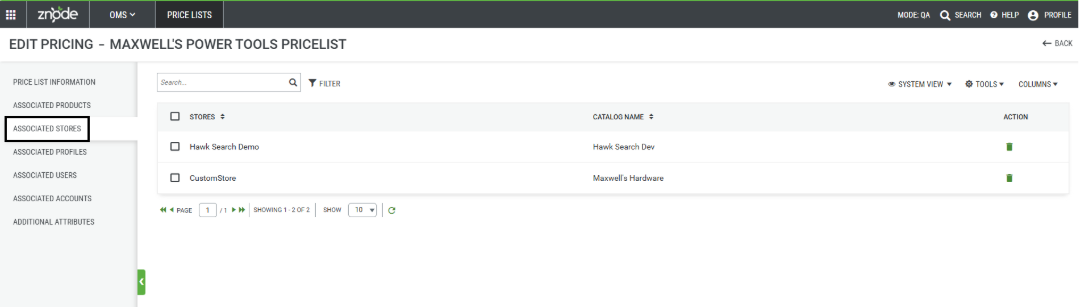
Associated Store Details
The Associated Stores grid displays all stores currently assigned to the Pricing List.
| Field | Description |
|---|---|
| Stores | Displays the name of the store associated with the Pricing List. |
| Catalog Name | Displays the catalog assigned to the associated store. |
| Action | Provides the option to remove the store association from the Pricing List. |
Delete an Associated Store
Removing a store association prevents pricing from the selected Pricing List from being applied to that store.
Steps
- Navigate to the Associated Stores tab.
- Locate the store association to remove.
- Click Delete in the Action column.
- Confirm the deletion when prompted.
Result
The page refreshes, and the selected store is removed from the Associated Stores list.
Associated Profiles
The Associated Profiles section enables Administrators to view and manage customer profiles linked to a Pricing List. Associating profiles with a Pricing List allows profile-specific pricing to be applied automatically to Customers who belong to the selected profile.
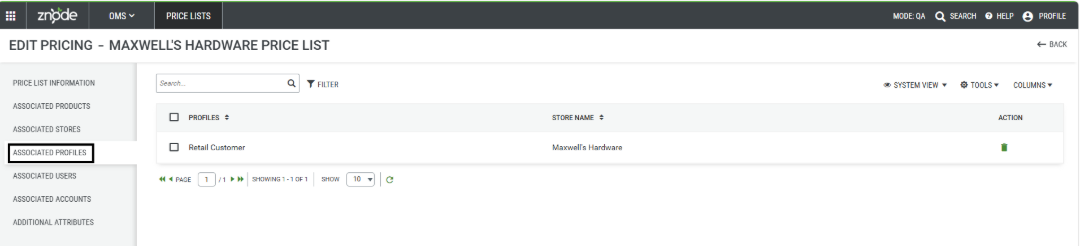
Associated Profile Details
The Associated Profiles grid displays all profiles currently assigned to the Pricing List.
| Field | Description |
|---|---|
| Profiles | Displays the name of the customer profile associated with the Pricing List. |
| Store Name | Displays the store to which the profile belongs. |
| Action | Provides the option to remove the profile association from the Pricing List. |
The Associated Profiles tab displays all customer profiles associated with the Pricing List.
Delete an Associated Profile
The Delete Associated Profile functionality removes a profile from the Pricing List. Once removed, pricing defined in the Pricing List is no longer available to Customers assigned to that profile.
Steps
- Navigate to the Associated Profiles tab.
- Locate the profile association to remove.
- Click Delete in the Action column.
- Confirm the deletion when prompted.
Result
The page refreshes, and the selected profile is removed from the Associated Profiles list.
Associated Users
The Associated Users section enables Administrators to view and manage users associated with a Pricing List. User associations allow user-specific pricing to be applied, ensuring designated users receive pricing defined by the selected Pricing List.
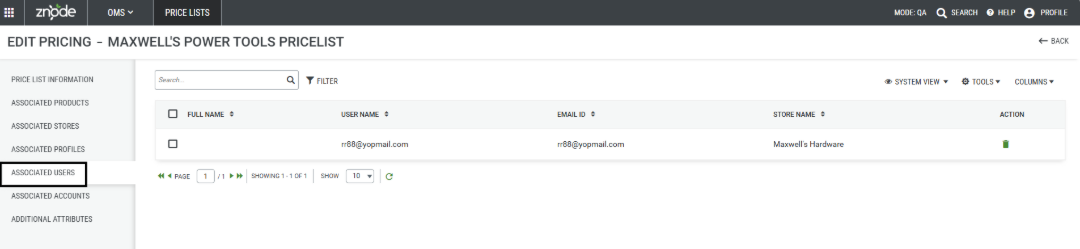
The Associated Users tab displays all users associated with the Pricing List.
Associated User Details
The Associated Users grid displays the users currently assigned to the Pricing List.
| Field | Description |
|---|---|
| Full Name | Displays the name of the associated user. |
| User Name | Displays the username associated with the user account. |
| Email ID | Displays the email address of the associated user. |
| Store Name | Displays the store to which the user is assigned. |
| Action | Provides options to remove the user association from the Pricing List. |
Delete an Associated User
Removing a user association prevents the user from receiving pricing defined by the selected Pricing List.
Steps
- Navigate to the Associated Users tab.
- Locate the user record to remove.
- Click Delete in the Action column.
- Confirm the deletion when prompted.
Result
The page refreshes, and the selected user is removed from the Associated Users list.
Associated Accounts
The Associated Accounts section displays the accounts associated with the Pricing List, enabling account-level pricing strategies and contract pricing management.
Associated Account Details
The Associated Accounts grid displays the accounts currently assigned to the Pricing List.
| Field | Description |
|---|---|
| Account Name | Displays the name of the associated account. |
| Account Code | Displays the unique account identifier. |
| External ID | Displays the external system identifier assigned to the account, if applicable. |
| Parent Account Name | Displays the parent account associated with the account record. |
| Action | Provides options to remove the account association from the Pricing List. |
Delete an Associated Account
Removing an account association prevents the account from using pricing defined in the selected Pricing List.
Steps
- Navigate to the Associated Accounts tab.
- Locate the account association to remove.
- Select Delete from the Action column.
- Confirm the deletion if prompted.
Result
The page refreshes and the account is removed from the Associated Accounts list. The account is no longer associated with the Pricing List.
Best Practices
- Use meaningful Pricing List names that clearly identify the pricing purpose or audience.
- Define activation and expiration dates for promotional pricing to ensure automatic pricing control.
- Review associated products, stores, profiles, users, and accounts regularly to maintain pricing accuracy.
- Validate imported pricing files before applying them to production environments.
- Remove unused associations to avoid unintended pricing assignments.
Additional Notes
- Pricing is applied according to the currency and culture configured for the Pricing List.
- Expired pricing is no longer eligible for use once the expiration date is reached.
- Records are displayed in associated tabs only when corresponding associations exist.