
TABLE OF CONTENTS
- Overview
- Pricing Types
- Pricing Rules
- Use Case: Create a Pricing List
- Use Case: Edit a Pricing List
- Use Case: Delete a Pricing List
- Notes
Overview
Pricing Lists in Znode define how product pricing is displayed across Storefronts. A single SKU can be associated with multiple Pricing Lists and pricing types, enabling Administrators to deliver customer-specific pricing based on business requirements.
Pricing Lists are used to import pricing into Znode and associate pricing directly with products and SKUs. Pricing can be assigned to Stores, User Profiles, individual Users, and B2B Accounts.
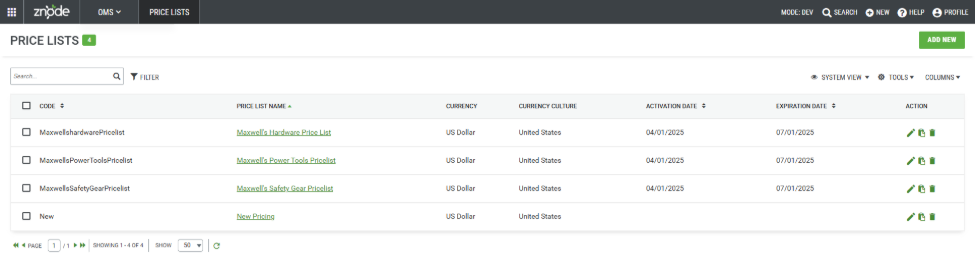
Navigate to OMS > Pricing Lists to view all configured Pricing Lists. The Pricing Lists page displays key information for each Pricing List and provides actions to manage pricing configurations.
Pricing List Grid Fields
| Field | Description |
|---|---|
| Code | Unique identifier assigned to the Pricing List. This value is commonly used for pricing imports, integrations, and external system mappings. |
| Price List Name | Name of the Pricing List displayed throughout Znode. Select the name to view and edit Pricing List details. |
| Currency | Currency associated with the Pricing List, such as US Dollar (USD) or Canadian Dollar (CAD). |
| Currency Culture | Regional culture associated with the currency. This setting controls currency formatting and localization behavior. |
| Activation Date | Date on which the Pricing List becomes active and available for pricing calculations. |
| Expiration Date | Date on which the Pricing List expires. Once expired, pricing from the list is no longer applied. |
| Action | Provides available actions for the Pricing List, including Edit, Copy, and Delete. |
Available Actions
| Action | Description |
|---|---|
| Add New | Creates a new Pricing List. |
| Search | Searches for Pricing Lists using the Pricing List Code or Name. |
| Filter | Filters Pricing Lists based on available criteria. |
| Edit | Opens the selected Pricing List for modification. |
| Copy | Creates a duplicate of an existing Pricing List. |
| Delete | Permanently removes a Pricing List from Znode. |
| Columns | Controls which columns are displayed in the grid. |
| Tools | Provides additional grid management and bulk action options. |
| System View | Displays the default system-defined grid view. |
Expected Outcome
Administrators can view, search, filter, create, modify, copy, and delete Pricing Lists from a centralized location. Pricing Lists can then be associated with Stores, Accounts, Profiles, Users, and Products to support customer-specific and business-specific pricing strategies.
Pricing Types
Znode supports multiple pricing types that allow businesses to implement standard, promotional, and quantity-based pricing strategies.
| Pricing Type | Description |
|---|---|
| Retail Pricing | The standard selling price of a product displayed on the Storefront. |
| Sale Pricing | A discounted price that overrides the Retail Price on the Product Details Page (PDP). |
| Tier Pricing | Quantity-based pricing that provides discounted pricing when buyers purchase products in larger quantities. |
Example
A product can be configured with reduced pricing when a buyer purchases more than 10 units, encouraging higher-volume purchases.
Pricing Rules
Pricing Rules determine how Pricing Lists apply pricing to products and SKUs within a Storefront. These rules enable Administrators to implement customer-specific, profile-specific, account-specific, and store-specific pricing strategies.
By associating Pricing Lists with Stores, Accounts, User Profiles, or individual Users, organizations can deliver personalized pricing experiences based on business requirements.
Use Case: Create a Pricing List
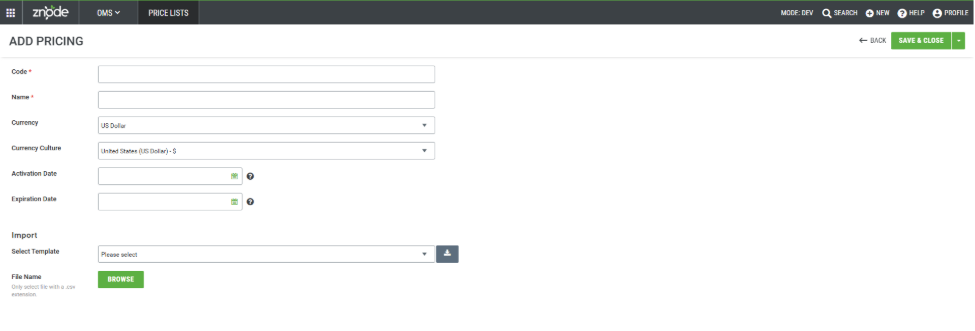
Administrators can create a new Pricing List to import, maintain, and manage product pricing.
Steps
- Navigate to OMS > Pricing Lists.
- Select Add New.
- Enter the required Pricing List details.
- Select Save to create the Pricing List.
- Configure the remaining Pricing List settings and associations as required.
- Select Save to store all updates.
Expected Outcome
The Pricing List is successfully created and becomes available for pricing imports and product pricing assignments
Use Case: Edit a Pricing List
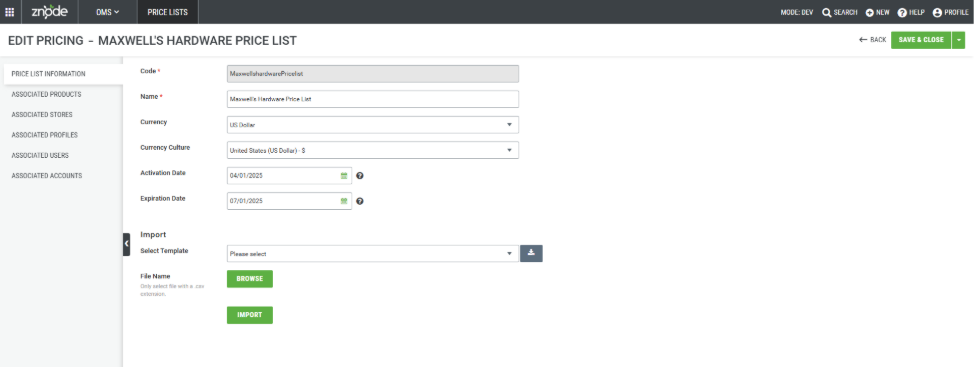
Administrators can modify an existing Pricing List to update pricing configurations, availability dates, currency settings, or pricing associations.
Steps
- Navigate to OMS > Pricing Lists.
- Locate the required Pricing List.
- Select Edit.
- Update the Pricing List details as needed.
- Select Save.
Expected Outcome
The Pricing List is updated with the latest pricing configuration, settings, and associations.
Use Case: Delete a Pricing List
Administrators can remove a Pricing List that is no longer required.
Steps
- Navigate to OMS > Pricing Lists.
- Locate the required Pricing List.
- Select Edit.
- Select Delete.
- Confirm the deletion when prompted.
Expected Outcome
The page refreshes and displays a confirmation message. The selected Pricing List is permanently removed from Znode.
Notes
- Multiple Pricing Lists can be associated with a single SKU, allowing different pricing strategies to be applied across customers, stores, and accounts.
- Pricing Lists support customer-specific pricing strategies across Stores, User Profiles, individual Users, and B2B Accounts.
- When both Retail Pricing and Sale Pricing are configured for the same product, Sale Pricing overrides Retail Pricing on the Storefront.
- Tier Pricing supports quantity-based discounts and can be used to encourage larger purchases by providing reduced pricing at predefined quantity breaks.
- Expired Pricing Lists are no longer considered during pricing calculations.
- Pricing List activation and expiration dates can be used to schedule future pricing changes without additional administrative intervention.
Validation
After Pricing List management activities are completed:
- New Pricing Lists are available for pricing imports and product assignments.
- Pricing List updates are reflected in pricing calculations based on assigned rules.
- Deleted Pricing Lists are removed from the Pricing Lists grid.
- Associated Stores, Accounts, Profiles, and Users use the latest applicable pricing configuration.
- Retail, Sale, and Tier Pricing continue to follow configured pricing precedence rules.