
TABLE OF CONTENTS
Introduction
Navigate to: Marketing > Promotions and Coupons > "Add New" button or “Edit” icon
Administrators can manage/create coupons and promotions from this section.
Promotion Information
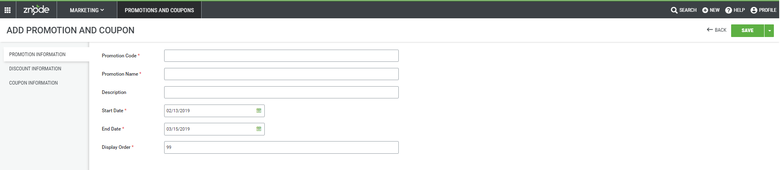
Within the Add Promotion and Coupon section, the Promotion Information tab has several required attributes:
Field | Description |
Promotion code | Administrators can add a Promotion code from this field. |
Promotion name | Administrators can add a Promotion name from this field. |
Description | This field gives administrators an additional place to provide more details regarding the promotion. |
Start Date | Administrators can select the start date here. |
End Date | Administrators can select the end date here. |
| Display order | Administrators can add a display order for the Promotion. |
Discount Information
The Discount information tab has several required attributes:
Mandatory Fields | Description |
Store | Discounts can be restricted to an individual store or made available to all stores. |
Profile | Discounts can be limited to an individual User Profile or made available to All User Profiles (i.e. if the Administrator decided that a specific discount type is only applicable for retail customers then it would be applicable only to users associated with that profile) |
Discount Amount | The Amount/Percent to discount this Promotion depends on the type of Discount that is selected. |
Minimum Quantity | Administrators can specify the minimum quantity that should be ordered for this promotion to be applied. |
Minimum Order Amount | Administrators can specify the minimum order amount that requires before being eligible for this Promotion. |
Products To Discounts (Find Products) | By clicking on “Find Products” administrators can select the product(s) that will receive the discounted amount. |
Additional Fields in Discount Information
Based on the selection of "Discount Types” administrators will get the following additional fields.
Discount Type | Additional Fields |
Amount/Percent off Brand | “Find Brands” - By clicking on “Find Brand” administrators can select the brands(s) on which the discount will be applicable. |
Amount/Percent off Catalog | Find Catalogs” - By clicking on “Find Catalogs” administrators can select the Catalogs on which the discount will be applicable. |
Amount/Percent off Category | Find Category” - By clicking on “Find Category” administrators can select the Category on which the discount will be applicable. |
Amount/Percent off Displayed product Price | Find Products” - By clicking on “Find Products” administrators can select the Products on which the discount will be applicable. |
Amount/Percent off Product | Find Product” - By clicking on “Find Product” administrators can select the Products on which the discount will be applicable. |
Amount/Percent off shipping with the carrier | Shipping - By clicking on “Shipping ” administrators can select the Shipping method on which the discount will be applicable. |
Amount/Percent off X if Y purchased | There will be 3 additional fields that will be enabled upon selecting this Discount Type
|
| Call for Pricing | “Find Products” By clicking on “Find Products” administrators can select the Products on which the call for pricing message will be displayed. |
| BOGO | For more information on BOGO feature, refer the link to the detailed article. Configuring Buy One Get One [BOGO] |
From Version 9.7.4 the administrator can choose multiple profiles for Promotion and Coupons. Along with multiple profile selections, the "all profile" option is also available.
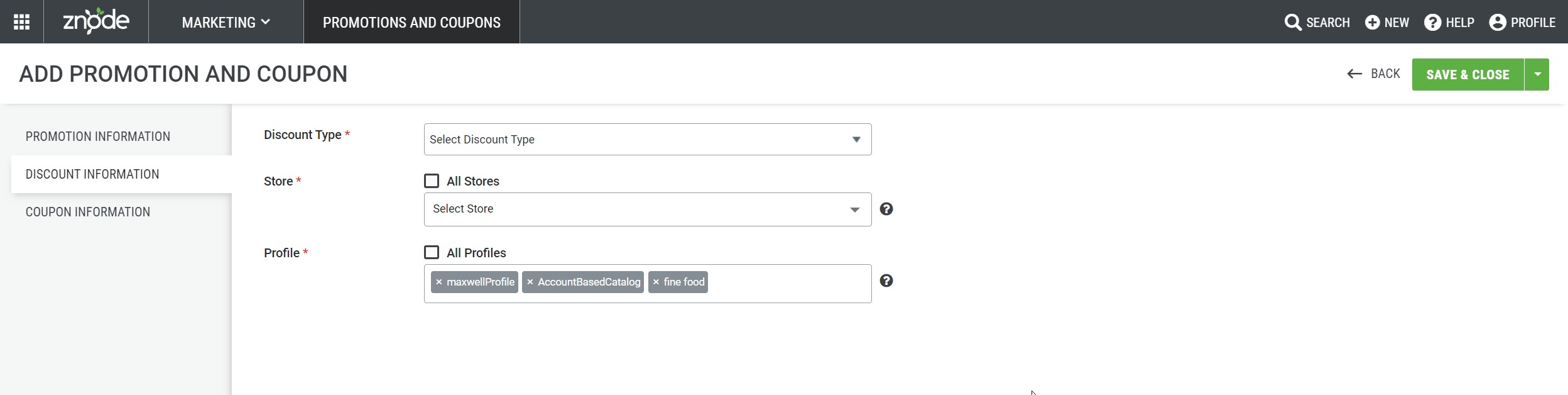
When all profile option is selected all the other options from the drop-down gets disabled. 

Coupon Information
The Coupon Information tab features Require A Coupon option and the checkbox is unchecked (by default).

Coupon Information Fields
| Field Name | Description |
|---|---|
| Requires a Coupon | Enablescoupon-basedpromotions.Customersmustenteravalidcouponcodeduringcheckouttoreceivethepromotionaldiscount. |
| Is Unique | Generatesuniquecouponcodesinsteadofusingasinglesharedcouponcode.Eachgeneratedcouponcodecanbetrackedindividually. |
| Is Allowed With Other Coupon | Allowsthecoupontobecombinedwithothereligiblecouponcodesduringcheckout,basedontheconfiguredpromotionrules. |
| Promotional Message | Specifiesthemessagedisplayedtocustomerswhenthepromotionisapplicable.Thishelpscommunicatepromotionaloffersandcoupon-relatedinformation. |
| Custom Coupon | Enablescustomcouponcodegenerationbyallowingadministratorstodefineaprefixorsuffixforgeneratedcouponcodes. |
| Custom Coupon Code | Definescustomtexttobeaddedtogeneratedcouponcodes.AdministratorscanchooseeitherPre Text(Prefix)orPost Text(Suffix)andenterthedesiredvalue. |
| Coupon Code Format | Specifiesthecharacterformatusedforgeneratedcouponcodes.Availableoptionsmayincludeletters,numbers,oralphanumericcombinationsdependingonconfiguration. |
| Coupon Code Length | Definesthetotallengthofthegeneratedcouponcode,excludinganyconfiguredprefixorsuffix. |
| Initial Quantity | Specifiesthenumberofcouponcodestogenerate.Thesupportedrangeis1 to 99,999couponcodespergenerationrequest. If the entered value is less than 1 or greater than 99,999, display the validation message: "Enter Available Quantity between 1-99999." If the field is left blank, then the display error message as "Please enter Available Quantity |
| Generate | Generatesthespecifiedquantityofuniquecouponcodesbasedontheconfiguredcouponformat,length,andcustomprefix/suffixsettings. |
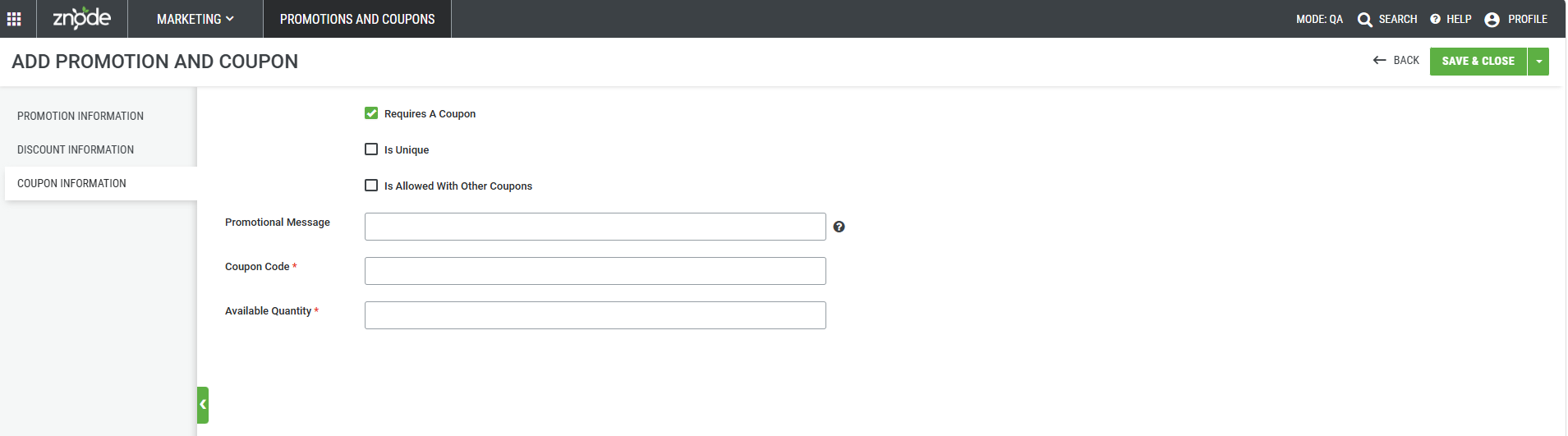
After enabling the Requires a Coupon option, the Promotion Message, Coupon code, and Available Quantity fields become available as shown in the below screenshot. Also, optional attribute options for Is Unique and Is Allowed With Other Coupon checkboxes are available. The default coupon behavior gives the Administrator the ability to create a single coupon code that can be used by one or more customers while limiting the number of times the coupon code can be used.
When the promotion option Is Unique checkbox is selected, additional options become available as shown in the screenshot below. Custom Coupon, Coupon Code Format, Coupon Code Length, and Initial Quantity. This option gives the administrator the ability to create unique coupon codes that can be distributed as needed. If the Custom Coupon option is checked an additional Custom Coupon Code option becomes available to allow Administrators to customize the prefix or suffix of the auto-generated coupon codes.
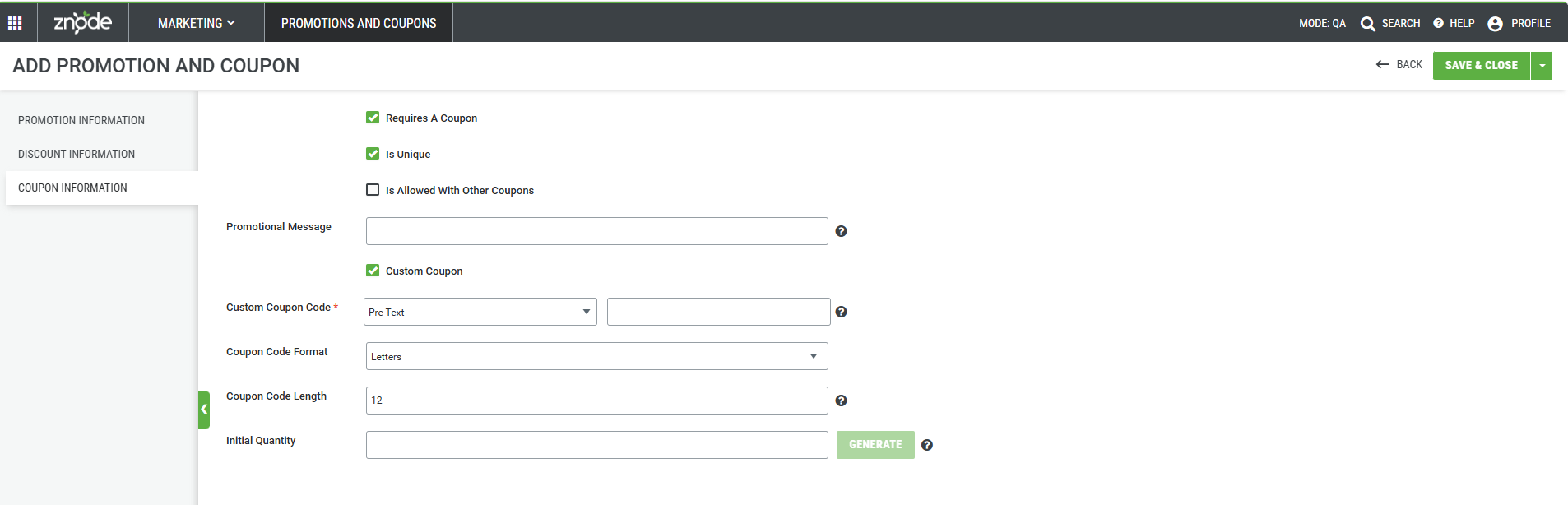
Once the Administrator has the promotion and coupon configured according to the requirements, the coupon codes can be generated. At the same time, the Is Allowed With Other Coupon option, is checked this would allow the newly generated coupons to be used with the other coupons.
Important Note:
Generate Coupons is disabled during the initial creation of a Promotion and Coupon.
Before coupon codes can be generated, the promotion configuration must first be saved successfully. Once the promotion record is created and saved, the Generate Coupons button becomes available, allowing administrators to generate unique coupon codes for the promotion.
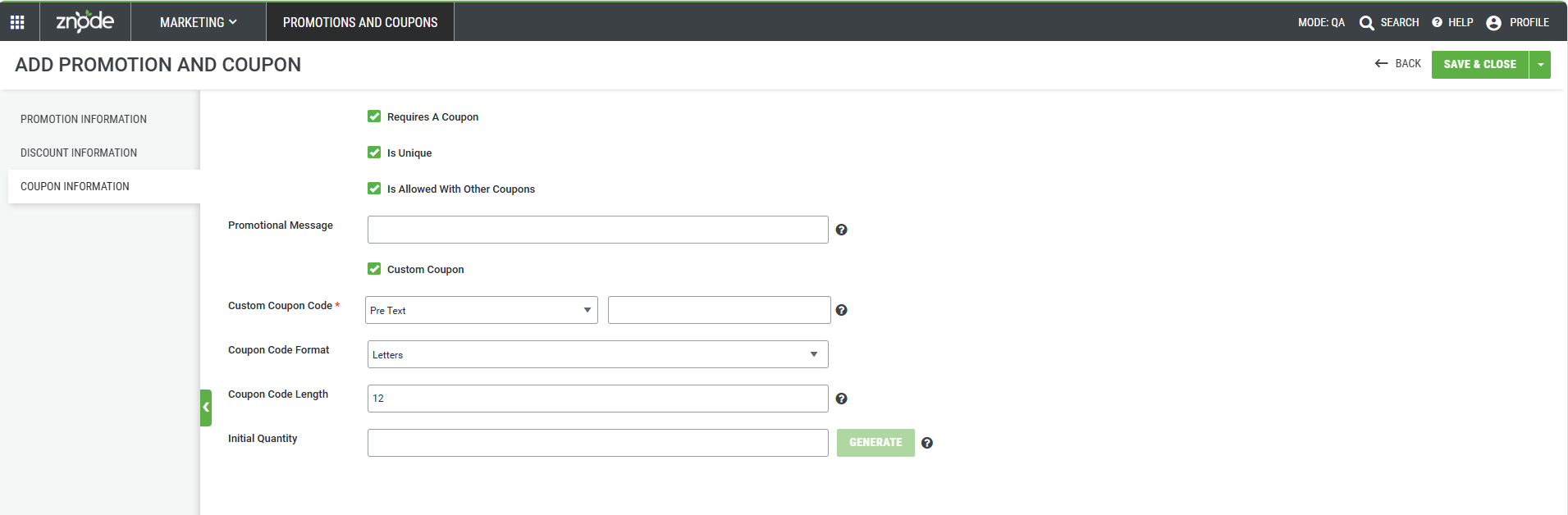 Once Admin clicks on Generate Button, the Coupon Code, can be generated based on Initial Quantity
Coupon Summary
- The following coupon statistics are displayed above the grid:
Metric | Description |
Total Coupons | Total number of coupon codes generated for the promotion. |
Used Coupons | Number of coupon codes that have been redeemed. |
Unused Coupons | Number of coupon codes that are still available for use. |
Column | Description |
Coupon Code | Displays the unique coupon code generated for the promotion. |
Used | Indicates whether the coupon has been redeemed by a customer. |
Activate | Indicates whether the coupon code is active and available for redemption. |
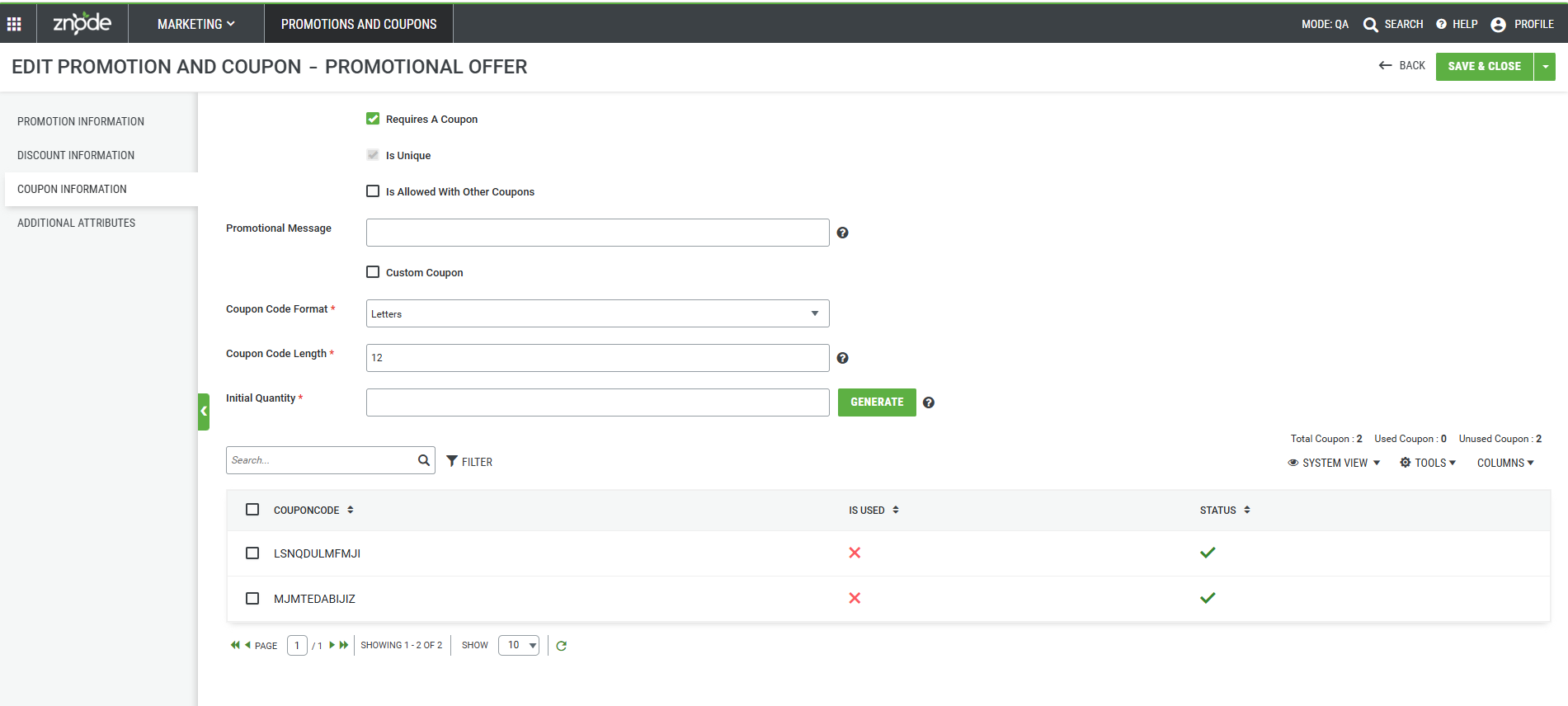
For more coupon related scenarios please refer - Unique Coupon Code Generation Scenarios | Znode
Edit Promotions and Coupons
Navigate to: Marketing > Promotions and Coupons > "Edit" action
- Edit new Promotion and Coupon details
- Save results using the "Save" button
Delete Promotions and Coupons
Navigate to: Marketing > Promotions and Coupons > "Delete" action
- Click on the Delete icon
- A Confirmation pop up comes up
- Click on "Okay" and the Promotions and Coupons will be deleted.https://support.znode.com/support/solutions/articles/43000791569-unique-coupon-code-generation-scenarios