
TABLE OF CONTENTS
- List of Scenarios
- Scenario 1: Generate Coupons for a New Promotion
- Scenario 2: Save a Promotion Without Generating Coupon Codes
- Scenario 3: Navigate Away Without Generating Coupon Codes
- Scenario 4: Edit Coupon Information Without Generating Coupons
- Scenario 5: Generate Additional Coupon Codes for an Existing Promotion
- Scenario 6: Exit Without Generating Additional Coupon Codes
- Scenario 7: Save Promotion After Coupons Already Exist
- Scenario 8: Generate Additional Coupons Without Saving First
List of Scenarios
Scenario 1: Generate Coupons for a New Promotion
System Behavior
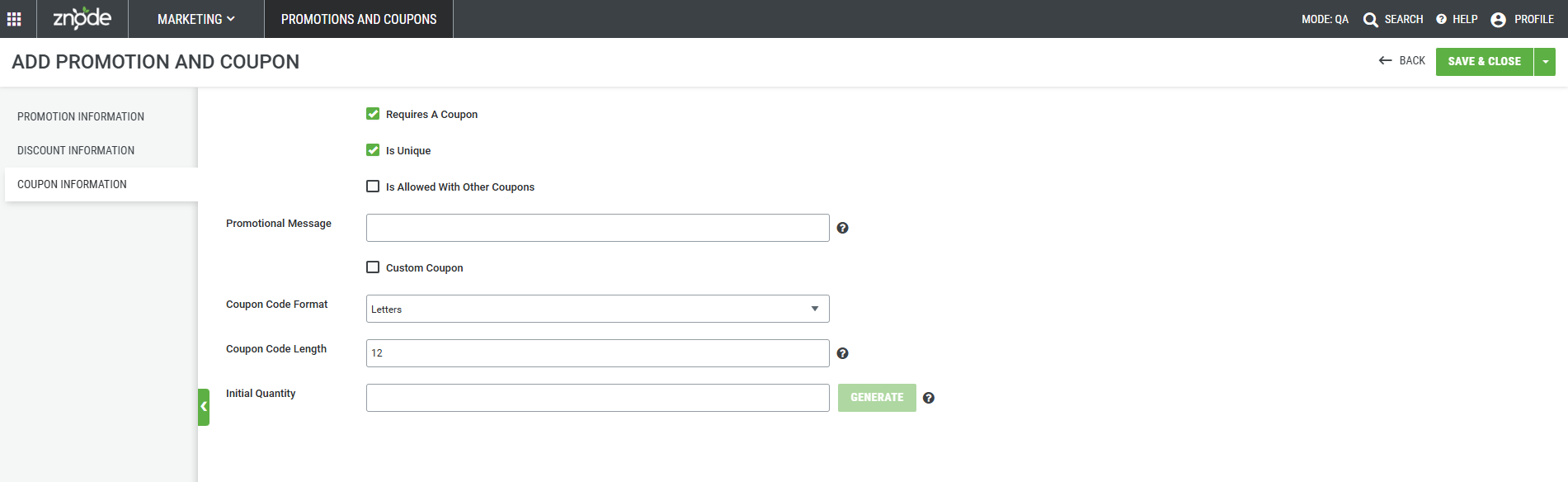
When creating a new promotion, the Generate Coupons button is disabled by default.
Administrators must first save the promotion before coupon generation becomes available.
Steps
- Create a new promotion.
- Configure the promotion details.
- Click Save.
- After the promotion is saved successfully, the Generate Coupons button becomes enabled.
- Enter the coupon generation configuration.
- Click Generate Coupons.
Result
- The system generates coupon codes at the database level.
- Generated coupon codes are automatically associated with the promotion.
- Coupon codes are stored immediately and available for review.
Help Text: Generate unique coupon codes for this promotion. Save the promotion to enable coupon generation.
Scenario 2: Save a Promotion Without Generating Coupon Codes
Steps
- Create and save a coupon-based promotion.
- Do not generate coupon codes.
- Click Save.
Result
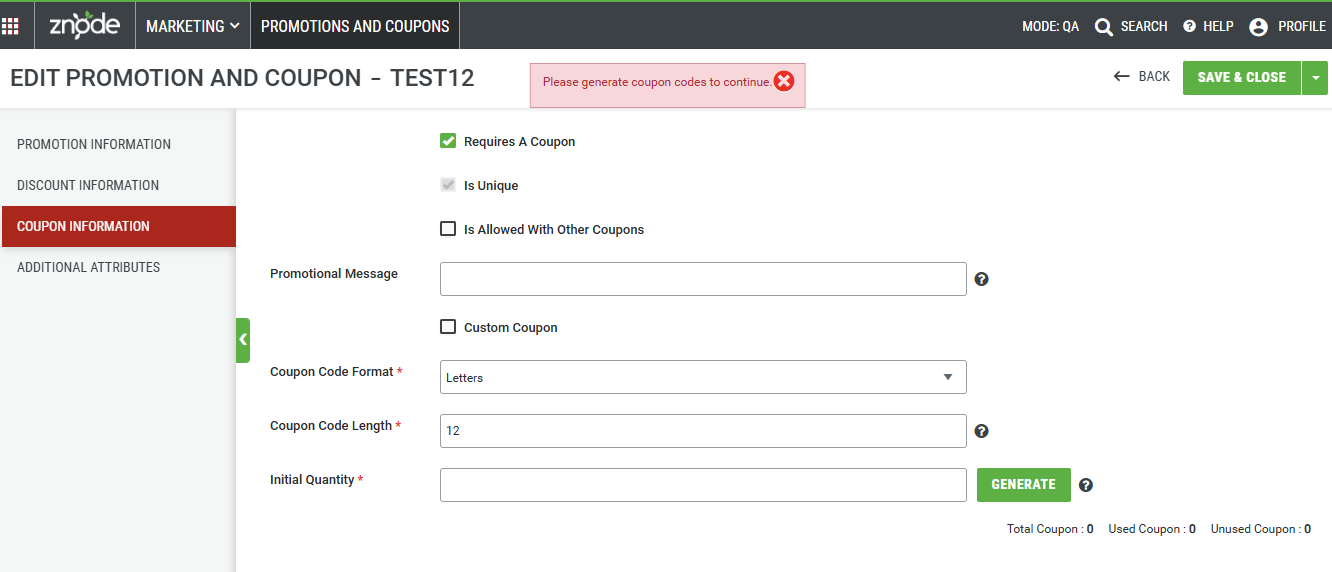
The system displays the following validation message:
"Please generate coupon codes to continue."
The promotion cannot be completed until coupon codes are generated.
Scenario 3: Navigate Away Without Generating Coupon Codes
Steps
- Create and save a promotion.
- Do not generate coupon codes.
- Click Back.
Result
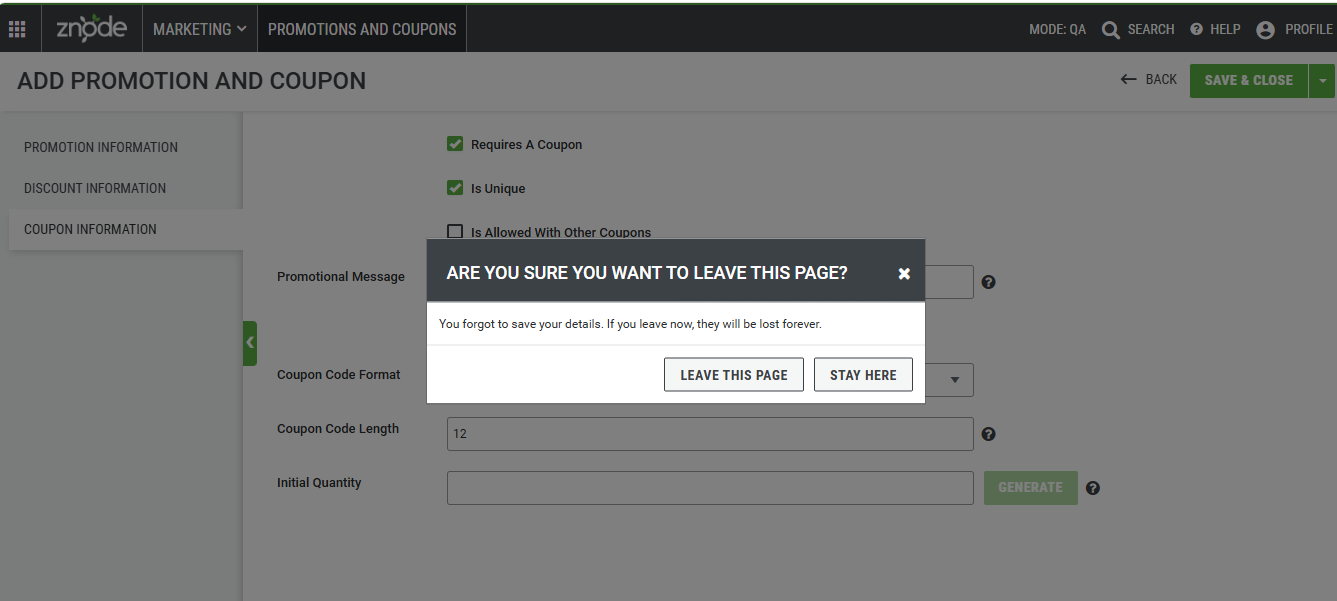
The system displays a confirmation popup.
Title
Are you sure you want to leave this page?
Message
Coupon codes have not been generated for this promotion. If you leave this page now, your changes may not be completed.
Available Actions
| Button | Description |
|---|---|
| Leave Page | Leaves the current page and discards unsaved coupon generation activity. |
| Stay on Page | Remains on the promotion page. |
Scenario 4: Edit Coupon Information Without Generating Coupons
Steps
- Open a saved promotion.
- Select Edit Coupon Code.
- Make coupon-related changes.
- Click Save without generating coupon codes.
Result
The system displays the following validation message:
"Please generate coupon codes to continue."
Additionally:
- The Coupon Information section is highlighted in red.
- The changes are not completed until coupon codes are generated.
Scenario 5: Generate Additional Coupon Codes for an Existing Promotion
Preconditions
The promotion already contains generated coupon codes.
Steps
- Open an existing promotion.
- Select Edit Coupon Code.
- Enter an additional quantity.
- Update the coupon format if required.
- Click Generate Coupons.
Result
- Only the new quantity is generated.
- Existing coupon codes remain unchanged.
- Newly generated coupon codes are added to the existing coupon pool.
- Saving the promotion before generation is not required.
Example
Current coupon count: 100
Additional quantity entered: 100
- Existing coupon codes: 100
- Newly generated coupon codes: 100
- Total coupon codes: 200
Scenario 6: Exit Without Generating Additional Coupon Codes
Preconditions
The promotion already contains generated coupon codes.
Steps
- Open the promotion.
- Select Edit Coupon Code.
- Modify coupon quantity or format.
- Click Back without selecting Generate Coupons.
Result
- Changes are not saved.
- Previously saved coupon configuration remains unchanged.
- No additional coupon codes are generated.
Scenario 7: Save Promotion After Coupons Already Exist
Preconditions
Coupon codes have already been generated.
Steps
- Open the promotion.
- Select Edit Coupon Code.
- Make updates unrelated to coupon generation.
- Click Save or Save & Close.
Result
The system saves the promotion successfully and displays:
"Record saved successfully."
No additional coupon generation is required.
Scenario 8: Generate Additional Coupons Without Saving First
Preconditions
A promotion already contains generated coupon codes.
Steps
- Open the promotion.
- Modify promotion settings.
- Update coupon quantity.
- Click Generate Coupons.
Result
The system automatically:
- Saves promotion changes.
- Generates additional coupon codes.
- Associates generated coupon codes with the promotion.
No separate Save action is required before coupon generation.
Example
Promotion: Summer Sale
Existing coupons: 100
Admin updates:
- Promotion configuration
- Additional quantity = 100
Upon clicking Generate Coupons:
- Promotion changes are saved automatically.
- 100 new coupon codes are generated.
- Total coupon count becomes 200.