
TABLE OF CONTENTS
- Overview
- Quote Workflow Overview
- Manage Quotes in the Admin Console
- Manage/Edit a Quote
- Convert a Quote into an Order from the Admin Console
- Quote Status Definitions
- Manage Quote Information
- Quote History
Overview
The Quotes feature enables Buyers and Administrators to create, review, modify, approve, and convert quote requests into orders. Quotes provide a structured workflow for negotiating pricing, quantities, shipping details, and other order-related information before purchase completion.
Administrators can manage quotes centrally from the Admin Console, while Buyers can track and convert eligible quotes from the Storefront.
Navigation
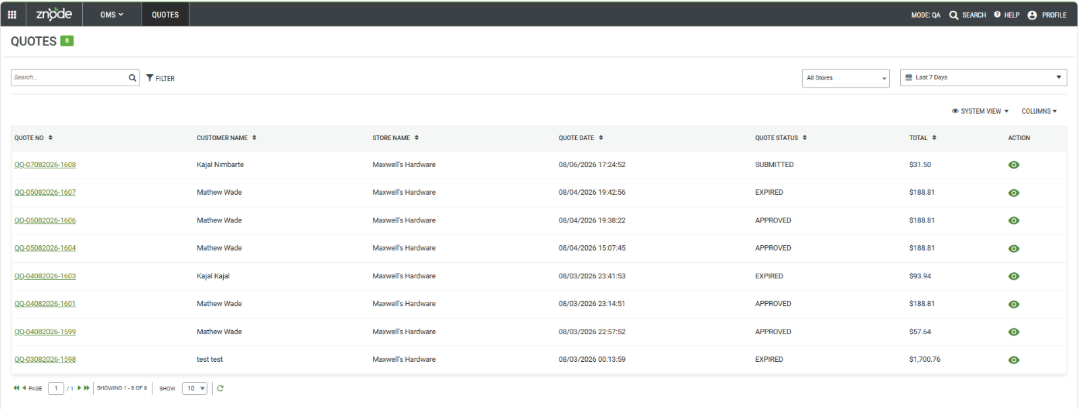
OMS > Quotes
Quote Workflow Overview
Quotes can be created by:
- Buyers from the Storefront
- Administrators from the Storefront using impersonation
Once submitted, the quote becomes available in the Admin Console for review and management.
Default Quote Status
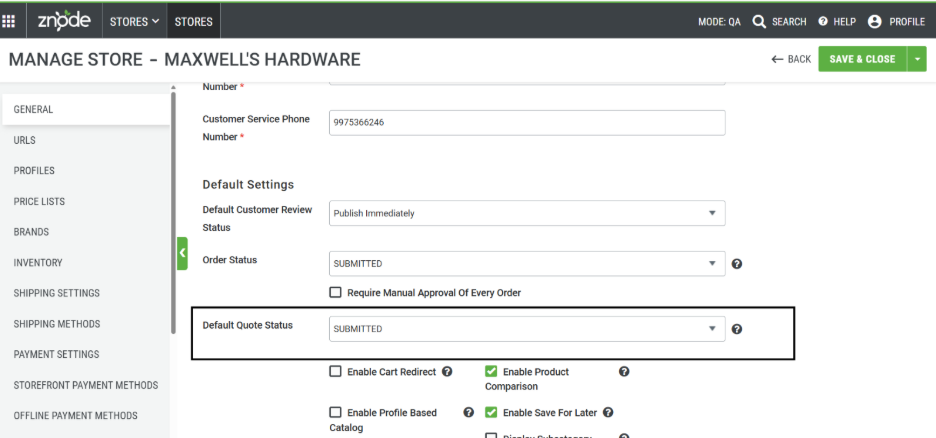
Administrators can define the default quote status for a store from:
Store > General Settings > Default Quote Status
Available statuses include:
- Submitted
- In Review
- Approved
- Canceled
- Expired
Quote Expiration
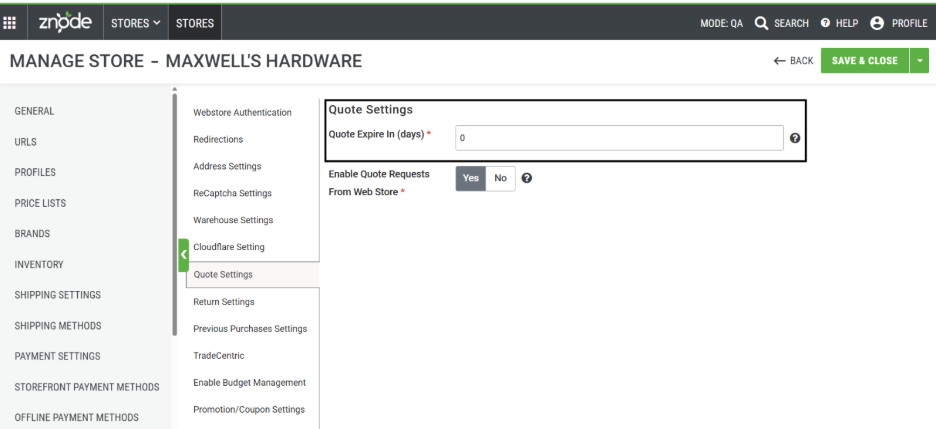
The quote expiration period is configured at:
Store > Additional Attributes > Quote Settings > Quote Expire In (Days)
When the configured number of days elapses, the quote automatically changes to Expired if it has not already been approved or canceled.
Submit a Quote Request
Use Case
A Buyer or Administrator submits a quote request for review and approval.
Steps
- Add products to the quote.
- Select Submit Quote.
- The quote is submitted and becomes available in the Admin Console.
- The quote is assigned to the store's default quote status.
- Review and processing can begin from the Quotes area within the Admin Console.
Expected Result
Upon quote submission, the quote appears in Admin > OMS > Quotes and is available for Administrator review.
Manage Quotes in the Admin Console
Navigation
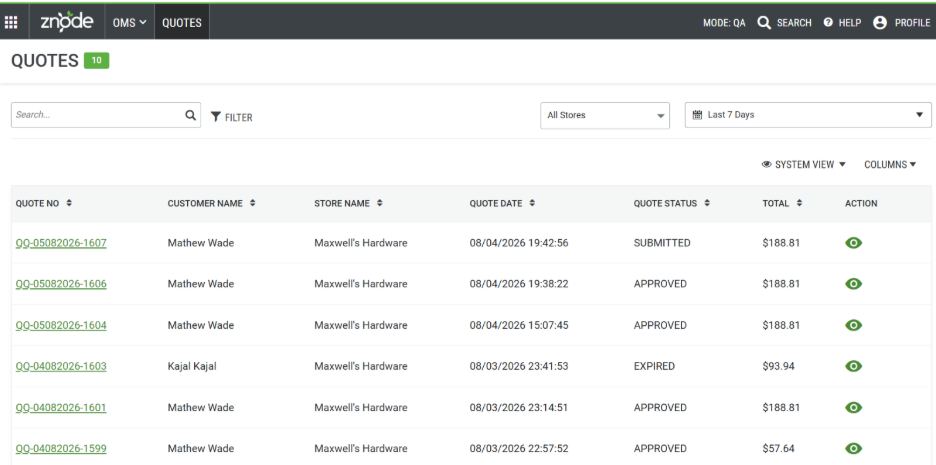
Admin > OMS > Quotes > View
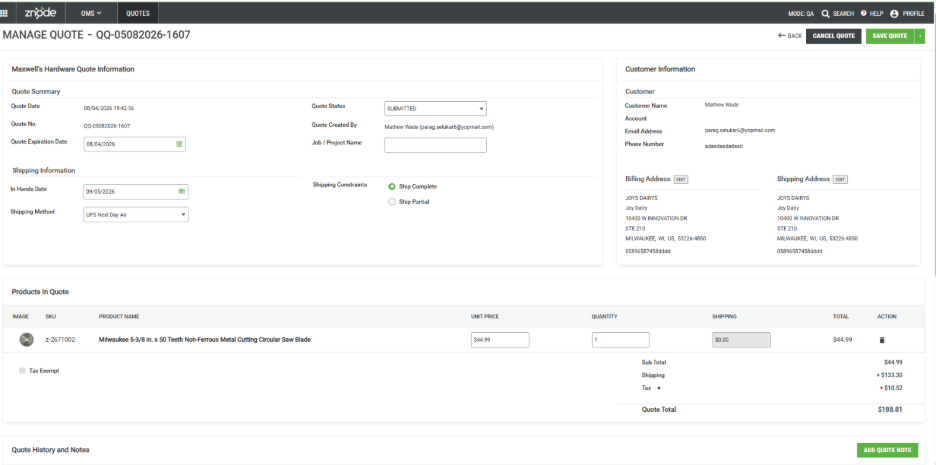
The Manage Quote page allows Administrators to update quote details, pricing, shipping information, quantities, addresses, and quote status.
Manage/Edit a Quote
Administrators can view and manage quote-related information from the Manage Quote page.
Steps
- Navigate to Admin > OMS > Quotes.
- Locate the desired quote.
- Select View.
- Update the required quote information.
- Select Save.
Expected Result
The updated quote is saved successfully.
Convert a Quote into an Order from the Admin Console
Use Case
An Administrator converts a quote into an order on behalf of a customer.
Option 1: Administrator Converts an Approved Quote
Steps
- Navigate to OMS > Quotes.
- Select View for the required quote.
- Update any necessary quote details.
- Set Quote Status to Approved.
- Select Save Quote.
- Review the confirmation message.
- Select OK.
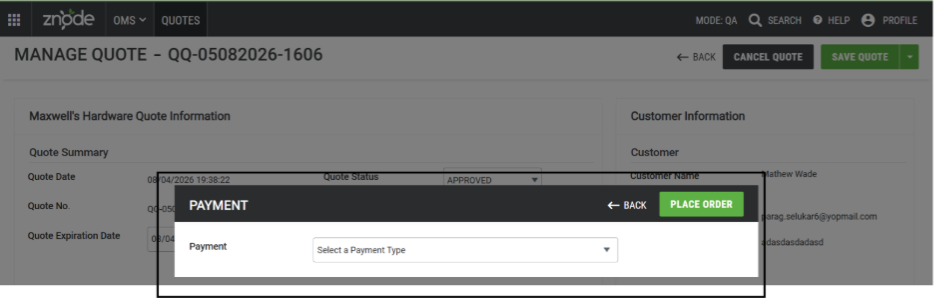
- In the payment window, select a payment method.
- Enter the required payment information.
- Select Place Order.
- Once the Administrator converts the quote into an order, the Buyer can no longer convert the same quote from the Storefront because it has already been processed.
Expected Result
The system performs the following actions:
- Creates an order from the approved quote.
- Displays the order receipt.
- Generates an order number associated with the quote.
- Sends the Quote Converted to Order notification email to the Buyer.
- Generates an order receipt.
- Sends the order receipt email to the Buyer.
- Displays the order in the Buyer's Order History.
- Makes the order available under OMS > Orders.
Option 2: Customer Converts an In Review Quote
Instead of converting the quote directly, an Administrator can allow the customer to review the quote and complete the purchase from the Storefront.
Steps
- Open the quote.
- Set Quote Status to In Review.
- Select Save.
Expected Result
The Buyer can access the quote from the Storefront and use the Convert to Order option to complete the purchase.
Important Note About Order Conversion
When a quote is converted into an order:
- Quote pricing is preserved exactly as approved.
- Real-time pricing recalculation is not performed.
- Taxes are recalculated using current tax rules and tax service calculations.
- Updated tax values are stored with the order.
- This behavior supports integrations with tax providers such as Avalara and Vertex.
Quote Status Definitions
| Status | Description |
|---|---|
| Submitted | Default status when a quote is submitted without pricing or quantity changes. |
| In Review | Typically used when quote pricing or product details have been modified and require customer review. Customers can convert these quotes into orders from the Storefront. |
| Approved | Indicates acceptance of the quote. Payment can be collected and the quote can be converted into an order. |
| Canceled | Closes the quote request. No further changes are allowed. |
| Expired | Applied automatically when the quote reaches its expiration date without approval or cancellation. No further changes are allowed. |
Manage Quote Information
The Store Quote Information section provides access to quote-level settings and details.
Editable Fields
Quote Status
Allows selection of the following statuses:
- Submitted
- In Review
- Approved
- Canceled
- Expired
Quote Expiration Date
Updates the expiration date for the quote.
Job/Project Name
Adds or modifies the project name associated with the quote.
In Hands Date
Specifies the customer's requested delivery date.
Shipping Constraints
Defines shipment preferences for the entire quote.
Shipping Type
Changes the shipping method associated with the quote.
When the shipping method changes:
- Shipping charges are recalculated using current shipping rates.
- Updated shipping costs are reflected in the quote totals.
Read-Only Information
The section also displays the following information:
- Store Name
- Quote Date
- Quote Number
- Quote Created By
Customer Information
The Customer Information section contains customer contact details and address information associated with the quote.
Customer Details
The following customer information is displayed:
- Customer Name
- Email Address
- Phone Number
Customer contact details remain unchanged within the quote even if updates are later made to the customer account.
Billing Address
Allows modification of the billing address associated with the quote.
Shipping Address
Allows modification of the shipping address associated with the quote.
Manage Products in a Quote
Unit Price
Administrators can:
- Modify line-item unit pricing.
- View the original unit price used during quote creation.
The original price remains permanently stored for reference and audit purposes.
Shipping Amount
After quantity or pricing updates are completed, shipping charges are recalculated using current shipping rates and reflected in the quote totals.
Quantity
Administrators can modify product quantities within the quote.
Important Notes
- Quantity availability follows the product's configured Out of Stock behavior.
- Minimum and maximum quantity validation rules are not applied during quote management.
Tax Exemption
The Tax Exemption setting is read-only and cannot be modified within quote management.
Quote Summary
The Quote Summary section displays real-time calculations based on the current quote information.
The following values are displayed:
- Subtotal
- Shipping
- Handling Charges
- Tax
- Quote Total
Quote Total Formula
Quote Total = Subtotal + Shipping + Handling Charges + Tax
Quote History
The Quote History section records all modifications made by Administrators throughout the lifecycle of the quote.
This audit trail helps track changes, status updates, pricing adjustments, and other quote-related activities.
Additional Actions
Cancel Quote
Selecting Cancel Quote performs the following actions:
- Changes the quote status to Canceled.
- Closes the quote.
- Prevents any further modifications.
Selecting Print generates a printable version of the quote receipt.
Save
Selecting Save permanently stores all quote changes.
Back
Selecting Back returns the user to the Quotes list page.
Quote Calculation Behavior
Shipping and Handling Charges
The Quote Summary section displays separate totals for:
- Shipping Charges
- Handling Charges
- Shipping Discounts
Handling Charges
- Apply at the quote level.
- Do not apply at the individual line-item level.
Tax Calculation
Taxes are calculated using the current tax configuration settings, including:
- Include Shipping in Taxes
- Calculate Tax on Discounted Amount
When a quote is converted into an order:
- Taxes are recalculated using current tax rules.
- Updated tax values are stored with the order.
Information Preserved During Quote-to-Order Conversion
When a quote is converted into an order, the following approved quote values are retained:
- Line-item unit prices
- Bundle product child item quantities
- Out of Stock option values
- Line-item shipping amounts
- Line-item tax amounts
- Custom tax rates
- Calculate Tax on Discounted Price setting
- Include Shipping
Quote Conversion Process
During quote conversion, the approved quote values are retained and applied to the resulting order. This ensures consistency between the negotiated quote and the final order processed by the system.
The following values are preserved during quote conversion:
- Include Shipping in Taxes setting.
- Handling charges.
- Voucher amounts.
- Applied line-item discounts.
- Applied order discounts.
This ensures order processing and returns use the approved quote values rather than the current catalog pricing or configuration values.
Please Note
Quote Conversion Process
The Quote Conversion Process does not require any store publishing activity.
Once quote details are saved in the Admin Console, the changes are reflected on the Storefront in real time. There is no need to publish the store or perform additional deployment steps for the updated information to become available.
Limitations
The following functions are not supported:
- Handling charges at the individual line-item level.
- Editing shipping charges for the entire quote.