
Overview
The Request for Quote (RFQ) feature allows registered Buyers to request pricing, discounts, shipping estimates, or customized product quotations directly from the Storefront. Instead of placing an order immediately, shoppers can submit a quote request for review by the sales or administration team.
After a quote is submitted, administrators can review the request, adjust pricing, update quantities, apply discounts, and provide a formal quotation before the Buyers completes the purchase.
Only registered Buyers can create quote requests from the Storefront.
Prerequisites
Before creating a quote request, ensure the following prerequisites are met:
- The Buyers account is active and available in the Admin Console.
- The Storefront is configured and accessible.
- Quote Requests are enabled by navigating to:
Admin Console → Store → Additional Attributes → Quote Settings - Set Enable Quote Request from Web Store to Yes.
- The Buyers is assigned to the appropriate:
- Profile
- Catalog
- Pricing Configuration
- Account Structure
Business Use Cases
Bulk Quantity Purchases
Buyers can request pricing for large quantity purchases that may be more favorable than standard or tiered pricing.
Customer-Specific Pricing and Price Negotiation
- Request contract or negotiated pricing.
- Discuss pricing before placing an order.
Out-of-Stock or Backorder Products
Request pricing and delivery commitments for products that are currently unavailable.
Example:
A Buyer requests pricing for products expected to be available in three weeks.
Custom or Configurable Products
Request quotations for products requiring customization before pricing can be finalized.
Example:
A Buyer requests a custom pressure washer with additional accessories and branding.
Budget Approval Process
Organizations may require quotations before internal purchase approval.
Example:
A Buyer requests a quote that must be approved by the finance team before placing the order.
Multi-Vendor Price Comparison
Buyers can compare quotations received from multiple vendors before making a purchase decision.
Example:
A Buyer requests quotations from several vendors and selects the most competitive offer.
Create a Quote from the Storefront
Step 1: Sign In
- Sign in to the Storefront using a registered Buyer account.
- Guest users cannot submit quote requests.
Step 2: Add Products to the Cart
Products can be added using any of the following methods:
Option A: Search for Products
- Search by product name, keyword, or SKU.
- Select the required product.
- Enter the desired quantity.
- Select Add to Cart.
Option B: Browse by Category
- Select a category from the Storefront navigation.
- Select the required product.
- Enter the quantity.
- Select Add to Cart.
Option C: Reorder
- Navigate to My Profile → Order History.
- Open a previous order.
- Select Reorder.
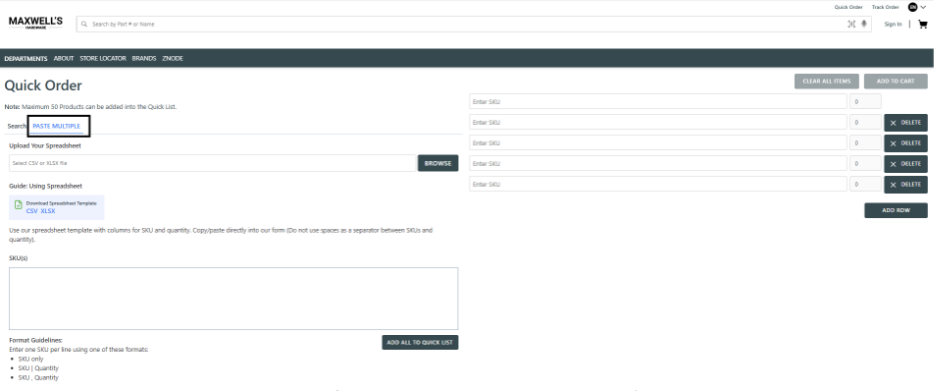
Option D: Quick Order
- Open the Quick Order page.
- Enter product SKUs and quantities.
- Optionally use Add Multiple Items or Paste Multiple to add several SKUs simultaneously.
- Select Add to Cart.
Option E: Use an Order Template
- Navigate to Order Templates.
- Select Add to Cart for the required template.
- The products from the selected template are added to the shopping cart.
Option F: Use Previous Purchases
- Navigate to My Profile → Previous Purchases.
- Review the list of previously purchased products.
- Enter the required quantities.
- Select Add to Cart.
Step 3: Review the Cart
- Open the shopping cart.
- Review the products and quantities.
- Update quantities or remove products, if required.
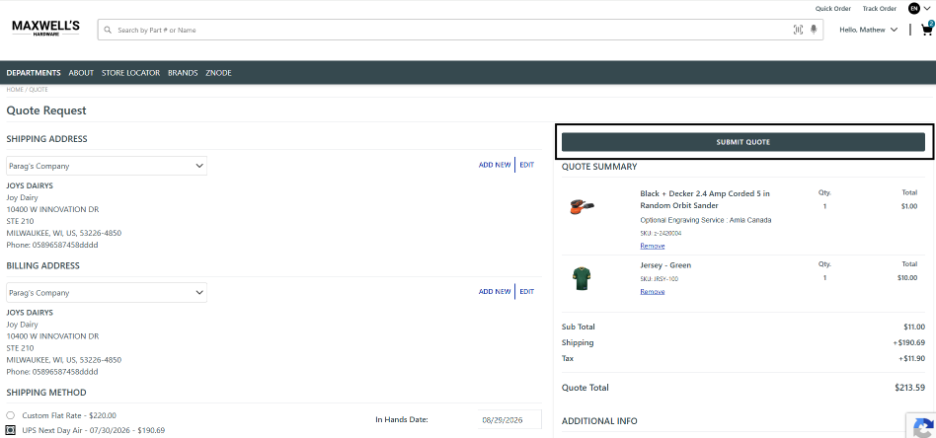
Step 4: Request a Quote
- Select Request Quote.
- The Quote Checkout page opens.
Step 5: Select Billing and Shipping Addresses
- Review the billing address.
- Select an existing billing address or add a new one.
- Review the shipping address.
- Select an existing shipping address or add a new one.
Step 6: Select a Shipping Method
- Review the available shipping methods.
- Select the preferred shipping method.
- The shipping charges and delivery options are updated.
Step 7: Add Additional Information (Optional)
- Enter any additional comments, delivery instructions, or quote requirements.
- The additional information is attached to the quote request.
Step 8: Review the Quote Request
Review the following details before submitting the quote request:
- Products
- Quantities
- Billing Address
- Shipping Address
- Shipping Method
- Additional Information
Step 9: Submit the Quote Request
- Select Submit Quote.
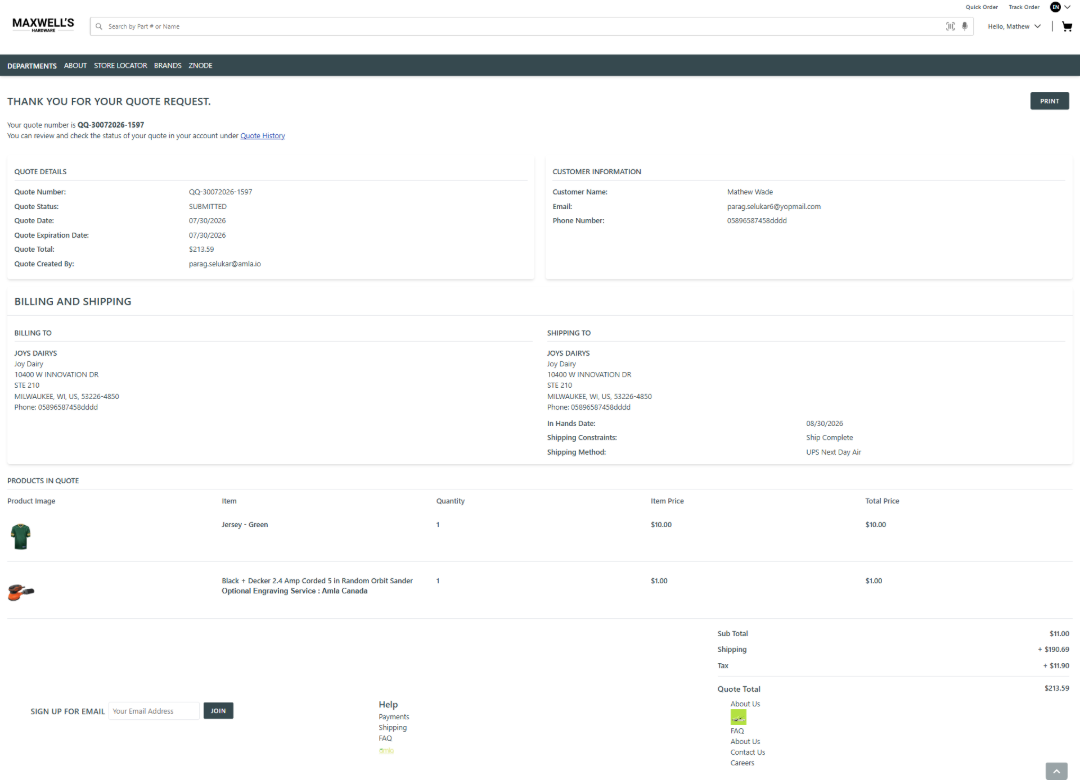
Result
- A quote record is created.
- A Quote Receipt containing the quote details is generated.
- The Quote Receipt confirmation page is displayed.
- The buyer can use the generated quote number for future reference.
- An email notification is sent to administrators using the New Quote Request Notification for Admin email template.
- An acknowledgement email is sent to the buyer using the Quote Request Acknowledgement Notification for Customer email template.
View Quote History
Purpose
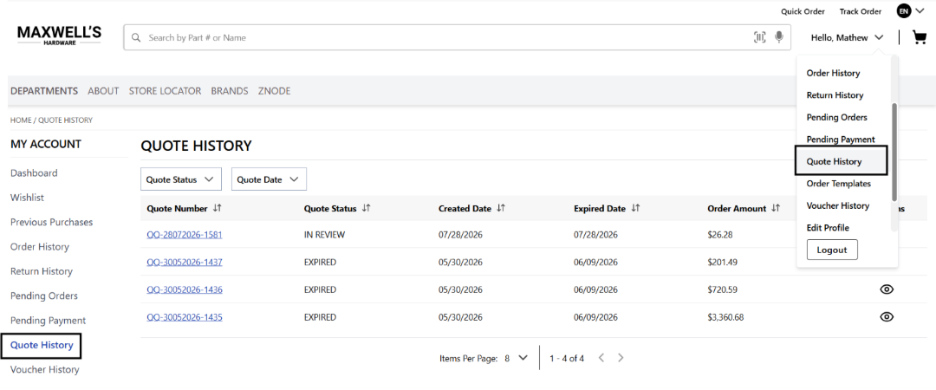
The Quote History page allows Buyers to review previously submitted quote requests and monitor their status.
Steps to View Quote History
- Sign in to the Storefront.
- Navigate to My Profile.
- Select Quote History.
- Review the available quote records.
Expected Outcome
- All quote requests associated with the signed-in account are displayed.
- Buyer can review quote statuses and quote details.
- Previous quote requests can be referenced for future purchases.
- Only quote requests belonging to the signed-in account are visible.
Quote-to-Order Conversion
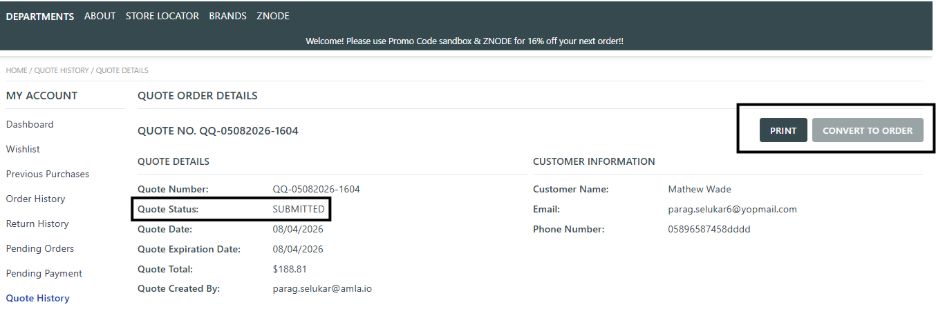
- When a shopper submits a quote, the Quote Status is initially set to “Submitted”. At this stage, the “Convert to Order” option remains disabled, preventing the shopper from placing an order until the quote has been reviewed and approved.
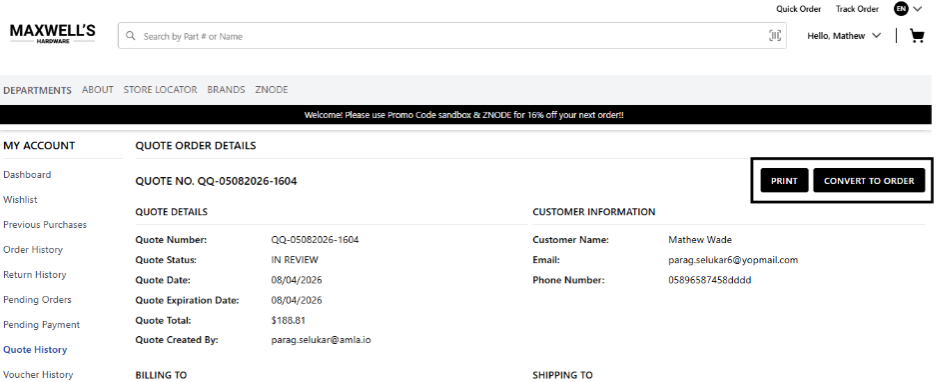
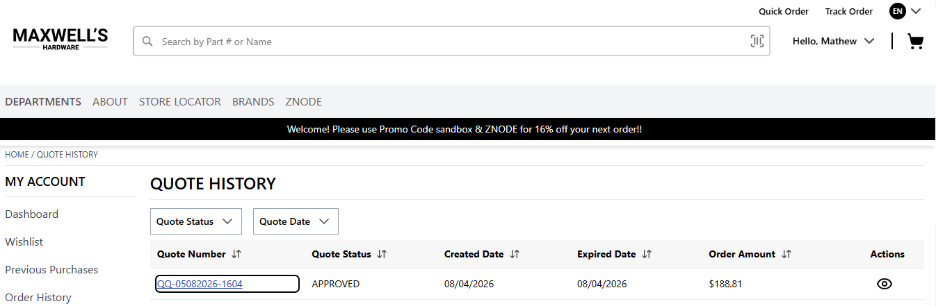
- The Administrator reviews the submitted quote, and, upon approval, the “Convert to Order” option becomes available to the shopper.
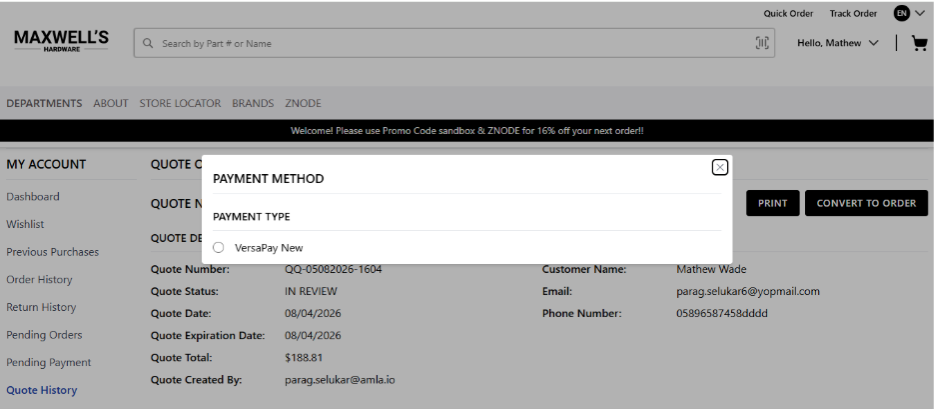
- The shopper can then select “Convert to Order”, complete the payment, and place the order.
- The platform sends a Quote Converted to Order notification email to the customer using the "QuoteConvertedToOrderNotificationForCustomer" email template.
- When a shopper successfully converts an approved quote into an order, the platform generates a unique Order Number and associates it with the corresponding quote for future reference.
- The system sends the standard Order Receipt email to the customer, confirming that the order has been placed successfully.
- After the order is successfully placed, the converted quote is reflected in the shopper's Order History under My Profile, allowing the shopper to view and track the order like any other completed purchase.
Create a Quote on Behalf of a Buyer
Administrators can create quote requests for registered buyers by impersonating their accounts.
Quote Summary Calculations
The Quote Summary displays the following values:
- Subtotal – Total of all line-item amounts before shipping, handling charges, and taxes.
- Shipping – Total shipping charges for all products.
- Handling Charges – Charges associated with the selected shipping method.
- Tax – Total tax calculated on product amounts and shipping charges.
- Quote Total – Final amount payable.
Formula
Quote Total = Subtotal + Shipping + Handling Charges + Tax
Updated Quote Visibility
The quote workflow provides visibility into pricing and shipping changes made during the negotiation process.
Buyers and administrators can compare:
- Original Unit Price
- Updated Unit Price
- Original Shipping Amount
- Updated Shipping Amount
This makes it easier to identify changes before the quote is converted into an order.
Best Practices
- Verify product quantities before submitting the quote request.
- Ensure billing and shipping addresses are accurate.
- Review the selected shipping method before submitting.
- Include relevant business requirements in the Additional Information section.
- Review Quote History regularly to monitor outstanding quotations.
- Keep Enable Quote Request from Web Store enabled if Buyers require self-service quote creation.
- Review all quote details before submission to minimize revisions and approval delays.