
Overview
Administrators can create quotes on behalf of buyers by using the Impersonation feature in the Admin Console. This process begins from the buyer's record and redirects the administrator to the Storefront as that buyer, allowing the quote to be created through the same Storefront experience the buyer would normally use.
The Quote Request page provides a structured layout for reviewing and submitting a quote. On this page, administrators can review or update the shipping and billing addresses, select a shipping method, enter an in-hands date, define shipping constraints, review the quote summary, add job or project details, and submit the quote.
This approach helps ensure that the quote follows the buyer’s assigned catalog, pricing, account structure, and Storefront business rules.
Prerequisites
Before creating a quote on behalf of a buyer, ensure that:
- The administrator has permission to impersonate buyers.
- The buyer account is active and available in the Admin Console.
- The Storefront is configured and accessible.
- The buyer is associated with the correct profile, catalog, pricing, and account structure required for quote creation.
Use Case
Create a Quote on Behalf of a Buyer
The following procedure explains how an administrator creates and submits a quote for a buyer by using impersonation.
Step 1: Open the Buyer Record
- In the Admin Console, go to Manage Users.
- Search for the buyer by using the available search or filter options.
- Confirm that the correct buyer record has been selected before continuing.

Step 2: Start Impersonation
- In the Actions column for the selected buyer, click Impersonation.
- Allow the system to start the impersonation session.
- Verify that the Storefront opens for the selected buyer.

Step 3: Browse the Buyer's Catalog
- Use the Storefront navigation, category pages, or search to locate products.
- Review product listings based on the buyer’s assigned catalog and permissions.
- Open product detail pages to review item specifications, pricing, and availability.
- Add the products that should be included in the quote.
Step 4: Add Products to the Cart
- Select the required product.
- Enter the required quantity.
- Click Add to Cart.
- Repeat this process for each additional product that should be included in the quote.
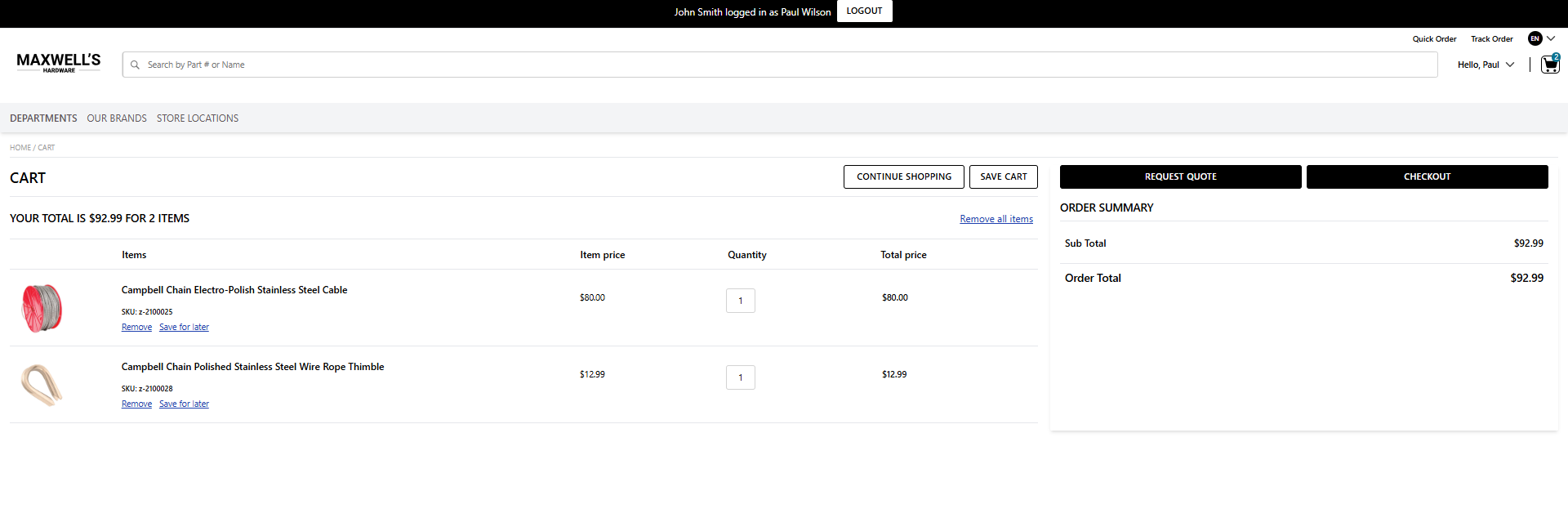
Step 5: Click on Request to Quote
- Open the buyer’s cart from the Storefront.
- Review the products that have been added.
- Select the option to continue with quote creation.
- Verify that the Quote Request page opens.
Step 6: Review or Update the Shipping Address
- In the Shipping Address section, review the currently selected address.
- Use the address dropdown to select a different saved address if needed.
- Click Add New to add a new shipping address if required.
- Click Edit to update the selected shipping address if changes are needed.
- Confirm that the correct shipping address details are displayed.
Step 7: Review or Update the Billing Address
- In the Billing Address section, review the currently selected address.
- Use the address dropdown to select a different saved billing address if needed.
- Click Add New to add a new billing address if required.
- Click Edit to update the selected billing address if changes are needed.
- Confirm that the correct billing address details are displayed.
Step 8: Select the Shipping Method
- In the Shipping Method section, review the available shipping options.
- Select the shipping method that should be used for the quote.
- Review the shipping charge associated with the selected shipping method.
- If applicable, review the estimated delivery date shown for the shipping method.
Step 9: Enter the In Hands Date
- Locate the In Hands Date field.
- Enter or select the date by which the buyer needs the shipment.
Step 10: Choose the Shipping Constraint
- Locate the Shipping Constraints section.
- Select Ship Complete if all items must be shipped together.
- Select Ship Partial if partial shipments are acceptable.
Step 11: Review the Quote Summary
- In the Quote Summary section, review all products included in the quote.
- Confirm the quantity and total for each product.
- Remove any product that should not be included in the quote.
- Review the calculated Sub Total, Shipping, Tax, and Quote Total.
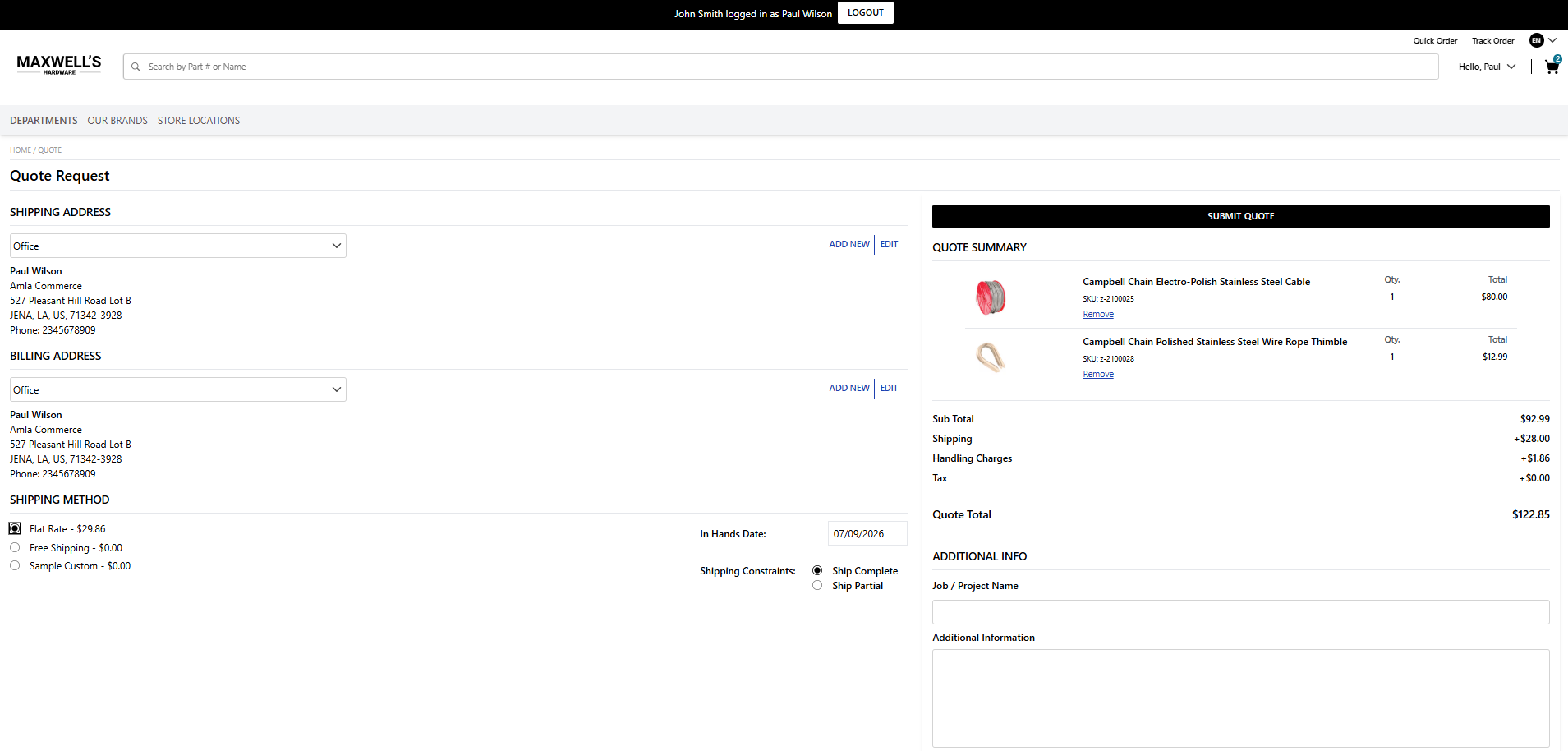
Step 12: Enter Additional Information
- In the Additional Info section, enter the Job / Project Name if applicable.
- In the Additional Information field, enter any supporting details needed for the quote.
Step 13: Submit Quote
- Review all quote details one final time.
- Click Submit Quote.
Quote Address Behavior by Buyer Role
When an administrator updates an address while creating a quote through impersonation, the system saves the address based on the role of the buyer being impersonated.
Buyer
- The address dropdown and Add New/Edit Address options are available during the quote process.
- Any address that is added or edited is saved to the buyer’s personal address book.
User B2B
- The address dropdown and Add New/Edit Address options are available during the quote process.
- These address actions remain available even if the buyer's normal access level might otherwise create inconsistency in address availability.
- When the administrator clicks the address dropdown or Add New/Edit Address, the system displays a message indicating that the buyer belongs to the User (B2B) role.
- Any address that is added or edited is saved to the address book of the account associated with that buyer.
Manager B2B
- The Add New/Edit Address option is available during the quote process.
- When the administrator clicks Add New/Edit Address, the system displays a message indicating that the buyer belongs to the Manager (B2B) role.
- The confirmation message displayed is: The shopper/buyer belongs to the “Manager (B2B)” role. Would you still like to proceed with updating the address?
- Any address that is added or edited is saved to the address book of the associated account.
Administrator B2B
- The address dropdown and Add New/Edit Address options are available during the quote process.
- Any address that is added or edited is saved to the address book of the associated account.
Key Benefits of Creating Quotes Through Impersonation
- Quotes follow the same Storefront workflow used by buyers.
- Buyer-specific catalogs, pricing, and product visibility are applied automatically.
- Administrators can review quote details in a structured layout that includes addresses, shipping choices, totals, and project information.
- The quote workflow supports Buyer-specific business rules and account-based behavior.
- The quote experience is more intuitive and aligned with the buyer journey, helping administrators create quotes more accurately.
Best Practices
- Confirm the correct buyer record before starting impersonation.
- Review all products in the quote summary before submission.
- Verify the selected shipping and billing addresses carefully, especially for B2B account users.
- Choose the correct shipping method and shipping constraint based on the buyer’s requirements.
- Enter the in-hands date and additional project details when they are important for quote review and fulfillment.
Summary
Impersonation provides a clear and structured way for administrators to create quotes on behalf of buyer from the Admin Console. By redirecting the administrator into the Storefront as the selected buyer, the platform ensures that the quote is created with the correct pricing, catalog visibility, address handling, shipping preferences, and Storefront business rules. This results in a more accurate and consistent quote creation process while making it easier for administrators to support buyer purchasing needs.