
Overview
The Audit Logs Report provides visibility into configuration changes made within Znode Global Settings and ERP Connector Settings. The report captures administrative activities and displays information such as the user who performed the action, the action type, the date and time of the activity, and details of the change.
Audit logs are available through BI Reports and help Administrators review configuration changes and monitor system activity.
Use Cases
- Review configuration changes made within Global Settings.
- Monitor updates performed in ERP Connector Settings.
- Identify the user who performed an action.
- Filter audit activity by entity, user, role, action type, or date range.
- Export audit data for reporting and analysis.
Access the Audit Logs Report
- Navigate to Reporting in the Admin Console.
- Select BI Reports.
- Select Audit Logs.
The Audit Logs report opens and displays available filters and audit log entries.
Filter Audit Log Data
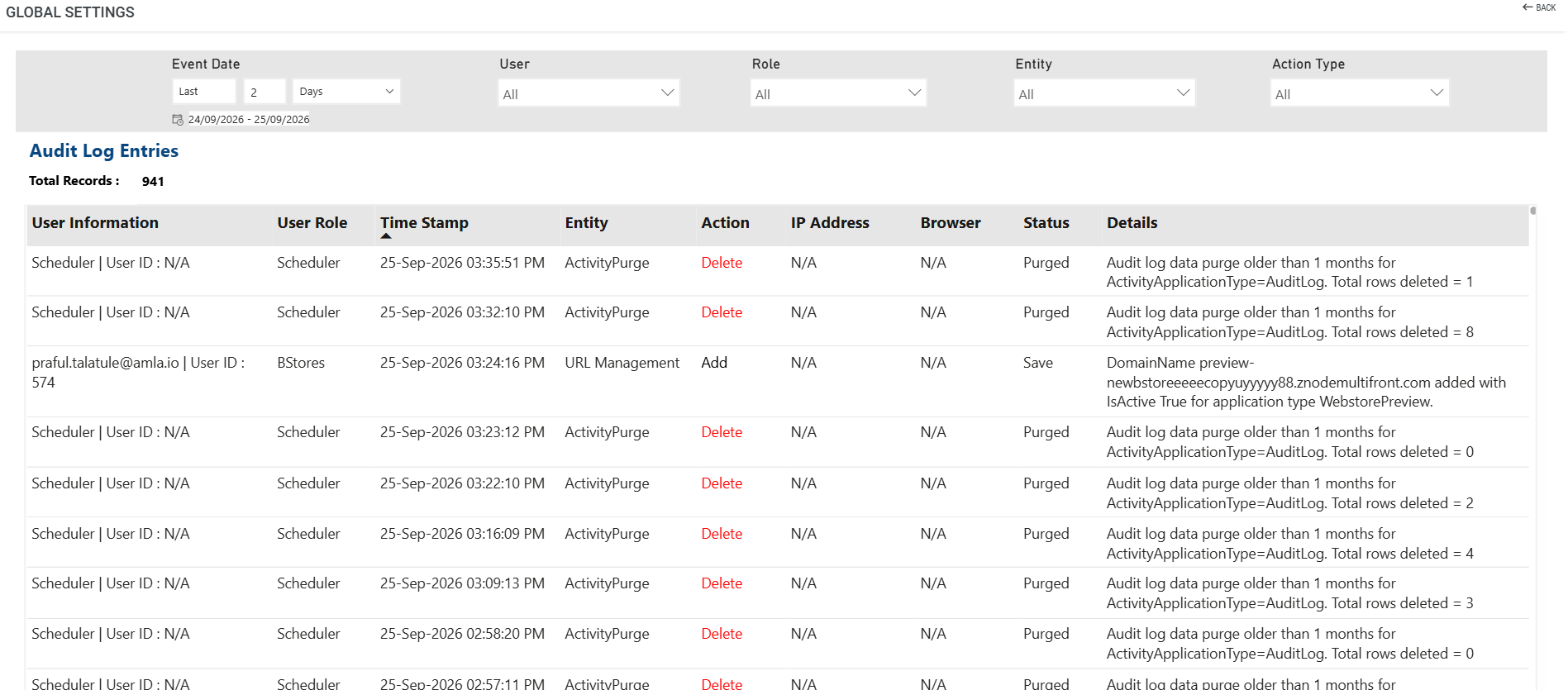
The report provides the following filters:
- Event Date - Filter records by date range.
- User - Filter records by user.
- Role - Filter records by user role.
- Entity - Filter records by the area where the action occurred.
- Action Type - Filter records by the action performed.
Note: All filters default to All. Applying one or more filters updates the report to display matching audit log records.
Audit Log Information
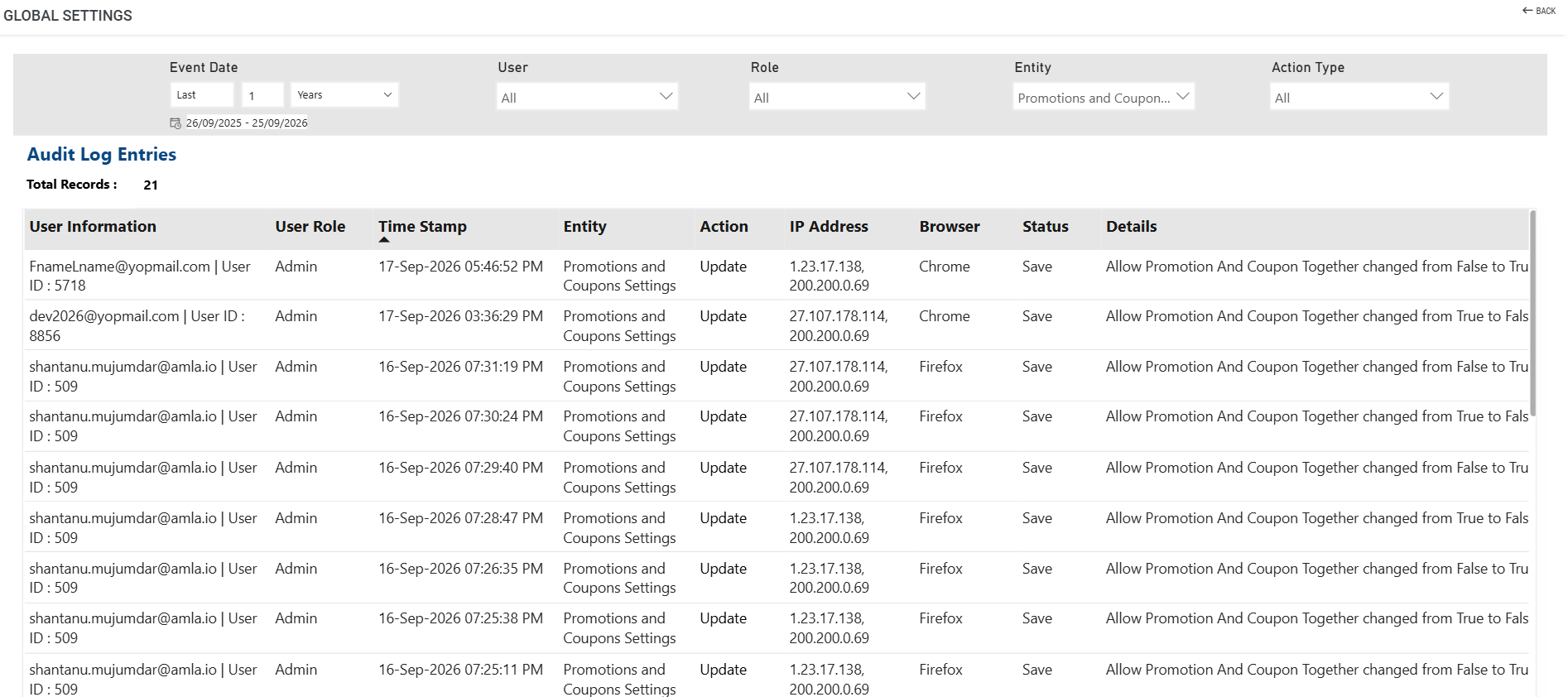
The Audit Logs report displays the following information:
| Column | Description |
|---|---|
| User Information | User name and User ID associated with the action. |
| User Role | Role assigned to the user. |
| Time Stamp | Date and time when the action occurred. |
| Entity | Area where the action was performed. |
| Action | Type of action recorded. |
| IP Address | Source IP address associated with the activity. |
| Browser | Browser information associated with the activity. |
| Status | Status associated with the logged activity. |
| Details | Additional information describing the action performed. |
Audited Entities
Audit logging is available for the following configuration areas:
Global Settings
- General Settings
- Locales
- Countries
- Currencies
- Cache Management
- URL Management
- Publish Settings
- Inventory Subscription Notifications Settings
- Promotion and Coupon Settings
- Import/Export Settings
- Global Product Settings
- AI Content Generation Settings
- Global Voucher Settings
- PDF Settings
- Search
- User Login & Session Settings
- Google Map Settings
- Event Subscription Settings
- Page Builder Settings
- Custom Table Settings
- Admin Login Page
- Terminate Stuck Process
- Cart Data Purge Settings
- Maintenance
- Old Cart Data Purge
ERP Connector
- ERP Connector Settings
Export Audit Log Data
The Audit Logs report supports native Power BI export functionality.
Administrators can export filtered audit data using the available Power BI export options.
Supported export formats include:
- CSV
- Excel
Exported results reflect the filters currently applied to the report.
Additional Notes
- Audit data is available through the Audit Logs report in BI Reports.
- Multiple filters can be applied simultaneously to refine results.
- Exported data reflects the currently selected filters.
- The report includes user information, role, timestamp, entity, action, status, and activity details.
- Pagination is available to support large audit log volumes.
Expected Outcome
After accessing the Audit Logs report, Administrators can:
- View configuration changes across Global Settings and ERP Connector Settings.
- Identify when an action occurred.
- Determine which user performed the action.
- Analyze activity using filters and sorting options.
- Export audit data for further analysis.