
TABLE OF CONTENTS
- Account User Roles
- Managing Users from the Manage Account Page
- Users Tab
- Add User
- Edit User
- Delete User
- Associate Users
Account User Roles
Znode supports B2B Accounts with three primary roles: Administrator, Manager, and User. Each role has defined permissions to ensure controlled access and efficient account management.
1. Administrator
An Administrator has unrestricted system access and full control over account operations.
Key Capabilities:
- View and manage all users within the account
- Access and review all user orders
- Manage account-level configurations
- If the account is a parent account, the administrator can:
- View users across all associated child accounts
- Access and monitor orders from child accounts
- Perform user management across the entire hierarchy
In short, Administrators have complete visibility and control across both parent and child account structures.
2. Manager
A Manager is essentially a standard storefront user with limited elevated privileges.
Key Capabilities:
- All permissions of a normal user
- Ability to modify the shipping address during checkout
- Can place orders for their associated account
- Limited to operational flexibility without administrative control
Managers provide controlled flexibility, especially for shipping adjustments without compromising account security.
3. User
A User is a standard storefront user with basic capabilities.
Key Capabilities:
- Place orders using the default account address only
- Cannot modify the shipping address at checkout
- No access to user management or administrative settings
Users are restricted to predefined account settings, ensuring consistency and minimal risk of errors.
| Role | User Management | View Orders | Child Account Access | Modify Shipping Address | Order Placement |
|---|---|---|---|---|---|
| Administrator | Full Access | All Orders | Yes (Parent + Child Accounts) | Yes | Yes |
| Manager | No | Own Account Orders | No | Yes | Yes |
| User | No | Own Orders Only | No | No | Yes (Default Address Only) |
Important Note: None of the users (Administrator, Manager, or User) have access to the Admin Application.
All roles operate strictly within the storefront environment.
Managing Users from the Manage Account Page
In this tab, Admin can add and manage the users associated with a B2B Account.
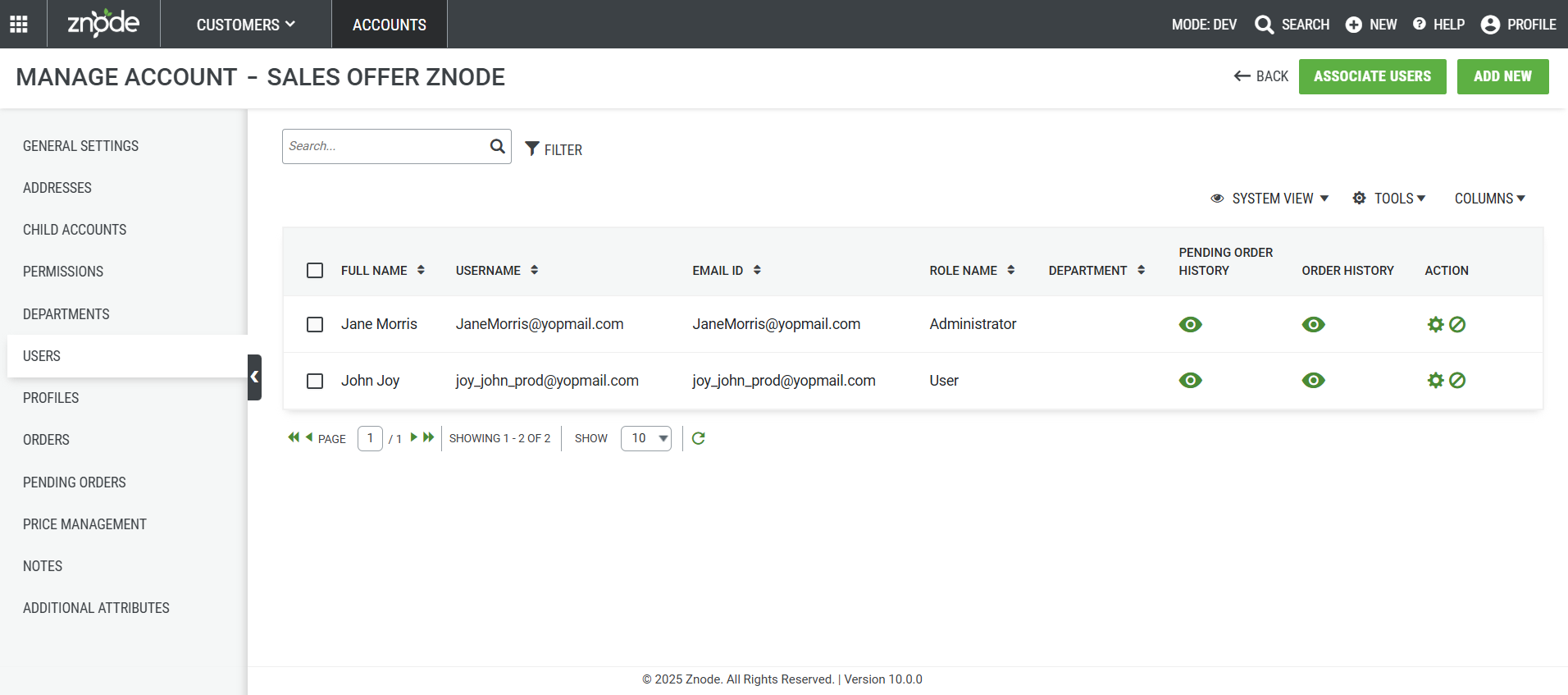
Users Tab
| Detail | Description |
| Full Name | First Name and Last Name of the user |
| Username | Customer's UserName. Note: The username must be an email ID. |
| Email ID | The customer’s email address will be the default. The email address can be edited after it is saved. |
| Role Name | Role of the user. |
| Department | Department to which the user belongs. |
| Pending order History/Order History | Pending Order details can be seen here. |
| Order History | Order History can be seen here. |
- Admin can use Tools to manage Users; Enable, Disable, or Reset Password
- Reset passwords will be emailed to the user's Email Address.
Add User
- Add new User details
- Save progress using the "Save button
Note: After a User is created, Admins can directly manage a User's Quote and Order History using the Manage buttons.
Edit User
- Edit User details
- Save progress using the "Save” button
Delete User
- Delete the User Details
- The page reloads with a confirmation message.
- The account is deleted.
Note: Once this action is performed, the user will be deleted completely from the system.
Associate Users
- A list of all customer‑role users is displayed for selection.
- Users with the Admin role are restricted and will not appear in this list.
- After selecting the desired users, save your changes by clicking the Save button.
Note: An account cannot be associated with a user whose assigned roles (Role Type) are limited to Admin, Commerce Portal, or a combination of both.