
Overview
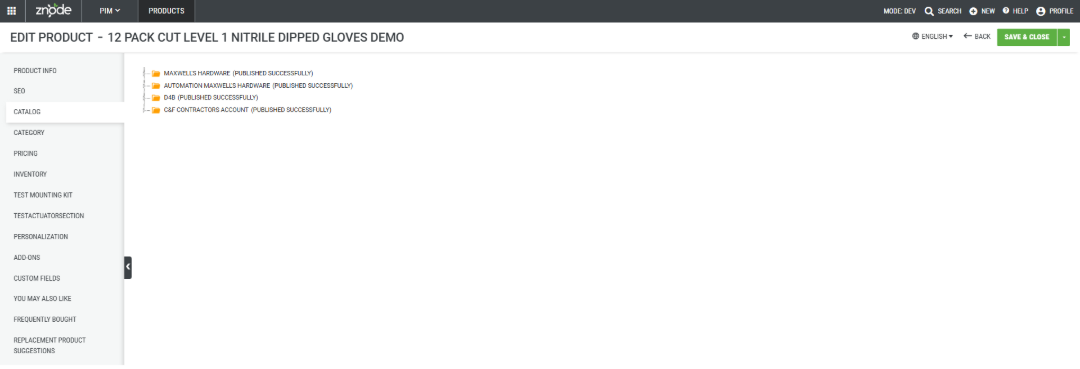
The Catalog section of a product displays the catalogs in which the product is currently available. A product can be associated with a single catalog or multiple catalogs, depending on the categories to which it has been assigned.
Products do not appear in catalogs automatically. A product must first be assigned to one or more categories, and those categories must belong to a catalog before the product can be displayed in that catalog.
Prerequisites
- You must have access to the Znode Admin Console.
- The product must exist in Product Information Management (PIM).
- The product should be assigned to categories if catalog associations are expected.
Use Cases
Administrators can use the Catalog section to:
- Verify the catalogs in which a product is available.
- Confirm product availability across multiple Storefront experiences.
- Troubleshoot product visibility issues.
- Validate catalog assignments before publishing or merchandising updates.
View a Product's Associated Catalogs
- Navigate to PIM in the Admin Console.
- Select Products.
- Locate and open the product you want to review.
- On the Edit Product page, select Catalog from the left navigation menu.
- Review the list of associated catalogs displayed on the page.
Expected Result
The Catalog section displays all catalogs in which the product is available.
- If the product is associated with one catalog, a single catalog is displayed.
- If the product is associated with multiple catalogs, all associated catalogs are displayed.
- If the product is not associated with any catalogs, no catalog entries are displayed and the message No Result Found appears.
When the No Result Found message is displayed, it typically indicates that the product has not been assigned to a category that belongs to a catalog.
How Catalog Associations Work
Catalog associations are determined by category assignments.
- Products are added to categories.
- Categories belong to catalogs.
- When a product is assigned to a category, it becomes available in the catalog associated with that category.
- If a product is assigned to categories in multiple catalogs, the product will appear in each associated catalog.
Publishing Category and Catalog Changes
Changes to category associations are not reflected on the Storefront immediately. After associating or unassociating a category from a product, the changes become available only after the product or the relevant catalog is published.
Behavior of Published Products and Catalogs
- When a category is associated with a product, the product automatically inherits all catalog associations linked to that category.
- If the associated category belongs to multiple catalogs, the product is automatically associated with all of those catalogs.
- Publishing the product updates the product across all associated catalogs simultaneously.
- For example, if a product is associated with categories that belong to five catalogs and the product is published, the product becomes available in all five catalogs.
- If only an individual catalog is published, the product is visible only within that published catalog.
- When a category association is removed, the related catalog associations derived from that category are also removed after the product or affected catalog is published.
Recommendation
To ensure that category and catalog associations are synchronized across all linked catalogs, Znode recommends publishing the product after making category association changes. Publishing the product updates all associated catalogs at once and helps maintain consistent product availability throughout the catalog structure.
Notes
- The Catalog section provides a read-only view of catalog associations.
- Products cannot be added directly to catalogs from this page.
- A product can appear in one or many catalogs.
- If the No Result Found message is displayed, verify that the product has been assigned to a category that belongs to a catalog.
- Changes to category assignments may affect the catalogs in which the product appears.
- Reviewing catalog associations is useful when troubleshooting product visibility and merchandising configurations across Storefronts.
Additional Information
The Catalog section provides a quick way to determine where a product is available without navigating through individual catalog structures. This helps administrators validate product placement and catalog membership within the Ecommerce catalog hierarchy.