
Navigate to: PIM > Products > Product Detail > Inventory Tab
Overview
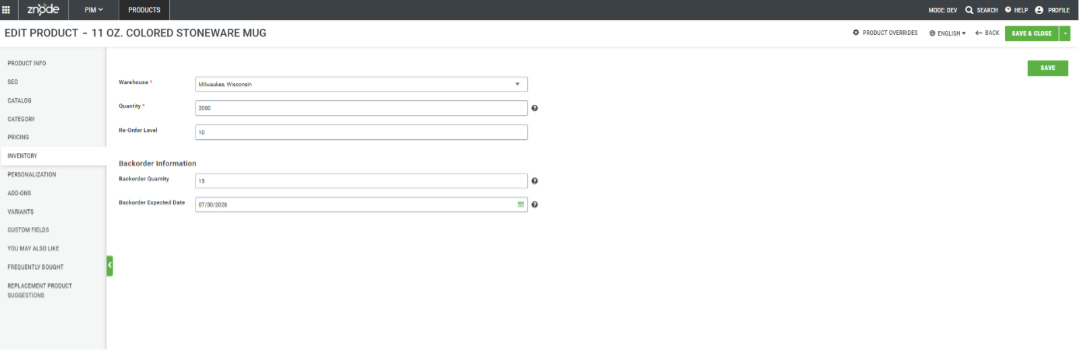
Administrators can manage inventory levels and backorder settings for individual products directly from the Product Detail page in the Admin Console. Inventory can be maintained for a single warehouse or across multiple warehouses, allowing accurate product availability to be displayed on the Storefront.
Prerequisites
- Administrator access to the Admin Console
- Permission to edit products and inventory information
- Existing product records configured in Znode
- At least one warehouse configured in the system
Use Case
Use this feature when you need to:
- Update available inventory for a product
- Manage inventory across multiple warehouses
- Configure backorder availability
- Control product availability on the Storefront based on stock levels
Manage Inventory for a Product
Navigate to the Inventory Settings
- In the Admin Console, navigate to PIM.
- Select Products.
- Open the desired product.
- Select the Inventory tab.
Update Inventory Information
- Locate the warehouse inventory section.
- Enter or update the inventory quantity for the appropriate warehouse.
- Modify any available backorder settings as needed.
- Repeat the process for additional warehouses if inventory is maintained in multiple locations.
Save Inventory Changes
- After completing your updates, click Save within the Inventory section.
- Verify that the inventory information is saved successfully.
Important: Inventory updates made in the Inventory section can only be saved using the Save button located within that section. The Save & Close button in the page header does not save inventory changes.
Storefront Inventory Display Behavior
Inventory information displayed on the Storefront is updated based on product inventory changes and configured inventory rules.
Product Display Page (PDP)
Inventory status on the Product Display Page (PDP) updates in real time when:
- A shopper purchases the product
- Inventory quantities are manually updated
- Any inventory-related change occurs
Real-time updates are especially noticeable when the product is configured with inventory rules such as:
- Disable Purchase for Out-of-Stock Products
- Allow Back-Ordering of Products
For example, if a purchase reduces inventory to zero or below a configured threshold, the PDP immediately reflects the product's updated availability status, such as:
- Out of Stock
- Available for Backorder
Product Listing Page (PLP)
The Product Listing Page (PLP) may not immediately display updated inventory information after inventory changes occur.
This behavior is expected and is caused by Storefront caching, which helps improve site performance and page load times.
Additional Information
Updated inventory information can be viewed on the Product Listing Page immediately when accessing the Storefront through:
- A different browser
- An incognito or private browsing session
These sessions bypass existing cached content, allowing the most recent inventory status to be displayed.
Expected Result
After inventory changes are saved:
- Product inventory levels are updated in Znode.
- Inventory information is maintained for the selected warehouse(s).
- The Product Display Page reflects inventory changes in real time.
- Product availability messaging, such as out-of-stock or backorder status, updates automatically when inventory rules are configured.
- The Product Listing Page reflects updated inventory after cache refresh or when accessed through a new browsing session.
Notes and Best Practices
- Always use the Save button within the Inventory section to persist inventory changes.
- Review inventory-related product settings before enabling backorders.