
Navigate to: PIM > Products > Product Detail > Category Tab
TABLE OF CONTENTS
- Overview
- Prerequisites
- Use Case
- View Associated Categories
- Associate a Product to a Category
- Remove a Category Association
- Publishing Category and Catalog Changes
- Notes
Overview
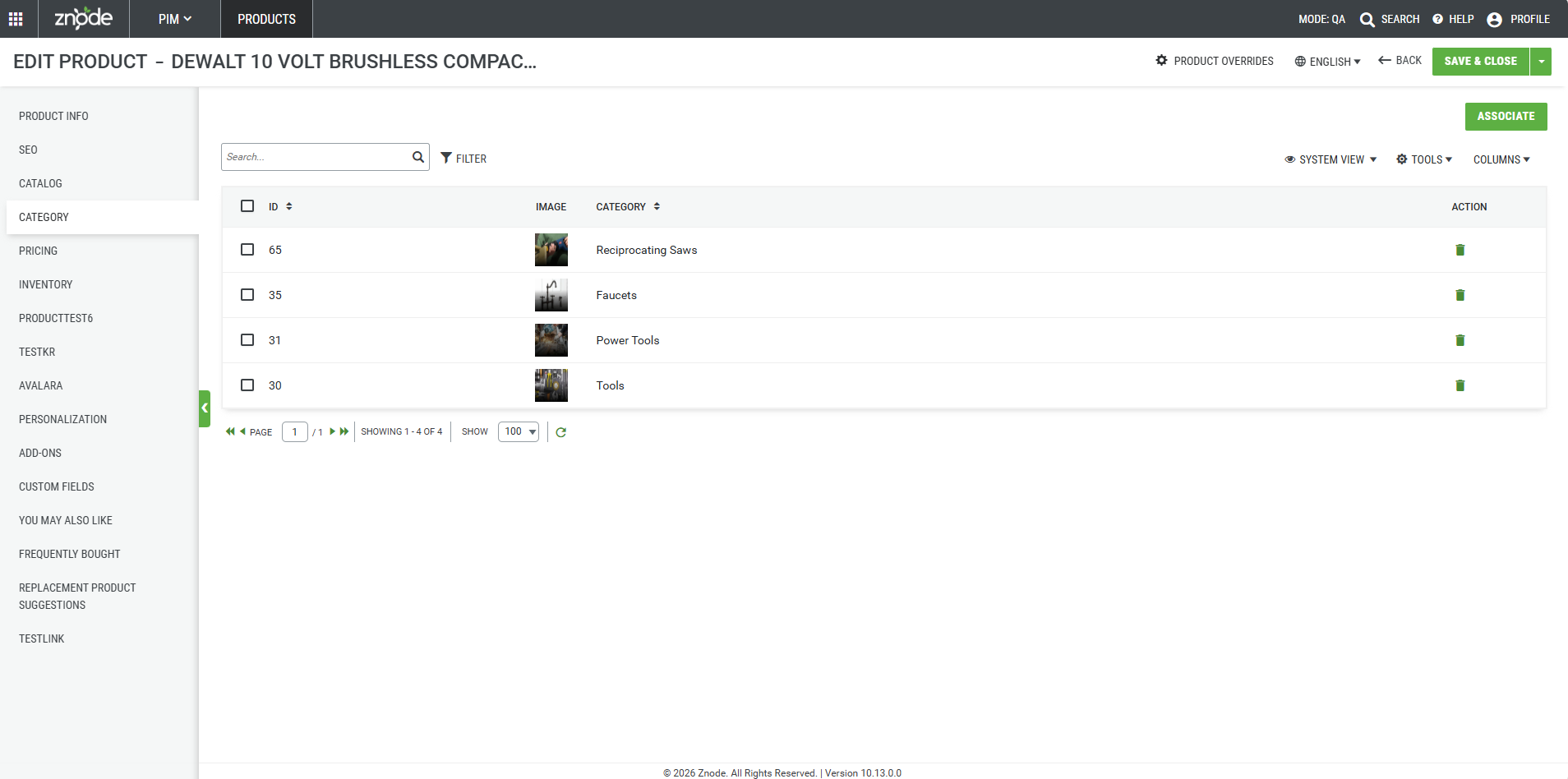
The Category tab within a product record displays all categories where the product is currently available. Administrators can use this section to view existing category associations, assign a product to one or more categories, and remove category assignments when they are no longer needed.
Maintaining accurate category associations helps ensure products appear in the appropriate locations throughout the Storefront and supports effective product organization.
Prerequisites
- Access to the Admin Console.
- Permissions to manage products and category assignments.
Use Case
Use the Category tab when you need to:
- Verify where a product is currently assigned.
- Add a product to additional categories.
- Remove a product from categories where it should no longer appear.
View Associated Categories
- Navigate to PIM > Products.
- Locate and open the product you want to review.
- Select the Category tab.
Expected Outcome
The Category tab displays a list of all categories currently associated with the selected product.
Associate a Product to a Category
- Navigate to PIM > Products.
- Open the desired product.
- Select the Category tab.
- Add the product to one or more categories using the category association options available in the section.
- Save your changes.
Expected Outcome
The selected categories are added to the product and appear in the list of associated categories.
Remove a Category Association
- Navigate to PIM > Products.
- Open the desired product.
- Select the Category tab.
- Locate the category association you want to remove.
- Click Delete for the category association.
Expected Outcome
The category is removed from the product's list of associated categories, and the product is no longer associated with that category.
Publishing Category and Catalog Changes
Changes to category associations are not reflected on the Storefront immediately. After associating or unassociating a category from a product, the changes become available only after the product or the relevant catalog is published.
Behavior of Published Products and Catalogs
- When a category is associated with a product, the product automatically inherits all catalog associations linked to that category.
- If the associated category belongs to multiple catalogs, the product is automatically associated with all of those catalogs.
- Publishing the product updates the product across all associated catalogs simultaneously.
- For example, if a product is associated with categories that belong to five catalogs and the product is published, the product becomes available in all five catalogs.
- If only an individual catalog is published, the product is visible only within that published catalog.
- When a category association is removed, the related catalog associations derived from that category are also removed after the product or affected catalog is published.
Recommendation
To ensure that category and catalog associations are synchronized across all linked catalogs, Znode recommends publishing the product after making category association changes. Publishing the product updates all associated catalogs at once and helps maintain consistent product availability throughout the catalog structure.
Notes
- A product can be associated with multiple categories.
- Category associations determine where the product appears within the catalog hierarchy and Storefront.
- When a category is associated with a product, the product automatically inherits the catalog associations of that category.
- If a product is associated with a category that belongs to multiple catalogs, the product is automatically associated with all of those catalogs.
- The catalogs associated with the product can be viewed from the Catalog tab within the Manage Product page.
- For example, if a category assigned to a product is associated with three catalogs, the product automatically becomes associated with all three catalogs.
- If a category is removed from a product, the related catalog associations derived from that category are also removed.
- Changes to category and catalog associations are reflected on the Storefront only after the product or relevant catalog is published.
- Review category assignments regularly to ensure products appear in the correct locations throughout the Storefront.
Tips
- Use category associations to improve product discoverability and catalog organization.
- Associate products with all relevant categories to help customers find products through multiple navigation paths.
- Publish the product after making category association changes to update all linked catalogs simultaneously.
- Remove outdated category assignments to maintain an accurate catalog structure and improve the customer browsing experience.