
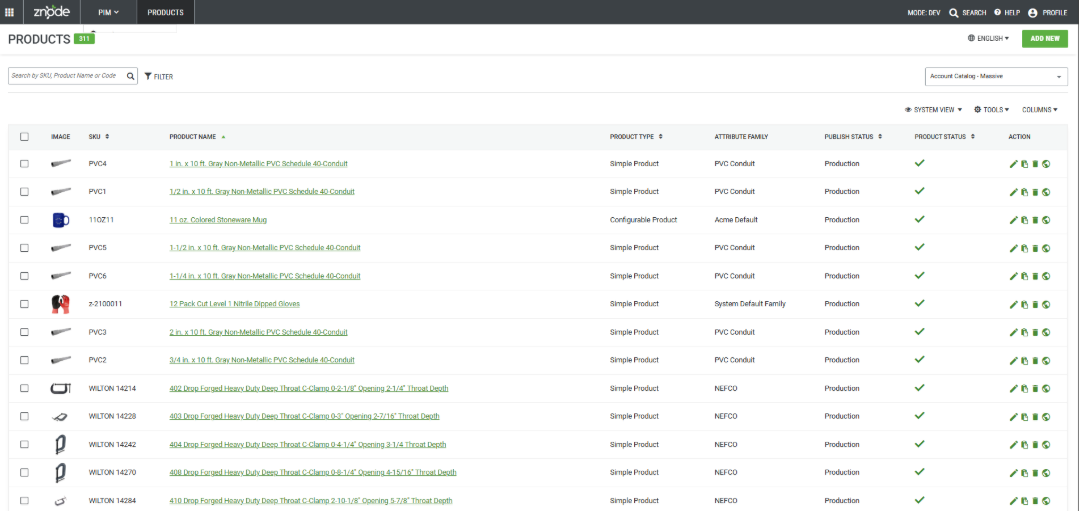
Navigate to: PIM > Products > "Add/Edit” Action
Overview
Product Information Management (PIM) in Znode enables administrators to create, manage, and publish product information for use across the Storefront. The General Product Information page contains the core product details, descriptions, media, inventory settings, shipping information, and publishing controls required to make products available to buyers.
This article explains how to configure general product information, manage product settings, and publish products.
Prerequisites
Before configuring product information:
- The user must have administrator access to the Znode Admin Console.
- Product attribute families should be configured if custom product attributes are required.
- Any brands, vendors, units of measure, and related master data should already exist in the system.
- Products must be published before they appear on the Storefront.
Create or Edit a Product
Access Product Information
- Navigate to PIM > Products.
- Locate the product to be edited.
- Click the product name or select Edit from the Actions menu.
To create a new product, select the option to add a new product and complete the required fields.
Configure Product Information
Product Info Section
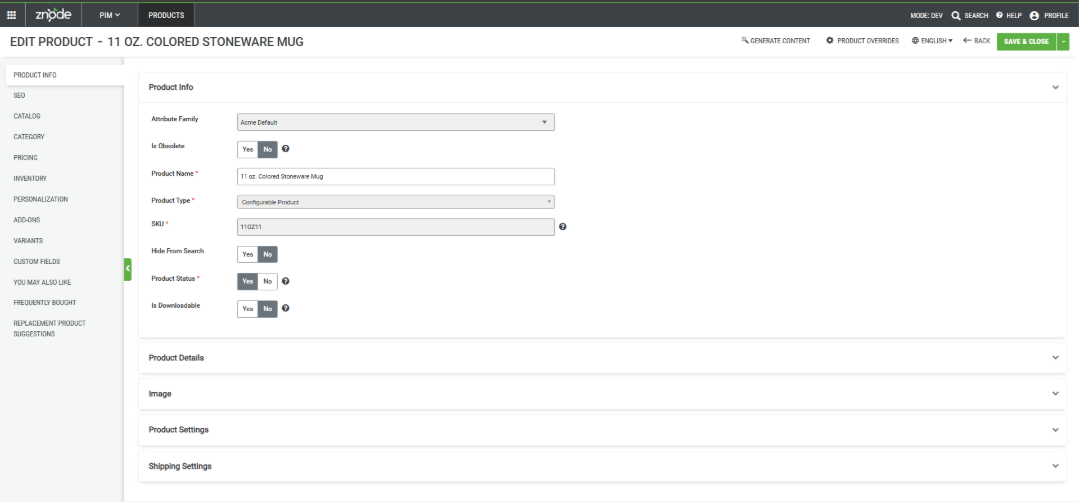
Attribute Family
Select the Attribute Family associated with the product.
The attribute family determines which product attributes and information fields are available during product configuration.
Important: After the product is saved, the Attribute Family cannot be changed.
Product Type
Select the product type.
Available options include:
- Simple
- Grouped
- Bundle
- Configurable
Important: After the product is saved, the product type cannot be changed.
Product Name
Enter the product name displayed throughout the Storefront.
Is Obsolete
Set Is Obsolete to Yes when the product is discontinued or no longer available for purchase.
When a product is marked as obsolete:
- Buyers cannot purchase the product.
- Replacement products can be configured through the Replacement Products tab.
- Replacement products can be displayed on the Product Details Page (PDP).
Hide From Search
Set Hide From Search to Yes to exclude the product from:
- Main Search results
- Typeahead search results
- Category listing pages
- Hydrated Search
- Popular Products
- Product Suggestions
Hide from PLP
The Hide from PLP flag removes a product from all product discovery experiences across the Storefront, including:
- Product Listing Pages (PLPs)
- Category Pages
- Brand Listing Pages
- Product Carousels
- Direct product URLs can still access the product page and add the item to their cart.
When enabled, the product is also excluded from:
- You May Also Like
- Frequently Bought Together
- Replacement Product Suggestions
- Linked Products and Linked Product Attributes
- Any carousel configured through Page Builder
Note
The Hide from PLP flag affects only product discovery and merchandising experiences. Existing customer-saved items, order history, and quote history continue to display the product.
SKU
Enter a unique SKU for the product.
Supported special characters are:
- !
- •
- .
- /
- _
- Space
- [
- ]
All other special characters are restricted.
Important: The SKU field becomes read-only after the product is created and cannot be modified.
Enabled
Select Yes to make the product available for display on the Storefront.
Disabled products remain hidden from Buyers on the Storefront.
Is Downloadable
Select whether the product is a downloadable product.
Configure Product Details
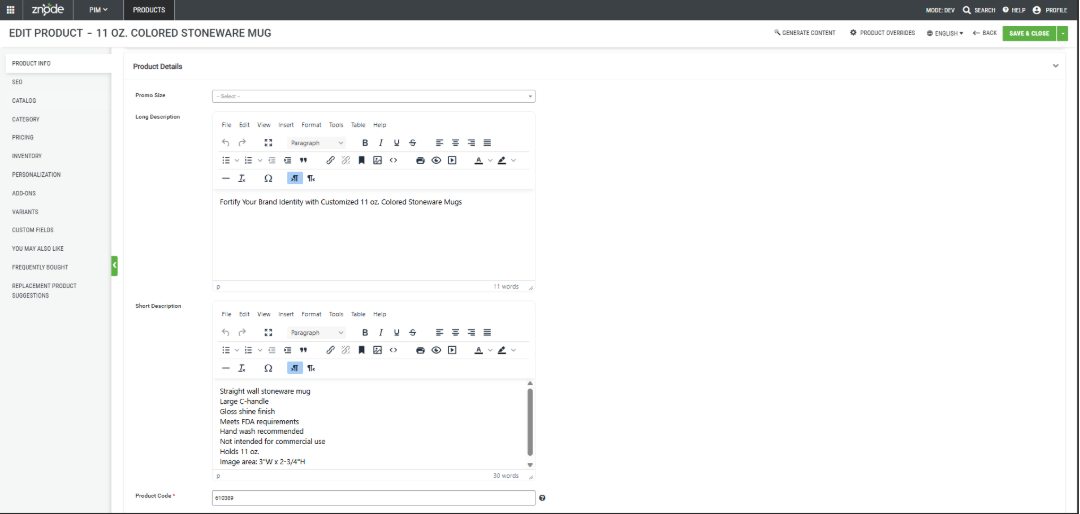
Long Description
Enter a detailed product description using the rich text editor.
The description appears on the Product Details Page.
Short Description
Enter a concise summary of the product.
Best practice:
- Keep the description under 100 characters.
- Use information that helps buyers quickly identify the product.
The short description is displayed on product listing pages.
Product Code
Enter the internal ERP product code.
This code provides a consistent identifier across locales and integrated systems. For example, if SKU constraints prevent the SKU field from being used, the product code can hold the unique ID used to synchronize product data with an ERP or other integrated systems.
Product Specifications
Enter product specifications that should appear on the Storefront.
Feature Description
Enter key product features and benefits.
Brand
Select the product brand.
Highlights
Add product highlights such as:
- Certified Organic
- BIO Certified
- Sustainability claims
- Product certifications
Tags
Enter one or more product tags.
Multiple tags should be separated by commas.
Example:
organic, gluten free, vegan, eco-friendly
Tags can improve product discoverability through keyword searches.
Search Requirements for Tags
For product tags to be searchable:
- The Tags attribute must have Is Used In Search enabled.
- The Tags attribute must be included in the search profile.
- The search profile must be published.
After these requirements are met, buyers can search for products using associated tags.
Configure Product Images and Videos
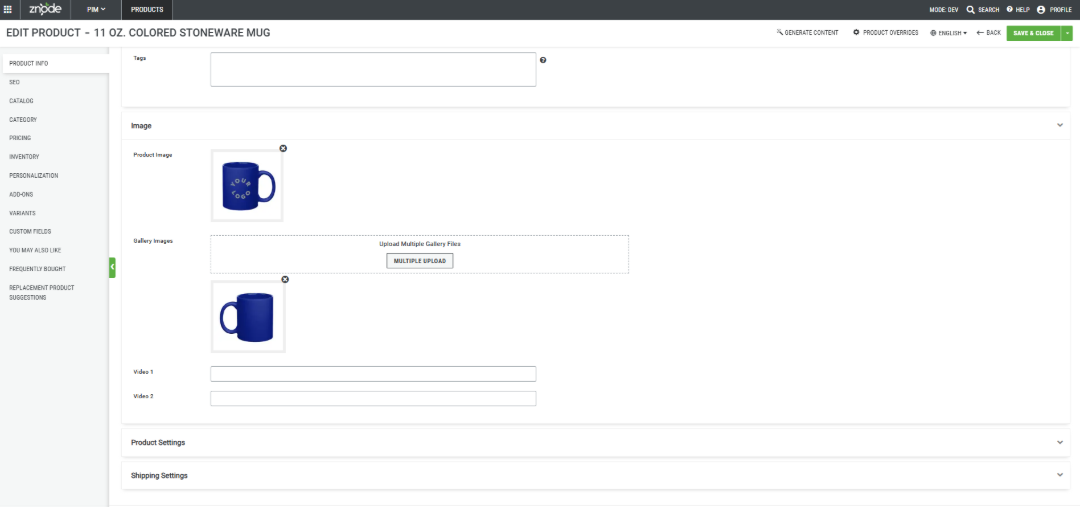
Product Image
Upload the primary product image.
This image is displayed as the main image on the Product Details Page.
Gallery Images
- Upload additional images.
- There are two ways to upload the gallery images
- Znode DAM
- External Media
Video 1 and Video 2
Enter video URLs that should appear on the Product Details Page.
Supported sources and formats include:
- YouTube
- Dailymotion
- MP4
- OGG
- WebM
Video Notes
- Videos are not stored on the Znode server.
- Only video URLs are maintained.
- URLs can point to third-party hosted content.
- Video thumbnails are displayed using JPEG or PNG images.
Configure Product Settings
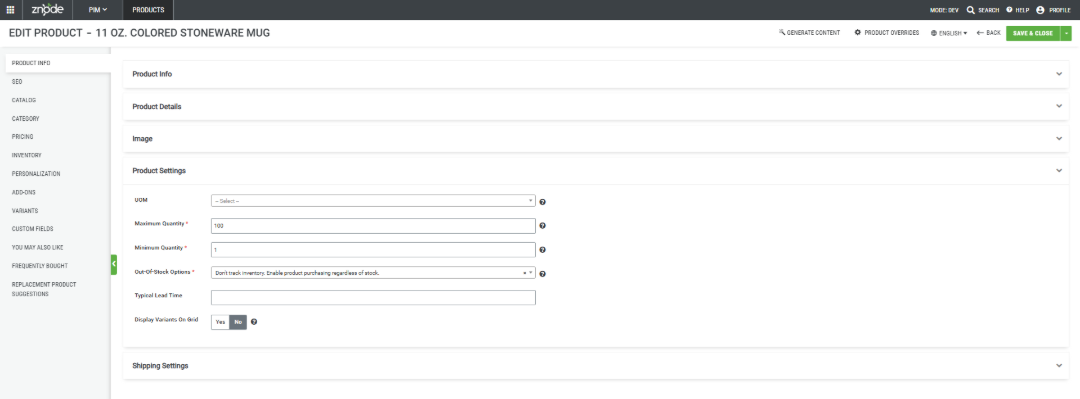
Unit of Measure (UOM)
Select the appropriate unit of measure for the product.
Minimum Quantity
Enter the minimum quantity that can be purchased.
Maximum Quantity
Enter the maximum quantity that can be purchased.
Out-of-Stock Options
Select one inventory handling option:
Don't Track Inventory
Disables inventory tracking for the product, allowing buyers to purchase it regardless of the available stock quantity. This option is useful for products that do not require inventory management, such as digital products, services, or items that are always available.
Disable Purchasing
Prevents buyers from purchasing the product when it is out of stock. Once the available inventory reaches zero, the product remains visible in the Storefront but cannot be added to the cart or purchased until the inventory is replenished.
Allow Back Orders
Enables buyers to place orders for products that are currently out of stock. The order is accepted and fulfilled once the inventory is replenished. This option is useful for products that are temporarily unavailable but expected to be restocked, allowing buyers to reserve items instead of waiting for them to become available.
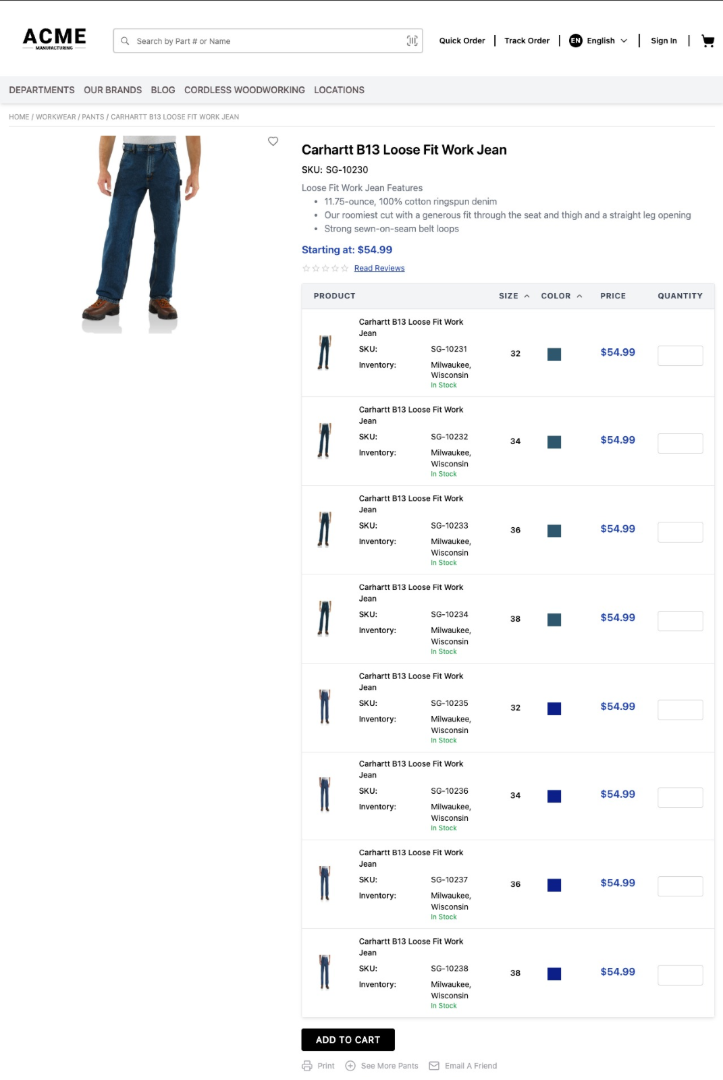
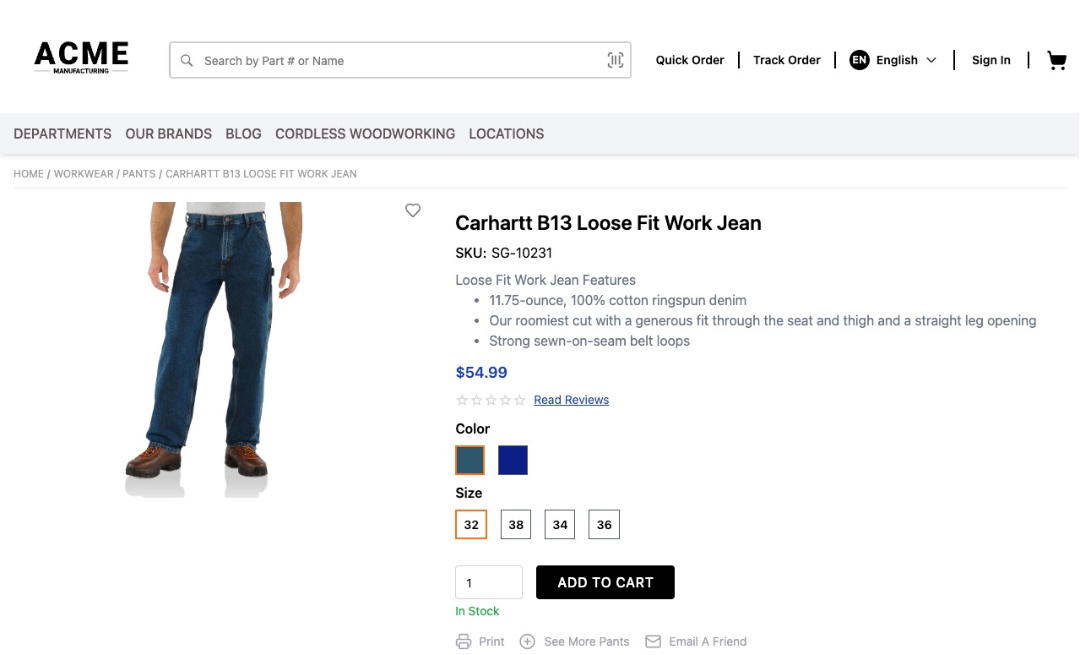
Display Variants on Grid
This setting controls the display and ordering experience for configurable product variants only and is hidden for the other product types.
When enabled:
- Buyers can order variants in bulk quantities for configurable products.
- Product variants are displayed in a grid format.
When disabled:
- Standard configurable product selection behavior is used.
Typical Lead Time
Typical Lead Time is supported only for Simple Products.
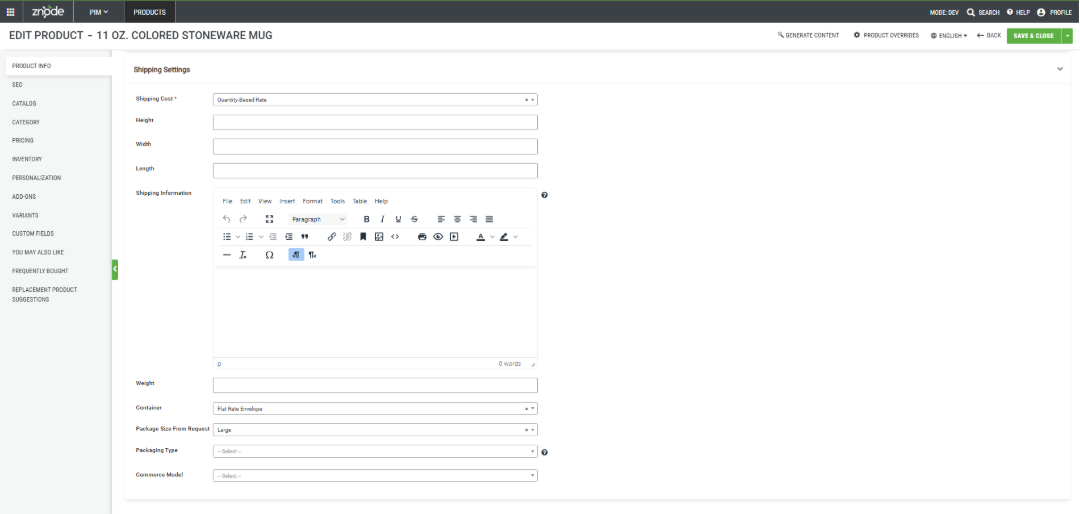
Configure Shipping Settings
Free Shipping
Set Free Shipping to Yes to apply free shipping to the product.
When enabled:
- Other shipping rules are ignored.
- When enabled, the product qualifies for free shipping regardless of the standard shipping calculations. Free shipping is applied only if Free Shipping is configured and associated with the Storefront.
Shipping Cost
The Shipping Cost field determines how shipping charges are calculated for the product. Depending on the selected shipping cost method, the shipping rate can be applied as a fixed amount or calculated based on the product's quantity or weight.
- Fixed Rate Per Item: Applies a predefined shipping charge to each unit of the product. For example, if the fixed rate is $5 and a Buyers purchases 3 units, the total shipping cost is $15.
- Flat Rate Per Item: Applies a single fixed shipping charge for the product, regardless of the quantity ordered. For example, if the flat rate is $10, the shipping cost remains $10 whether the buyer purchases 1 or 10 units.
- Quantity-Based Rate: Calculates shipping charges based on the quantity of items in the order. The applicable shipping rate is determined by the quantity ranges configured in the shipping method.
- Weight-Based Rate: Calculates shipping charges based on the total weight of the product or order. The applicable shipping rate is determined by the weight ranges configured in the shipping method.
- If no weight is specified for the product, the shipping cost is calculated as 0 for weight-based shipping methods.
Note: The available shipping cost methods depend on the shipping methods configured in the application. Ensure that the corresponding shipping methods and rate rules are configured before selecting a shipping cost method for the product.
Weight
Enter the product weight used for shipping calculations.
Leave blank if not applicable.
Height
Enter the product height used for shipping calculations.
Leave blank if not applicable.
Width
Enter the product width used for shipping calculations.
Leave blank if not applicable.
Length
Enter the product length used for shipping calculations.
Leave blank if not applicable.
Shipping Information
Enter additional shipping notes or instructions for administrators and buyers.
Behavior of Published Products and Catalogs
- When a category is associated with a product, the product automatically inherits all catalog associations linked to that category.
- If the associated category belongs to multiple catalogs, the product is automatically associated with all of those catalogs.
- Publishing the product updates the product across all associated catalogs simultaneously.
- For example, if a product is associated with categories that belong to five catalogs and the product is published, the product becomes available in all five catalogs.
- Any updates to Product and Category data are only visible in published catalogs.
- When a category association is removed, the related catalog associations derived from that category are also removed after the product or affected catalog is published.
Recommendation
To ensure that category and catalog associations are synchronized across all linked catalogs, Znode recommends publishing the product after making category association changes. Publishing the product updates all associated catalogs at once and helps maintain consistent product availability throughout the catalog structure.
Create a Read-Only Static Value Field
Administrators can create fields that display information but cannot be edited by users.
This is useful when information originates from an external system such as an ERP and should only be maintained in that source system.
Steps
- Create a new attribute.
- Set the attribute data type to Label.
- Save the attribute.
- Associate the attribute with the appropriate entity.
The value will be displayed as read-only information.
Supported Entities
The Label data type can be used with:
- Product attributes
- Media attributes
- Category attributes
- Global attributes
Validation and Expected Results
After publishing a product:
- Enabled products appear on the Storefront.
- Product descriptions are displayed on product and listing pages.
- Product images and videos are displayed on the Product Details Page.
- Tags become searchable when properly configured within search profiles.
- Shipping calculations use the configured dimensions and weight.
- Variant display follows the configured product settings.
Important Notes and Limitations
- Product type cannot be changed after initial product creation.
- SKU values cannot be modified after the product is saved.
- Obsolete products cannot be purchased by buyers.
- Products must be published before they are visible on the Storefront.
- Products hidden from search can still be accessed through direct URLs.
- Weight, Height, Width, and Length must be entered as whole numbers when using FedEx shipping integrations.
- Typical Lead Time is supported only for Simple Products.
- Video content is referenced through URLs and is not hosted within Znode.
Best Practices
- Use descriptive product names and detailed long descriptions.
- Keep short descriptions concise and buyer-focused.
- Apply meaningful tags to improve search relevance.
- Upload high-quality primary and gallery images.
- Verify inventory and shipping configurations before publishing.
- Publish search profiles after modifying searchable attributes such as Tags.