
Overview
Did You Mean (DYM) helps buyers quickly recover from misspelled or incorrect search queries by presenting relevant alternative suggestions when no results are found. It enhances the Storefront search experience with spelling corrections powered by Elasticsearch suggesters.
Example:
If a customer searches for “diwalt” and no results are found, the Storefront displays:
Did you mean: dewalt?
Selecting a suggestion automatically re-executes the search using the corrected term, allowing buyers to access relevant products quickly and reducing search abandonment.
Prerequisites
- Access to the Admin Console
- Permissions to manage Site Search and PIM Index configurations
- A configured Search Profile
- Attributes enabled with Use In Search = Yes
Configure Did You Mean (DYM)
Administrators enable and configure the DYM feature at the PIM Index level.
Steps
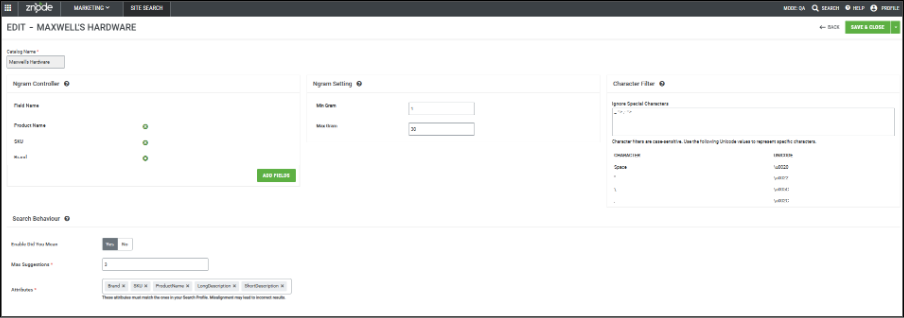
- Navigate to Marketing > Site Search > Manage PIM Indexes in the Admin Console.
- Select the required PIM Index.
- Open PIM Index Settings.
- Locate the Search Behavior section.
- Enable the Did You Mean option.
- Enter the value for Maximum Suggestions (up to 5).
- Select the DYM Attributes used to generate suggestions:
- Product Name
- SKU
- Brand
- Ensure each selected attribute is set to Use In Search = Yes.
- Save the configuration.
Expected Outcome
- DYM functionality is enabled for the selected catalog
- Suggestion data is prepared during indexing
Required Action: Recreate the PIM Index
The DYM feature depends on indexed data. Any configuration changes require a full index rebuild.
Steps
- Navigate to Marketing > Site Search > Manage PIM Indexes.
- Select the configured PIM Index.
- Initiate a full index republish (recreation).
Expected Outcome
- Suggestion data is generated successfully during indexing
- Updated DYM configuration is applied to the Storefront
Configuration Details
Enable Did You Mean
Enables or disables DYM at the catalog level.
Default value: Disabled
Maximum Suggestions
Defines the number of suggestions displayed to buyers.
Maximum supported value: 5
Suggestions are ranked by relevance.
DYM Attributes
Defines which attributes contribute to suggestion generation:
- Product Name
- SKU
- Brand
Only attributes configured as searchable (Use In Search = Yes) are eligible.
Storefront Experience
The “Did you mean:” section appears only when:
- DYM is enabled
- The search returns zero results
- Valid suggestions are available
Suggestions are displayed as clickable links.
When a suggestion is selected:
- A new search is executed
- Relevant results are displayed
- The DYM section is not shown again for that search
Performance Optimisation
- Frequently used suggestions are cached to improve response time
- Cache refresh occurs when:
- The index is recreated
- DYM configuration changes
- Initial searches may take slightly longer until caching is established
Configuration Dependencies
Search Profile Alignment
DYM attributes must align with attributes configured in the Search Profile.
Misalignment may result in:
- Incomplete suggestions
- Reduced accuracy
Index Dependency
DYM data is generated during indexing.
Suggestions are not dynamically generated at query time.
System Impact
The DYM feature introduces minor changes to indexing and search processing.
Based on testing with approximately 11,000 products:
- Index size increases by ~3%
- Publish time increases slightly (~1 minute)
- Elasticsearch CPU utilisation increases during indexing
- Memory impact remains negligible
Buyers may experience slightly slower response times during initial searches until caching is established.
Actual impact may vary depending on:
- Catalog size
- Number of configured DYM attributes
Compatibility with Existing Search Features
The DYM feature does not impact existing search capabilities, including:
- Typeahead Search
- TABLE OF CONTENTS No headings available. Use Paragraph Format to add one.