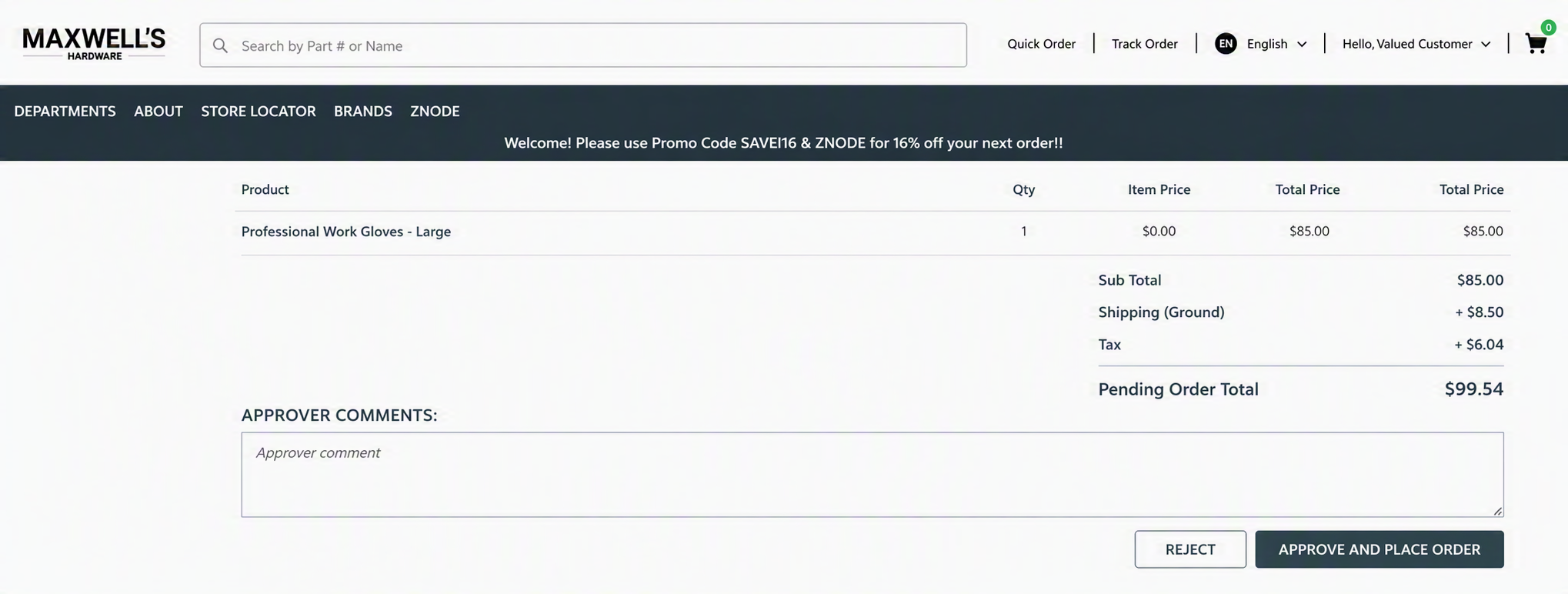
The Pending Order Details page provides a comprehensive view of an order that is currently awaiting approval. Approvers can review order information, customer details, shipping and billing addresses, product details, and order totals before making an approval decision.
Accessing Pending Order Details
- Navigate to My Account > Pending Orders.
- Locate the order you want to review.
- Click the Order Number link or the View icon in the Actions column.
The selected order opens on the Pending Order Details page.
Information Available on the Pending Order Details Page
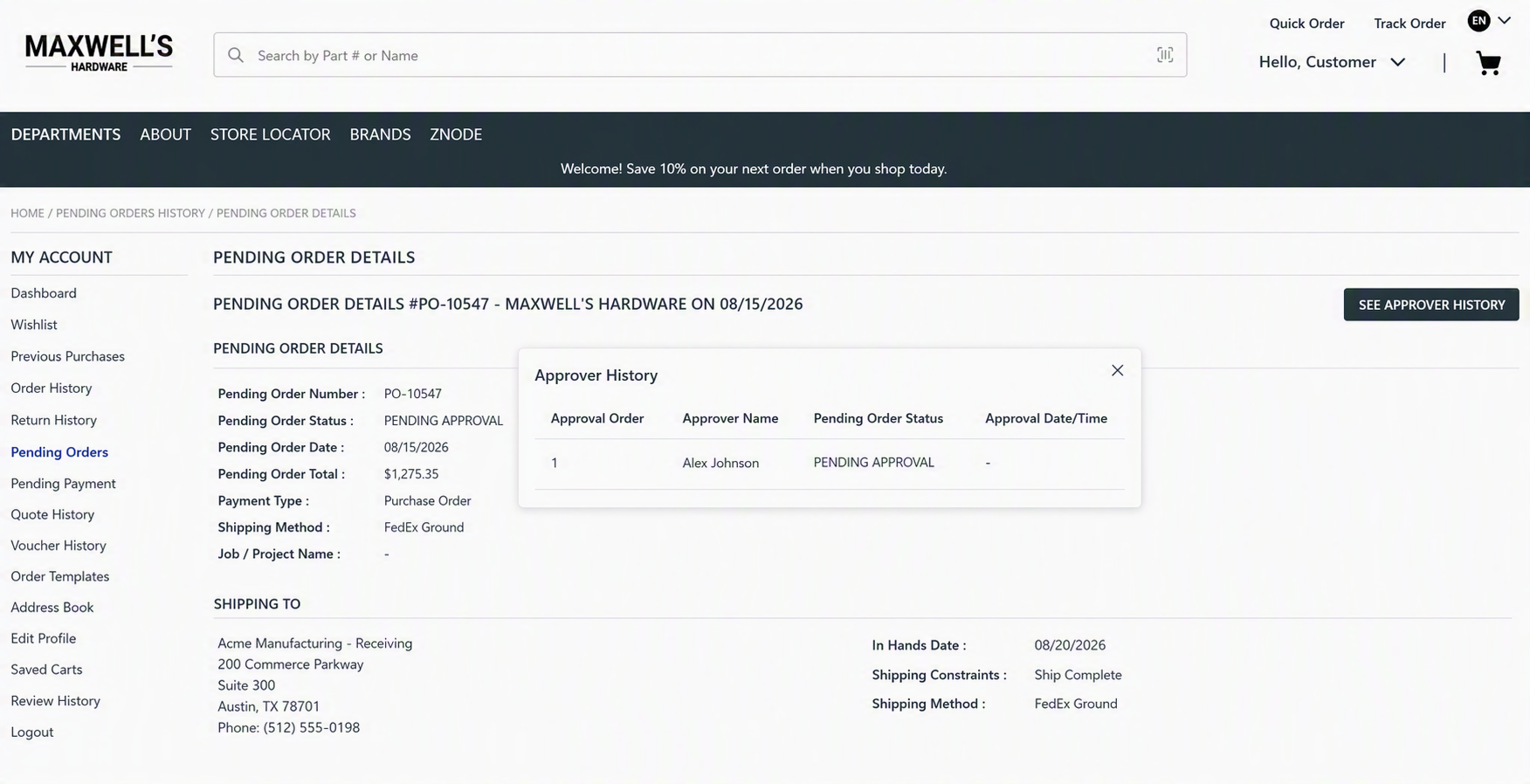
Pending Order Information
The following details are displayed for the pending order:
- Pending Order Number
- Pending Order Status
- Pending Order Date
- Pending Order Total
- Payment Type
- Shipping Method
- Job/Project Name (if applicable)
Billing Address
View the billing information associated with the order, including:
- Customer Name
- Company Information
- Billing Address
- Contact Number
Shipping Address
Review the shipping destination details, including:
- Recipient Name
- Shipping Address
- Contact Number
Additional shipping information may include:
- In-HandsDate
- Shipping Constraints
- Shipping Method
Products in Pending Order
The Products in Pending Order section displays all items included in the order, along with:
- Item Number
- Product Description
- Quantity
- Shipping Cost
- Item Price
- Total Price
Order Summary
The order summary provides a breakdown of the overall order cost, including:
- Subtotal
- Shipping Charges
- Tax
- Pending Order Total
View Approval History
Use the See Approver History button to view the approval workflow history for the order, including previous approval actions and status updates.
Approver Workflow
Approvers assigned to an order approval workflow can review and act on pending orders directly from the Storefront. Approval assignment can be configured through either single-level or multi-level approval management.Approval Assignment Configuration
Single-Level Approval
- Navigate to Admin Console > Stores.
- Edit the required store.
- Set Enable Approval Management toYes.
- Assign the approver for the store.
Multi-Level Approval
- Navigate to Admin Console > User > Manage User.
- Edit the required user.
- Open the Approval Management section.
- Configure the approval hierarchy and assign approvers for each approval level.
Use Case: Review and Process Pending Orders
Purpose
Allows assigned approvers to review pending orders, view approval history and comments, and approve or reject orders directly from the Storefront.Steps
- Sign into the Storefront using an account assigned as an approver.
- Navigate to My Account ---> Pending Orders.
- Locate the pending order requiring approval.
- Select Manage Order.
- Review order details, including products, pricing, shipping information, and approval history.
- Review the Approver Comments History section to view comments entered by previous approvers.
- Enter comments, if required.
- Select Approve or Reject.
Expected Result
- The approval action is recorded against the order.
- Comments entered during the approval or rejection process are saved to the Approver Comments History.
- Subsequent approver scan view previous comments in multi-level approval workflows.
- Administrators can view the comments from order management screens in the Admin Console.
- The comments become available in supported email notifications when the
#ApproverComments#macroisconfigured.Approver Comments History
The Approver Comments History section is available on the Pending Order Details page and displays all approval-related comments associated with the order.The history includes:
Field Description Date Date and time the approval action occurred. Approver Name Name of the approver who entered the comment. Comments Approval notes, rejection reasons, or order instructions. This provides a complete audit trail of approval decisions and communication throughout the order approval lifecycle.Notes
- Approver comments are automatically recorded when an order is approved or rejected.
- Both single-level and multi-level approval workflows are supported.
- In multi-level approval workflows, approvers can view comments entered by previous approvers before taking action.
- Commenthistoryremainsavailableaftertheorderisconvertedtoasalesorder.
- Comment visibility is consistent across the Storefront, Admin Console, approval workflow, and supported email notifications.
Single-Level Approval WorkflowApproval Actions Based on Approval Workflow Configuration
The actions available to an approver on the Pending Order Details page depend on how the approval workflow is configured.When Approval Management is enabled for an user, and a single approver is assigned, the approver can access the pending order from the Storefront and perform the final approval action.Navigation
- Sign into the Storefront as the assigned approver.
- Navigate to My Account > Pending Orders.
- Select Manage Order for the pending order.
Available Actions
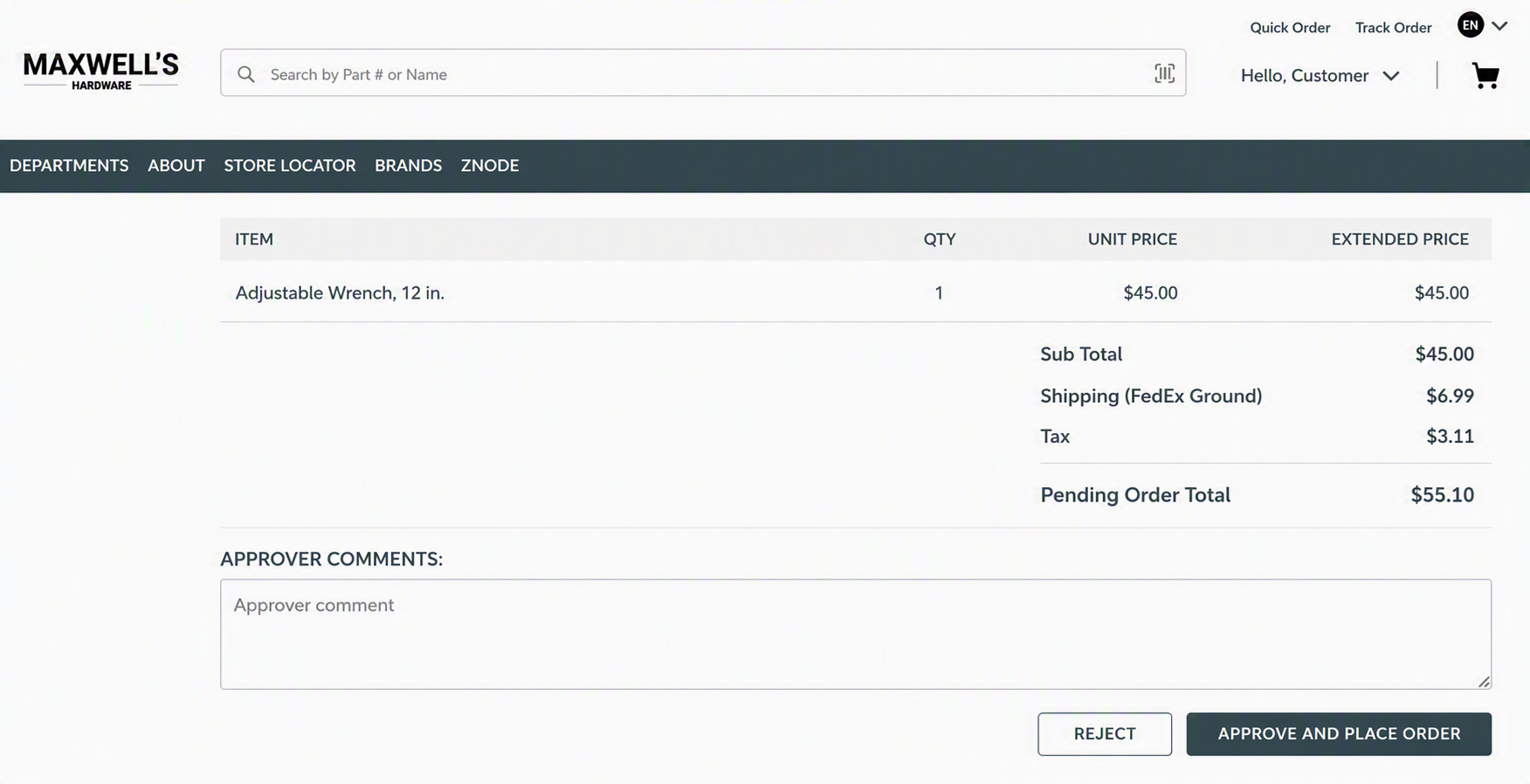
The assigned approver can:
- Review order details.
- View the Approver Comments History section.
- Enter approval or rejection comments.
- Select Approve and Place Order.
- Select Reject.
Result
- Approve and Place Order approves the pending order and converts it into an order.
- Reject rejects the pending order.
- Any comments entered are recorded in the Approver Comments History and become part of the order
Multi-Level Approval Workflow
When multiple approvers are configured through Admin Console > User > Manage User > Approval Management, approval actions vary depending on the approver's level in the workflow.
First-Level Approver
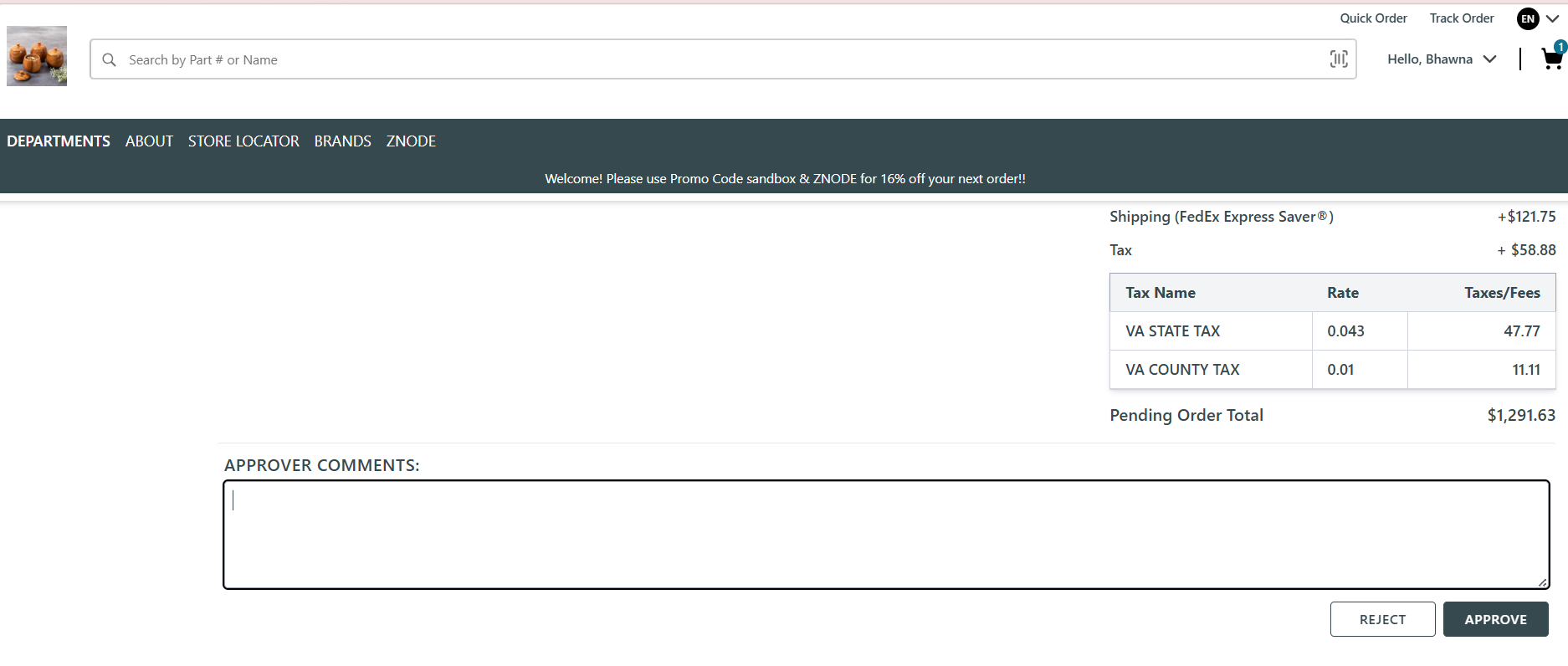
- The first approver in the approval hierarchy can review the pending order and submit an approval decision for the next approval level.
- Available Actions
- View order details.
- Review comments entered by previous approvers, if applicable.
- Enter approval or rejection comments.
- Select Approve.
- Select Reject.
- Result
- Approve routes the pending order to the next approver in the approval hierarchy.
- Reject rejects the pending order.
- Comments are added to the Approver Comments History.
 Final Approver
- The final approver is responsible for completing the approval process and placing the order.
- Available Actions
- View order details.
- Review comments entered by previous approvers.
- Enter approval or rejection comments.
- Select Approve and Place Order.
- Select Reject.
- Result
- Approve and Place Ordercompletestheapprovalworkflowandconvertsthependingorderintoanorder.
- Reject rejects the pending order.
- Comments are stored in the Approver Comments History and remain visible throughout the order lifecycle.