
Overview
The Znode Commerce Connector provides native (out-of-the-box) data exchanges for integrating with Microsoft Dynamics 365 Business Central. These exchanges are available through the Add From Library option and allow data to be synchronized between Business Central and Znode without building custom integrations.
Native exchanges include preconfigured source, destination, and YAML mappings, allowing users to quickly configure the connection and begin importing data into Znode.
Prerequisites
Before configuring any Business Central data exchange, ensure the following information is available:
| Requirement | Description |
|---|---|
| Environment URL | Business Central environment URL |
| Tenant ID | Azure Active Directory Tenant ID |
| Client ID | Azure App Registration Client ID |
| Client Secret | Azure App Registration Client Secret |
| Company ID | Business Central Company ID |
| Environment Name | Business Central Environment Name (Production, Sandbox, etc.) |
Available Data Exchanges
The following exchanges retrieve data from Business Central and import it into Znode.
| Data Exchange | Description |
|---|---|
| Import Product | Imports product information from Business Central into Znode. |
| Import User | Imports customer and user information from Business Central into Znode. |
| Import Price | Imports pricing information from Business Central into Znode. |
| Import Inventory | Imports inventory information from Business Central into Znode. |
| Import Category | Imports category information from Business Central into Znode. |
Adding a Business Central Data Exchange
- Navigate to Commerce Connector > Manage Commerce Connector.
- Click Add From Library.
- Select the required Business Central data exchange.
- Configure the connection details:
- Environment URL
- Tenant ID
- Client ID
- Client Secret
- Company ID
- Environment Name
- Save the configuration.
- Review the mapping configuration.
- Run the exchange.
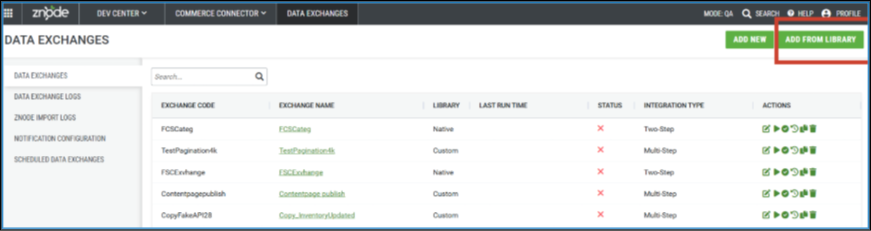
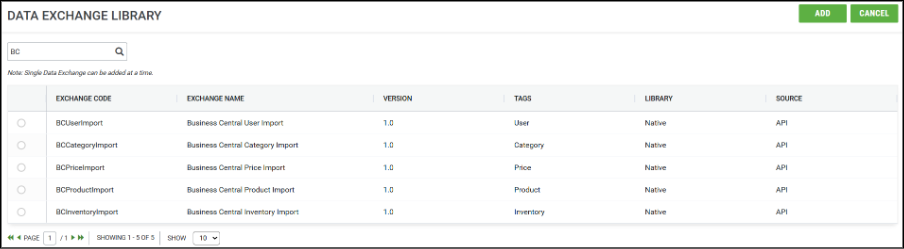
All native Business Central exchanges include preconfigured YAML mappings that can be modified to meet business requirements.
Understanding Data Exchange Components
Source Configuration
Defines how the exchange connects to Microsoft Dynamics 365 Business Central and retrieves data.
Destination Configuration
Defines how the retrieved data is processed and imported into Znode.
Mapping Configuration
Defines how fields from Business Central are mapped to their corresponding fields in Znode. Proper mappings ensure that data is imported accurately and populated in the correct destination fields.
Data Exchange Use Cases
Product Import
Purpose
This data exchange imports product information from Business Central into Znode, allowing organizations to synchronize their product catalog between the two systems.
Configuration Overview
- Source Configuration: Retrieves product data from Business Central.
- Destination Configuration: Imports product data into Znode.
- Mapping Configuration: Maps Business Central product fields to the corresponding Znode product fields.
User Import
Purpose
This data exchange imports customer and user information from Business Central into Znode, ensuring customer records remain synchronized across systems.
Configuration Overview
- Source Configuration: Retrieves customer and user data from Business Central.
- Destination Configuration: Imports customer and user data into Znode.
- Mapping Configuration: Maps Business Central customer fields to the corresponding Znode account fields.
Price Import
Purpose
This data exchange imports pricing information from Business Central into Znode to keep product pricing synchronized across systems.
Configuration Overview
- Source Configuration: Retrieves pricing data from Business Central.
- Destination Configuration: Imports pricing data into Znode.
- Mapping Configuration: Maps Business Central pricing fields to the corresponding Znode pricing fields.
Inventory Import
Purpose
This data exchange imports inventory information from Business Central into Znode, helping maintain accurate product stock availability.
Configuration Overview
- Source Configuration: Retrieves inventory data from Business Central.
- Destination Configuration: Imports inventory data into Znode.
- Mapping Configuration: Maps Business Central inventory fields to the corresponding Znode inventory fields.
Category Import
Purpose
This data exchange imports category information from Business Central into Znode, ensuring category structures remain aligned between systems.
Configuration Overview
- Source Configuration: Retrieves category data from Business Central.
- Destination Configuration: Imports category data into Znode.
- Mapping Configuration: Maps Business Central category fields to the corresponding Znode category fields.
Monitoring Exchange Execution
Data Exchange Logs
Data Exchange Logs should be reviewed for every exchange execution.
The logs indicate whether the exchange completed successfully or failed.
| Status | Description |
|---|---|
| Success | Data was successfully retrieved from the source system and processed by the destination. |
| Failed | An error occurred during connection, configuration, mapping, or processing. |
If an exchange fails, review the log details and resolve the reported issue before running the exchange again.
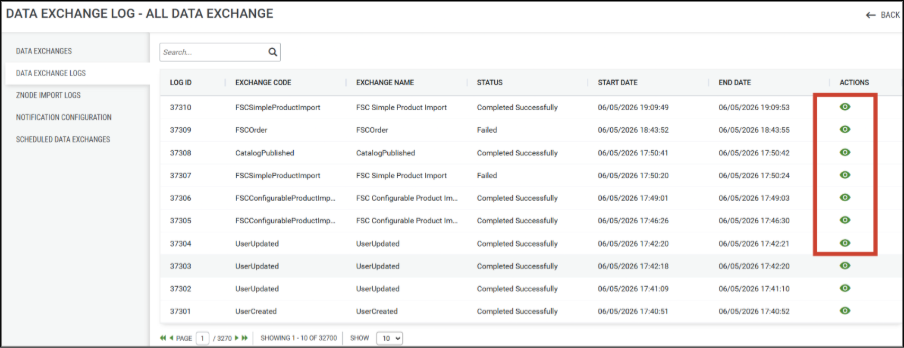
Znode Import Logs
Znode Import Logs are applicable only to exchanges that use the Znode Import process.
These logs indicate whether the imported records were successfully processed.
| Status | Description |
|---|---|
| Success | Records were imported successfully into Znode. |
| Failed | One or more records failed validation or import processing. |
To view detailed errors:
- Open the Import Log.
- Click the View Details (Eye) icon.
- Review the error information.
- Correct the data or mappings as needed.
- Run the exchange again.
Mapping Configuration
The Mapping Configuration defines how data retrieved from Business Central is mapped to fields in Znode.
Mapping Structure
| Section | Description |
|---|---|
| Left Column | Destination field in Znode |
| Right Column | Source field in Business Central |
Purpose
- Match source fields to destination fields.
- Transform data between systems.
- Ensure accurate synchronization.
- Support data validation during import.
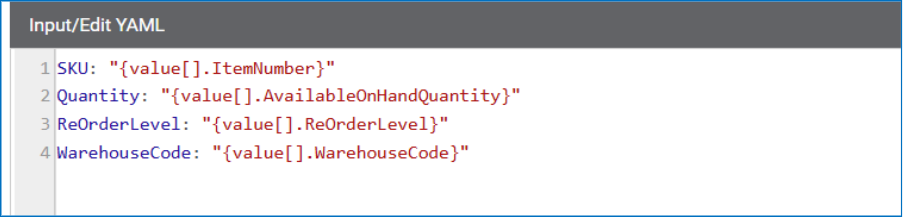
The following example shows how fields from Business Central can be mapped to corresponding fields in Znode during an Inventory Import.
Important Considerations
- Ensure all required Znode fields are mapped.
- Verify that source and destination data types are compatible.
- Review mappings whenever source or destination structures change.
- Validate mappings before running production imports.
Important Note on Preconfigured Mappings
All native exchanges include preconfigured YAML mappings designed to support common implementation scenarios.
However, some Znode attributes may not be mapped by default in the initial release.
If your implementation requires additional attributes or custom fields, update the YAML mapping configuration before running the exchange.
Known Limitations
- Certain Znode fields may not have default YAML mappings in the initial release.
- Additional custom attributes may require manual mapping configuration.
- Mapping requirements may vary depending on your Business Central implementation and data model.
Troubleshooting
| Issue | Resolution |
|---|---|
| Authentication Failure | Verify the Tenant ID, Client ID, Client Secret, Environment Name, and Company ID configuration. |
| Empty Import Results | Review the Data Exchange Logs and verify that data exists in Business Central. |
| Import Failures | Review the Znode Import Logs and correct any validation or mapping errors. |
| Missing Fields After Import | Verify that the required fields are mapped in the YAML configuration. |
| API Permission Issues | Ensure the Business Central user and Azure App Registration have the required API permissions. |
| Mapping Errors | Validate source-to-destination mappings and ensure data types are compatible. |
If additional fields need to be mapped, download a sample YAML file from an existing data exchange and use it as a reference when configuring custom mappings.