
TABLE OF CONTENTS
- Cart Data Purge
- Overview
- Business Use Case
- Prerequisites
- What Data Is Purged
- Cart Inactivity Criteria
- Configure Cart Data Purge Settings
- Logging and Audit Trail
- Performance and Scalability
- Best Practices
- Limitations and Notes
- Understanding Cron Expressions
- Cron Expression Format
- Commonly Used Cron Expressions
- How to Read a Cron Expression
Cart Data Purge
Overview
The Cart Data Purge feature enables administrators to automatically remove abandoned shopping carts after a defined period of inactivity. By routinely clearing unused carts, organizations can reduce database storage, improve system performance, and maintain overall platform efficiency—while ensuring that active shoppers and completed transactions remain unaffected.
All configuration is managed through the Admin Console using global settings, and the purge process runs on a scheduled basis.
Business Use Case
Organizations often accumulate a large number of shopping carts that are never converted into orders. Over time, these unused carts can:
- Increase database storage consumption
- Slow system queries and reporting processes
- Create unnecessary operational overhead
The Cart Data Purge feature addresses this by automatically deleting inactive carts after a configurable period, helping maintain a clean and high‑performing system.
Prerequisites
Before configuring this feature, ensure that:
- You have administrative access to the Admin Console
- You have permission to manage Global Settings
- The scheduler service is enabled in your environment
What Data Is Purged
The system removes only carts that meet the defined inactivity criteria. The purge process includes:
- Cart metadata
- Cart line items
- Associated session data (if applicable)
Important Notes
- Active carts and in‑progress transactions are not affected
- Carts belonging to registered users that are still active remain unchanged
- Referential integrity is preserved to prevent orphan records
Cart Inactivity Criteria
A cart is eligible for deletion when:
- It has not been updated within the configured inactivity period
- It has not been converted into an order
Configure Cart Data Purge Settings
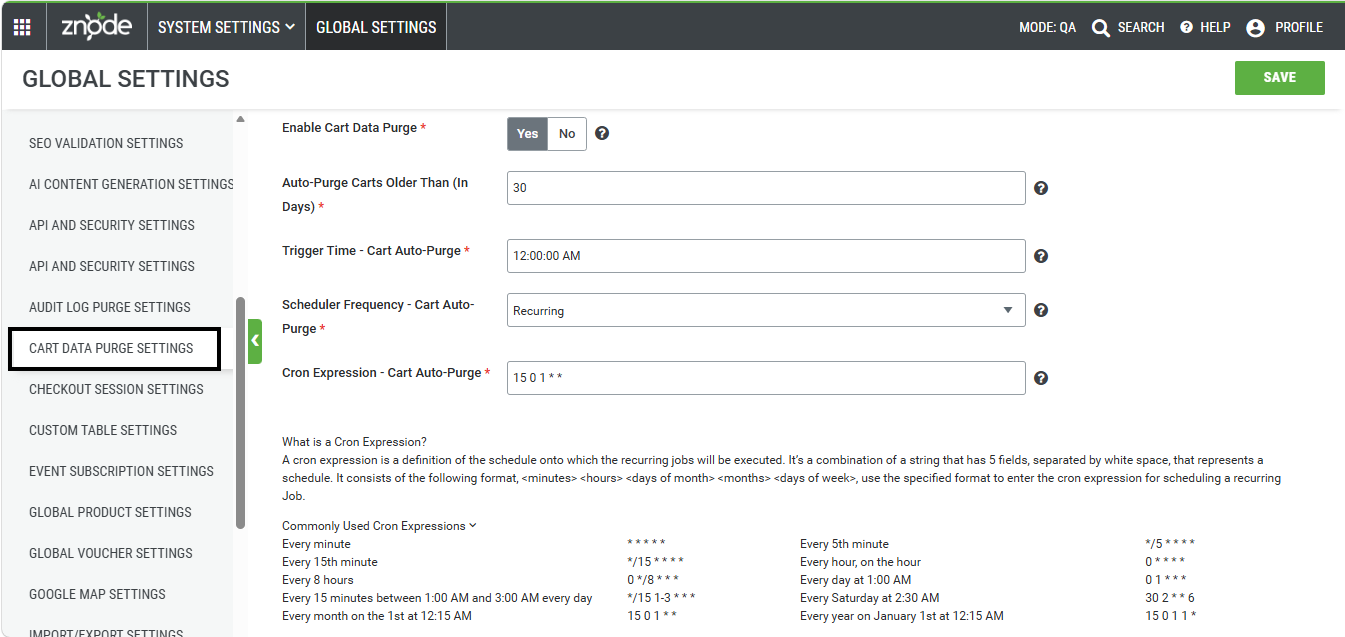
Follow these steps to enable and configure the Cart Data Purge feature.
Step 1: Navigate to Cart Data Purge Settings
- Log in to the Admin Console.
- Go to System Settings.
- Select Global Settings.
- In the left navigation, click Cart Data Purge Settings.
Outcome: The Cart Data Purge configuration page is displayed.
Step 2: Enable Cart Data Purge
- Locate the Enable Cart Data Purge setting.
- Select Yes to enable the feature.
Outcome: The system activates scheduled deletion of abandoned cart data.
Step 3: Set Cart Inactivity Period
- In Auto‑Purge Carts Older Than (In Days), enter the number of inactivity days.
- Minimum: 1
- Maximum: 999
- Default: 30
Outcome: Only carts inactive for longer than the specified period are eligible for deletion.
Step 4: Configure Trigger Time
- In Trigger Time – Cart Auto‑Purge, enter the time the purge should run.
- Default: 12:00:00 AM
Outcome: The system executes the purge process at the specified time each day.
Step 5: Define Scheduler Frequency
- In Scheduler Frequency – Cart Auto‑Purge, select the desired frequency.
- Default: Recurring
Outcome: The purge job runs automatically according to the selected schedule.
Step 6: Configure Cron Expression
- In Cron Expression – Cart Auto‑Purge, enter a valid cron expression.
- Default:
0 3 * * *
- Default:
Outcome: The system schedules the purge process based on the defined cron pattern.
Step 7: Save Settings
- Click Save.
Outcome: The configuration is saved, and the Cart Data Purge process is activated.
Logging and Audit Trail
Each purge operation is automatically logged. The log details include:
- Cart ID
- Purge timestamp
- Number of items removed
Administrators can access these records in All Logs for auditing and troubleshooting.
Performance and Scalability
- The purge process is designed to minimize impact on live storefront activity
- Deletions are performed in controlled batches to avoid database locks or deadlocks
- The system is scalable and supports growing cart volumes without performance degradation
Best Practices
- Schedule the purge during off‑peak hours to reduce system load
- Avoid setting very short inactivity periods unless required by business rules
- Regularly review logs to verify expected behavior
- Validate cron expressions carefully to prevent misconfigured schedules
Limitations and Notes
- The purge process does not expose sensitive customer or transaction data
- Carts associated with completed orders are never deleted
- If Enable Cart Data Purge is set to No, the purge will not run regardless of other configurations
Understanding Cron Expressions
A cron expression defines when a recurring job should run. In Znode, administrators can use a cron expression to schedule automated jobs such as Cart Auto‑Purge.
A standard cron expression contains five fields separated by spaces. Each field represents a specific part of the schedule: minute, hour, day of month, month, and day of week.
<minutes> <hours> <day of month> <month> <day of week>
Example:
0 3 * * *
This expression runs the job every day at 3:00 AM.
Cron Expression Format
| Field | Description | Accepted Values |
|---|---|---|
| Minutes | The minute when the job runs | 0–59 |
| Hours | The hour when the job runs, using a 24‑hour clock | 0–23 |
| Day of Month | The day of the month when the job runs | 1–31 |
| Month | The month when the job runs | 1–12 |
| Day of Week | The day of the week when the job runs | 0–7, where 0 or 7 represents Sunday |
Cron expressions also support common scheduling characters such as * for every value, / for intervals, - for ranges, and , for lists.
Commonly Used Cron Expressions
Use the following examples when configuring the Cron Expression – Cart Auto‑Purge setting.
| Schedule | Cron Expression |
|---|---|
| Every minute | * * * * * |
| Every 5 minutes | */5 * * * * |
| Every 15 minutes | */15 * * * * |
| Every hour, on the hour | 0 * * * * |
| Every 8 hours | 0 */8 * * * |
| Every day at 1:00 AM | 0 1 * * * |
| Every 15 minutes from 1:00 AM through 3:45 AM daily | */15 1-3 * * * |
| Every Saturday at 2:30 AM | 30 2 * * 6 |
| Every month on the 1st at 12:15 AM | 15 0 1 * * |
| Every year on January 1st at 12:15 AM | 15 0 1 1 * |
How to Read a Cron Expression
Use this example:
30 2 * * 6
This means:
30— Run at the 30th minute.2— Run during the 2:00 AM hour.*— Run on any day of the month.*— Run in any month.6— Run on Saturday.
Result: The job runs every Saturday at 2:30 AM.