
Manage SEO Validation Settings
TABLE OF CONTENTS
- Manage SEO Validation Settings
- Overview
- Key Behavior
- Where This Setting Applies
- Use Case 1: View SEO Validation Setting
- Use Case 2: Enable SEO Validation (Recommended Default Behavior)
- Use Case 3: Disable SEO Validation to Allow Custom URLs
- Use Case 4: Apply Configuration Across Modules
- Validation Rules (When Enabled)
- Important Notes
Overview
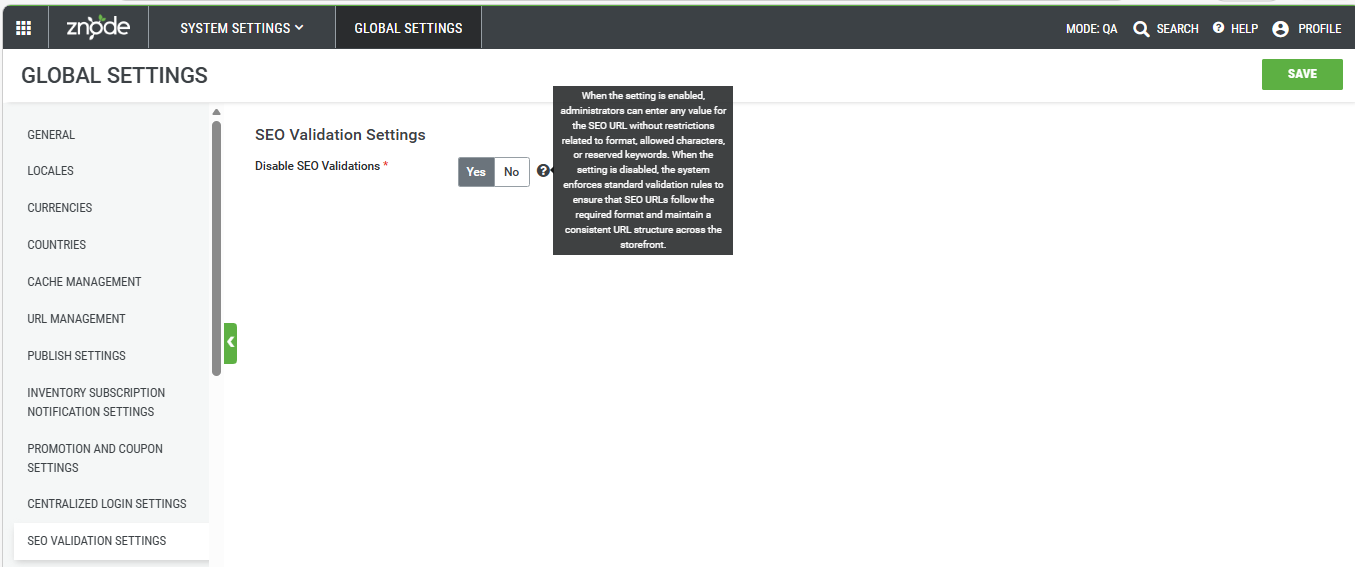
The Disable SEO Validations setting allows admin to control how strictly SEO‑friendly URLs are validated across the platform.
By default, Znode enforces structured SEO validation rules to ensure URLs are consistent, compliant, and optimized for search engines. However, certain business scenarios—such as marketing campaigns, legacy integrations, or custom URL strategies—may require greater flexibility.
This feature introduces a configurable setting that enables administrators to:
- Enforce standard SEO validation rules (default)
- Disable validation to allow custom or unrestricted SEO URLs
Important Note - Even if the Disable SEO Validation flag is set to true, the changes will only take effect after explicitly saving the configuration.
SEO Validation -
- SEO Path Rules
- The SEO path must not begin and end with a “/”.
- It cannot exactly match any reserved system keyword listed below.
- Reserved keywords:
content, product, blog, brand, account, cart, check-global-cache, checkout, compare-product, contactus, feedback, forgot-password, highlight, login, multi-factor-authentication, order, order-status, pending-order, punch-out, quick-order, quote, reset-password, return, search, signup, store-locator, validate-impersonation-session, validate-single-sign-in, write-review, maintenance, category.
Key Behavior
When SEO Validation is Enabled (Default)
- Only valid SEO-friendly characters are allowed
- Reserved system keywords cannot be used
- URL format must follow platform rules
- Invalid entries are rejected with errors
When SEO Validation is Disabled
- Any value can be entered for SEO URLs
- Reserved keywords and special formats are allowed
- The system does not validate or block invalid inputs
Where This Setting Applies
The configuration impacts SEO URL validation in the following areas:
- PIM → Product
- PIM --> Category
- CMS --> Content Pages
- SEO Setup → Product
- SEO Setup --> Category
- SEO Setup --> Content Pages
Use Case 1: View SEO Validation Setting
Steps
- Log in to the Admin Console
- Navigate to System Settings → Global Settings
- Locate the SEO Validation Settings section
- View the Disable SEO Validations attribute
Expected Result
- The setting is visible and shows the current value (Yes/No)
Use Case 2: Enable SEO Validation (Recommended Default Behavior)
Steps
- Navigate to System Settings → Global Settings
- Locate Disable SEO Validations
- Set the value to No
- Click Save
- Navigate to Product → SEO Settings
- Enter a value in the SEO Friendly Page Name field
- Click Save
Expected Result
- The system validates the entered value
- Invalid formats or reserved keywords trigger an error
- Only compliant SEO values are saved
Use Case 3: Disable SEO Validation to Allow Custom URLs
Steps
- Navigate to System Settings → Global Settings
- Set Disable SEO Validations to Yes
- Click Save
- Navigate to Product → SEO Settings
- Enter any value in the SEO Friendly Page Name field
- Click Save
Expected Result
- The system allows the value without validation
- No restrictions are applied to format or keywords
Use Case 4: Apply Configuration Across Modules
Steps
- Configure Disable SEO Validations (Yes or No)
- Navigate to:
- Product → SEO Settings
- SEO Setup → Product
- Update SEO-friendly URLs
- Save changes
Expected Result
- The system applies the configured validation behavior consistently across supported modules
Validation Rules (When Enabled)
When Disable SEO Validations = No, the system enforces:
- Maximum length: 1000 characters
- Allowed characters:
- Letters and numbers
- Special characters:
-,_,/,.
- Restrictions:
- Cannot start or end with
/ - Cannot match reserved keywords (e.g.,
product,cart,checkout,login, etc.)
- Cannot start or end with
Disclaimer
This enhancement is limited to enabling SEO URL creation from the Admin application. No changes are being made to the storefront behavior. Existing URLs will continue to function as they do today, and any URLs that were previously not working will remain unaffected.
Important Notes
Existing URLs Behavior
- Existing SEO URLs remain unchanged when the setting is toggled
- Validation is applied only during creation or updates
- Editing an existing URL will trigger validation based on the current setting
Recommendations and Guidelines
- Use enabled validation (default) for consistent, SEO-friendly URLs.
- Disable validation only for specific needs (e.g., campaigns or legacy URLs).
- Avoid reserved keywords and invalid formats, even when validation is disabled.
- Keep URLs simple, consistent, and meaningful.
- Verify URLs after changes to prevent routing or SEO issues.